Enroll/register participants - Article
Explore the different ways to enroll to Training Activities
There are multiple settings ways to enroll and get access to the training you have created - both manual, automatic and self-enrollment by participants. Also visit the concept of nested activities, which will also post-enrollment options to suit your processes by combining all these options.
- Manual enrollment from the activity.
- Import via excel sheet.
- Arbitrary through the Users list.
- Shared links and QR codes.
- Self-enrollment.
- Onboarding automation rules.
- Invitation and promotion flow (opt-in).
- API.
- Managers - enrolling on behalf of others.
Manual enrollment from the activity
From inside the activity you can enroll participants directly by creating a new user, register the user on the platform, and enroll the same user to a specific Training Activity in a single operation.
The most common use case is manually enrolling registered users to your training activities. It is super simple and the fastest way to manage single or few users.
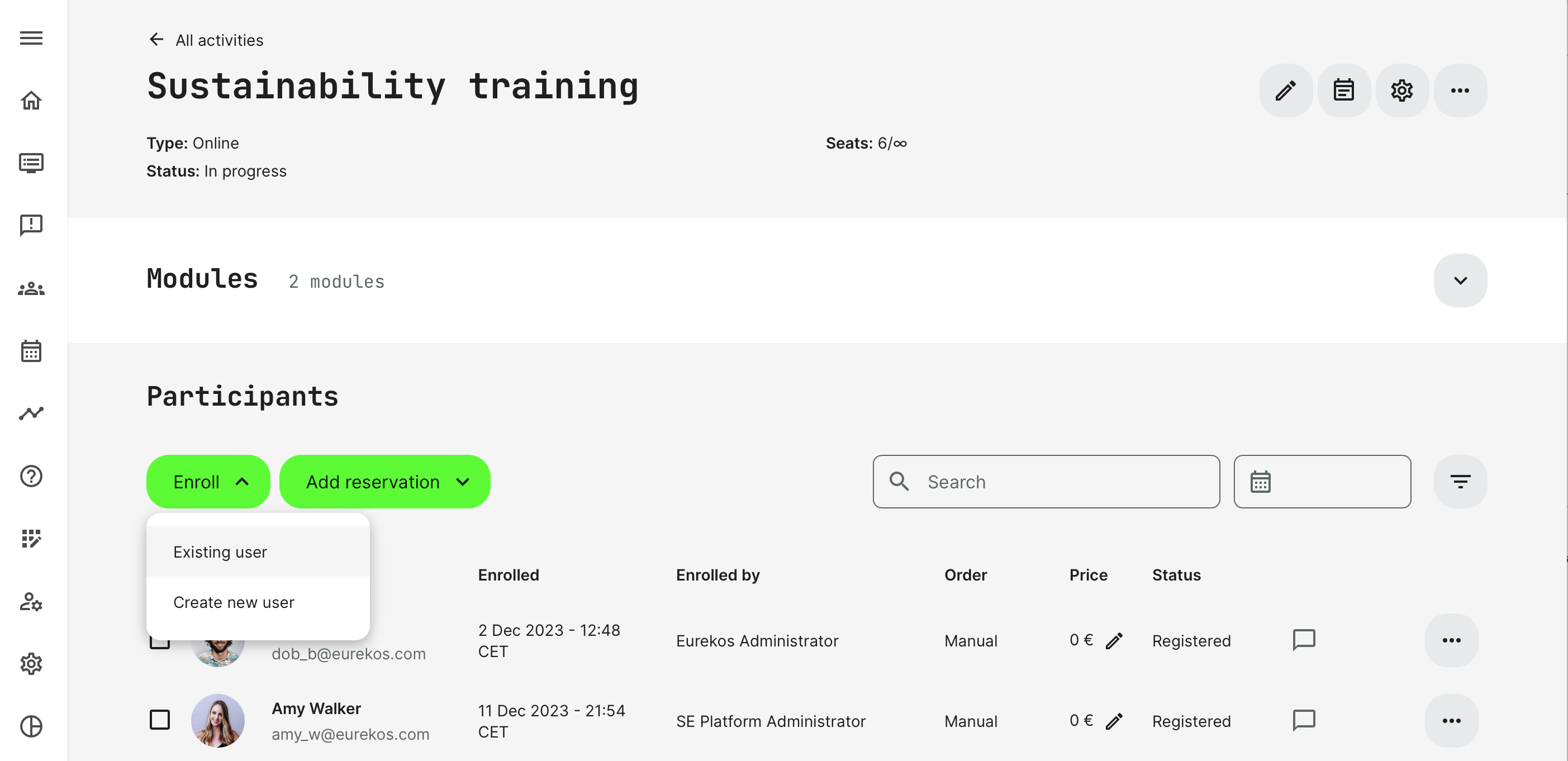
- You can add individual participants or several participants in bulk by applying filters and profile criteria through your training activity.
- Add participants by typing their name or email address as individuals or use the filter to add participants who match multiple profile criteria.
- The more information you have about each user of the platform, the more options the filter will present.
- This is a manual enrollment and it is, by default, a silent action. None of the participants will be notified unless you specifically choose to inform them. In that case a standard notification is sent to each participant.
- The participant will not have to pay through this type of enrollment, but any standard pricing and the ability to overrule this, will show on each participant.
- Any invoicing and other subsequent processes can be managed through the API or by exporting participant lists and address this as a separate operation.
- Once the user has been added, this is now a participant in your activity.
- You can see who enrolled the participant, if it was manual, as in this case, and other relevant information.
- Should you want to cancel or move the participant to another training activity the participant, this is also something you would want to do from the list of participants.
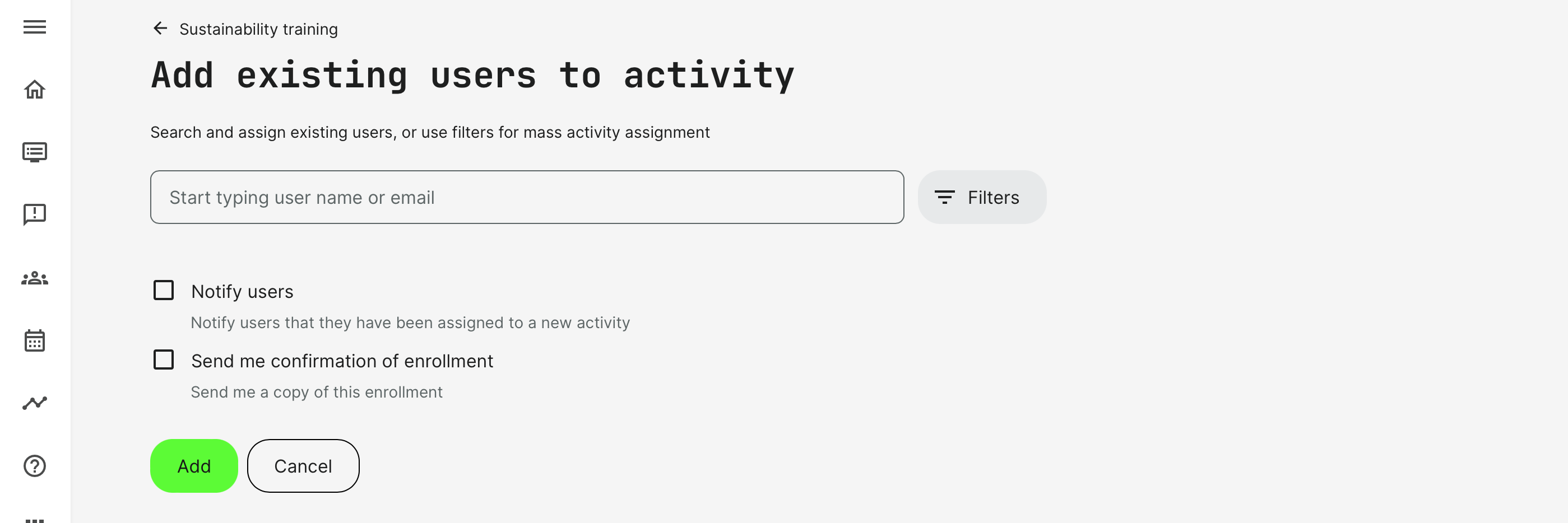
You can also add a new user directly from within the activity, which saves the additional operation of adding the user, upon creation.
When creating a new user, you can either choose to let the user create his own password or create one right away. Detailed descriptions on user creation is detailed in a related article.
- Let the user create his own password will send a standard email and ask the user to create a valid password. Once this has been performed, the user becomes a registered user and a participant on this Training Activity.
- If you create a password, you will have to inform the user of his password, yourself. This is a silent user creation and gives you the freedom to choose when and how this happens.
- Tip: this is a great way to create test users, as no emails are sent upon creation.
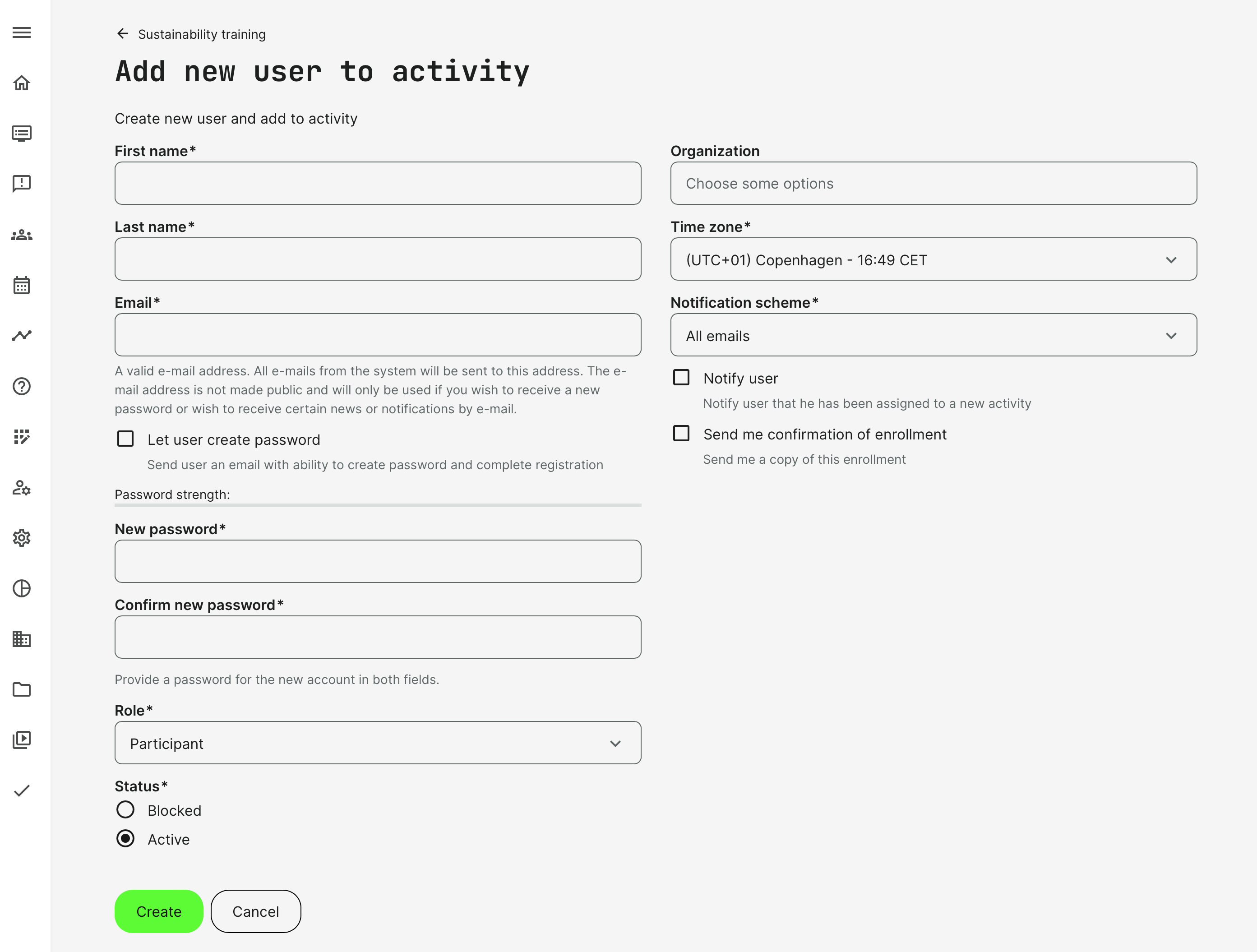
Reservations
Reservations are a subset of manual enrollment options. This is relevant for securing seats on virtual- or instructor led trainings with a limited number of participants. Options are diversified to support various use cases.
Reservations also mean that users don't get access to the trainings you provide, as they are not enrolled to them, just yet and there They are silently added for administrative purposes only, until their status changes from reserved.
- Existing User: save a place on the training activity for a specific User by adding his email.
- New User: create user/s from scratch by following the standard process with reserving a place on the training activity for this user.
- For Unknown User: reserve a certain number of seats that can be later taken by registered Users.
Import and enroll users via spreadsheet
Use the spreadsheet to import users in bulk, when you have a lot of users to create. This is described in details in a related article.
- Apart from importing new users to the platform, the excel sheet also allows user enrollment in bulk.
- Users can be enrolled to multiple Training Activities in one import operation and is a very efficient way to manage large groups of users, which could be delivered to you from a partner or client.
- Minimize your administration and is also useful to make updates to existing users in bulk.
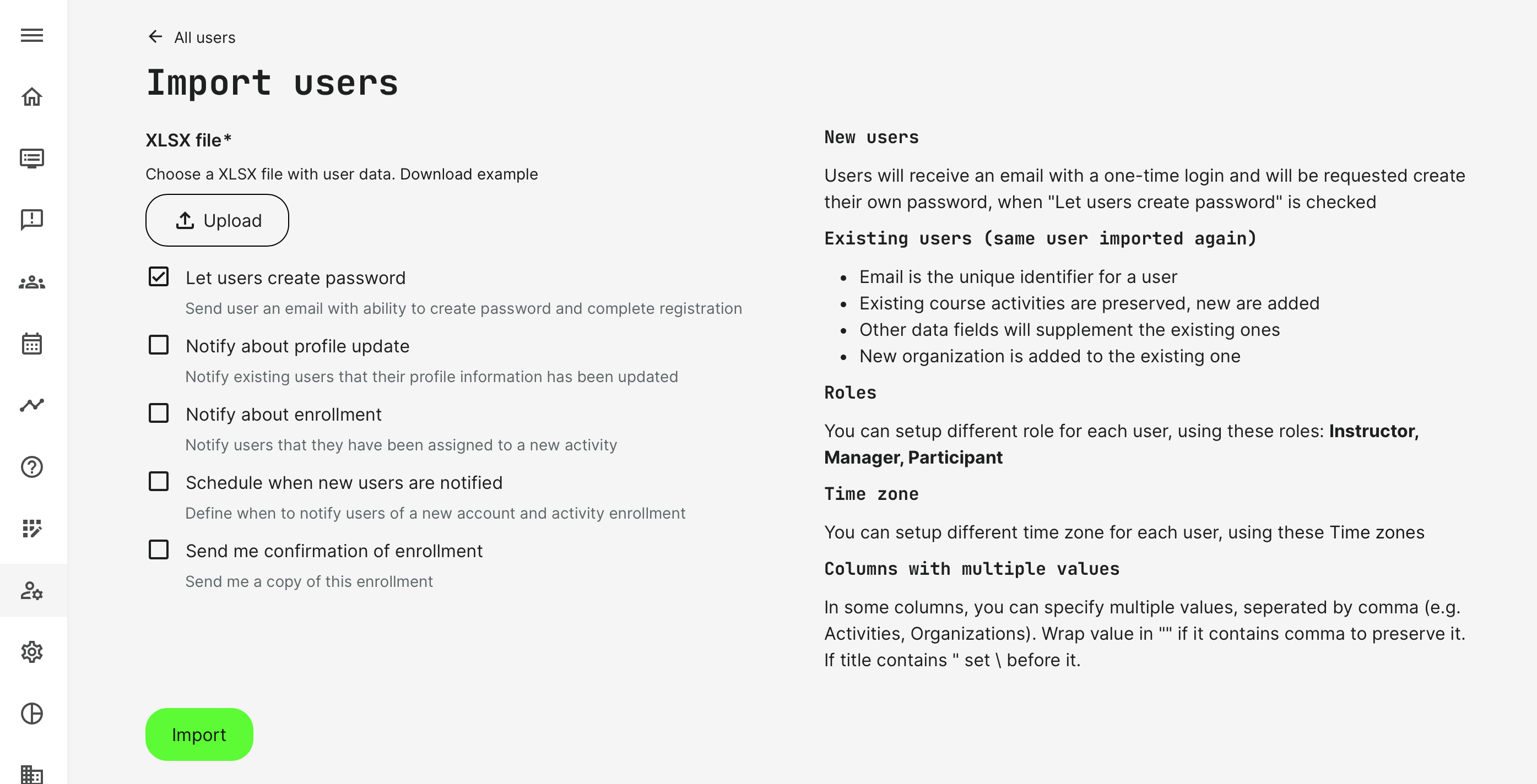
Make sure you download the example file. This is a spreadsheet created from your system configurations exacty at the moment of download.
- This file will match the user profile of your system configurations, including what is mandatory and what is not.
- Use it as it is and don't delete columns or change their order. Do not remove the headline.
- The import sheet will allow you to add the training acitivity title to enroll users in the appropriate training activities at the time of creation if you wish. This way you can minimize administration.
- Uploading the same person twice, will simply update profile information and add any additional Training Activity.

Arbitrary enrollment through the User list
Upon entering you will see a list of all the registered users, regardless of their relation to various courses and individual roles. They are default sorted by the date of registration with the latest being on top. Search and filters can be used find and show exactly who you need.
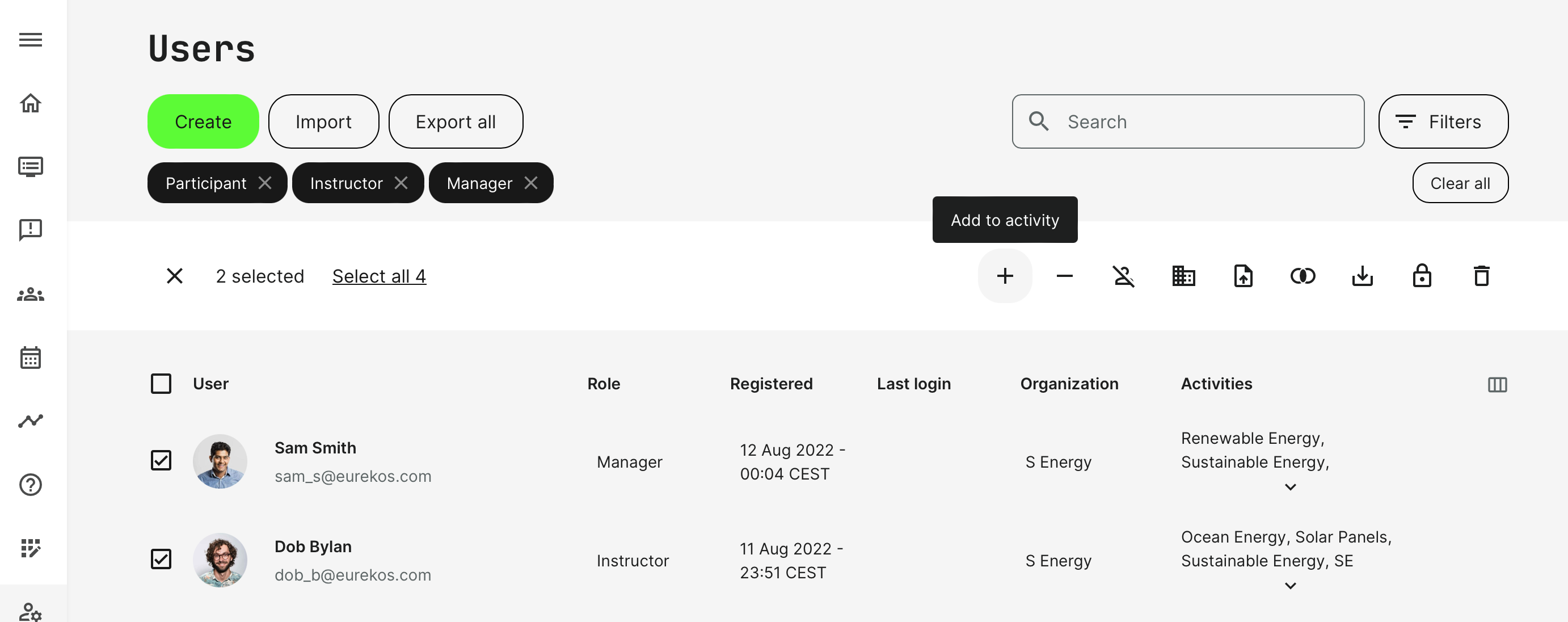
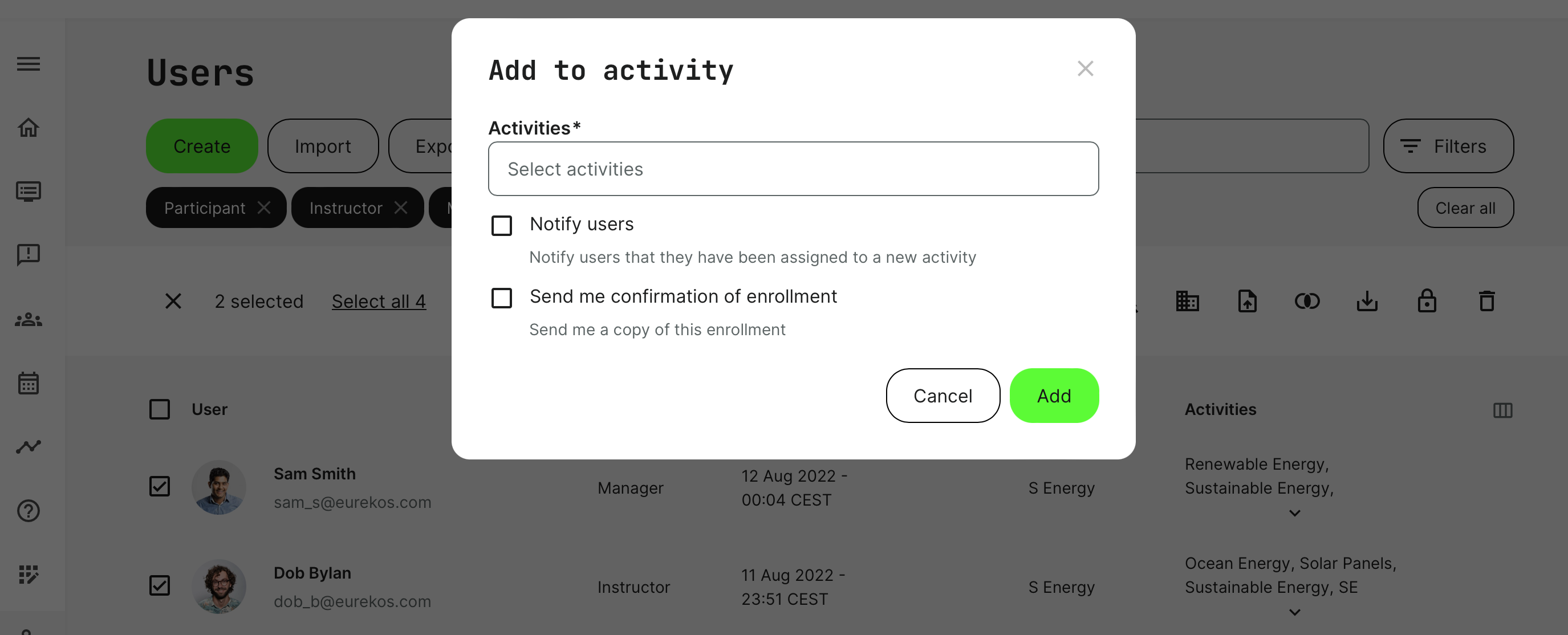
Select multiple users at the same time to apply bulk operations - e.g., give two users access to several training activities in just one operation.
As previously mentioned for manual enrollment, this is by default, a silent action. None of the participants will be notified unless you specifically choose to inform them. In that case a standard notification is sent to each participant.
- The participant will not have to pay through this type of enrollment, but any standard pricing and the ability to overrule this, will show on each participant.
- Any invoicing and other subsequent processes can be managed through the API or by exporting participant lists and address this as a separate operation.
Enrollment via QR-code and direct links
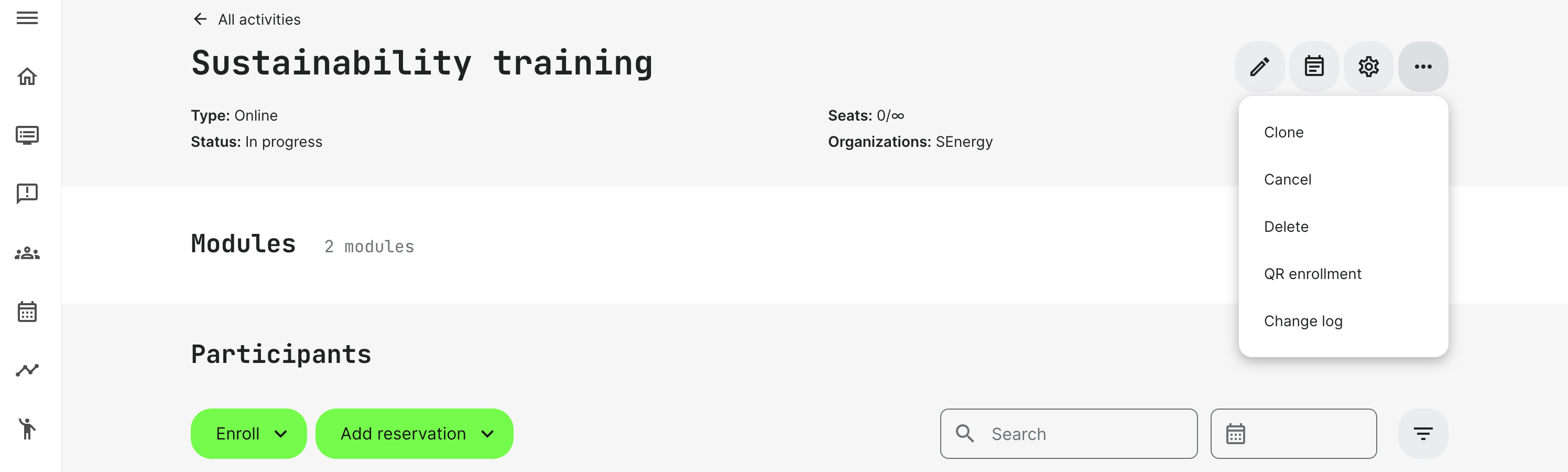
You can generate a QR code that can be used as a fast enrollment option. Users will be directly enrolled into the activity. Multiple additional options are available alongside this enrollment type, which is designed to offer custom scenarios:
- Effective and easy way to facilitate specific agreements, made with clients on individual basis.
- Allow enrollments to activities that are not publicly available, but can only be accessed through shared links.
- Convenient for partners who wish to either distribute links themselves, OR present links to enroll somewhere on their own platforms, intranet, link directly from their own 3rd party LMS, etc..
Whichever reason, the following still applies:
- A registered user will log in during the process.
- An unregistered user will have to create a user during the process.
- Waiting lists applies.
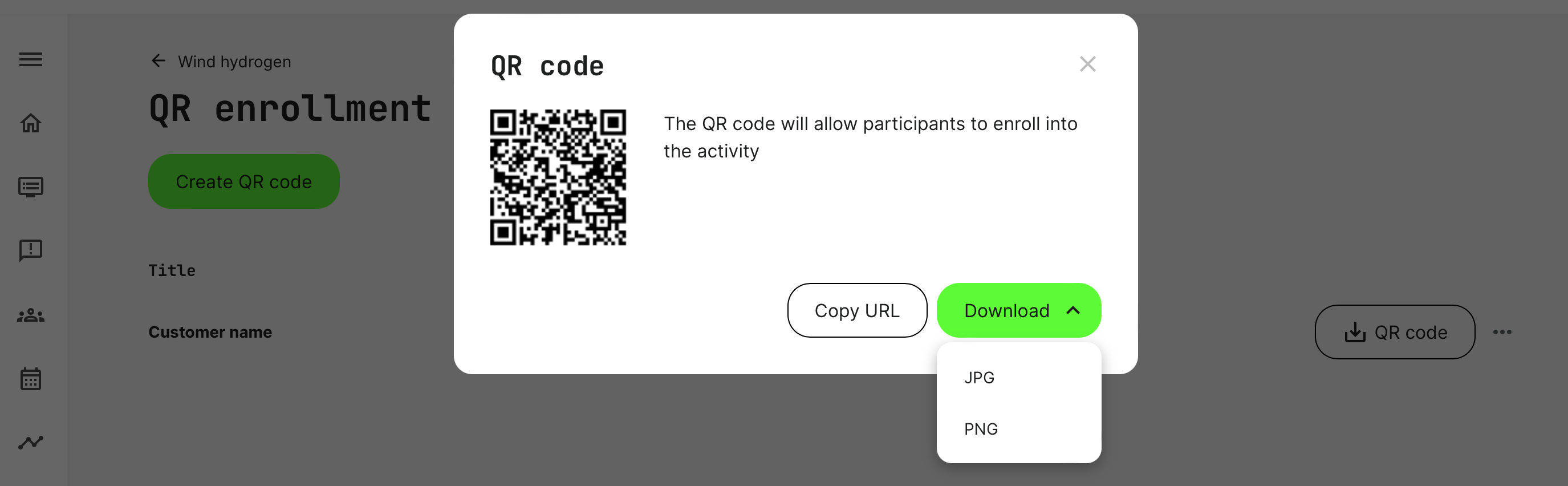
- QR codes/links can be limited to be used a number of times. This way you can distribute a QR code and limit it to e.g., 100 enrollments.
- Any number of individual QR codes/links can be created from within an activity. This way you can distribute different codes with different usage restrictions to a number of different clients and organizations.
- QR codes/links can include SSO/authentication through a specific service on individual basis. This means you can have multi-federation and distribute specific links to facilitate an authenticated sign-up, coming from any OIDC/SAML service, set up with partners and clients. Users will be created upon log in, using their regular credentials and get access to the training activity immediately.
- QR codes/links can be rendered inactive, if you at any point see or suspect that the shared link is subject to abuse. Create a new QR code/link and reshare with your trusted partner.
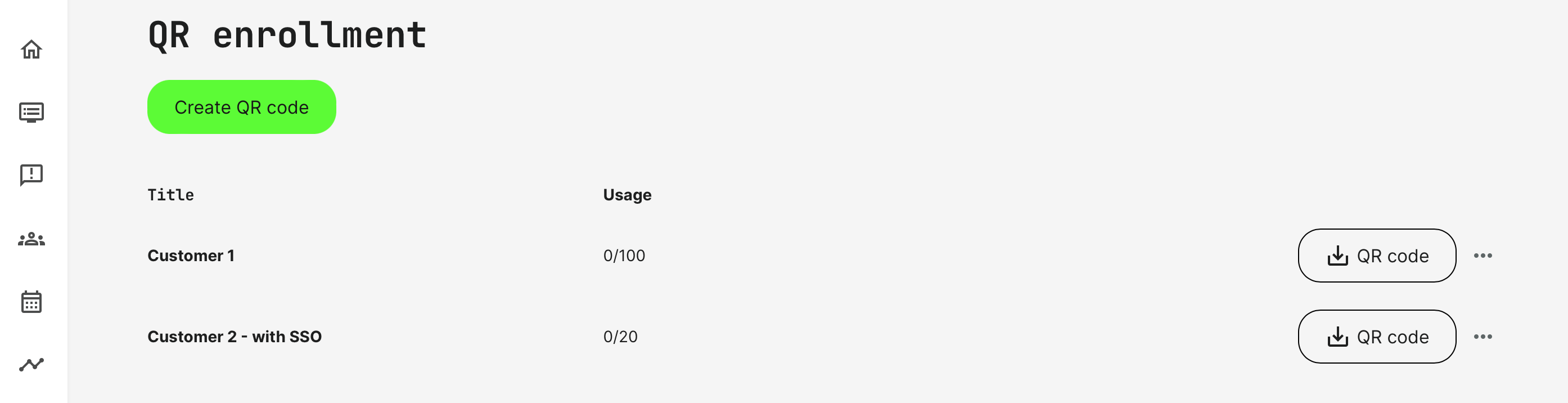
A prerequisite to SSO/authentication through a federated service is configured in collaboration with the partner, who will allow their users to log in to your platform.
Self-Enrollment
When the Catalog is active for either registered or unregistered users, they can self-enroll, if you set this in the features section of your Training Activity.
Once, you toggle Self-enrollment on, the Training Activity will now be available in the Catalog for both registered and unregistered users.
Make sure to complete your Activity Description to provide a landing page with a full description of the offering they are enrolling to. This, as well as tagging of the categories in the Catalog is configured through each activity.
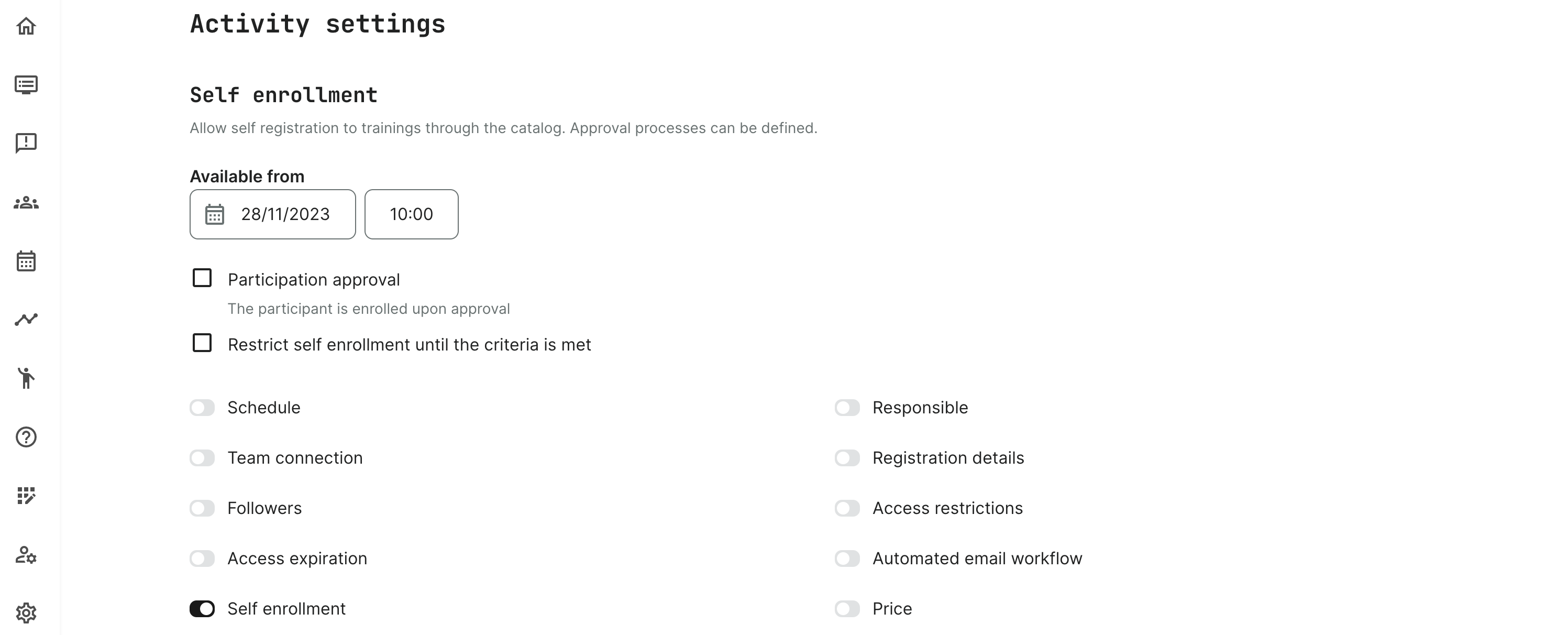
Each offering also include price, permitted payment methods, seat restriction, access restriction and approval flow, etc. Of course you can make it free and not provide a price.
The last common consideration is the organizational restriction. This allows you to restrict an offering to specific organizations and no one else.
- As an unregistered user accessing the description of your offering, part of the enrollment process is to create a user or log in, if the user already has an account.
- A registered user who is already logged in, can enroll and get access to the offering as you have made it available - e.g., pay if this is applicable.
Onboarding automation rules
Onboarding rules are designed to automate and minimize the time consuming process of assigning personalized training activities. If you can identify any parameters, that will allow you to define a pattern of enrollment, this is the feature you are looking for.
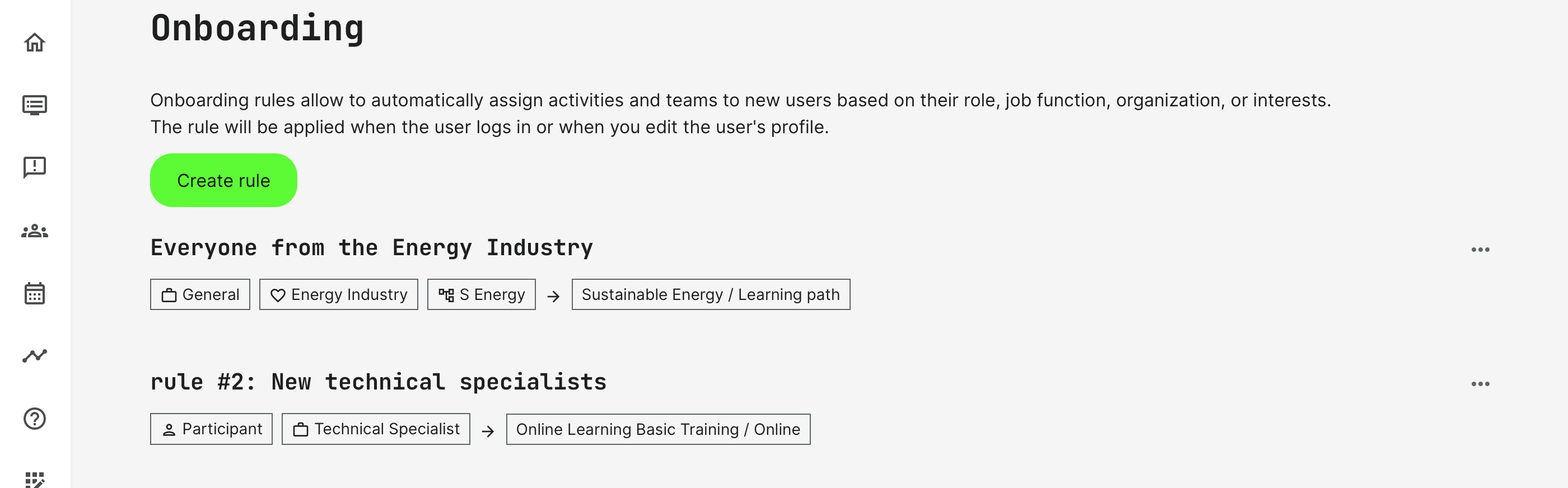
Create a rule, name it appropriately and select a target audience. The target audience is a dynamic concept based on a set of attributes such as system role, job function, organization, language and much more. What makes it so very powerful is that you can configure multiple criteria with AND/OR and except criteria.
This way you can personalize the learning journeys you assign to participants from specific countries who are part of a particular organization in English, but not if they started earlier than 6 months ago. The more profile information you have, the more granular and specific the behaviour design can be. If you work with communities of practice, these can be assigned based on the same rules.
Once you have created a new rule, it appears in the list of onboarding rules. The important question to ask is: will it affect my existing users on the platform? The answer is: No, it will not.
Onboarding rules kick into effect once there is a change on the user profile. For example, when a user is created or imported, no matter what that process looks like.
Also, if a user is updated and has a new role, changed organization or job function, this will trigger the onboarding rule and assign the training activities you have configured.
As there is no user interaction, the onboarding automation rules will not let the users pay during the process. It just happens in the background.
- By default, a silent action. None of the participants will be notified unless you specifically choose to inform them. This would have to be through connected email workflow automations, following each assigned activity.
- Any standard pricing will show on each participant, for each activity respectively. Any invoicing and other subsequent processes can be managed through the API or by exporting participant lists. Address this as a separate operation.
Invitation and promotion flow
This is a type of guided self-enrollment, but is an opt-in extension to the platform, at no extra cost. In case you are looking to achieve this, please reach out to support@eurekos.com.
The options below and the description of this additional opt-in option follows the same principles of account creation to register and enroll a participant. It is self-enrollment, but facilitated with the assistance and precision though special processes.
The added module is a whole set of features and processes, which allows account managers, contact managers, CSM or other people from within your own organization, invite clients and prospects through a formalized process flow.
- Administrators can promote activities they would like to get help pushing to clients and prospects.
- Full email flow, reminders, special lists and dashboards with statuses for each promoted activity.
- The client responsible (whichever titles) will be able to invite clients and prospects directly.
- Include special pricing (discounts, overrule) and even provide free, but only for some people.
- Use reminders for both clients and internal people on deadlines.
API
The open API from your platform lets you create and enroll users to training activities through other systems and services owned by you. The Platform Administrator or Global Administrator can configure this.
To start working with the API, Postman is needed. Please the related article on configuring the API.
Managers - enrolling on behalf of others
The Manager role can have the option to create, invite and enroll people under his supervision.
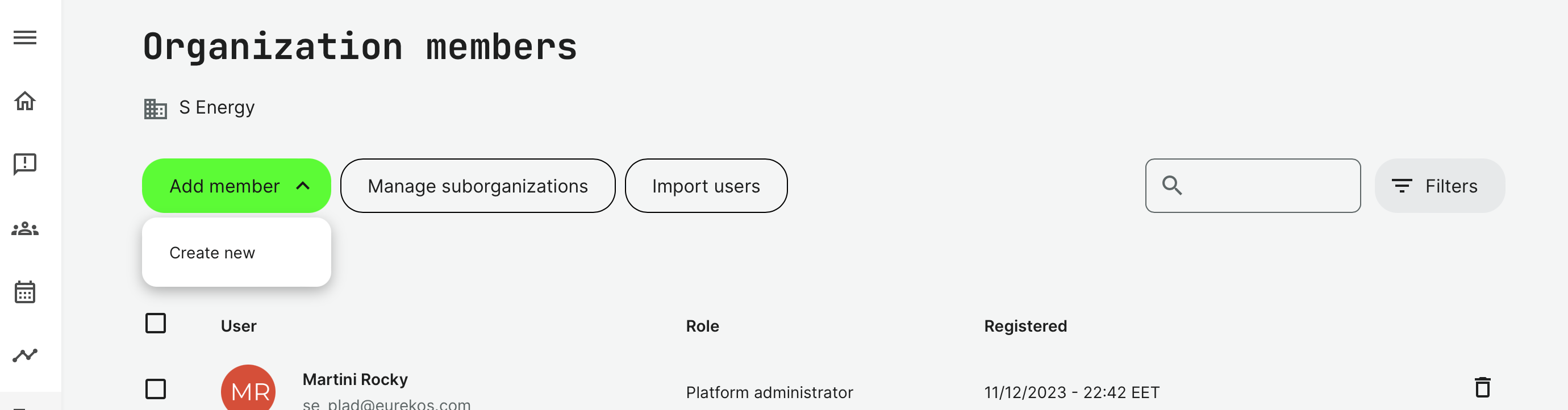
The Manager has these options by default.
- Create new users and let the user create their own password.
- Enroll existing and registered users under his supervision to trainings that have been allowed for self-enrollment. The Manager can go through payment processes and anything set on the individual activities.
- The immediate manager can only Enroll existing and registered users under his supervision to trainings that have been allowed for self-enrollment. He cannot create users.