Activity list - Article
Manage learning delivery through the activities list
Activities is the list of all your training acitivites, representing all your trainings and offers, in a single filtered view.
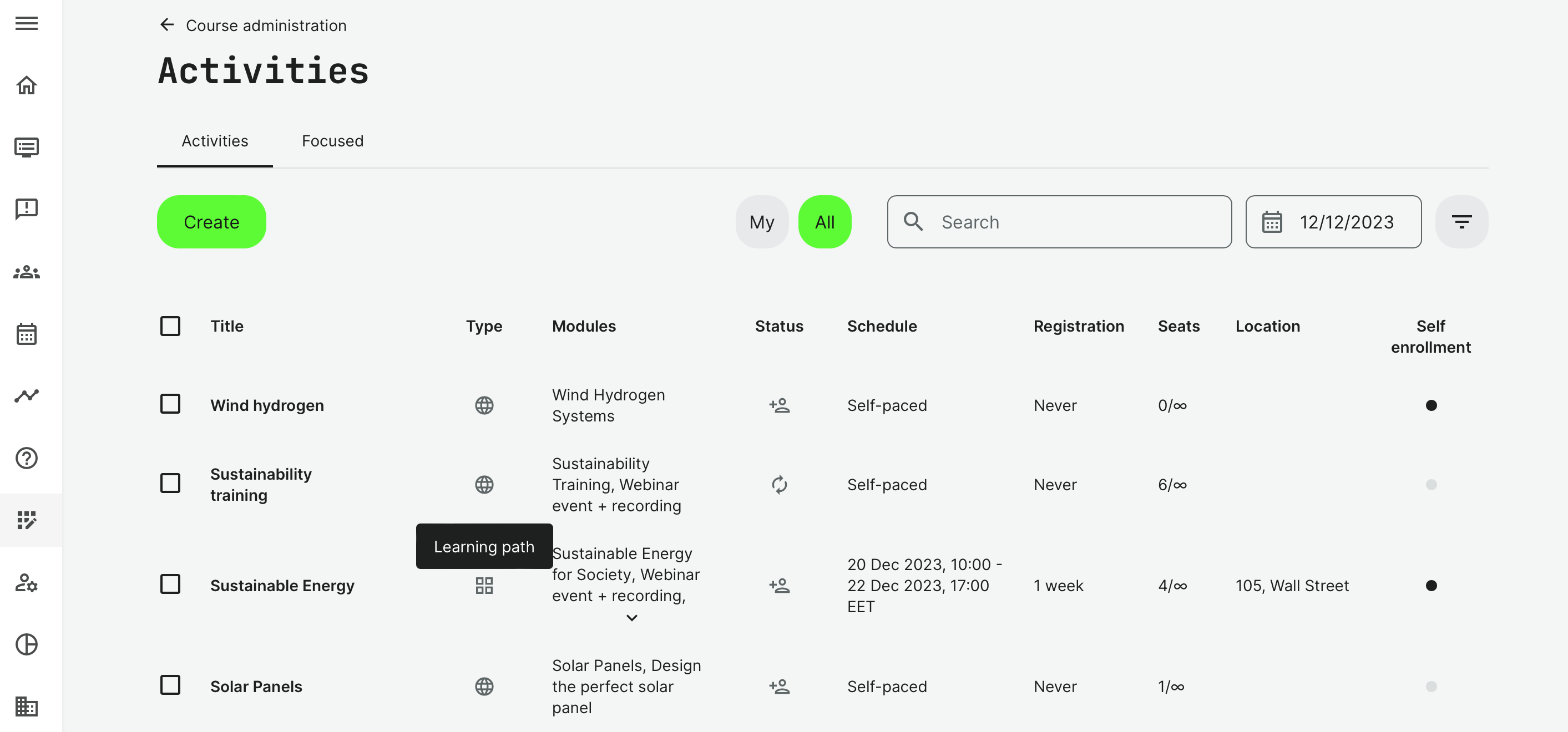
The activities list provides a quick overview of the included course modules, the status (in progress, open for registration...), schedule if any, seats take and whether an activity is available for self enrollment.
The expanded view will show a little more detail such as type and location, which is sometimes handy if you have multiple simultaneous or regular trainings across multiple geographical regions and offices.
- Title: click to enter the activity and see all the participants who have enrolled, or have a status such as waiting list and how many seats have been reserved.
- Type: shows which type of training this is - e.g., a learning path. This classification can also be overriden to fit your deliver format and audience.
- Course ID: one or more courses and other module types that the training includes.
- Status: progression and availability status - e.g., if registration is still open for newcomers, if the activity is in progress or has already been completed. Typically dictated by schedules.
- Registration: identifies registration details at-a-glance, such as the deadline for registration or if there is no relevant schedule.
- Seats: number of participants that can be enrolled into the activity by any method.
- Location: specifies the location information at-a-glance for relevant identification of in-person activities.
- Self-enrollment: shows whether an activity is available for self-enrollment. This also means that the training activity is available in the catalog.
Activity options with quick access
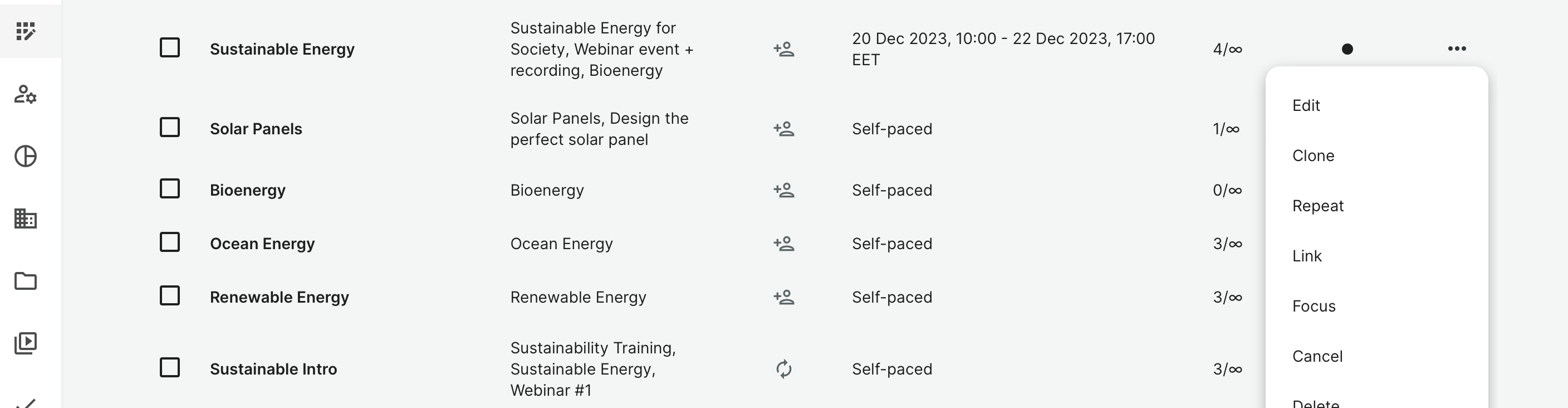
The 3 dots representing more offer quick access and additional options on each activity, including:
- Edit the activity.
- Clone the activity with all the settings and options already configured. A great way to start up a new training activity for another group of people. You can make changes, which does not impact other instances of the training activity.
- Repeat the activity is similar to a recurring calendar event. You will get the option to roll schedules of complex programs by the same interval of the originating activity. Everything is intact and you can still change schedules and everything else, just for this one. The most important part is that this will be linked (recurring) to the previous event. This, you will use if you want to show multiple schedules to users who can choose to self-enroll. This way they will see the schedules for the different linked activities and can choose if they want to attend e.g., May or June.
- Link is an option for you to select multiple training activities and link them, which means they be options just as if you had used the repeat function described above. The same way activities can be unlinked, if multiple are selected.
- Cancel will cancel the entire activity and participants will be notified. This is different than deleting because you will have the historical actions available.
- QR enrollment allows you to create links to share to individual groups for enrolling to the training activity. This could be a QR code to be scanned or it could be a regular link. Multiple options are possible, including SSO connections and seat restrictions.
- Change log will show changes to the activity over time and who have made those changes. Useful for forensics if something seems to have happended.
- Export will export the users who have been enrolled to this activity.
- Settings is a shortcut to the settings of the activity - e.g., tagging options.
- Download nameplates is an option to have a PDF with nameplates to print according to a specific format for in-person facilitation on locations.
Filtering
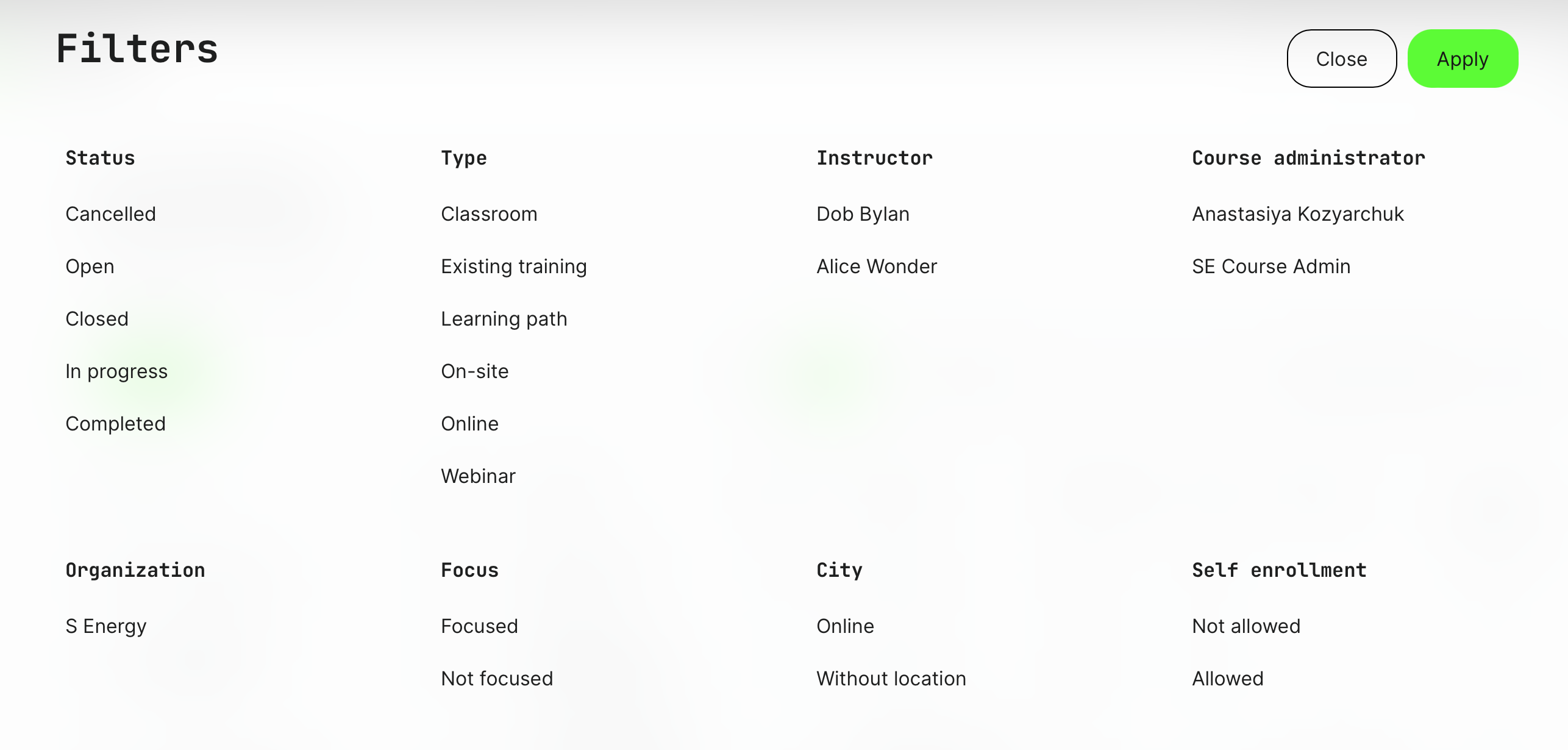
You can filter and search the list of activities by both date and using more detailed parameters such as status, type, instructor and more. Options include:
- Status (cancelled, open, closed, in progress, completed).
- Type (Classroom, existing training, learning path, on-site, online, webinar).
- Instructor.
- Course Administrator.
- Organization.
- Focus.
- City.
- Self-enrollment.
Focus in activities
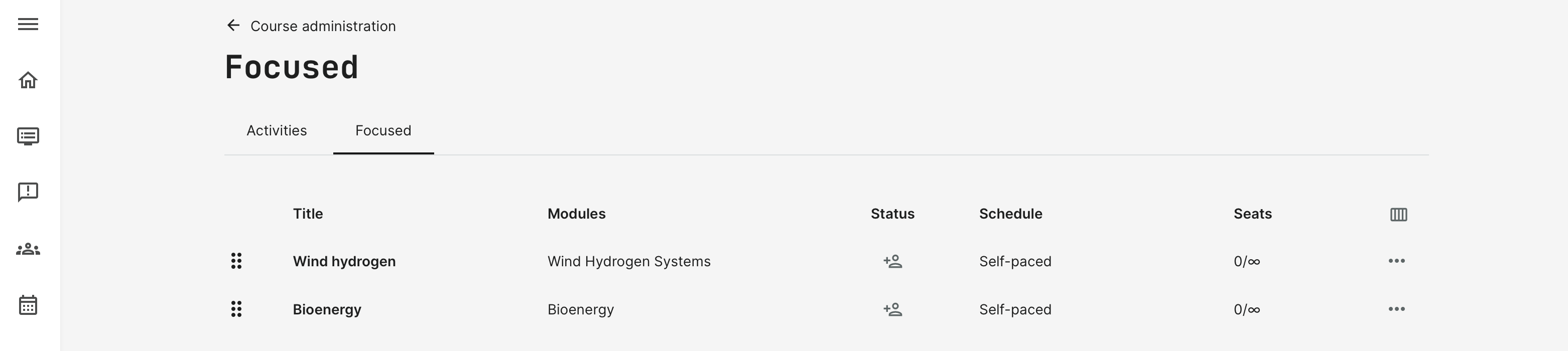
This is a way to promote activities in the catalog and the option is available when an activity is allowed for self-enrollment. The interface lets you easily distinguish the focused activities in a separate tab.
To put focus on an activity:

After which course administrators will be able to see the focused activities separately to make them easier to manage directly. Multiple focused activities can be sorted by, priority which is reflected on the list of activities for self-enrollment in the catalog. They will come first, following the sorting order on the focus list.