Recurring events and activities - Article
Repeat scheduled trainings for optimized administration and better user experience
This is an extended article on recurring events and articles. Also see Existing Training (nesting) on the subject, which cover other scenarios as well. However, the use cases might not include nesting activities within each other.
This support article is relevant if you wish to:
- Offer a training activity on several different dates - e.g., You have the same training happening in May and August.
- Offer options within a learning path, with multiple dates, such as meeting either on Tuesday or Thursday on a virtual event.
Typically both self-enrollment and a schedule is involved. Users will be able to pick from multiple schedules through the learning journey or by having several date options for the same training in the catalog.
Use Repeat from the activites list on the 3 dots menu.
Use Repeat to automatically link your activities
The repeat function introduces a very advanced form of course administration as a single operation. The outcome is an advanced form of a recurring training, whether this is a single event or a complete learning journey.
- Provide an exact replica of the training activity you repeat, complete with activity descriptions.
- You retain the ability to make adjustments - e.g., change a trainer or host on some of the recurring options.
- Roll schedules and in-activity scheduled events by original interval. The ability to make adustments also means you can create variations to adjust for bank holidays, etc.
- Link the two activities and any other in the series, if you repeat more than once.
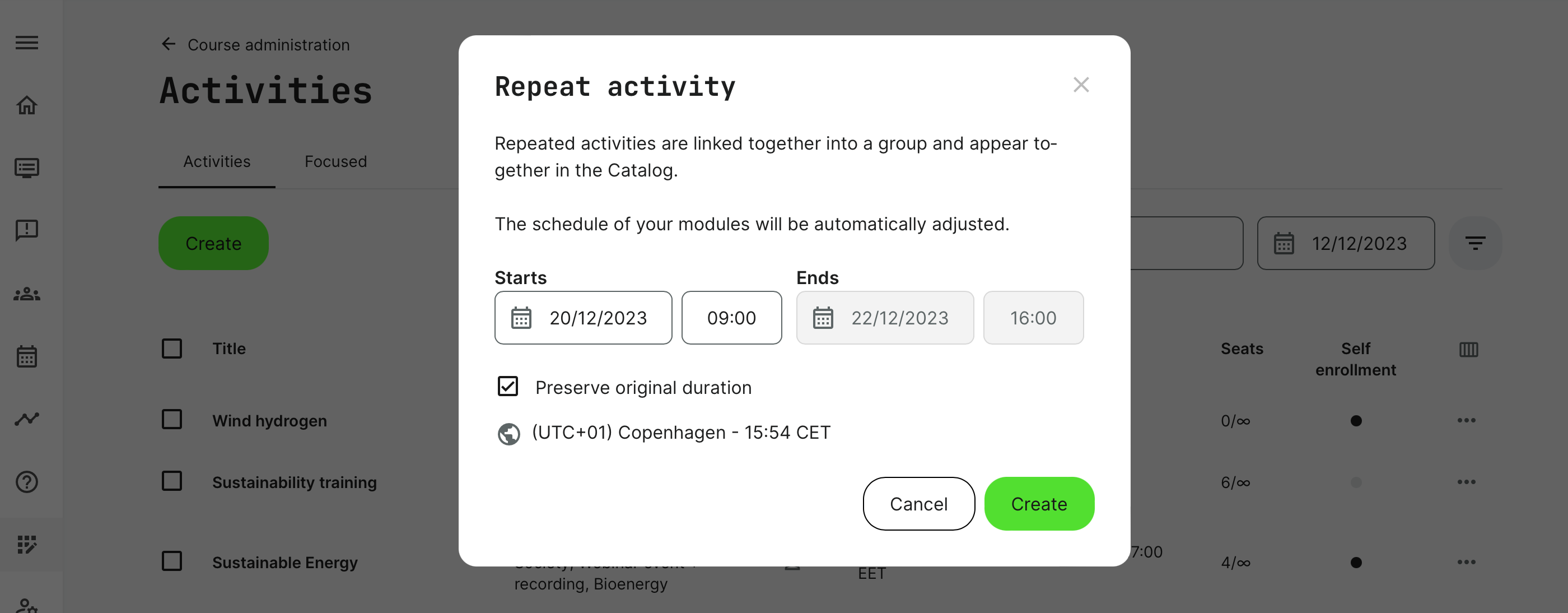
Once the repeat function is used on a training activity with a schedule, you will be able to define the new start and end date - and retain the original duration.
- Preserve original duration will keep the original schedules between all the included modules (if applicable) and roll the dates with the same interval between them. This will also automatically roll the end date.
- Leave the checkbox disabled to set a different start and end date for your new training actiivty.
- In both cases, the new training activity will be linked. Click on the link icon to show a list of the linked activities.
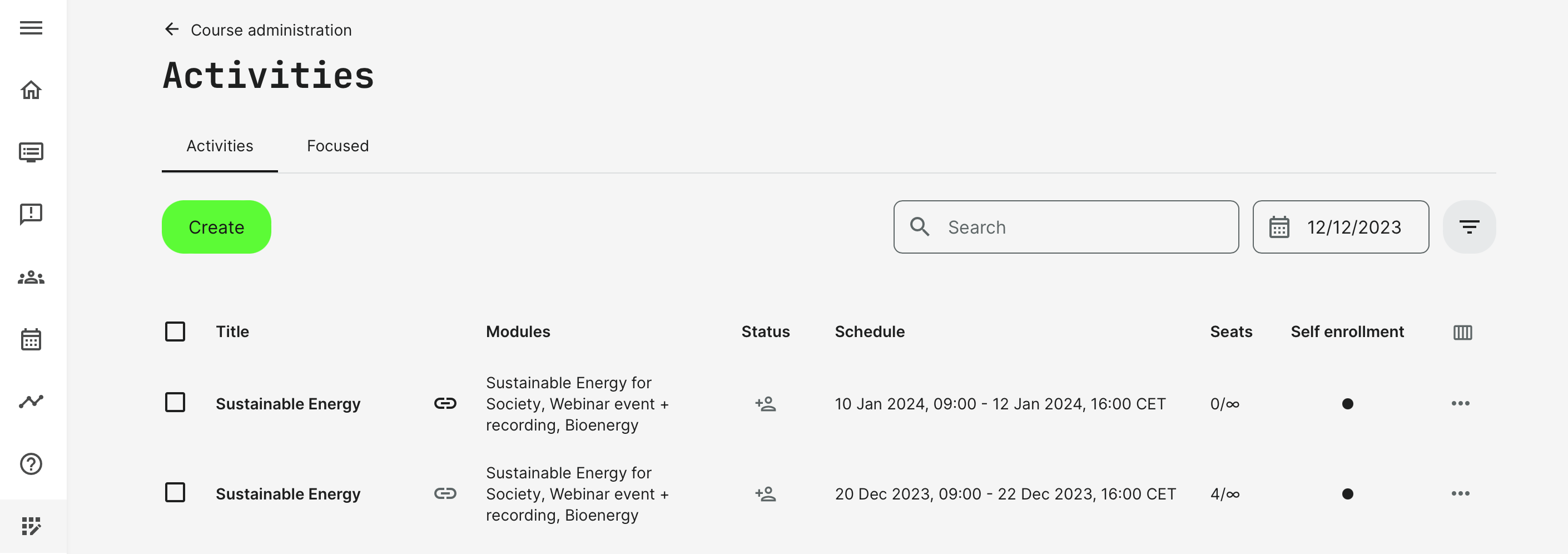
Original and repeated activity form a so called “linked group". Clicking on the link icon will filter activity list and show only related ones, while search and other filter criteria apply as well.
- It does not matter which of the linked activities you Repeat from, should you want to create another linked activity.
- You can also manually link another activity with a schedule, as any time and add this to the "linked group".
- Any activity in the linked group can be individually edited after the link has been established without consequences of being removed from the linked group. This capability provides the option of changing instructors, locations, pricing and any other relevant information on the activity.
Linked activities in Catalog
Once the linked groups have been established, this automatically impact the catalog for self-enrollment.
- Linked activities are displayed in the store front and catalog only once. This means "the same" training will show up as a single element, even if 10 different schedules are options. Next upcoming date shows on the store front.
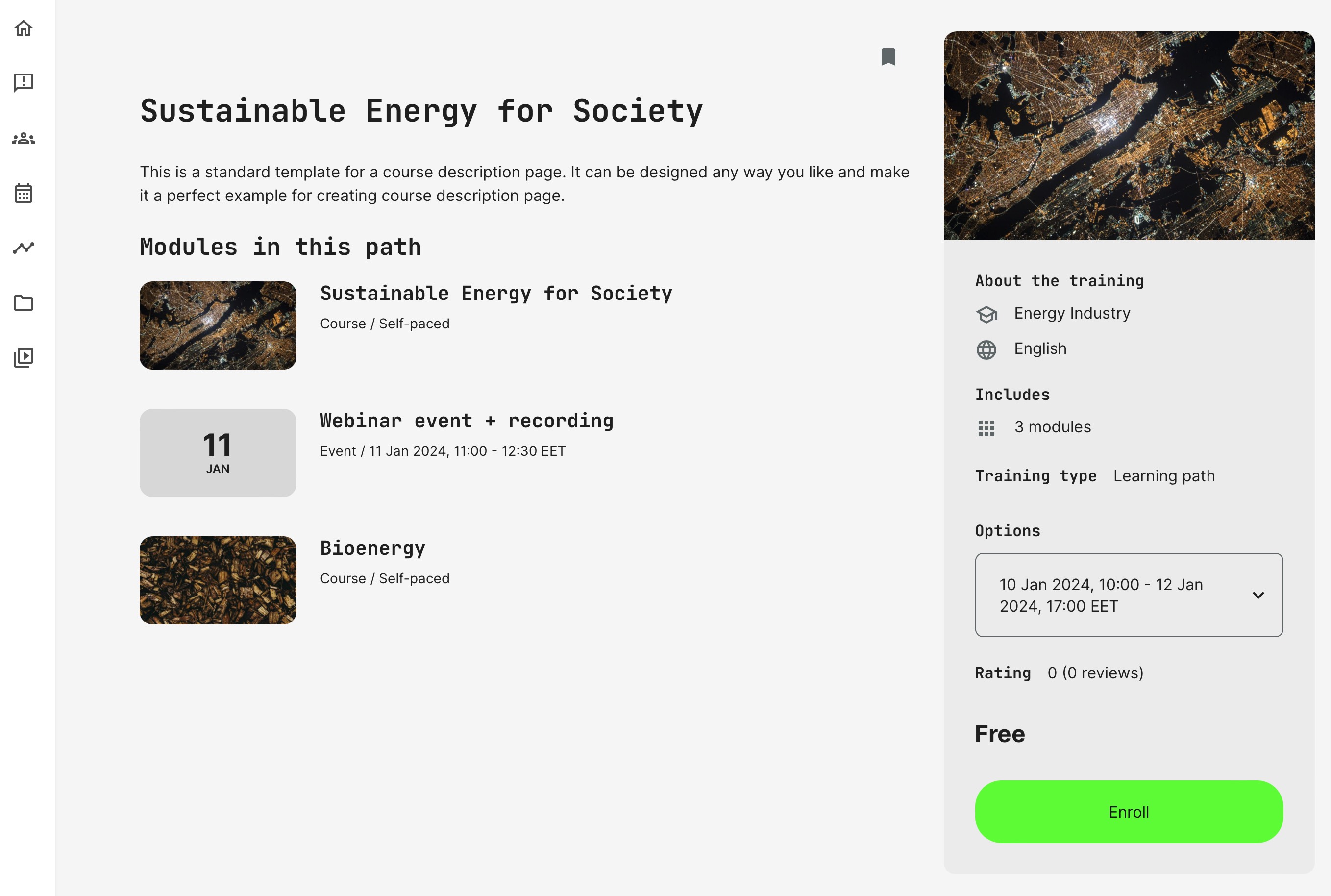
- The detailed description page will show the nearest available date, but options for other dates will be available as a dropdown
- Users can choose between the available options. Each option could easily have different locations, trainers, prices, etc. It goes beyond schedules and you define all of these through your individual training activity.
- Each training activity has its own description page. This page is replicated when the repeat function is used to make a new instance of the activity. However, you can change it and make special notes and comments as needed.
Please note that language relations does not require repeated/linked activities, this is a separate scenario, as language versions also could have it's own linked options and schedules.
Link/Unlink functionality
You can connect an existing activity to already existing activity (or group of activities) and disconnect any activity from the group which was created.
The link and unlink function is available from the 3 dots on the activity list where applicable. If the feature is not available, please consider these expections:
- There has to be a schedule to link an activity, at least upon initial grouping request.
- The activity cannot be linked, once it has already been completed or cancelled.
FAQ
-
Why do I not see the "Change Dates" option for my activity?
An activity is displayed in Change dates only when both of the following features are enabled:
- Schedule.
- Self-enrollment.
The activities displayed depend on the module type:
- Single course module: Displays activities with the same course.
- Single Event/Assignment module: Show only linked activities.
- Learning path: Displays activities only when the learning path contains the same course modules. This applies only to course modules and does not include Existing training modules.