Create a Training Activity - Article
What is a Training Activity?
Think of a training activity as if it is a learning journey designer. This is where you assemble your curriculum, all your individual materials and and design the actions around each element. This is where the majority of your learning delivery is managed. Terminology ranges from learning journey, learning path and program.
- A training activity is the foundational structure of your learning delivery. It can be straightforward like a self-paced course, an ordered sequence of several components, virtual training, face-to-face and hybrid in any combination.
- Each component be supported by automated email rules, approval processes, access and registration restrictions, schedules, certificates and much more. This is critical to executing your educational format through workflows and actions.
- Enroll users to a training activity to provide access to your learning journeys.
Design your learning journey by assigning courses, virtual- and in-person events to facilitate any type of hybrid educational format
The Training Activity
Details on each training activity summarizes information on type, status, who is managing it and the people who are enrolled and registered, cancelled, reserved or on the waiting list.
Create and edit
Designing your learning journey or creating a simple self-paced training activity is fully customizable within the training activity itself. This is where you assign multiple course modules, events, assignments, other facilitation features and workflows. Combinations are comprehensive.
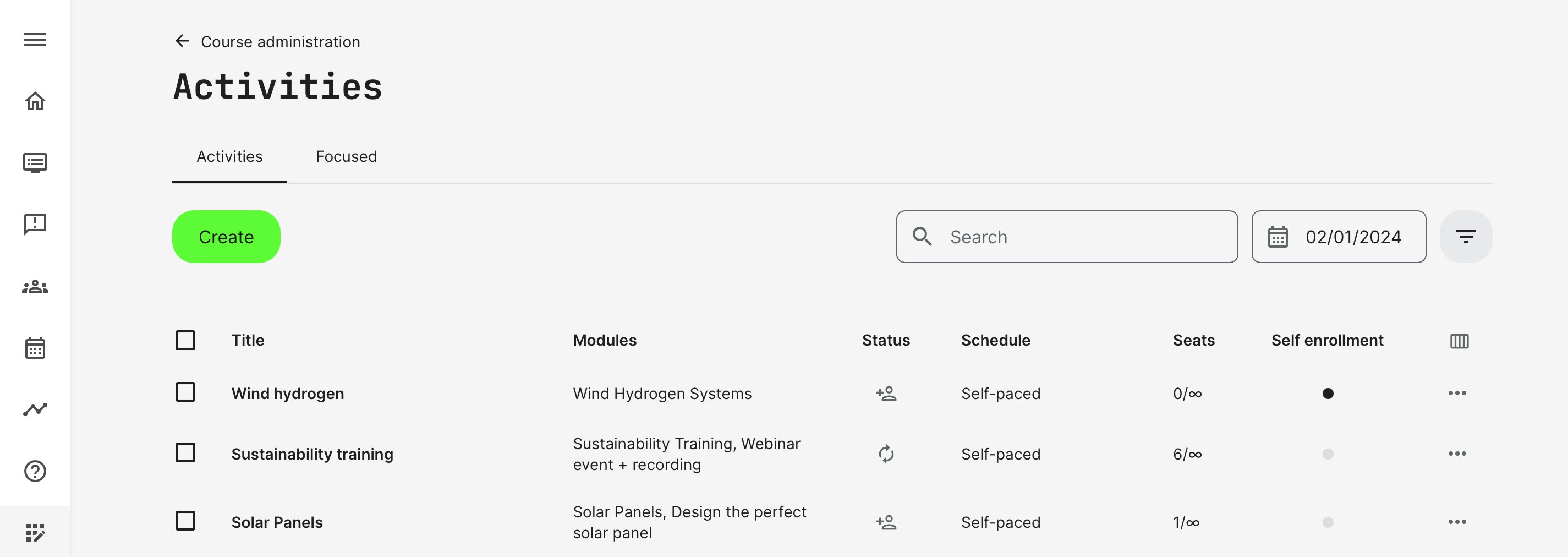
Press the Create button which will redirect you to the setting page for a new activity. First of all, set a Title and a Description of the activity .
To start building a Learning Path, add a course module or several modules to assign to the activity. This can be an already existing Course or Existing training, an Event or an Assignment - find it by entering a keyword from its title - or a newly created event. Add as many modules here as you need to build your learning path.
Existing training module type is the ability to "nest" other training activities within each other. This is a very powerful feature and allows even registration options to multiple dates, facilitating options for splitting the users into separate co-horts and other event based requirements:
- One entry into a complex set of sub-training activities, each with it's own learning journey.
- Allow enrollment to each nested activity - e.g., date options like a webinar or facilitated instructor-led option on either "upcoming tuesday or wednesday" by user choice.
Features on module level
When adding a an activity each type has it's own section of features. Features unfolds a menu with a variety of options you can activate within a course via this Activity.
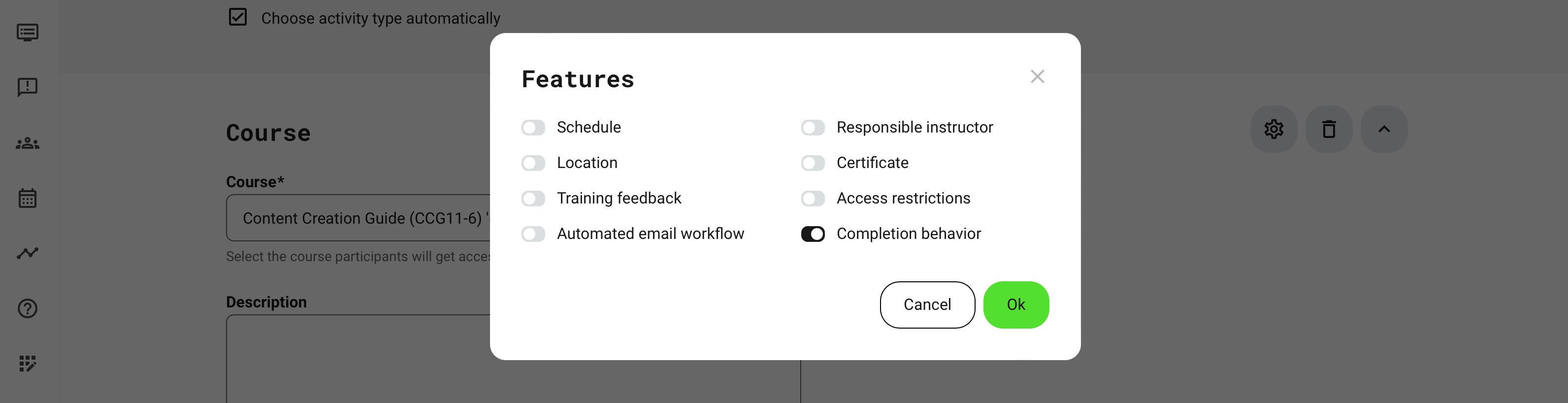
In Features, activated through the gear icon on each course module details, you will find options relevant to each type. These include:
- Schedule: set the schedule for the course module. This will play a role in completion triggers and options to send out scheduled email automations.
- Instructors who have been booked and assigned as responsible on the event schedules will be prevented from accidental double bookings.
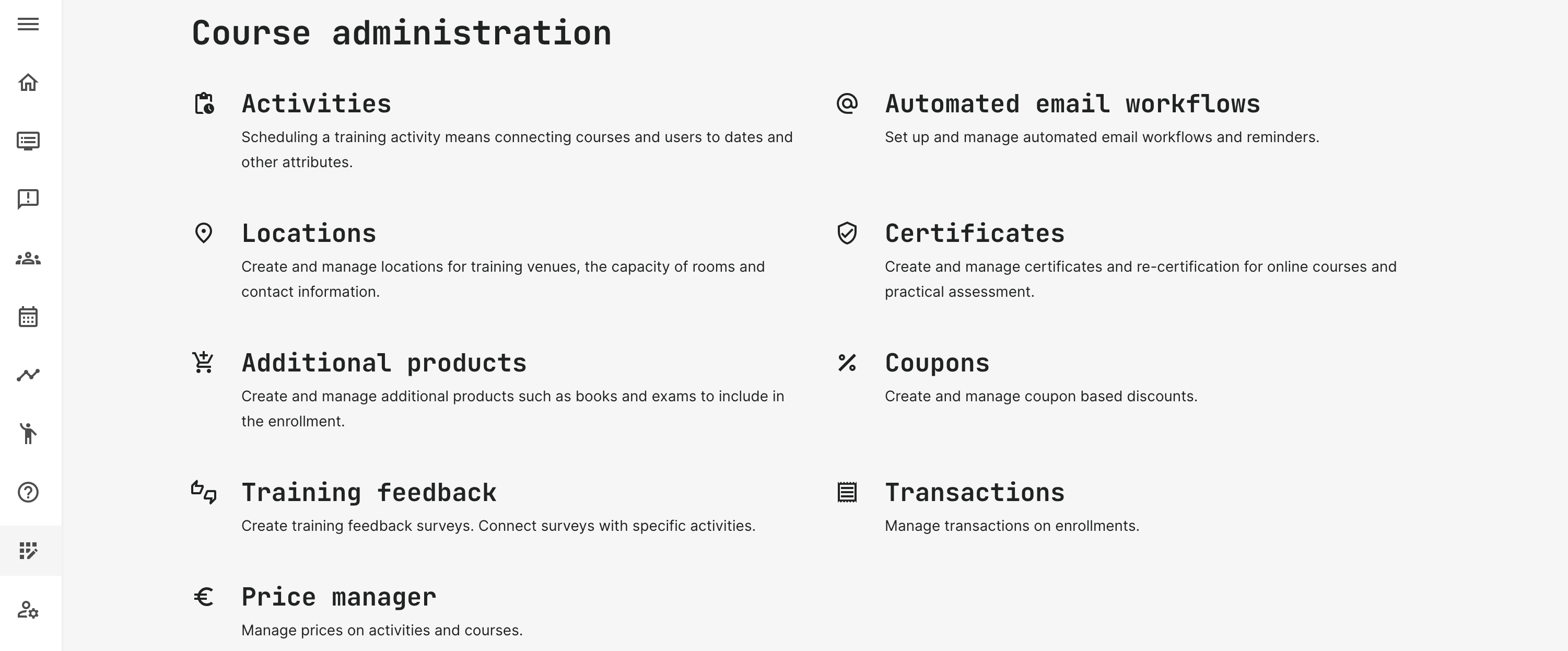
- Location: when relevant for in-person training events, a pre-created location is added. These are defined in the Course administration → Surveys section.
- Locations also have capacity information, correlating any seat restrictions set on the event. This is to prevent overbooking.
- Training Feedback: add a pre-created survey to your course to collect participants’ assessments of the course. Create your survey in the Course administration → Surveys section. They can also be reminded to complete the exit survey by an automated emails through the automated email workflows. Instructors can also be prompted to give feedback in a separate survey, giving their assessment of the training event.
- Automated email workflow: customize pre-defined email workflows to minimize administration by schedules and other triggers of completion. These are defined in the Course administration → Surveys section.
- Responsible instructor: Assign an administrator and instructor responsible for the module.
- Certificate: This can be ticked to indicate that the participant will receive a certificate at the end of the course. Certificates can be included in any type of Training Activity and also supports recertification and alerts. Certificates are created in advance, along with issuance criteria in the Course Administration → Certificates section.
- Access Restrictions: the function allows to create specific conditions that have to be fulfilled by a participant to get access. This way you can restrict and control a sequential or desired pathway through your trainings.
- Completion behavior: manual overrule of the default automated completion logic. The default logic considers extensive scenarios scenarios of assessing completion based on tracking of watched videos, viewed pages, interactions and even schedules with time and date and/or certification criteria.
- Don't show congratulations message will not impact or change the completion status of a participant on a training but will simply not show the congratulation message. Useful for single page intro course modules and other use cases like this.
- User confirmation is required will introduce a "Complete" button once the completion criteria of the module are met. The participant does not register as "complete", until the acknowledgement has been given by clicking the button. Upon this action, the congratulations message is shown.
Features at Training Activity level
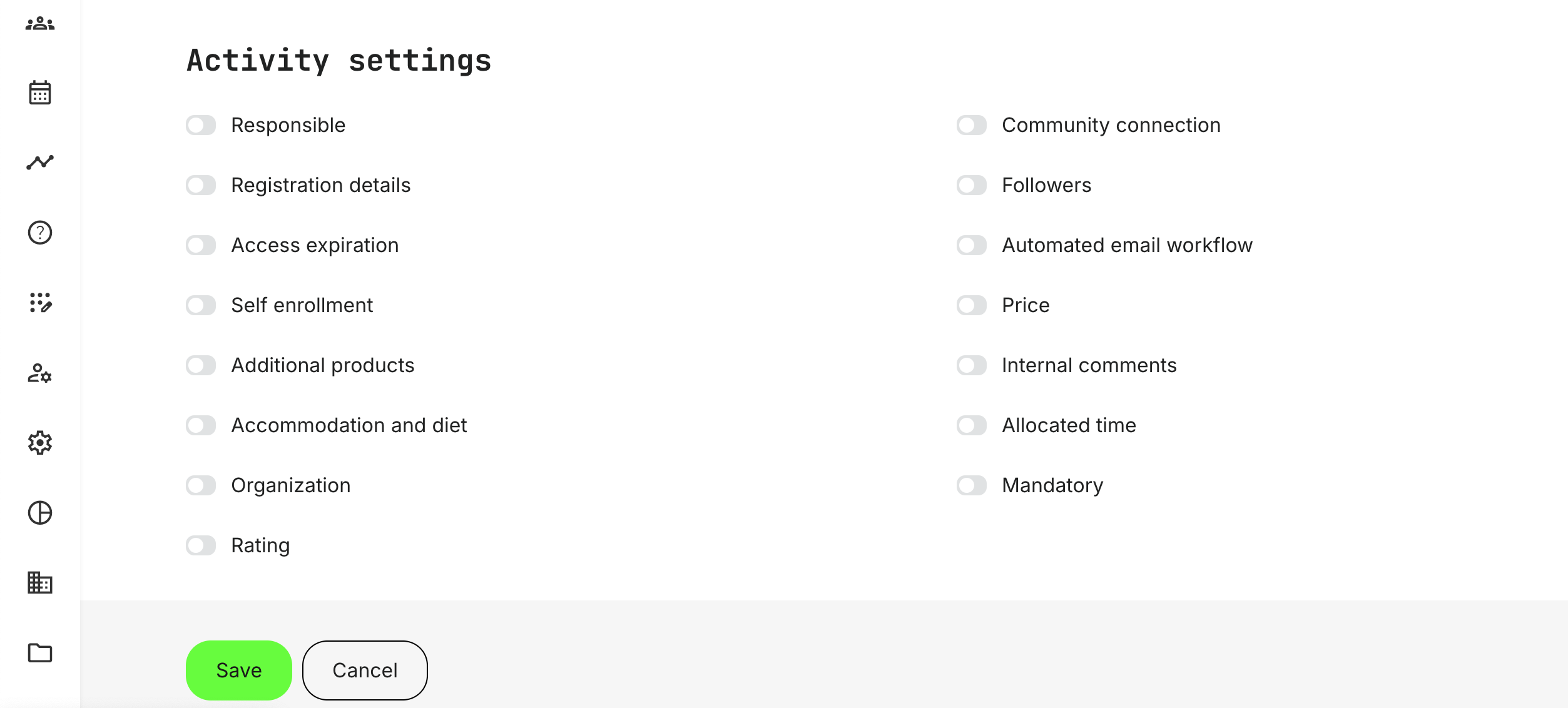
At the end of the page you can find Activity settings, which are the general settings for the whole learning path:
- Schedule: allows you to set a start and end date for your entire learning path. You can leave the end date open if you don't want an expiration date. This is useful information that will automatically show on the activity description for self-enrollment, if this option is used.
- Community connection: you can considerably minimize user administration actions when you create a Community within an Activity:
- The Community will be created automatically. Choose the Community owner who will be the administrator of the Community.
- Participants will be automatically added to the Community as they are registered for the training activity. Likewise, they are automatically removed if they are canceled.
- Adding participants from other training activities into an existing Community lets you grow a community across several cohorts of people.
- Microsoft Teams (if this integration is established) enrolls members from a chosen Microsoft Teams group into the training activity with little effort. Such an option automatically means that any discussions will continue in Microsoft Teams, instead.
- Followers is the option to let a set of stakeholders to be informed if important changes are made to the training activity.
- Access Expiration will help to control expiration conditions for this activity. Several options and variables are available to facilitate a flow with minimal or no management at all.
- Self-enrollment: allow users of the platform to self-enroll in training and learning journeys. This makes the training available in the open course catalog. Registered and/or unregistered users can enroll themselves, potentially going through a purchase process. Managers will be able to assign training to their reports, effectively enrolling on their behalf.
- Additional products are products that can be offered to participants as part of their purchase process and also, once they are given access to the training itself. Examples are books or additional ressources that could be physical products.
- Training Feedback: add a pre-created survey to your course to collect participants’ assessments of the activity. Create your survey in the Course administration - Surveys. They can also be reminded to complete the exit survey by an automated email, that you can customize in in the Course administration → Surveys section. Instructors can also be prompted to give feedback in a separate survey, giving their assessment of the training.
- Accommodation and diet: additional information on the training checkout page for hotel bookings/travel dates/visa and passport and special dietary information.
- Organization: restrict the activity to one or more organizations. Only members of the organizations will have access to see the course offering. This is relevant concerning self-enrollment and this is how you can establish open course catalogs that differ per organization. Organizations can effectively be a hierarchy of clients, resellers or departments.
- Rating will allow participants to rate the training from 1-5, once it has been completed. This will be visible to other users who would be interested to self-enroll as part of the description of the offering you provide.
- Responsible designates the responsible Course Administrator and/or Instructors for this training activity.
- Thus, it is not necessary to assign an instructor for each module in a learning path, once this is set on activity level. Should the instructor not be the same across a set of modules on a complex learning path, you should assign them on each of the modules instead.
- The Course Administrator will have several options following this designation, including certain reminders and notifications.
- Registration Details: ensure full control of seats and time-sensitive events. This could be trainings that imply seat restrictions, requires venue or travel planning or simply concerns on facilitation.
- Seats: set the maximum possible number of participants. When the maximum number of seats has been met, further registrations will be placed on the waiting list. Self-enrollments will be aware of this during the registration process. Administrators can manually turn a participant parked on the waiting list into an active registration.
- Latest Registration: the number of days before the event when the enrollment is possible.
- Latest Cancelation: the number of days before the event when the withdrawal is possible.
- Minimum Seats: minimum number of taken seats required for the event to be held. This is purely for administrative purposes and does not impact participants in any way.
- Minimum Seats Notification: allows setting the number of days before the event when the course administration would like to be notified in case when not enough seats have been reserved. This can help manage large numbers of simultaneous training activities with appropriate warnings to take action.
- Access Restrictions: the function allows to create specific conditions that have to be fulfilled by a participant to get access to the entire training activity as a whole. This way it differs from the individual access restrictions on module level.
- Automated email workflow: customize pre-defined email workflows to minimize administration by schedules and other triggers of completion. These are defined in the Course administration → Surveys section.
- Price: set the price in multiple currencies, as defined on platform level.
- On activity level, define which activated and configured payment methods you want to offer. You can require payment by credit card through the connected payment gate, request invoice or whichever method suits the scenario. Combine organizational restrictions to offer specific pricing or options for a select audience.
- Certificate: This can be ticked to indicate that the participant will receive a certificate upon completing the learning path. Certificates can be included in any type of Training Activity and also supports recertification and alerts. Certificates are created in advance, along with issuance criteria in the Course Administration → Certificates section.
- Internal Comments: useful feature for administrators that allows comment interchange in concern to course execution, any corrections or specific issues of the program.
- Allocated Time: total time allocated for events.
- Mandatory Activity: to be used for crucial compliance purposes and bring focus on deadlines. Accompanied by a deadline notification on the dashboards of participants enrolled. Automated email workflows can be used to remind and escalate close or missed deadlines to immediate and organizational Managers.
FAQ
-
Where in the activity settings should I add the certificate? I can’t seem to find it.
The availability of the Certificate option depends on how the activity is structured:
Single-module activity
- The Certificate setting is not shown at the activity level.
- To add a certificate, open the module and click the Gear icon to access its settings.
Learning path: multi-module activity (2+ modules)
- Once a second module is added, the Certificate feature becomes visible in the activity settings.
- Certificates can then be configured both per module and for the entire learning path.
This set up ensures flexibility in certificate assignment:
- Add a certificate to each module individually.
- Add a certificate for the full learning path at the activity level.
-
Where can I find the signup statuses for an activity?
The available signup statuses are:
- Registered: The user is actively enrolled in the activity.
- Cancelled: The user's registration has been canceled by an administrator or through another process.
- Waiting list: The activity is full, and the user is waiting for a seat to become available.
- Reserved: A seat is reserved for the user. You can create reservations for an existing user, a new user, or an unknown user.
- Expired: The user's registration has expired. This can happen manually or automatically through the Access expiration feature.