Adaptive Learning Fingerprint Analytics and Reports - Article
Summary
Training decisions become more useful when you can see both what participants achieved and how they engaged with the learning journey. Adaptive Learning Fingerprint brings assessment results, time before completion, revisits and adaptive or recommended content into one activity-based analysis.
Use it to investigate knowledge gaps, prepare focused instructor-led sessions and improve course design. A composite score helps identify groups for closer review; the underlying evidence helps you decide what support is appropriate. The score is a configured indicator, not an independent proof of competence or a reason to assign more training without considering the context.
Use this article to:
- Create a reporting template for a suitable Training Activity
- Distinguish assessment improvement, engagement and composite scores
- Investigate modules, pages and participants before deciding on an intervention
- Refresh and export the relevant evidence
- Assign follow-up training within your enrollment permissions
Choose the question you want to answer
The report is especially useful when a common learning journey produces different support needs. A partner academy might use an initial assessment to identify prior knowledge, let experienced participants bypass optional material, and then use a final assessment and engagement breakdown to plan a practical workshop. A content developer might instead investigate whether one page repeatedly appears among the weakest engagement results.
These are related but different decisions. A low final assessment result can justify a discussion about understanding. A low engagement score can prompt a review of the route, relevance, recorded time or content design. It does not by itself establish that a participant failed to learn: an experienced person may need little reading time, while repeated visits can reflect either useful reference use or confusion.
The ordinary Adaptive Learning Report explains adaptive states and learning routes. Fingerprint adds an activity-specific template, engagement calculations, a composite view and a workflow for selecting follow-up groups. Creating a Fingerprint template does not create adaptive rules or change the participant's learning route.
Prepare the activity and assessments
The source Training Activity must contain at least one Course module with an H5P Quiz (Question Set). The template requires both a Pre-assessment test and a Final-assessment test, selected from eligible Question Sets in the activity's Courses. Tests inside SCORM packages or referenced through Existing Training modules are not offered as these source assessments.
The same Question Set can technically be selected for both fields. For a meaningful before-and-after comparison, prefer a deliberate assessment design and check that the selected tests measure comparable objectives. Selecting the same object is not proof that the report is comparing two separately defined assessment instruments or a particular pair of attempts.
Native Course pages provide the page-level detail needed to investigate a specific explanation or learning resource. Do not expect equivalent internal-page detail from an externally packaged course merely because that package appears as a module in the activity. Adaptive and recommended content adds useful context to the engagement calculation, but the report can also be useful without an adaptive design.
Before using the report operationally, agree what the assessments measure, how optional and supplemental learning is intended to work, and who will review the results. Avoid changing those definitions midway through a cohort and then interpreting the resulting scores as directly comparable without investigating the change.
Create and maintain a template
Open Analytics → Adaptive learning fingerprint and select Create template. Enter a meaningful Title, select the Activity, then choose the Pre-assessment test and Final-assessment test. Select Create and open the saved template from the list.
A useful title identifies the purpose as well as the activity—for example, “Solar installation foundations — workshop preparation”. The template list identifies the activity and creator. More → Edit changes the title; it does not reconfigure the activity or selected assessments. Plan those selections before creating the template. Deleting the source activity also removes its associated template.
Template administration, report viewing and follow-up enrollment are separate capabilities. Seeing a template or its results does not automatically grant permission to maintain it or enroll the selected people. Administrator and Global Administrator roles can maintain templates. Platform Administrator access to template maintenance depends on the organization's filtering configuration. Delivery roles can have access to templates for activities where they are responsible without being able to create or edit those templates. Participant and manager-style roles do not automatically receive Fingerprint access because another analytics report is available to them.
Check the actual role, activity responsibility and organization scope rather than assuming that a visible Analytics menu grants access to every template or participant. The broader distinction between feature access and management scope is explained in Roles, Responsibilities, and Management Scope.
Check data freshness before interpreting a result
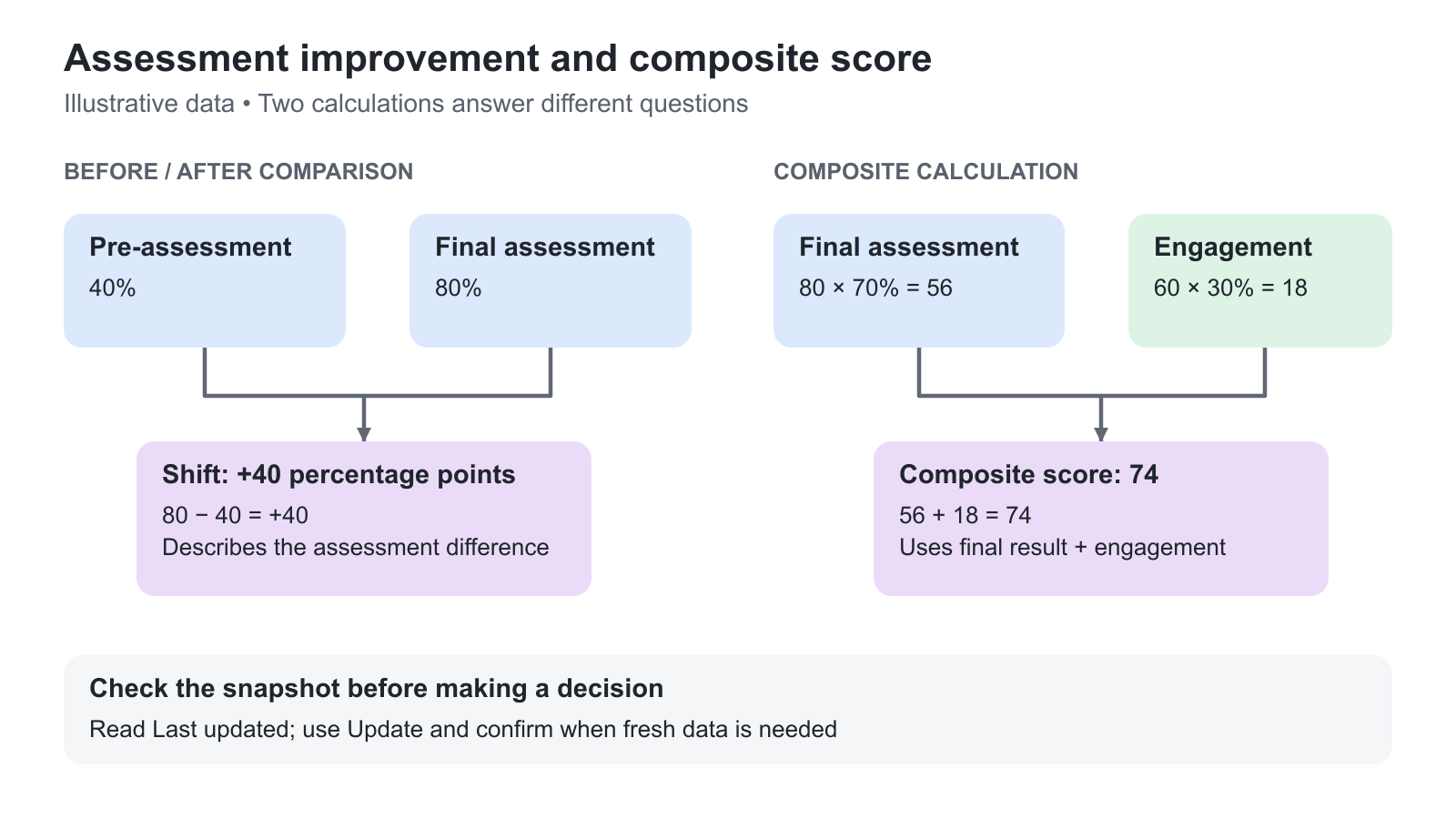
The initial data update starts when a saved template is opened for the first time. Thereafter, the template has no scheduled automatic refresh. Read Last updated, select Update, and confirm the update when you need the latest available data.
Refresh after new learning activity, assessment attempts, completion changes or relevant configuration changes. Reopening the page or changing a filter is not a substitute for updating the data. Record the update time and filters with an exported analysis when you need to explain which snapshot informed a decision.
Read the engagement evidence
The Engagement score tab begins with participant and Marked as completed counts, followed by module performance. Drill into a module's Pages performance, then a page's Participants performance, to move from a cohort signal to the underlying individual records.
| Breakdown | What to investigate | Useful decision |
|---|---|---|
| Modules performance | Average time before completion, average revisit time, adaptive/recommended proportions, completion and average engagement | Which part of the activity deserves closer attention |
| Pages performance | The same measures for the native pages within a selected module | Which explanation, resource or page design may need review |
| Participants performance | A person's time, engagement score and dates for Recommended, Supplemental, Optional and Completed states on the selected page | Whether the aggregate pattern also applies to this participant |
Time before completion is recorded before the page becomes completed; Revisit time is recorded afterwards. For a page completed simply by opening it, the first visit is treated as time before completion. For pages with completion-tracked media or interactions, the first visit can cross the completion point and contribute to both measures.
Engagement is not a simple total of minutes. The calculation combines 60% of normalized time before completion and 25% of normalized revisit time, then applies the adaptive/recommendation adjustments below. Normalization uses cohort medians, excluding zero time values, and caps the normalized measures. Revisit credit is also subject to the documented relationship between revisit time and time before completion. Consequently, more elapsed time does not produce an unlimited score, and the same raw time can be interpreted differently in different cohorts.
| Content state for the participant | Effect on engagement |
|---|---|
| Optional and completed | Adds 15 points |
| Supplemental and not completed | Subtracts 15 points; completion removes the penalty |
| Recommended and not completed | Subtracts 25 points; completion removes the penalty |
| Optional and recommended, not completed | Applies the recommended-content penalty |
| Optional and recommended, completed | Adds the optional-completion bonus |
| Supplemental without progress tracking | Treated as optional for this calculation |
Negative calculated engagement values are set to zero. Page and module calculations use the corresponding page or module evidence. Read the state dates and content design alongside the result instead of treating every low value as the same kind of problem.
Distinguish improvement from the composite score
Open Composite score to compare participants and their levels. The assessment columns use – when no result is available. A displayed 0 is a recorded result of zero, not a missing attempt.
| Measure | Meaning | Interpretation |
|---|---|---|
| Pre-assessment score | Result from the selected initial Question Set | Baseline evidence for the intended objectives |
| Final-assessment score | Result from the selected final Question Set | Assessment outcome after the intended learning journey |
| Shift | Final score minus pre-assessment score | A percentage-point difference; unavailable if either result is missing |
| Avg. engagement score | Average of the participant's calculated module engagement scores | Modules without a calculated value are not treated as zero |
| Composite score | 70% final-assessment score plus 30% average engagement | Unavailable when the final-assessment result is missing |
Illustrative calculation: A pre-assessment result of 40%, final result of 80% and average engagement score of 60 produce a shift of +40 percentage points and a composite score of 74: (0.70 × 80) + (0.30 × 60). The baseline result informs the shift, but is not an additional component of the composite formula.
The distribution bar groups participants by level. Standard level ranges are No level: 0, Minimal: 1–49, Developing: 50–69, Proficient: 70–84 and Advanced: 85–100. Boundary values are rounded mathematically before level allocation: 69.4 becomes 69, while 69.5 becomes 70. Level names and ranges can be configured by Eurekos; check the terminology in use on your platform before making a policy depend on a particular label. A missing final result must be investigated as missing evidence, not interpreted as a demonstrated score of zero.
Filter a meaningful cohort
Available filters include organization, workplace, department, type, job function, language and country, depending on enabled profile fields and your scope. Relevant questions from an activity-level questionnaire can also be used when they have supported structured-answer types: Single choice, Multiple choice, Dropdown, Linear scale, Rating scale or Consent.
Selected values within one filter category use OR logic; selections across different categories use AND logic. The composite and assignment views also offer Level, including Marked as completed. Filter badges show the active selection, and Clear all removes the combined filtering. Previously applied filters are retained when you return, so inspect the badges before interpreting a small group as the whole cohort.
For example, select a developing-level group in one partner region to prepare an additional facilitated session. Compare its underlying module/page evidence before assuming every participant needs the same resource. An organization filter narrows an available view; it does not grant access to otherwise unauthorized people.
Turn evidence into follow-up training
From Composite score, open Assign activity. This workspace supports name/email search, level sorting and filters. Use Details to review participants and the three weakest eligible pages and modules by engagement score. Select participants and use View cohort to examine only the selected group.
Items without a calculated score are not ranked among the weakest. Optional, non-recommended items and supplemental items without progress tracking that are not recommended are also excluded from these weakest-content lists. The list is therefore a focused diagnostic aid, not an inventory of everything a person skipped.
When the evidence supports a shared next step, select the participants, review the selection count and use Assign activity to choose the follow-up Training Activity. Select all can extend the selection beyond the currently displayed rows: check the total and filters before confirming.
Viewing scores does not grant enrollment authority. Assignment respects the acting user's enrollment and organization permissions. Capacity and waiting-list rules can affect the outcome; inspect the result message and the actual registration status rather than treating a click as proof of active access. Assignment sends the applicable enrollment emails. The Activity (already enrolled) column records activities assigned through this template's assignment mechanism; it is not the participant's complete training history.
An appropriate intervention might be a short workshop on the modules that several participants found difficult, rather than requiring the whole original course again. For a strong final result with low engagement, a discussion or content-design review may be more useful than remediation. The report supports the decision; a facilitator remains responsible for interpreting it.
Export the breakdown that answers your question
Get report follows your current tab and drill-down level. The standard report files are Excel workbooks generated in your language; participant-level dates use your time zone.
| Location | Report option | Included evidence |
|---|---|---|
| Engagement score → Modules performance | By modules | Module averages and adaptive/recommended/completion proportions |
| Engagement score → Modules performance | By participants | Each participant's module time, state dates and engagement |
| Engagement score → Participants performance for a page | Get report | Participant evidence for that selected page |
| Composite score | Composite score | Assessments, shift, average engagement, composite score and level |
| Main module or composite view, where offered | Full archive | The report workbooks together, including module/page folders for detailed participant reports |
The page-level summary view does not have its own Get report control; continue to the participant breakdown when you need that detailed export. Keep the template identity, refresh time and reporting scope with files used for review. Treat downloaded participant data according to your organization's handling and retention rules.
Account for exceptions before comparing results
Registered participants are included; canceled or expired registrations and deleted users are excluded from this analysis. Blocked users remain included. This differs from some other analytics reports.
Participants administratively Marked as completed appear separately and are excluded from engagement/composite calculations and averages. Revoking that administrative completion returns them to the calculated population after an update. Their absence from an average is not a score of zero.
For activities with certificates, calculations use the latest attempt. Imported training history can supply names and completion dates without the original assessment, adaptive-state and time evidence; engagement and composite scores cannot be reconstructed from completion dates alone. Historical data collected under earlier tracking arrangements may also be less detailed than a newly completed journey.
These boundaries matter when comparing cohorts or reconciling Fingerprint totals with Progress or certification reports. Check the population and attempt model before concluding that one report is wrong.
Verify the evidence before taking action
Use a small, known example before relying on a cohort comparison or assigning follow-up training. These checks help separate an interpretation issue from a scope or data-freshness issue.
| Check | Expected result |
|---|---|
| Source and purpose | The template identifies the intended Training Activity and assessment pair. The question you are answering is clear: learning change, engagement with content, or a shared follow-up need. |
| Data freshness | You have checked Last updated and refreshed the template when newer learning activity needs to be included. Record the snapshot time with an export used for a decision. |
| Cohort and missing evidence | Filter badges match the intended group. A missing assessment or uncalculated result is investigated rather than treated as a demonstrated failure or a score of zero. |
| Export detail | The selected report matches the level of evidence required: modules, participants, a participant breakdown for a page, or composite results. Do not compare a page-level file with an activity-wide total as though they describe the same population. |
| Follow-up outcome | An authorized person has reviewed the selected participants and destination activity. After assignment, check the result and registration status; capacity or waiting-list handling can mean that not everyone has active access yet. |
Troubleshooting
| Problem | What to check |
|---|---|
| The activity or assessment cannot be selected | Confirm the activity contains a native Course module with an eligible H5P Quiz (Question Set); tests in SCORM or Existing Training are not source assessment choices |
| A colleague can view a template but cannot edit it | Template maintenance, activity responsibility and organization scope are separate permissions |
| New attempts or completion changes are missing | Check Last updated and confirm Update; there is no scheduled template refresh |
| A score is – rather than 0 | Check whether the underlying assessment or engagement evidence exists; a missing result is not a failed result |
| The composite does not equal the assessment shift | Composite uses 70% final assessment and 30% engagement; shift is a separate final-minus-initial measure |
| A participant is missing from calculated averages | Check registration/user status and the separate Marked as completed section |
| Completion history exists but scores do not | Imported dates do not recreate assessment, timing or adaptive-state evidence |
| The group is smaller than expected | Check retained filters, the selected activity, latest-attempt rules and data-access scope |
| An expected page is absent from the weakest-content list | Check for a missing score or an optional/non-recommended or untracked supplemental exclusion |
| Follow-up assignment is unavailable or incomplete | Check enrollment authority, organization scope, selection count, capacity, waiting-list outcome and registration evidence |
FAQ
-
Does Adaptive Learning Fingerprint update automatically as people study?
The initial update starts when the saved template is opened for the first time. Later updates are manual: check Last updated, select Update and confirm it. Reopening the page or changing a filter is not a scheduled data refresh.
-
Does a low Fingerprint engagement score prove that someone failed to learn?
No. Engagement combines normalized recorded time and adaptive or recommended-content states; it is not an independent assessment of understanding. Review the final assessment, learning route and page or module evidence before deciding whether the appropriate response is support, a discussion or a content-design improvement.
-
Does permission to view Fingerprint results also allow follow-up enrollment?
No. Viewing a template, maintaining it and assigning training are separate capabilities. Follow-up assignment respects enrollment and organization permissions, and capacity or waiting-list rules can affect the outcome. Check the confirmation and actual registration status.