Activity Description - Article
Summary
The Activity Description is the participant-facing overview of a Training Activity. It brings the purpose, benefits, and learning journey together in one place, helping people decide whether the training is relevant and what they should do next. It also presents current delivery information and the appropriate action for each viewer, making it the central page for discovering, joining, and returning to the training.
In this article you will learn:
- How the Activity Description differs from the internal activity title and Description field
- How page templates and single-course descriptions provide starting content
- How to configure the participant-facing title, banner, content widgets, and module overview
- Which information is generated automatically in the Enroll widget
- How to reorder, label, hide, and style Enroll-widget sections
- Why different people see Enroll, Request enrollment, See requirements, Request training, Re-enroll, or Go to training
- How Storefront audiences, direct links, organizations, and access requirements affect the page
- How linked dates and language versions appear
- How regular and organization-branded Share links behave
- How to use revisions, copy and paste, linked-activity updates, and Clear content safely
- How to test the page before making an activity discoverable
What the Activity Description is
The Activity Description is the landing page a prospective participant uses to understand a Training Activity before enrolling. It brings together authored presentation and live administrative data, then displays the action the current viewer can take.
It should answer the participant's practical questions:
- What is this training about?
- Who is it for, and what will I learn?
- What does it include?
- When and where does it take place?
- How much time will it require?
- Is a certificate available?
- What does it cost?
- Are seats available?
- Do I meet the requirements?
- What happens when I select the action button?
The page is useful for internal, partner, and public training. Self-enrollment is not required merely to create or review an Activity Description, but it is required for the normal participant-facing Share action and most catalog enrollment journeys.
The page combines five sources
| Source | What it contributes |
|---|---|
| Activity Description editor | Participant-facing title, banner, supporting content, layout, and custom text |
| Training Activity configuration | Schedule, seats, registration period, price, certification, additional products, restrictions, on-demand behavior, and other activity-level features |
| Modules and Courses | Module titles and descriptions, duration, video and resource counts, locations, instructors, and the learning-path overview |
| Activity Settings and Storefront | Language, tags, keywords, linked languages, SEO, discovery, and audience visibility |
| Current viewer | Currency, organization, eligibility, signup status, subscription access, linked-date choices, service messages, and the action button |
This separation keeps the information accurate. Administrators write the stable explanation once, while Eurekos updates operational facts from the actual activity instead of requiring dates, prices, and capacity to be copied into text.
Distinguish the related titles and descriptions
An activity can have several related text values with different purposes.
| Text | Where it is configured | Primary use |
|---|---|---|
| Internal activity title | Create/Edit Activity | Identifies the activity in administration, reports, and many system processes |
| Activity Description field | Create/Edit Activity | A concise summary that can appear on My overview and in Storefront presentations when enabled in commerce settings |
| Activity Description title and page content | Activity Description editor | The participant-facing landing-page title and full promotional or explanatory content |
| Module description | The relevant module on Create/Edit Activity | Explains that module in the learning-path overview |
| SEO title and Meta description | Activity Settings | Describes an eligible public page to external search engines |
Use the internal title for reliable administration and the Activity Description title for audience-facing language. For example:
- Internal title: Data Protection - Copenhagen - 2026-10-15 - Cohort 04
- Activity Description title: Practical Data Protection for Customer Teams
- Short Description field: A facilitated half-day workshop on handling customer and employee data safely.
Do not put cohort codes or internal finance references in the public title unless participants genuinely need them.
The activity and module Description fields have no fixed character limit. Keep the activity summary concise anyway, because it can appear in compact My overview and Storefront contexts.
Titles in tokens
The two titles are also available as different tokens:
- [activity:title] uses the internal activity title.
- [activity:description_title] uses the participant-facing Activity Description title.
Choose the correct token in emails, certificates, and other automated content. A message can otherwise expose an internal working title even though the Storefront shows a polished public title.
Open and configure the page
Open Course Administration → Activities, select the Training Activity, and choose Activity Description. Depending on the interface, this action can also appear as a notebook icon.
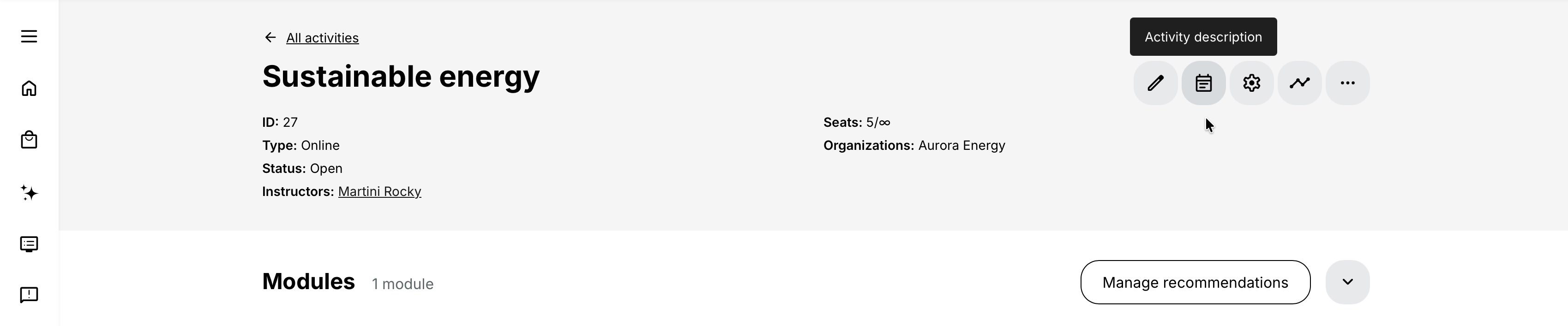
After activity creation, Eurekos can show a Configure activity description reminder. It remains until an authorized user changes the page or dismisses the reminder. Selecting Configure description opens the editor.
A typical configuration sequence is:
- Confirm the participant-facing title.
- Choose or replace the banner.
- Add and arrange the main explanatory content.
- Review Modules in this path.
- Customize the Enroll widget's order, icons, labels, and optional sections.
- Save the page.
- Decide whether to apply the content change to linked activities when prompted.
- Test the page as several real audience types.
The exact editing controls depend on your role, the activity's organization, the platform page template, and enabled features.
Start from the Activity Description template
A Platform Administrator can configure the default Activity Description template under Settings → Page templates → Activity Description.
The template can establish:
- An image, video, or playlist banner
- The initial arrangement of required page areas
- Supporting content widgets
- The order and presentation of Enroll-widget information
- Default headings such as About the training and Includes
Use the template for content that should be consistent across most offers, such as an approved layout, standard contact information, accessibility wording, or an enrollment disclaimer.
Treat the template as a starting structure. Review existing activity pages separately when the template changes rather than assuming that every previously created page has been rebuilt automatically.
Default heading translation
The default Enroll-widget headings About the training and Includes are translated automatically into the viewer's interface language until they are edited in the Activity Description page template.
After a default heading is edited, it becomes custom text and is no longer translated automatically. If the platform serves several languages, either retain the translated system heading or maintain a deliberate localization process for the custom wording.
There is no technical character limit for these headings, but short labels work best in the narrow Enroll column and on mobile screens.
Understand content inherited from a single Course
When a new activity contains exactly one Course module and that Course already has a Course Description page, Eurekos can initialize the Activity Description from it:
- The participant-facing title is taken from the Course Description.
- Its page widgets are transferred to the Activity Description.
This is a one-time transfer during activity creation. Widgets added to the Course Description later are not copied automatically to an existing Activity Description. Likewise, editing the Activity Description does not rewrite the Course Description.
Use this behavior to create a strong reusable base for simple course offerings, but review the result for delivery-specific facts. A particular Training Activity can have its own date, audience, instructor, price, certificate, or enrollment conditions even when its learning content comes from the same Course.
When an activity is repeated, the new activity receives the existing Activity Description setup from the activity being repeated. The pages can then remain different or be updated together through the linked-activity workflow.
Set the participant-facing title
For most activities, the Activity Description title initially follows the internal activity title. Edit it when the audience needs a clearer, shorter, or more benefit-focused title.
The Activity Description title is used in participant-facing Storefront contexts. For an activity created from a single Course Description, the Course title or description title can be shown instead of the internal activity title.
Friendly URL alias
Each Activity Description has a readable URL alias based on its participant-facing title, for example:
https://your-platform.example/explore/practical-data-protection
Changing the Activity Description title updates its generated alias. If the activity has already been promoted externally, validate previously distributed links and copy the current URL again before the next campaign.
Platform administrators can manage URL-alias patterns and regenerate aliases centrally. Do not edit a title merely to manipulate the URL; choose the participant-facing wording first, then apply the platform's consistent URL pattern.
SEO title is separate. Configure it in Activity Settings when an eligible public page should be presented differently in external search results.
Configure the banner
The Banner widget provides the main visual identity for the activity. It can contain:
- An image
- A video
- A playlist
The banner can be edited, hidden or unhidden, moved by drag and drop, or cut and pasted into another position. It cannot be deleted with the normal widget control.
The same visual can be used when the activity appears in the Storefront, so choose media that still works at smaller sizes and in cropped layouts. A 16:9 image is a practical default. Keep important subjects away from the extreme edges, and avoid embedding essential text into the image because cropping and responsive scaling vary by device.
Storefront video banners play without sound in promotional contexts. The visual therefore needs to make sense without spoken narration.
Add alternative text
Add meaningful alternative text to an image banner so a screen reader can communicate its purpose. Describe the information or intent of the image rather than starting with “image of.”
Alternative text is available for an image banner, not for video or playlist banners. If a video communicates essential information, provide the same information in the page text and follow the platform's video accessibility process.
Examples:
- Decorative abstract brand pattern: use empty alternative text if the interface permits it.
- Instructor demonstrating laboratory equipment: Instructor demonstrating the analyzer used in the practical workshop.
- Diagram containing learning outcomes: reproduce the outcomes as page text; do not rely on a long alternative-text substitute for an inaccessible diagram.
Build the explanatory page content
Select Edit and use Eurekos' native page-authoring widgets to build the main content. You can reuse material from the media and content archives and add supporting rich text, images, videos, and other available content types.
The Activity Description should explain the offer, not duplicate the complete learning experience. Keep assessed content, required course pages, tests, and tracked learning inside the Course or relevant module. A promotional video, instructor introduction, sample, agenda, or downloadable program can be appropriate on the landing page.
Useful content sections include:
- A concise opening promise
- Learning outcomes
- Intended audience
- Expected prior knowledge
- Delivery format
- Program or agenda
- Instructor or facilitator information
- Preparation requirements
- Accessibility and practical information
- What is included in the price
- Cancellation or contact guidance
💡 Avoid manually repeating information already generated in the Enroll widget unless context is needed. If a date or price is written into the rich text, it can become inconsistent when the activity changes.
Work with content widgets
Available actions depend on the widget, but commonly include:
- Edit
- Hide or unhide
- Move by drag and drop
- Cut and paste into another position
- Delete, when the widget is removable
Cut content can be pasted after the page is refreshed and the Paste action becomes available. Hidden content remains part of the editable page but is not presented to participants.
The Banner, Enroll, and Modules in this path widgets cannot be removed with their normal widget controls. Clear content is a separate page-level action and behaves differently.
Some low-level content-widget administration is restricted to Super Administrators. Ordinary Course Administrators should build the activity page from the approved widget types rather than changing the platform's widget definitions.
Review Modules in this path
For a learning path, Modules in this path shows the sequence of Courses, Calendar Events, Assignments, and Existing Training configured in the activity. It uses the titles, descriptions, schedules, locations, and other information maintained on the modules.
This automatic overview helps participants understand the journey without the administrator re-creating the module list on the landing page.
Before publishing, check:
- Module order
- Participant-facing module titles
- Descriptions and instructions
- Required and optional status
- Module schedules and time zones
- Location links
- Instructor information
- Existing Training choices
- Access restrictions
Correct the underlying module when the displayed operational information is wrong. Use page text only for interpretation or marketing context.
Each Course or Event module in Modules in this path can show the Location configured for that module. A configured Location URL can make the displayed Location a link to directions, accessibility information, parking guidance, or another authoritative venue resource. Modules without a Location do not display one.
The Enroll widget presents a summary for the complete Training Activity. If every module that has a Location uses the same Location entry, that Location is displayed. Modules without a Location are ignored when the summary is calculated. If two or more different Location entries are used, the widget displays Multi-site.
The summary is not taken from the first module. Because each bookable room is created as a separate Location entry, using two different rooms at the same venue also produces Multi-site. Participants can refer to Modules in this path for the specific Location connected to each module.
When Equipment is configured at activity or module level, administrators can preview its presentation from the Activity Description. Maintain equipment assignments on the underlying activity or module. Where instructor biographies are enabled, keep the responsible instructor's public profile current because it can also be presented before enrollment.
⚠️ The specialized Reselling gateway flow hides Modules in this path for a learning-path offer because the purchase creates a private cloned activity with customer-selected event dates. Treat this as an exception belonging to that commerce workflow.
Customize the Enroll widget
The Enroll widget is the decision and action panel on the Activity Description. It summarizes the current offer and gives the viewer the appropriate next step.
Authorized administrators can:
- Edit the widget
- Customize its appearance
- Move it by drag and drop
- Cut and paste it into another page position
The Enroll widget cannot be removed. Its action button, service messages, price and tax information, and linked-activity controls also cannot be hidden, because hiding them could present an inaccurate or unusable enrollment route.
Arrange the sections
The editor can include these sections, depending on enabled features and available data:
| Section | Source and purpose |
|---|---|
| About the training | Heading for classification and basic activity information |
| Location | A venue summary derived from the Location entries configured on Course and Event modules. It shows the shared Location when only one distinct Location is used, or Multi-site when two or more distinct Location entries are used. |
| Job function, Department, Units, Location code, Type, Category, Importance, Countries | Activity tags enabled for both the platform and activities |
| Language | Language selected in Activity Settings |
| Includes | Heading for content and delivery facts |
| Number of modules | Count of modules in the activity |
| Video duration | Calculated video time in the included learning content |
| Supplemental resources | Count of qualifying unique supporting resources |
| Additional products | Products included with or offered alongside the activity |
| Certification | Certificate availability from the activity or relevant module |
| Contact hours | Configured or calculated facilitated contact time |
| Allocated time | Expected learning time configured for the activity |
| Course duration | Duration derived from included Course content |
| Training type | Activity's selected or automatically determined type |
| Skills | Skills associated with or relevant to the activity when enabled |
| Schedule | Activity schedule derived from activity and module dates |
| Rating | Average rating and number of reviews when enabled for display |
| Seats | Capacity and relevant availability information |
| Custom text | Administrator-authored supporting text |
| Linked activities | Eligible dates or deliveries in the linked group |
| Service messages | Current availability, requirement, or enrollment information |
| Keywords | Keywords from Activity Settings when configured for display |
| Price & tax info | Viewer-appropriate price, currency, and relevant tax information |
| Action button | Enroll, request, requirements, re-enrollment, or access action |
| Enrollment period | Earliest or latest registration information, including the registration deadline |
| Language options | Other connected language versions |
Not every section appears for every activity. A section needs both the relevant platform or activity feature and meaningful source data.
Understand the Location shown in the Enroll widget
The Location shown in the Enroll widget is generated from the physical Locations configured on the activity’s Course and Event modules. It is an activity-level presentation of module data, not a separate activity-level Location setting.
The System considers only modules that have a Location:
- If they all use the same Location entry, the Enroll widget shows that Location.
- If they use two or more distinct Location entries, the Enroll widget shows Multi-site.
- Modules without a Location do not affect the result.
This means an activity can include classroom, virtual, self-paced, and assessed components while still showing one shared physical Location. For example, a classroom introduction at Location A followed by two virtual calls displays Location A.
If another physical meeting uses Location B, the Enroll widget displays Multi-site. The order of the modules does not change the result.
The Modules in this path section continues to show the actual Location on each applicable module. Participants should use those module details to determine where each session takes place.
Different room-specific Location entries count as different Locations even when they share the same building address. In that situation, the activity-level summary can display Multi-site.
Use icons or labels
For each configurable Enroll-widget section, choose an icon or select the empty grey icon to display a text label instead. Use one approach consistently so the panel is easy to scan.
Icons should support recognition, not force participants to guess. Use a label when a concept is specialized or the available icon is ambiguous.
Hide optional information
Most informational sections can be hidden or unhidden. Hide a section when it is genuinely irrelevant or duplicates clearer page content, not to conceal a condition that affects the participant's decision.
These operational sections do not offer Hide:
- Linked activities
- Service messages
- Price & tax info
- Action button
Language options are also part of the current enrollment choice and should remain available when linked language versions are configured.
Reorder sections and add spacing
Drag sections into an order that matches the decision participants make. Up to three spacing separators can divide the widget into visual groups.
A useful order for scheduled paid training is:
- Location and language
- Schedule and enrollment period
- Seats and linked-date options
- What is included
- Certification and duration
- Price and tax
- Service message and action
For an internal self-paced course, language, duration, certification, requirements, and action can be more important than location.
Add custom text
The custom-text section uses a rich-text editor and has no technical character limit. Use it for a short operational note that belongs next to enrollment, such as:
- Your department will be charged after approval.
- Bring your own laptop for the practical exercises.
- The listed price includes the examination fee.
Long explanations belong in the main page content. Large custom-text blocks make the action panel difficult to scan, particularly on mobile.
Understand generated counts and values
Auto-generated information is only as reliable as its source configuration.
Supplemental resources
The Supplemental resources count includes:
- External videos
- H5P objects added to a Course Presentation or Interactive Video
The count uses unique resources. If the same external video or H5P object appears on several Course pages, it is counted once. Five different H5P interactions count as five resources.
This is a count, not an explanation of what participants receive. Use the main content when the nature of the resources affects the decision to enroll.
Schedule
The displayed activity schedule depends on the activity-level Schedule feature:
- Without an activity-level Schedule feature, the activity is treated as self-paced even if a Course module contains its own schedule.
- For a single-module activity with activity-level Schedule enabled and its dates left blank, the displayed schedule can be derived from the module.
- For a multi-module activity, the activity schedule spans from the earliest module start to the latest module end, within any activity-level bounds.
- Calendar Event dates and each time zone remain relevant at module level.
Review the resulting page after editing any activity or module date. Do not type a parallel schedule into the rich text unless it is an explanatory agenda.
An on-demand activity without a fixed schedule can display Flexible.
Price and currency
The displayed price comes from the activity and commerce configuration. For anonymous visitors, currency can be selected through configured location services or fall back to the platform default. A registered user's profile and platform configuration can determine the relevant currency.
Tax, payment methods, Virtual Credits, subscriptions, discounts, and additional products have their own rules. The Activity Description summarizes the available offer; checkout remains the authoritative transaction step.
If the viewer does not have access to the activity, Eurekos can hide price and enrollment information rather than exposing sensitive commercial details.
Rating
When Rating is enabled for the activity and its Storefront display is enabled, the Enroll widget can show an average and review count. Before the first response it can show Rating 0 (0 reviews); later it shows the calculated average and count.
Disabling the activity Rating feature removes the rating from the Activity Description and Storefront. A participant's existing review remains part of the underlying record according to the rating workflow.
Tags and keywords
Only tag vocabularies enabled at platform level and made available for Activities can be selected for display in the Enroll widget. Correct the values in Activity Settings; the widget controls presentation, not classification.
Keywords support Eurekos search and can be displayed when appropriate. They are not a substitute for a participant-friendly explanation.
Understand the action button
The action button is generated from the current viewer and configuration. Administrators should not attempt to reproduce it with a manual link in the page content.
| Viewer and activity state | Typical action or message |
|---|---|
| Eligible, not enrolled, free activity | Enroll; registration completes through the configured free flow |
| Eligible, not enrolled, paid activity | Enroll; continues to checkout |
| Participation approval required | Request enrollment |
| Enrollment criteria unmet | See requirements |
| Questionnaire is the only unmet enrollment criterion | Enroll opens the required questionnaire, then enrolls or continues to checkout after submission |
| Seats full with waiting list | Waiting-list action or message |
| On-demand activity | Request training |
| Registered participant | Go to training |
| Eligible alternative in a linked group | Enroll in the selected option or Re-enroll, depending on re-enrollment configuration |
| Activity with a configured custom enrollment action | Custom button label; opens the configured external URL |
| Activity unavailable to the viewer | Explanatory service message; sensitive price and enrollment elements are hidden |
| Administrator managing a non-self-enrollable activity | Training is not available in the Storefront instead of an enrollment action |
Exact wording can vary with platform language and configuration.
Request enrollment
When participation approval is enabled, Request enrollment replaces direct enrollment. The viewer is told that approval is required and can confirm the request. If a questionnaire is required before the request, it opens first.
A pending request appears in the participant's Waiting list area on My overview with an Enrollment requested label. It does not provide training access.
See requirements
Enrollment restrictions can require completion, attendance, certificates, dates, organization membership, job function, signup state, Skills, questionnaires, or other supported criteria. See requirements opens the current list instead of allowing enrollment.
When a questionnaire is the only unmet criterion, selecting Enroll opens the questionnaire inline. Submitting it enrolls an eligible user in a free activity or continues a paid user to checkout. Dismissing it without submission does not enroll the user.
Request training for on-demand delivery
An activity configured for On-demand shows a short service explanation and Request training instead of Enroll. The button opens the configured contact form or questionnaire.
An already registered user sees Go to training. Cancelled, Reserved, and Expired signups are not treated as active registration for this decision and can still see Request training.
Managers and Partners can request on-demand training for related users according to their permissions. Their action can remain available when at least one eligible related person is not registered.
Accommodation and dietary questions
If Accommodation and diet is enabled, selecting Enroll can open the booking-preferences form immediately for free training using the simple enrollment flow. Paid or non-simple flows collect the details at checkout.
When a manager enrolls another person, the participant receives a link to enter personal booking preferences rather than requiring the manager to provide them.
Go to training
Go to training confirms that the current user is registered and has a route into the learning experience. It does not mean every module is currently unlocked; activity-level or module-level access restrictions can still show requirements in learn mode.
Custom enrollment button
When custom enrollment buttons are enabled for the platform, Customization options in Activity Settings can replace the standard Activity Description action with a translated custom label and URL. The destination can open in the current or a new browser tab.
The platform can apply custom buttons to all training or only to paid training. With paid-only behavior, a free activity - including one made free by a 100% discount - continues to use the normal Enroll action.
A custom button redirects the viewer; it does not itself create a Eurekos signup. If an external registration or checkout system should enroll the participant, that result requires the corresponding integration or administrative process. The custom label applies on the Activity Description; later pages keep their standard action labels.
For more detail, see Activity Settings.
Control discovery separately from page content
Completing the Activity Description does not automatically publish the activity or make it discoverable.
Participant discovery can depend on:
- Storefront being enabled
- Self-enrollment being enabled for the activity
- Activity availability and registration dates
- Placement in a Storefront section
- The section's target audience
- Organization or suborganization restrictions
- Language and linked-language behavior
- Subscription membership
- Activity status and available seats
Storefront section audiences also control Storefront search, Global Search, and the Catalog API. An activity outside every section visible to a person is not normally discoverable through those routes.
Direct-link enrollment remains available by default when the person otherwise meets the activity's rules, even if the activity is not exposed in one of that person's visible Storefront sections. Platforms can enable Block enrollment by Storefront visibility to apply the same audience rule to direct links.
Use the combination deliberately:
- Put broadly discoverable training into the right Storefront sections.
- Use audience-targeted sections for defined groups.
- Use a controlled direct link for an unlisted offer only when the platform's direct-link policy allows it.
- Use organization and enrollment restrictions for actual eligibility; do not rely on an obscure URL.
An already enrolled learner can retain a route to an activity even if it is no longer exposed in the learner's current Storefront sections.
Activity Descriptions when enrollment is unavailable
Activity Description pages open with a clear reason when the viewer cannot enroll. Depending on the cause, the page can show messages such as self-enrollment unavailable, requirements not met, or unavailable to your organization. Price and enrollment options can be hidden.
This behavior lets the page explain an offer without granting access. It also means administrators must test both the visible content and the action state.
An Activity Description can be opened directly even when the catalog is disabled, subject to the platform's access controls. The activity will not thereby become a discoverable catalog offer.
Activity without modules
An activity can be created and users can be assigned before modules are added, but it is not ready for learning:
- It does not appear to end users in the catalog.
- A manually assigned user can see it in Trainings I Attend, but cannot open it.
Add and configure at least one valid module before treating the Activity Description as ready for participants.
External Storefront exception
Some deployments expose an optional Hide from external storefront activity setting for a client-facing catalog hosted outside Eurekos. This controls that external integration and its API filtering; it is separate from hiding a widget or excluding an activity from the built-in Storefront.
Use it only when the feature is enabled and your integration documentation defines the intended behavior.
Present linked dates and language versions
Linked delivery dates and language relations both create participant choices, but they are different configurations.
Linked or repeated activities
Repeated and manually linked activities form a group of related deliveries. In the standard Storefront view, the group is shown as one offering based on the nearest available activity. Timeline view can show the deliveries separately.
The Storefront normally takes the banner and other non-price information from the nearest available activity. If all available activities have the same price, that price is shown. If their prices differ, the group can show From with the lowest price among the eligible non-cancelled, non-completed activities.
Opening the offer leads to an Activity Description. The Enroll widget's Options selector lets the participant open another eligible description page in the group. The list excludes deliveries that are not available because of dates, organization, status, capacity without a waiting list, or other applicable filters.
Each linked activity still has its own Activity Description, price, schedule, instructors, capacity, and participant records.
Re-enrollment between dates
If a participant is already enrolled in one linked activity and platform re-enrollment is disabled, the participant can enroll in another eligible option without automatically cancelling the first signup.
If re-enrollment is enabled, the widget explains that the current enrollment will move. Change dates and Re-enroll replace the normal option and action; confirming cancels the current signup and registers the participant in the new delivery.
Language options
Connect separate translated or localized Training Activities through This training is available in other languages in Activity Settings. The Enroll widget then presents eligible language options.
Language relation is independent of a linked date group. Each language version can have its own linked schedules. The relationship does not translate page content, modules, price, emails, or certificates; maintain each version as a complete activity.
For more detail, see Recurring events and activities, Activity Settings.
Share the Activity Description
The Share action generates and copies a direct Activity Description URL. It is available when self-enrollment is enabled, subject to user type, permission, organization aliases, and platform configuration.
Share a regular link
When no organization aliases are configured, selecting Share copies the regular Activity Description URL.
An administrator with permission to manage Activity Description organization aliases can also select Current link in the Share dialog to copy the regular URL instead of an organization-branded one.
Share on behalf of an organization
An organization can have one or more custom URL aliases. Sharing on its behalf creates a link in this form:
https://your-platform.example/organization-alias/explore/activity-alias
The link can show that organization's appearance to an anonymous or signed-out visitor and maintain the organization context through sign-up, sign-in, and enrollment.
Administrators with the relevant permission can choose the current link or an organization allowed by their organization scope. Other logged-in users receive behavior based on their memberships:
- No organization, or no available alias: regular link
- One organization with one or more aliases: organization link, with an alias selected automatically when necessary
- Several organizations with aliases: Share dialog containing only the user's eligible organizations
Anonymous visitors can be allowed to copy an organization-context link when an organization is already present in their session. A platform setting controls this.
Organization membership can change
Two platform settings determine whether following an organization-specific Activity Description link adds a person to that organization:
- Assign a new user who signs up through the alias or organization-specific activity link
- Assign an existing user who signs in, or who opens the organization-specific link while already signed in
When enabled, the sign-up page explains the organization assignment, and an existing user can be told after sign-in that the organization was added. When disabled, the custom appearance or link context does not grant that membership.
These settings can affect access to other training and organizational data, not just page branding. Before distributing a custom link:
- Confirm whether new and existing users should be added to the organization.
- Test an anonymous new-user journey.
- Test an existing signed-out user.
- Test an existing signed-in user from another organization.
- Confirm the resulting Storefront, price, and activity access.
Update linked Activity Descriptions
Repeating an activity copies its current Activity Description into the new activity. Afterward, each linked activity remains separately editable.
If Allow updating linked activities is enabled for the platform, Eurekos asks whether a qualifying page change should apply to:
- This activity only
- All linked activities
The prompt can appear when:
- Saving Activity Description changes
- Restoring a revision
- Pasting copied page content
- Replacing the banner
Selecting Apply to all replaces the content of every linked Activity Description with the content and customized widgets from the page being edited. It is a replacement, not a merge. Delivery-specific notes on another date can therefore be overwritten.
The Activity Description title is not synchronized by this bulk operation and changing the title does not trigger an update of linked titles.
Use Apply to all for a deliberate common baseline. Before applying it:
- Review whether another delivery has a unique venue, instructor, audience, sponsor, or preparation note.
- Export or record important date-specific content.
- Confirm which activity is the best source page.
- Use revisions if an unintended replacement must be restored.
If linked-activity updating is disabled, saving changes affects only the current Activity Description and no choice is shown.
Use administrative page actions
Authorized administrators see Edit plus additional actions under More.
Revisions
Activity Description revisions provide a history of page changes. They include:
- Revision author, including retained information when the author account was later deleted
- Red and green highlights when comparing widget changes
- Restore for returning to an earlier revision
Restoring a revision can also trigger the linked-activity update choice. Confirm whether the restoration should affect one page or the full linked group.
Copy and paste
Use Copy and Paste to reuse a page structure or move widgets. After copying or cutting, refresh when necessary for Paste to become available.
Pasting into a linked activity can trigger Update linked activities. Choose carefully because Apply to all replaces the other linked descriptions.
Clear content
Clear content opens a confirmation asking whether all page content should be deleted. Selecting Clear removes the content widgets while retaining the Activity Description title and Enroll widget.
This is destructive at page level. Use it when intentionally rebuilding the page, not as a troubleshooting step for one incorrect widget. Check revisions before clearing so the former content can be recovered if necessary.
Activity
The Activity action returns to the administrative Activity page, where you can edit modules and features, manage participants, open Activity Settings, and access analytics.
Search index
Search index shows the Activity Description content currently stored in the search index for users with the required permission. Use it when a recently changed title or text is not behaving as expected in search.
Search eligibility still follows Storefront audience, access, and indexing rules. Seeing text in the index does not prove that every user can discover the activity.
Preview and test the complete experience
The editor shows how the page is composed, but a complete test requires actual audience states because the Enroll widget is personalized.
Test these viewers
| Viewer | What to verify |
|---|---|
| Anonymous visitor | Public visibility, browser language, organization branding, displayed currency, sign-up route, and sensitive data |
| Registered eligible participant | Discovery, price or subscription access, linked choices, Enroll action, and resulting access |
| Registered ineligible participant | Unavailable message, See requirements, hidden price, and no unintended enrollment route |
| Participant with pending request or waiting-list place | Correct status and no premature Go to training action |
| Registered participant | Go to training, linked-date behavior, and module access restrictions |
| Manager or Partner | Self versus staff actions, restrictions evaluated for the target participant, and on-demand behavior |
| Administrator outside the activity's organization | Edit access, organization filtering, and what can be previewed or selected |
| Mobile user | Banner crop, heading length, content order, Enroll-widget readability, and action visibility |
| Localized and linked descriptions | Each language has complete content and the intended enrollment options. Shared edits preserve delivery-specific information, and a recoverable revision exists before broad replacement or Clear content. |
| Configured information | Dates, price, seats, modules, and service information match their maintained sources. Required action and price sections remain visible rather than being contradicted by static prose. |
Use a real test account or the platform's supported audience-preview tools when available. An administrator's page view is not evidence of what an ordinary participant can see.
Activity Description versus Participant View
Do not confuse the Activity Description with Preview - Participant View from the administrative Activity page.
- Activity Description previews the pre-enrollment landing page.
- Participant View previews the learning experience after entry.
Participant View is available for activities with at least two modules and lets administrators navigate the learning path without a real enrollment. It intentionally ignores activity restrictions and omits or disables several participant actions, so it cannot validate the real enrollment or completion workflow.
Write an effective Activity Description
Lead with participant value
Open with the problem the training helps solve and the practical outcome. Avoid beginning with internal ownership, project history, or a list of system features.
Keep operational facts connected to their source
Use the Enroll widget and module data for facts likely to change:
- Dates
- Time zones
- Locations
- Seats
- Prices and tax
- Registration deadline
- Certificates
- Linked alternatives
Use authored content for meaning:
- Why the training matters
- What participants will be able to do
- Who should attend
- What preparation is expected
- What the learning experience is like
Design for scanning
Use informative headings, short paragraphs, and concise lists. Put the most important decision information before long biographies, background, or optional resources.
Make media accessible
- Add alternative text to informative images.
- Provide captions or transcripts for meaningful video.
- Do not communicate dates, prices, or requirements only inside an image.
- Check contrast and text size.
- Test responsive cropping.
Avoid duplicated promises
If the activity contains several modules, ensure the landing-page outcomes match the actual learning path. Do not promise certification, personal feedback, instructor access, or included products unless the corresponding feature is configured.
Common Activity Description scenarios
| Scenario | What to configure | What to verify or avoid |
|---|---|---|
| Simple self-paced Course | Start with the Course Description transferred when the activity is created. Keep the public title concise, use a relevant banner, explain the outcomes and audience, and show duration, language, certification, and the action in the Enroll widget. | Remove delivery-specific text copied from another cohort. |
| Paid instructor-led workshop | Lead with the practical benefit, then present the agenda and instructor. Let the generated panel show the current schedule, location link, seats, enrollment deadline, price, tax, and certificate. | Test anonymous currency, checkout, booking preferences, and what happens when the activity becomes full. |
| Learning path with several modules | Use the main content to explain how the journey fits together. Let Modules in this path show the detailed sequence. | Check every module title, schedule, description, and restriction. Avoid duplicating the complete itinerary in rich text. |
| Several dates for the same training | Repeat or link the activities, keep a shared description baseline, and let the Options selector display eligible deliveries. | Use Apply to all only for shared content. Keep venue- or cohort-specific notes on the individual Activity Description pages. |
| Multi-language offer | Create a complete Training Activity for each delivery language, translate its page and modules, set the correct language in Activity Settings, and connect the versions. | Do not treat translated interface headings as a substitute for translating the authored content. |
| Invitation-only or organization-branded offer | Restrict broad Storefront discovery, verify the direct-link policy, and share the appropriate organization-specific URL. | Before distributing the link, confirm whether it should add new or existing users to the organization. |
| On-demand training | Explain what can be customized and what happens after the request. Configure the contact form or questionnaire and verify the Flexible schedule label. | Test Request training for participants, Managers, and Partners. |
Troubleshooting
| Problem | What to check or do |
|---|---|
| The Storefront title differs from the administrative title | The Activity Description title is participant-facing and can intentionally differ from the internal title. A single-Course activity initialized from a Course Description can use the Course title. Check the Activity Description title before changing the administrative record. |
| An email or certificate shows the wrong title | Check the token. [activity:title] uses the internal title; [activity:description_title]uses the landing-page title. |
| A Course Description change did not appear | Course Description widgets are transferred only when the single-Course activity is created. Update the existing Activity Description separately. |
| The activity cannot be found in the Storefront or search | Check self-enrollment, availability dates, activity status, seats, Storefront section placement and audience, organization scope, subscription access, and language. Page content and SEO do not grant discovery by themselves. See Self-enrollment Eligibility and Requirements and Organization Visibility and Audience Targeting. |
| A direct link opens although the activity was not visible in the viewer's Storefront | This is the default direct-link behavior when the viewer otherwise qualifies. Enable Storefront-based direct-link blocking only when the same audience rule should govern both discovery and enrollment. |
| The page opens but price or Enroll is missing | Read the service message. The viewer may not meet access, organization, registration, or enrollment requirements. Current behavior can keep the page open while hiding sensitive commercial and enrollment elements. |
| The wrong date or location is displayed | Correct the Schedule or Location on the relevant Course or Event modules. The Enroll widget shows the shared Location when only one distinct Location entry is used and Multi-site when two or more are used; modules without a Location are ignored. For linked groups, also confirm which delivery the viewer opened. |
| A linked-activity update removed unique content | Apply to all replaces the linked pages' content; it does not merge them. Open Revisions on the affected page and restore the appropriate version, then choose Apply to this only. |
| The banner cannot be deleted | The Banner is a required structural widget. Replace it, hide it, or move it. Use Clear content only when rebuilding the whole page and after checking revisions. |
| A default Enroll-widget heading stopped translating | Editing a default heading converts it to custom text. Restore the system default or maintain translations through your chosen localization process. |
| Supplemental resource totals look lower than expected | The widget counts qualifying unique external videos and H5P objects, not every occurrence. Reusing the same object on several Course pages does not increase the total. |
| Share is missing | Confirm that self-enrollment is enabled. Then check user type, permission, organization-alias configuration, and the platform setting for anonymous sharing. |
| An activity with no modules appears but cannot be opened | This is expected for an incomplete activity. Assigned users can see it in Trainings I Attend, but it is not usable for learning or presented in the end-user catalog until it has a module. |
FAQ
-
Is an Activity Description required before participants can be enrolled?
No. An administrator can enroll participants without completing the landing page. However, anyone expected to discover, evaluate, or self-enroll in the activity should receive a complete and tested Activity Description. An activity still needs a valid module before participants can open its learning experience.
-
Is the Activity Description the same as the Description field on the activity form?
No. The Description field on Create/Edit Activity is a concise summary used in contexts such as My overview and selected Storefront presentations. The Activity Description is the full participant-facing landing page with its own title, banner, content widgets, module overview, and Enroll widget.
-
Can the participant-facing title differ from the internal activity title?
Yes. Use the internal title for administration and reporting, and the Activity Description title for the audience. Remember that [activity:title] returns the internal title while [activity:description_title] returns the landing-page title.
-
What should I write manually, and what should come from activity configuration?
Write the value proposition, audience, outcomes, preparation, agenda context, and practical explanation. Let Eurekos generate changing facts such as schedule, location, seats, registration deadline, price, tax, certification, linked options, and eligibility from the activity and its modules.
-
Does editing the Activity Description change the Course or activity configuration?
No. Page editing changes the landing-page presentation. Update Courses, modules, schedules, price, registration, certificates, tags, and restrictions in their own administrative areas.
-
Does a single Course Description remain synchronized with the Activity Description?
No. When a new activity contains one Course with a Course Description, the page title and widgets can be transferred at creation. This is a one-time copy; later changes on either page do not update the other automatically.
-
Do Activity Description template changes update existing activities?
Treat the template as the starting structure for activity pages. Review existing Activity Descriptions separately after changing it instead of assuming they were rebuilt from the new template.
-
Can I remove the Banner, Enroll, or Modules in this path widgets?
They cannot be deleted through their normal widget controls. The Banner can be replaced, hidden, or moved. Clear content is a separate page-level action that removes content widgets while retaining the Activity Description title and Enroll widget.
-
Does completing the Activity Description publish the activity in the Storefront?
No. Discovery also depends on Storefront configuration, self-enrollment, activity status and dates, Storefront section placement and audiences, organization rules, capacity, subscriptions, and other access conditions.
-
Can someone view the page without being allowed to enroll?
Yes. The page can remain visible while Eurekos displays the reason enrollment is unavailable and hides sensitive price or enrollment information. Page access, catalog discovery, enrollment eligibility, and learning access are separate decisions.
-
Are linked Activity Descriptions always identical?
No. Repeat initially copies the page, but every linked activity remains independently editable. When linked-page updating is enabled, an administrator can choose Apply to all for qualifying changes; otherwise only the current page changes.
-
Does Apply to all synchronize Activity Description titles?
No. It replaces page content and customized widgets across the linked group, but the Activity Description titles remain separate. Changing a title does not trigger the linked-page update prompt.
-
Can an organization-specific Share link add users to the organization?
Yes, when the corresponding platform settings are enabled. Separate controls apply to new users who sign up and existing users who sign in or open the link while already authenticated. Confirm this behavior before distributing an organization-branded link.