Access Expiration - Article
Summary
Access Expiration lets you decide when a participant should stop being able to open a Training Activity. Access can end on a shared date or after a defined period from the activity start, activity end, enrollment, or completion. Eurekos then changes the participant's signup to Expired while preserving the record for administrators. Use it when learning access must be time-limited, and plan the rule before enrollment because later configuration changes do not update participants who were already registered.
In this article you will learn:
- What Access Expiration controls and when to use it
- How it differs from Access Restrictions, Mandatory deadlines, certificate expiration, re-certification, account access, and subscription access
- Why it is configured for the complete Training Activity rather than an individual module
- How to expire access a number of days or months after activity start, activity end, enrollment, or completion
- How to expire access at a specific date and time
- Which direct lifecycle conditions should not currently be relied on
- Why changes to the rule affect new registrations rather than existing signups
- How completion-based expiry is calculated and recalculated
- How to notify participants before access expires
- What participants and administrators see before and after expiration
- How Expired status affects access, reporting, seats, certificates, and later enrollment
- How to expire or reactivate individual participants manually
- How bulk reactivation behaves when more than one expired signup exists
- How to test and troubleshoot time-limited access safely
What Access Expiration helps you achieve
Access Expiration places an end point on a participant's access to the complete Training Activity.
It is useful when the right to use learning content is intentionally temporary. Common examples include:
- Give a customer 90 days to use purchased training after enrollment.
- Keep cohort materials available for one month after the scheduled program ends.
- Let participants revisit course resources for 12 months after completing the training.
- End access for everyone at the close of a licensing, academic, or contract period.
- Remove access manually when an individual exception or contractual decision requires it.
- Restore access for an approved extension without creating an entirely new activity.
When the rule takes effect, the participant's activity signup becomes Expired and the participant can no longer open the activity.
Expiration ends access; it does not erase history
The participant's signup remains in the administrative record. Administrators can still review the participant through the activity's Progress and reporting areas, and can reactivate access where appropriate.
Choose the correct lifecycle control
Several Eurekos features involve dates or access, but they answer different business questions.
| Business requirement | Use | What happens |
|---|---|---|
| Keep an enrolled participant out until prerequisites are met | Access Restrictions | The activity or supported module remains locked until the participant qualifies |
| Stop an enrolled participant from accessing the complete activity after a time limit | Access Expiration | The activity signup becomes Expired and learner access ends |
| Tell a participant when training should be completed | Mandatory | A deadline is displayed and the activity can become Overdue; access does not end automatically |
| Make an offer discoverable or enrollable only during a period | Storefront, self-enrollment, and registration dates | Discovery or new enrollment is controlled; existing participant access is a separate decision |
| Make a qualification invalid after a period | Certificate expiration | The credential expires according to its own lifecycle; this is separate from activity access |
| Start a new learning attempt when a qualification must be renewed | Re-certification | A renewal attempt is created according to the certificate and re-certification rules |
| End a commercial entitlement | Subscription or subscription-seat expiration | Subscription-derived access ends according to the commercial agreement |
| Prevent the person from signing in to the platform | Account blocking, authentication, or security controls | Platform account access is restricted, not only access to one Training Activity |
| Release or hide a specific Course page | Content Authoring page restrictions | The rule applies inside the Course rather than to the activity signup |
These controls can be combined when each has a distinct purpose. For example, a mandatory compliance activity can have a completion deadline, remain accessible for 30 days after completion, and issue a certificate that remains valid for two years.
Avoid using certificate expiration as a substitute for activity expiration. A participant may no longer hold a valid qualification while still needing access to training materials, or may retain a valid certificate after the learning activity itself is no longer accessible.
Understand the scope of Access Expiration
Access Expiration is an activity-level feature. It applies to the participant's relationship with the complete Training Activity.
When access expires:
- The participant cannot open the Training Activity.
- All modules reached through that activity relationship become inaccessible.
- The signup status changes to Expired.
- The expiration is visible administratively rather than deleting the signup.
Access Expiration is not configured separately for one Course, Event, Assignment, or Existing Training module.
If only part of a learning journey should be unavailable:
- Use Access Restrictions to control when a supported Course or Event module opens.
- Use Course-page restrictions when the requirement concerns a page inside a Course.
- Use Event dates and attendance behavior for scheduled participation.
- Redesign the activity structure if different components need independent entitlement periods.
Do not place unrelated learning under one activity merely because it is administratively convenient. An activity-wide expiration rule will affect every module reached through that signup.
Permissions and ownership
Configuring Access Expiration requires permission to edit the Training Activity and its activity-level Features. Course Administrator, Support, Platform Administrator, and Global Administrator roles normally have access, subject to platform configuration and organization scope.
Expiring and reactivating participants also require access to the activity's Participants section and the relevant signup actions.
Define ownership for:
- Business policy—decides how long access should remain available.
- Course Administration—configures and tests the rule.
- Participant operations—reviews exceptions and performs manual expiration or reactivation.
- Communication—owns the warning email and any contractual wording.
- Reporting and compliance—confirms that retained records satisfy the required evidence model.
- Commerce or customer success—confirms that the period agrees with the purchased or contracted entitlement.
Time-limited access can affect paid customers and regulated learners. Do not change it on a live activity without an agreed owner and impact review.
Configure Access Expiration
To add the feature:
- Open Course Administration.
- Open the Training Activity.
- Choose Edit activity.
- Open the activity-level Features.
- Add or enable Access Expiration.
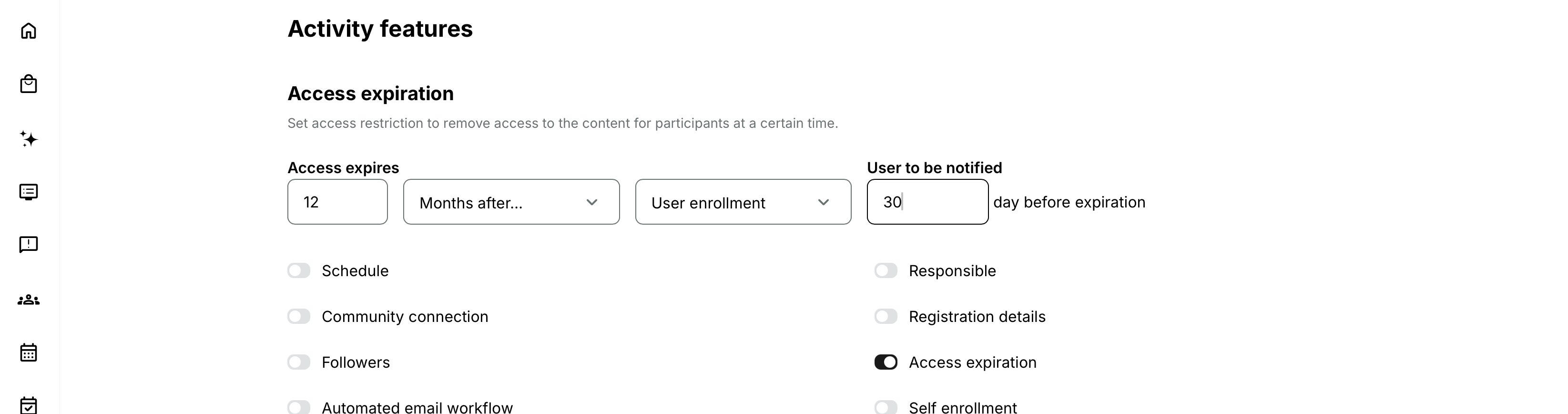
- Choose the expiration condition.
- Enter the required number, date, time, and notification period.
- Save the Training Activity.
- Test with a new participant registered after the rule was saved.
The exact fields depend on the selected condition.
Condi tion design | Additional value | Available reference points |
|---|---|---|
| At the time of | None | Activity starts, Activity ends, User enrollment, or Training completed |
| Days after | Number of days | Activity starts, Activity ends, User enrollment, or Training completed |
| Months after | Number of months | Activity starts, Activity ends, User enrollment, or Training completed |
| At specific date | Date and time | One shared expiration moment |
Important limitation for At the time of
The direct At the time of conditions can be selected in the configuration, but the current documented behavior does not evaluate these non-relative conditions. For example, selecting expiration exactly when the activity starts should not be relied on to remove access.
Use a supported Days after, Months after, or At specific date rule that has been tested for the intended scenario. Do not assume that entering zero in a relative rule is a supported substitute unless that behavior has been verified on your platform.
Choose the correct expiration model
The best condition depends on whether every participant should lose access together or receive an individual access period.
| Objective | Recommended condition | Why |
|---|---|---|
| End access for a complete cohort on one contractual date | At specific date | Every applicable signup uses the same date and time |
| Give every participant the same period from enrollment | Days/Months after User enrollment | Each person's expiration is based on their own registration time |
| Preserve access for a period after a scheduled delivery begins | Days/Months after Activity starts | The period is anchored to the activity Schedule |
| Preserve access for a period after a scheduled delivery finishes | Days/Months after Activity ends | The period is anchored to the end of the activity Schedule |
| Let participants revisit materials for a period after finishing | Days/Months after Training completed | The clock begins only when the signup reaches Completed |
| End access immediately for one participant | Manual Expire access | The exception is applied to that signup without changing the activity rule |
| Give one expired participant an approved extension | Reactivate with new expiration date | Access is restored with an individual end date |
| Restore one participant without another automatic end date | Reactivate with unlimited access | The participant returns without a new expiration date |
Fixed-date access
Use At specific date when everyone should lose access at the same moment.
Typical uses include:
- A content license ends on 31 December.
- A cohort portal closes after a defined review period.
- A customer contract grants access until an agreed date.
- Exam-preparation materials must close before a controlled assessment window.
Enter both the date and time. Review the time-zone context shown on your platform, especially when participants are in several regions. A date without a clearly understood time can close access earlier or later than stakeholders expect.
Before opening enrollment, compare the expiration date with:
- Activity Starts and Ends
- Latest registration
- Mandatory deadline
- Event dates
- Assignment due dates
- Feedback availability
- Certificate completion criteria
- Storefront or subscription entitlement
- Participant notification lead time
A shared expiration date becomes progressively less useful for late enrollees. Someone registered near the closing date may receive far less access than earlier participants.
Access relative to enrollment
Use Days after User enrollment or Months after User enrollment when each participant should receive the same access duration.
Example:
Every buyer receives six months of access from the day they enroll.
The resulting dates differ by participant:
| Participant | Enrolled | Rule | Expected expiration basis |
|---|---|---|---|
| Participant A | 10 January | 6 months after enrollment | Six months from 10 January |
| Participant B | 25 March | 6 months after enrollment | Six months from 25 March |
This model is useful for self-paced learning, evergreen customer education, and individually purchased access.
Confirm what counts as the signup's enrollment time for each route you use, including administrator enrollment, Storefront purchase, onboarding automation, import, integration, nested training, or approved participation request. Test representative routes rather than assuming that every business process creates the signup at the same stage.
Access relative to activity start or end
Use the activity start or end when access should follow the scheduled delivery rather than the participant's personal enrollment time.
Examples:
- Access ends 30 days after the cohort finishes.
- Preparation remains open for 14 days after the program starts.
- Materials remain available for 12 months after the final scheduled day.
These rules depend on the applicable activity Schedule. Before registration begins:
- Confirm the activity has the required Starts or Ends value.
- Confirm the Schedule is configured at the correct level for the rule.
- Verify the time zone.
- Decide how a later reschedule should affect the business commitment.
- Test a participant registered before the relevant lifecycle date and one registered after it.
Changing a Schedule can affect status and completion elsewhere in the activity. Review access, automated emails, Events, Locations, Equipment, Mandatory deadlines, and commerce communication together.
Access relative to training completion
Use Days/Months after Training completed when participants should retain access for a defined review period after finishing.
The trigger is the participant's Completed training status. Opening every page, attending an Event, or submitting an Assignment is not enough unless those actions result in Completed status for the relevant activity signup.
Example:
- The activity is configured to expire six months after Training completed.
- The participant completes the required learning.
- The signup receives Completed status.
- Eurekos calculates the participant's expiration date.
- A clock icon appears in the Participants section while expiration is pending.
- At the calculated time, the signup becomes Expired and activity access ends.
This option provides a personal review period, but the expiry date is not permanently fixed if completion status changes.
Understand completion-based recalculation
For a completion-based condition, Eurekos recalculates expiration when the participant's training status changes from Completed to another status.
This can happen when an administrator changes the Course scope, content, activity structure, or Schedule and the participant no longer satisfies completion.
When completion is lost:
- The signup can return to In Progress.
- The existing completion-based expiration date is removed.
- The clock icon disappears because no completed-state countdown is active.
- A new expiration date can be calculated if and when the signup becomes Completed again.
This protects the logic from counting down from a completion state that no longer exists.
Before changing live learning after participants have completed it:
- Identify which signups currently have completion-based expiration dates.
- Determine whether the change can recalculate participant progress or completion.
- Review certificate and re-certification consequences separately.
- Test the change on a controlled copy where possible.
- Plan communication for participants whose access period changes.
- Recheck clock icons and expiration dates after saving.
Do not promise a fixed post-completion access date if administrators may later make changes that revoke or recalculate completion.
Plan the rule before enrollment
Access Expiration configuration is not retroactive in the same way as a general live policy update.
Changes apply to participants registered after the relevant condition was applied.
Participants who were already registered keep the expiration behavior associated with their existing signup. Adding, changing, or replacing the rule does not automatically make every historical signup adopt the new condition.
This means one Training Activity can contain participants with different access arrangements:
- Earlier signups with no automatic expiration
- Signups created under the previous rule
- New signups created under the current rule
- Individually reactivated signups with unlimited access
- Individually reactivated signups with a new expiration date
Before changing the rule:
- Export or review the current participant list.
- Identify the registration periods governed by each rule.
- Decide whether existing participants need individual action.
- Record the business reason and effective date of the new policy.
- Update participant-facing descriptions and commercial terms.
- Save the new activity configuration.
- Test with a newly registered account.
- Verify older representative signups remain unchanged.
The activity Change log can record changes to Access expires and User to be notified. Use it to establish what was configured, while retaining separate business documentation when you need to explain why the policy changed.
Notify participants before access expires
Access Expiration can notify the participant a specified number of days before the calculated expiration.
Configure the notification as part of the expiration rule. The platform uses the system email:
Settings → Email Sending → Activities → Activity access expiration – user
The email is commonly presented to the participant as Access to course is about to expire.
Use the message to explain:
- Which Training Activity is affected
- The expiration date and time
- What the participant should complete or download before then
- Whether earned certificates remain available separately
- Whether an extension, new enrollment, purchase, or support route exists
- Who to contact when the date appears incorrect
The built-in expiration notification is separate from an Automated Email Workflow. Use the native email for the defined pre-expiry warning. Use an automated workflow only for additional communication that its supported audiences and timing can reliably express.
Choose a useful notification period
Match the warning period to the participant's realistic ability to act.
| Access model | Consider |
|---|---|
| Short access window | A warning that is longer than the complete entitlement may not provide a meaningful participant experience; test the schedule |
| Long self-paced access | Give enough time to finish incomplete learning or request support |
| Fixed cohort closure | Align the message with facilitator and customer communication |
| Paid access | Include the approved renewal or repurchase route without implying that access will extend automatically |
| Compliance learning | Explain what must be completed while avoiding claims that activity access and certificate validity are the same |
Test the email with a newly created signup under the active rule. Confirm language, dynamic values, time zone, links, notification scheme, and sender configuration.
Understand what administrators see before expiration
When the expiration countdown is active, the activity's Participants section displays a clock icon next to the participant.
The tooltip identifies when access will end, for example:
Access expires on 14 Mar 2026 – 13:41 CET
The clock appears when the expiration has a calculable pending date. For example:
- A fixed date provides a date immediately for an applicable signup.
- An enrollment-relative rule can calculate from registration.
- An activity-start or activity-end rule requires the relevant Schedule value.
- A completion-relative rule cannot calculate until the signup becomes Completed.
The clock icon disappears when:
- The signup becomes Expired.
- A completion-based signup loses Completed status and no expiration date can currently be calculated.
- The signup is reactivated with unlimited access.
- The underlying signup state no longer has a pending expiration under its stored arrangement.
Use the tooltip as operational evidence for that participant. Do not infer one participant's date from the activity rule alone when historic and manually reactivated signups may have different arrangements.
Understand the participant experience after expiration
When the expiration time is reached, the signup becomes Expired and the participant loses access to the complete activity.
The activity is no longer displayed to the participant in:
- My progress
- My overview → Last visited
- Trainings I attend
- Profile → My trainings
- The participant's User transcript
Administrators continue to see the participant on the activity's Progress page and in administrative reporting.
This distinction supports audit and service work: expiration removes the learner's access route without deleting the underlying signup.
Expiration is not cancellation
| Status | Meaning | Participant access | Administrative record |
|---|---|---|---|
| Registered | Active signup | Available subject to other rules | Visible |
| Expired | Access ended manually or by Access Expiration | No access to the activity | Preserved and visible administratively |
| Cancelled | Participation was cancelled | No active participation | Preserved according to administrative behavior |
| Completed | Learning completion was achieved | Access can remain until a separate expiration rule takes effect | Completion is recorded |
Do not cancel a participant merely to implement a time limit. Cancellation and expiration describe different business events and can lead to different participant communication, capacity, reporting, and reactivation behavior.
Understand what expiration does not automatically change
Access Expiration is scoped to the activity signup. Treat related records as separate lifecycles.
| Related item | Relationship to activity expiration |
|---|---|
| Course or activity progress | Preserved administratively; the participant loses the access route through the expired signup |
| Earned certificate | Not automatically made invalid merely because activity access expires; certificate validity follows its own expiration rules |
| Certificate-derived Skill | Follows the certificate and Skill lifecycle rather than the activity access date |
| Re-certification | Controlled by certificate and re-certification rules, not created simply by expiring activity access |
| Mandatory deadline | Remains a completion target; Overdue does not itself expire access |
| Transaction | The purchase or enrollment record is not erased by changing the signup to Expired |
| Subscription | Its entitlement and billing lifecycle are separate, even when it originally provided the activity |
| Platform account | The user can still sign in and use other permitted areas unless the account is separately blocked |
| Other Training Activities using the same Course | The participant can retain access through another valid activity relationship |
The current public User Profile guidance also distinguishes time-limited learning access from historical credentials: certificates and related achievements follow their own records and validity. Confirm the current display behavior on your platform when participant-facing proof must remain available after the activity disappears.
Account for seat capacity
An Expired signup still occupies a seat in the Training Activity.
This is important for scheduled or commercially limited training. Do not assume that automatic or manual expiration returns the seat to general availability.
Before using Access Expiration as part of a capacity process:
- Review the Seats configuration.
- Review organization seat limits.
- Check waiting-list and automatic-promotion behavior.
- Decide whether the expired participant should remain represented in capacity.
- Test how later new signups behave at the limit.
- Define the administrative action for a genuine seat release.
If the business requirement is to cancel attendance and free capacity, use the supported cancellation and participant-management process rather than relying on expiration.
Expire access manually
An authorized administrator can expire a registered participant without waiting for the activity rule.
To expire one participant:
- Open the Training Activity.
- Open Participants.
- Find the participant with a Registered signup.
- Select the participant.
- Choose Expire access from the toolbar or the row's context menu.
- Confirm the action.
- Verify the signup now shows Expired.
- Confirm the activity is no longer accessible to the participant.
The action can also be available as a bulk operation for selected signups.
Use manual expiration for an individual access decision, such as:
- A contractual entitlement ends early.
- Access was granted to the wrong person.
- A controlled assessment window has closed for one participant.
- A support correction must reproduce an Expired state.
Do not use it when the real requirement is to remove the user from the platform, cancel an Event, revoke a certificate, or stop re-certification. Those require their own processes.
Reactivate an expired signup
Reactivation restores a signup that is Expired. The action can also be available for a Cancelled signup, subject to the participant state and permissions.
Two reactivation options are available:
| Option | Result | Typical use |
|---|---|---|
| Reactivate with unlimited access | Restores the signup without another individual expiration date | Permanent exception, internal user, or entitlement no longer time-limited |
| Reactivate with new expiration date | Restores the signup and applies a new individual end date | Approved extension, support correction, or renewed temporary access |
To reactivate one participant:
- Open the Training Activity.
- Open Participants.
- Find the Expired signup.
- Select the participant.
- Choose Reactivate.
- Select unlimited access or enter the new expiration date.
- Confirm the action.
- Verify the signup becomes active and the participant can open the activity.
- Confirm any new clock icon and tooltip show the approved date.
Before reactivation, check:
- Whether a new purchase or approval is required
- Whether the participant should resume the same signup or receive a new signup
- Whether Courses, Events, and Assignments have changed
- Whether earlier progress is still appropriate
- Whether the Schedule, deadline, certificate, and re-certification rules remain meaningful
- Whether the activity still belongs to the participant's organization or entitlement
- Whether reactivation affects a full activity with limited seats
Reactivate with unlimited access only when indefinite access is intentional. It creates an exception to the normal time-limited model and should have a recorded owner and reason.
Use bulk reactivation carefully
When several Expired signups exist for the same email address, bulk reactivation does not create duplicate active signups. Eurekos reactivates only the signup that expired most recently.
This protects the participant list from multiple active records, but it also means the administrator must not assume every historical attempt was reopened.
Before a bulk action:
- Filter the list to the intended participants and statuses.
- Check whether duplicate historical signups exist.
- Identify which signup expired last.
- Confirm whether progress and completion on that signup are the correct records to restore.
- Select unlimited access or a new expiration date deliberately.
- Recheck a sample of participants after processing.
For a compliance or paid-access exception, validate each affected participant individually after the bulk operation.
Decide between reactivation and a new signup
Reactivation and new enrollment serve different lifecycle models.
| Requirement | Prefer | Why |
|---|---|---|
| Continue the same learning entitlement after an approved extension | Reactivate the existing signup | Preserves the same activity relationship and restores access |
| Grant access again without another time limit | Reactivate with unlimited access | Creates an explicit individual exception |
| Begin a genuinely new attempt, purchase, approval, or cohort | A new signup through the supported route | Keeps the new business event distinct from the expired record |
| Renew a qualification through a managed attempt | Re-certification | Uses the certificate lifecycle rather than general activity reactivation |
| Move to another scheduled delivery | Move or participant re-enrollment | Changes the delivery rather than merely extending access to the current one |
Some enrollment routes can create a new Registered signup while preserving the older Expired record.
User import behavior
When user import is configured with the Activity column and Reactivate expired signups, importing an existing user with an expired signup creates a new signup for the listed activity. The behavior is similar to a new Storefront purchase rather than simply reopening the historical signup.
If the active expiration rule has already passed and a newly created signup would immediately become Expired, the import skips signup creation. This prevents the next scheduled expiration process from immediately expiring a signup that never had usable access.
Test imports with:
- One participant whose previous signup is Expired
- One participant whose previous signup is Cancelled
- A future fixed expiration date
- A fixed expiration date that has already passed
- A participant at the activity's seat limit
- The applicable organization filter and administrative scope
Participation approval behavior
When an approved-request signup later becomes Expired and the participant submits a new request for the same activity, approving the new request creates a new Registered signup. The old Expired signup remains in the Participants section.
This is a new participation cycle, not a restoration of the old signup. Review questionnaires, payments, capacity, and approval evidence accordingly.
Understand completion across old and new signups
A participant can have an old Expired signup and a newer Registered signup for the same Training Activity.
In this special case, the action choices for the older expired record can be limited. When an administrator uses Mark as completed on the expired signup, the participant's current Registered signup receives Completed status automatically.
Do not use this behavior casually as an attempt-management shortcut. Before forcing completion:
- Confirm which signup represents the current entitlement.
- Confirm the participant has actually met the completion requirement.
- Review whether completion should issue a certificate or start completion-based expiration.
- Check re-certification and attempt rules.
- Record the reason for the administrative completion.
Coordinate Access Expiration with activity schedules
Activity-start and activity-end rules depend on the Schedule that supplies those lifecycle dates.
Before using them, confirm:
- The Training Activity has an applicable activity-level Schedule.
- Starts and Ends are complete and correct.
- The time zone matches the delivery and participant communication.
- The activity is not relying only on several unrelated module dates.
- Repeating or linking activities will not apply a date from the wrong occurrence.
If a learning path contains several module schedules but no meaningful overall activity period, enrollment-relative, completion-relative, or fixed-date expiration may express the entitlement more clearly.
Do not treat the final Event end as the activity end unless the activity Schedule actually represents it.
Coordinate Access Expiration with Mandatory deadlines
A Mandatory deadline answers When should this be completed? Access Expiration answers When should access stop?
They can create four distinct states:
| Deadline | Access expiration | Participant state |
|---|---|---|
| Not passed | Not reached | Training is available and not overdue |
| Passed | Not reached | Training can remain available but shows Overdue |
| Not passed | Reached | Access has ended, even if the deadline was later |
| Passed | Reached | Training was overdue and is now inaccessible |
Normally, give participants enough time to complete before access ends. If access expiration precedes the Mandatory deadline, the participant can be asked to complete training they can no longer open.
When a participant is reactivated, review the Mandatory deadline separately. Deadline recalculation follows its own rules and should not be assumed from the new access date.
Coordinate Access Expiration with certificates and re-certification
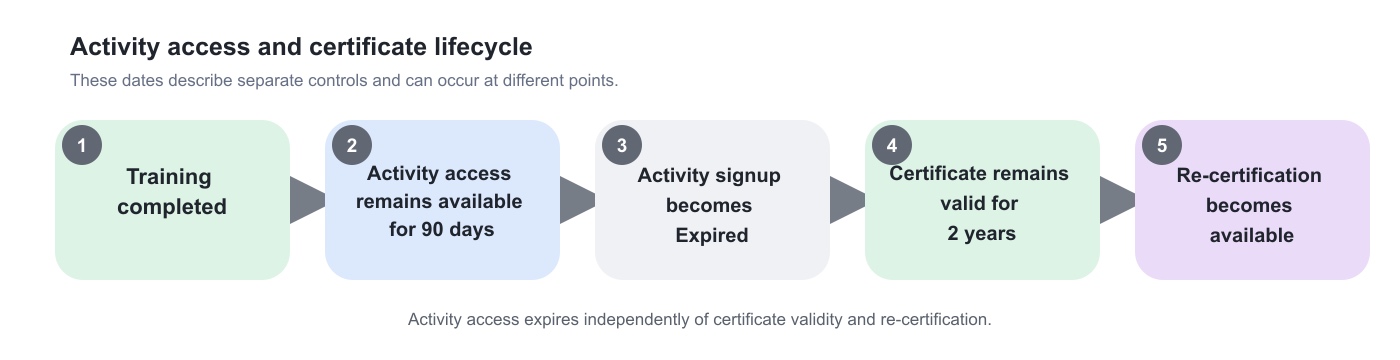
Three dates can coexist:
- The activity-access expiration date
- The certificate expiration date
- The re-certification availability or deadline
They do not describe the same thing.
Example:
Access Expiration does not itself:
- Revoke an issued certificate
- Extend a certificate
- Start a re-certification attempt
- Carry progress to a new attempt
- Decide whether certificate-derived Skills remain valid
If an expired participant must renew a qualification, use the supported re-certification lifecycle. If they only need temporary access to the original materials, reactivate the signup according to policy.
Coordinate Access Expiration with commerce
For paid training, the configured access period should match what was presented during purchase and in the governing terms.
Before selling the activity, confirm:
- Whether the entitlement starts at purchase, enrollment, activity start, or completion
- Whether the period is measured in days, months, or to a fixed date
- Whether late buyers receive a shorter period
- What happens to Additional Products after activity access ends
- Whether a subscription or individual purchase is the actual source of access
- Whether tax, invoices, refunds, and Transactions require separate treatment
- Whether renewal means reactivation, a new signup, a new purchase, or re-certification
- What the pre-expiry email may promise
Do not manually reactivate paid access unless the commercial exception has been approved. The action restores training access; it does not automatically create a new Transaction or charge.
Clone, repeat, and link activities safely
Clone
Cloning an activity copies its enabled features and configured values, subject to the documented cloning behavior. Review Access Expiration before enrolling anyone in the clone.
Check:
- Whether the same access duration applies to the new audience
- Whether a copied fixed date is already in the past
- Whether copied activity-start or activity-end rules have a valid new Schedule
- Whether the notification period and email wording remain correct
- Whether commercial terms match the new activity
Repeat
Repeating a scheduled activity creates a linked delivery. A copied fixed expiration date can close the new occurrence too early, while a schedule-relative rule can be more reusable if the new activity has correct dates.
Review every repeated occurrence before publication. Do not assume the relationship between copied rule, new Schedule, and new signups is correct merely because the activities are linked.
Linked activities and Apply to all
Activity-level features can be synchronized across linked activities when the administrator saves and selects Apply to all. Access Expiration can therefore be changed across the linked group.
Because configuration changes govern new signups rather than rewriting every existing signup, two different dimensions can coexist:
- Different linked activities can receive the same new configuration.
- Existing and new signups inside each activity can still have different expiration arrangements.
Use Apply to this only when dates, access terms, cohorts, regions, or commercial offers differ. After an Apply to all change, test one new signup in each materially different activity.
Verify the configuration
Use test accounts and shortened dates in a controlled environment or unpublished activity. Do not rely only on administrator Preview because expiration belongs to a participant signup.
Build a test matrix.
| Test | Expected result |
|---|---|
| New signup under fixed future date | Clock displays the intended date and the signup expires at that time |
| Existing signup created before rule change | Retains its earlier expiration arrangement |
| New signup created after rule change | Uses the new rule |
| Days after enrollment | Each participant receives a personal date from registration |
| Months after enrollment | Calendar-month behavior matches the expected business rule, including end-of-month cases |
| Days after activity end | Activity Schedule supplies the intended end point |
| Months after completion, not yet completed | No completion-based date is shown yet |
| Completion achieved | Date is calculated and clock appears |
| Completion later lost | Date and clock are removed until completion is achieved again |
| Notification enabled | Correct participant receives the correct email at the configured lead time |
| Expiration reached | Signup becomes Expired and participant loses access to the complete activity |
| Expired participant | Remains visible to administrators and still occupies a seat |
| Manual expiration | Registered signup changes to Expired |
| Unlimited reactivation | Access returns with no new pending expiration date |
| Reactivation with date | Access returns and clock shows the approved date |
| Bulk reactivation with duplicate expired signups | Only the most recently expired signup is reactivated |
| New request after approved signup expired | New Registered signup is created and old Expired signup remains |
| Import when fixed date has already passed | New signup is skipped rather than created for immediate expiration |
| User in another time zone | Participant-facing date and email communicate the intended moment |
Where time must pass, use a controlled test window with enough time to observe notification and expiration processing. Allow for scheduled background processing before declaring a failure, but escalate persistent delay with exact timestamps.
Practical configuration patterns
| Pattern and requirement | Configuration and outcome | Also check |
|---|---|---|
| Self-paced customer access Every customer receives 12 months to use a purchased online course. | Configuration: 12 months after User enrollment. Why: Each buyer receives the same duration regardless of purchase date. | Storefront wording, Transaction handling, renewal process, and pre-expiry email. |
| Cohort resource period Participants can revisit program materials for 30 days after the cohort ends. | Configuration: 30 days after Activity ends. Why: Everyone in the cohort follows the same scheduled delivery lifecycle. | Activity-level Schedule, linked occurrence dates, feedback, and certificate access. |
| Post-completion review window Participants retain access for six months after they finish. | Configuration: 6 months after Training completed. Why: The review period is personal and begins only when learning is completed. | Completion behavior, later Course changes, certificate lifecycle, and recalculation. |
| Contract end date All partner access ends at the same contractual moment. | Configuration: At specific date and time. Why: The entitlement is based on the agreement rather than individual progress. | Late registration, time zone, subscription relationship, and extension approvals. |
| Individual support extension One participant had a documented technical issue and receives two extra weeks. | Configuration: Reactivate with new expiration date. Why: The exception is limited to the affected signup without changing the activity rule for new participants. | Mandatory deadline, communication, progress, and commercial approval. |
| Permanent internal exception A designated internal instructor needs continuing access to materials after a participant entitlement ended. | Configuration: Reactivate with unlimited access, if the same participant signup is the approved access route. Why: The exception has no further automatic end date. | Role-based access, licensing, organization scope, and a documented review owner. |
Troubleshooting
| Problem | What to check |
|---|---|
| Access Expiration is missing from the activity | Confirm you are editing the activity-level Features rather than a module, and verify the administrator's role, activity edit permission, organization scope, and platform configuration. |
| The activity did not expire at Activity starts or Activity ends | Check whether the direct At the time of condition was used. Current documented behavior does not evaluate these non-relative choices. Replace it with a tested relative or specific-date rule. |
| A participant registered before configuration never received an expiration date | This is expected when the signup predates the rule. Configuration changes apply to participants registered after the condition was applied. Review whether manual action is required. |
| New participants use the new rule but older participants use another date | This is expected after a configuration change. Identify signup creation dates, previous rule versions, and any individual reactivation dates. Use the Change log and participant tooltips to reconstruct the lifecycle. |
| A fixed-date signup expired immediately | Confirm the configured date and time are in the future for the platform's time-zone context. Review whether the activity was cloned with an old date or whether processing occurred after the intended moment. |
| An imported signup was not created | Check whether the active expiration date has already passed. Imports skip creation when the new signup would become immediately Expired. Also verify the Activity column, expired-signup configuration, user identity, and import results. |
| A participant has no clock icon | Confirm the signup is in an applicable active state and that the expiration date can be calculated. A completion-relative rule needs Completed status; a schedule-relative rule needs valid activity dates. Refresh after scheduled processing. |
| The clock icon disappeared before expiration | Check whether a completion-based signup changed from Completed to In Progress or another state. Course scope, content, structure, or Schedule changes can recalculate completion and remove the pending date. |
| The clock tooltip shows an unexpected date | Identify the rule stored for that signup, its registration time, activity Schedule, completion date, manual reactivation date, and time-zone context. Do not assume the activity's current rule applies retroactively. |
| Months after enrollment gives an unexpected end-of-month date | Review the exact enrollment timestamp and calendar-month behavior for dates near month end. Test representative dates before promising a contractual duration and escalate if the platform result differs from the approved policy. |
| The participant says access ended a day early | Compare the expiration timestamp, displayed time zone, participant profile zone, platform regional setting, daylight-saving transition, and wording used in emails or commercial terms. Distinguish a date from the exact expiration moment. |
| Access remains shortly after the displayed time | Allow for scheduled expiration processing and refresh the participant state. If the delay persists, record the configured rule, expected timestamp with zone, actual status, and observation time for support. |
| The signup is Expired but the participant can still open the Course elsewhere | Check whether the same Course is available through another active Training Activity, direct entitlement, subscription, administrative role, or preview context. Expiration removes the route through this signup, not every possible route to reused content. |
| The activity disappeared from the participant's training views | This is expected after the signup becomes Expired. Confirm the record remains visible to authorized administrators in Progress and reporting. |
| An expired activity is missing from the participant transcript | This follows the current activity-expiration behavior. Use the appropriate administrative report for retained history and confirm separate certificate evidence where required. |
| A certificate remains after activity access expires | This is expected. Activity access and credential validity are separate. Inspect the certificate's own expiration and re-certification configuration. |
| A certificate or Skill changed unexpectedly | Investigate the certificate lifecycle, completion recalculation, re-certification, and Skill source separately. Do not attribute every credential change to Access Expiration merely because the dates are close. |
| The expired participant still occupies a seat | This is expected. Expired signups occupy seats. Review capacity, waiting-list, cancellation, and participant-management policy before taking action. |
| The waiting list did not promote someone after expiration | Because an Expired signup still occupies a seat, expiration does not create the vacancy you expected. Verify seat count, organization limits, waiting-list eligibility, and the correct process for releasing capacity. |
| Expire access is unavailable | Confirm the signup is Registered, select the correct row, and verify permission to manage participants. The action is not available for every signup state. |
| Reactivate is unavailable | Confirm the signup is Expired or an eligible Cancelled state and that the administrator has participant-management permission and organization scope. Check whether another active signup already exists. |
| A reactivated participant expired again | Determine whether Reactivate with new expiration date was selected and inspect that date. Also check whether a new signup rather than the intended historical signup was active. |
| A participant reactivated with unlimited access still shows a clock | Refresh the list and confirm which signup is active. The user may have multiple records, or the wrong reactivation option may have been chosen. Escalate with signup IDs if the active unlimited record retains a pending date. |
| Bulk reactivation restored a different signup than expected | When several expired signups share the same email, only the most recently expired signup is reactivated. Review status dates and perform an individual correction if the wrong historical attempt was selected for the business purpose. |
| Bulk reactivation appears to have skipped duplicate signups | This is intentional protection against duplicate active records. Verify that the most recently expired signup is now active for each email address. |
| A participant has both an Expired and a Registered signup | Identify how the new signup was created, such as import, Storefront, or a newly approved request. Preserve the historical record and perform actions on the current signup unless the documented exception requires otherwise. |
| Marking the expired signup complete also completed the registered signup | This is documented behavior when an expired historical signup and a newer registered signup coexist. Verify whether the completion was valid, then review certificate, expiration, and re-certification effects. |
| The pre-expiry email was not sent | Confirm a notification lead time is saved for the signup's governing rule, the expiration date was calculable early enough, the participant has a valid email, system email is enabled, notification scheme permits delivery, and background email processing completed. |
| The pre-expiry email contains the wrong date or wording | Check the participant's stored expiration date and time zone, the Activity access expiration – user template, dynamic values, translations, and whether the signup uses an older rule or manual reactivation date. |
| Changing the activity Schedule changed a completion-based expiration | The Schedule or related scope change may have returned the signup from Completed to In Progress. Review completion status and criteria. The expiration date will be recalculated when Completed status is restored. |
| Changing the activity rule did not update all participants | This is expected non-retroactive behavior. Segment signups by registration date and determine whether individual expiration or reactivation actions are needed. |
| A cloned or repeated activity uses an old fixed date | Replace the copied date before enrollment, verify the new Schedule and notification period, and test a new signup. Review every linked occurrence rather than correcting only the visible one. |
| Apply to all changed several linked activities | Review the linked group and their current Access Expiration configuration. Correct activities whose terms differ, and remember that existing signups may still retain earlier arrangements even after the activity configuration is corrected. |
| The participant was reactivated but still cannot open the activity | Confirm the correct signup is Registered, then check activity status, Access Restrictions, account state, organization access, subscription entitlement, module availability, and any other access path. Reactivation removes Expired status but does not bypass unrelated controls. |
| A paid participant was reactivated without a Transaction | Reactivation does not create a purchase. Review the commercial approval, payment provider, invoice, Transaction, and entitlement record, then correct the business process without duplicating charges. |
| Support needs evidence for an expiration problem | Collect activity ID, participant and signup IDs, signup status, registration and completion timestamps, current and prior rule, Schedule, clock tooltip, time zones, notification setting, relevant Change log entries, manual actions, email evidence, and expected versus actual access. Exclude unnecessary personal data. |
FAQ
-
What is the simplest way to understand Access Expiration?
It is the rule that decides when a participant's access to the complete Training Activity ends. When it takes effect, the signup becomes Expired.
-
Is Access Expiration configured for a module?
No. It is an activity-level feature and removes access to the complete Training Activity.
-
Can I use it for a single-course activity?
Yes. Access Expiration can be configured for a Training Activity regardless of whether it contains one module or a larger learning path.
-
Can access expire exactly when the activity starts or ends?
The interface can show direct At the time of lifecycle choices, but the current documented behavior does not evaluate those direct conditions. Use and test a supported relative or specific-date condition instead.
-
Which reference points can I use for a relative rule?
You can configure a number of days or months after Activity starts, Activity ends, User enrollment, or Training completed.
-
Can everyone receive the same expiration date?
Yes. Use At specific date and enter the shared date and time.
-
Can every participant receive the same duration?
Yes. Use a rule relative to User enrollment when the period should begin separately for each participant.
-
When does a completion-based countdown start?
It starts when the participant's training signup receives Completed status.
-
What happens if a completed participant returns to In Progress?
The completion-based expiration is recalculated. While the participant is no longer Completed, no completion-based expiration date is set and the clock icon disappears.
-
Do rule changes update participants who are already registered?
No. Changes apply to participants registered after the relevant condition was applied. Review existing signups and handle required exceptions separately.
-
How do I see a participant's expiration date?
Open the activity's Participants section. A clock icon appears while a calculable expiration is pending, and its tooltip shows the date and time.
-
Why is there no clock for a completion-based rule?
The participant may not have Completed status yet, or completion may have been recalculated. The system cannot calculate that expiration until the trigger exists.
-
What does the participant see after expiration?
The participant can no longer open the activity, and it is removed from their main training, progress, last-visited, profile-training, and transcript views according to the current activity-expiration behavior.
-
Is the participant's signup deleted?
No. Administrators continue to see the record in activity Progress and reporting.
-
Does an expired signup free a seat?
No. An Expired signup continues to occupy a seat. Use the appropriate participant-management process when capacity must be released.
-
Does activity expiration invalidate a certificate?
No. Certificate validity follows the certificate's own expiration and re-certification rules.
-
Does activity expiration remove Skills?
Not by itself. Certificate-derived Skills follow certificate validity, while manually assigned Skills follow their own management lifecycle.
-
Is Access Expiration the same as a Mandatory deadline?
No. A deadline tells the participant when training should be completed and can display Overdue. Access Expiration actually ends access.
-
Can I warn the participant before access ends?
Yes. Configure the number of days before expiration. The message is maintained under Settings → Email Sending → Activities → Activity access expiration – user.
-
Can I expire one participant manually?
Yes. Use Expire access for a Registered signup from the Participants section, subject to permission.
-
Can I restore access?
Yes. Reactivate the signup with unlimited access or with a new expiration date.
-
What happens when the same participant has several expired signups?
During bulk reactivation, only the signup that expired most recently is reactivated, preventing duplicate active signups.
-
Should renewal use reactivation or re-certification?
Use reactivation to restore access to the activity. Use re-certification when the participant needs a managed new attempt to renew a qualification.
-
Does reactivation create a new payment?
No. Restoring the signup does not itself create a new Transaction or charge. Handle commercial approval separately.
-
Can a participant have an old Expired signup and a new Registered signup?
Yes. New enrollment routes can create another signup while preserving the expired record. Review the correct attempt before changing completion or access.
-
Why was a new signup skipped during import?
If the expiration rule has already passed and the imported signup would immediately expire, the import avoids creating it.