Equipment - Article
Summary
Equipment represents the shared physical resources needed to deliver training, from simulators and machinery to devices and specialist kits. Including these resources in scheduling gives administrators a clear view of when each item is committed and helps prevent two deliveries from depending on the same Equipment at the same time. This makes operational capacity part of the training plan, alongside instructors and Locations.
In this article you will learn:
- What Equipment represents and when to use it
- How Equipment differs from a Location, Additional Product, Course resource, and participant kit
- How the reusable Equipment record and the scheduled booking form two configuration layers
- How to create, describe, illustrate, own, find, and maintain Equipment records
- Where Equipment can be assigned at module level and activity level
- Why a Course module needs Schedule before Equipment becomes available
- Why an Event module can use Equipment without enabling a separate Schedule feature
- When to reserve Equipment for one module and when to reserve it for the complete learning path
- How activity and module dates, derived schedules, and time zones define the booking period
- How See availability combines Equipment, Location, and responsible-instructor calendars
- What happens when Equipment is already booked for the proposed period
- Why Equipment conflicts cannot be overridden in the same way as instructor or Location warnings
- How cloning, repeating, linked activities, and organization scope affect Equipment assignments
- How to govern setup, transport, maintenance, ownership, and alternatives outside the booking record
- How to troubleshoot missing features, incorrect availability, blocked bookings, and copied assignments
What Equipment helps you achieve
Equipment Management gives Course Administrators a shared view of physical resources needed to deliver scheduled training. Instead of relying on a spreadsheet, personal calendar, or memory, administrators can connect the actual resource to the training that needs it and see where it is already committed.
Typical Equipment includes:
- A flight, medical, vehicle, or process simulator
- A specialist machine or training rig
- A mobile laboratory or demonstration unit
- A projector, camera, microphone, or interpretation system
- A laptop set, tablet set, or virtual-reality kit
- Safety equipment used for a practical exercise
- A portable tool case or measurement kit
- A branded exhibition or workshop set reused across locations
The feature is most valuable when a resource is limited, shared, costly, difficult to move, or essential to delivery. If two sessions cannot run successfully with the same item at the same time, it is a good candidate for Equipment Management.
Equipment is a delivery resource, not a learning or sales item
Equipment records reserve resources used to conduct training. They do not create learning content, sell an item to a participant, manage stock, or prove that a learner received an individual kit.
Choose the correct Eurekos feature
Several concepts can involve physical or digital resources. Use the feature that matches the business outcome.
| Requirement | Use | Result |
|---|---|---|
| Reserve a shared device, machine, simulator, or kit for scheduled delivery | Equipment | The resource is connected to the scheduled training and checked for overlapping bookings |
| Reserve a venue or room and validate its capacity | Location | The room, address, participant contact details, capacity, and room calendar are managed together |
| Assign the person who delivers or owns the training | Responsible instructor | The person's schedule appears in Availability and their activity responsibilities are established |
| Sell or include an item with enrollment | Additional Product | The item has its own commercial record and price and can appear in the purchase journey |
| Give every participant a personal consumable kit | Additional Product or an external fulfillment process | The individual item can be ordered or fulfilled; it is not treated as one reusable shared booking |
| Add a manual, download, video, or other learning material | Course content or a Course resource | The material becomes part of the learning experience |
| Tell participants what to bring | Event or Activity Description and participant communication | The requirement is explained without falsely reserving a centrally managed resource |
| Track serial numbers, inspections, stock, maintenance, shipping, or depreciation | An asset, inventory, maintenance, or logistics system | Detailed asset lifecycle remains in the system designed for it |
The same real-world object can require more than one process. For example, a set of reusable training tablets can be booked as Equipment, while separately sold take-home devices would be Additional Products. Use distinct names and ownership so administrators do not confuse them.
Understand the two configuration layers
Equipment Management has two connected layers.
| Layer | Where it is managed | What it controls |
|---|---|---|
| Equipment record | Course Administration → Equipment | The reusable resource's title, description, image, and owner's email |
| Equipment assignment | A supported Training Activity or module's Features | Which resource is booked and which Schedule defines the booking period |
Create the Equipment record once, then assign it wherever the same resource is used. This gives administrators one searchable resource and a list of the activities using it.
The record itself has no booking dates. A booking exists only when that Equipment is selected on a supported activity or module with a valid scheduled period.
This distinction matters when something changes:
- Editing the Equipment record can change how the shared resource is identified wherever it is used.
- Replacing or removing an assignment changes one training configuration, unless a linked-activity update is deliberately applied more widely.
- Moving the activity or module Schedule changes the interval for which the resource is needed.
- Creating a duplicate Equipment record creates a separate calendar identity, even if both records describe the same physical item.
Avoid duplicates. If two records represent one real item, Eurekos cannot reliably prevent the item from being booked through one record in one activity and the other record elsewhere.
Decide whether the Equipment should be reusable and bookable
Create an Equipment record when all or most of these conditions are true:
- The organization controls or coordinates the resource.
- The resource is used in more than one delivery.
- Its availability can determine whether training can run.
- Administrators need to know which activity is using it.
- Two overlapping uses would create a genuine conflict.
- A recognizable owner can resolve questions about it.
Do not create a record merely because an Event uses ordinary furniture or a participant brings their own laptop. Too many low-value records make the list difficult to govern and encourage administrators to ignore real conflicts.
Before creating Equipment, decide what one record represents:
- One unique asset, such as Forklift simulator FS-02
- One indivisible set, such as VR training kit – 12 headsets
- One pooled resource, but only if the entire pool is always booked and released together
If five identical projectors can be booked independently, create five clearly identified records. If twelve headsets always travel and operate as one kit, one record for the kit may be more useful than twelve records.
The Equipment record does not manage quantity. Naming must therefore reflect the unit that is actually reserved.
Permissions and organization scope
Course Administrator, Support, Platform Administrator, and Global Administrator roles normally have permission to administer Equipment, subject to platform configuration and organization scope.
Two permissions are involved in the complete process:
- Permission to create or maintain the reusable Equipment record
- Permission to edit the Training Activity or module where it will be assigned
When organizational filtering is enabled, an administrator may be able to work with some Equipment but not other values already connected to an activity. The Equipment selector is a multi-value field: accessible values can remain editable while Equipment belonging to another organizational scope is shown but cannot be edited or reselected.
If an Equipment value was copied from an activity outside the administrator's scope, do not remove or replace it casually. Once an inaccessible value is removed, that administrator may not be able to select it again. Ask an appropriately scoped administrator to review the record and assignment.
Use the Equipment owner's email to identify an operational contact, but keep system permission and operational ownership separate. An owner does not automatically receive administrator rights merely because their email is stored on the Equipment record.
Plan the Equipment record
Agree the administrative model before creating records.
| Decision | Example |
|---|---|
| What one record represents | One complete VR kit containing 12 headsets |
| Administrative title | VR Kit 02 – 12 headsets – Copenhagen |
| Purpose | Practical safety simulation |
| Home location | Copenhagen Training Center |
| Operational owner | Training Operations shared mailbox |
| Setup time | 60 minutes before delivery |
| Reset/pack-down time | 30 minutes after delivery |
| Transport requirement | One working day between cities |
| Maintenance rule | Inspection every 25 uses in external asset system |
| Alternative | VR Kit 01 or Simulation Lab B |
⚠️ Eurekos stores only the Equipment fields described below and its activity/module connections. Record transport, maintenance, certification, inspection, insurance, custody, stock, and asset-finance information in your approved operational system.
Create Equipment
- Open Course Administration → Equipment.
- Select the action to create Equipment.
- Enter a clear Title.
- Add a useful Description.
- Upload an optional Image when it helps administrators identify the resource.
- Enter the Equipment owner's email.
- Save the Equipment.
- Find it in the searchable Equipment list.
- Open it again and verify the title, description, image, and owner.
- Assign it to a controlled test activity or module and check its availability before production use.
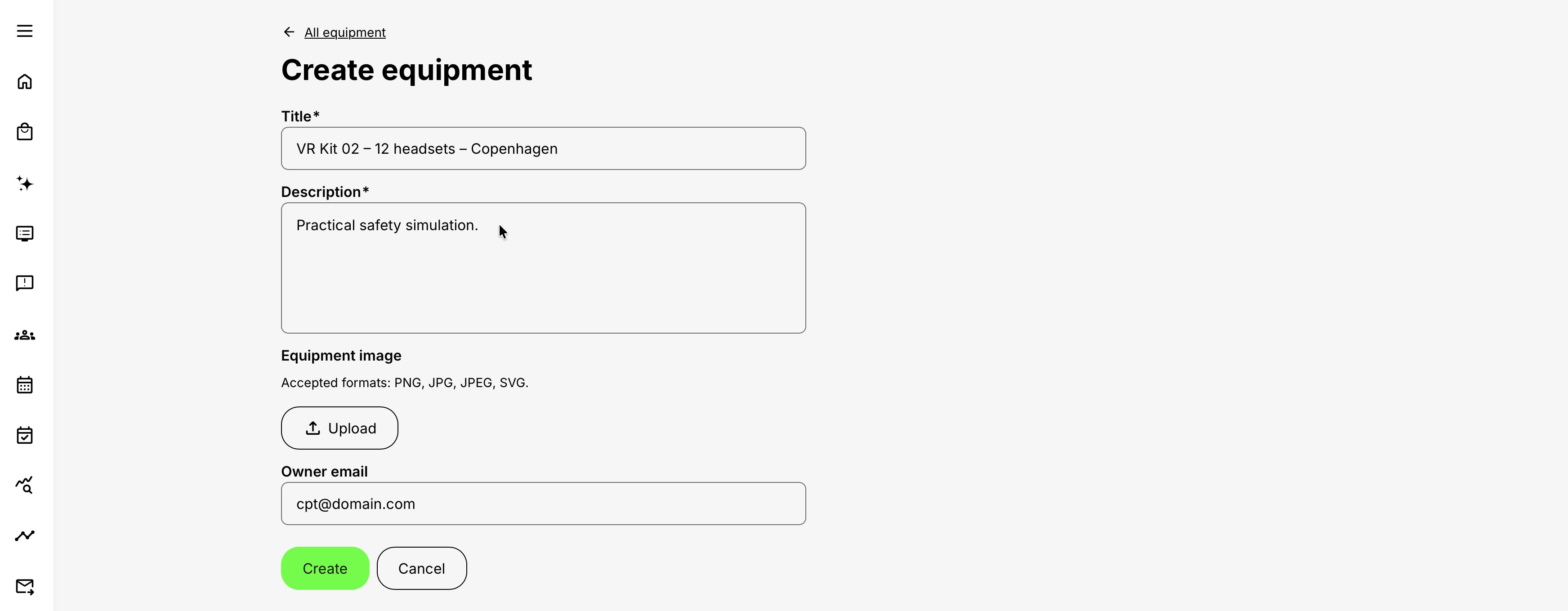
Title and Description are mandatory. The image is optional. The public feature documentation also provides an owner's email field; use a valid, monitored address that fits your operating model.
Configure every Equipment field
Title
The name administrators use to find and select the resource. Make the record understandable without opening its description. The title identifies the Equipment in the searchable list, assignment selector, Availability view, conflict message, and links showing where it is used.
Good titles distinguish similar resources:
- Forklift Simulator FS-02 – Aarhus
- VR Kit 01 – 12 headsets – Copenhagen
- Portable Interpretation Set – 40 receivers
- Electrical Safety Rig – 400 V – Lab A
Avoid titles such as Equipment, Projector, or Kit 1 when administrators work across multiple sites. Include the asset ID, size, capacity, specification, or home region needed to select the correct item.
Do not put temporary booking dates in the title. The assignment Schedule already controls them.
Description
The mandatory explanation of what the Equipment is and how it should be used. Provide enough information for a Course Administrator to select the correct resource and understand material constraints.
The description supports identification and governance of the shared record. It does not create automated handling rules.
A useful description can include:
- Intended training use
- Contents of a kit
- Capacity or supported group size
- Required room, power, network, or safety conditions
- Setup and pack-down expectations
- Home site or transport limitation
- Alternative Equipment
- Link or reference to an external asset record, where your platform and security policy permit it
Keep the description stable and avoid participant-specific, booking-specific, confidential, or maintenance-log detail. Do not treat prose such as “allow one hour for setup” as a system-enforced buffer; administrators must still schedule that time operationally.
Image
An optional visual used to make the Equipment easier to recognize. Add an image when several resources have similar names, physical identification matters, or the administrator must distinguish equipment variants quickly.
The image is stored with the reusable record. Its purpose is identification; it does not affect availability, conflicts, or permissions.
Use a current, well-lit image showing the complete item or kit. Avoid:
- People who have not consented to appear
- Serial-number close-ups or sensitive labels
- An image of a different model
- Marketing artwork that makes variants difficult to distinguish
- Temporary condition or contents that no longer represent the resource
Equipment owner's email
The email address identifying the person or team responsible for the Equipment. Use a monitored operational mailbox or durable team address when more than one administrator schedules the resource.
The address documents ownership on the Equipment record.
Do not rely on this field alone for approval, dispatch, maintenance, or handover. If the owner must actively confirm every use, create an agreed workflow outside the record or use appropriate reminders and communication. Test platform-specific notifications before promising them.
Prefer addresses such as training-operations@... or simulation-lab@... over a private mailbox that may become inactive when a person changes role.
Use the Equipment list
After creation, Equipment records appear in a searchable list under Course Administration → Equipment. Use the list to:
- Find a resource by its title
- Open and edit its master record
- Review the training activities where it is currently used
- Follow a usage link to investigate a proposed change or conflict
- Detect duplicates and unclear naming
- Audit ownership and descriptions
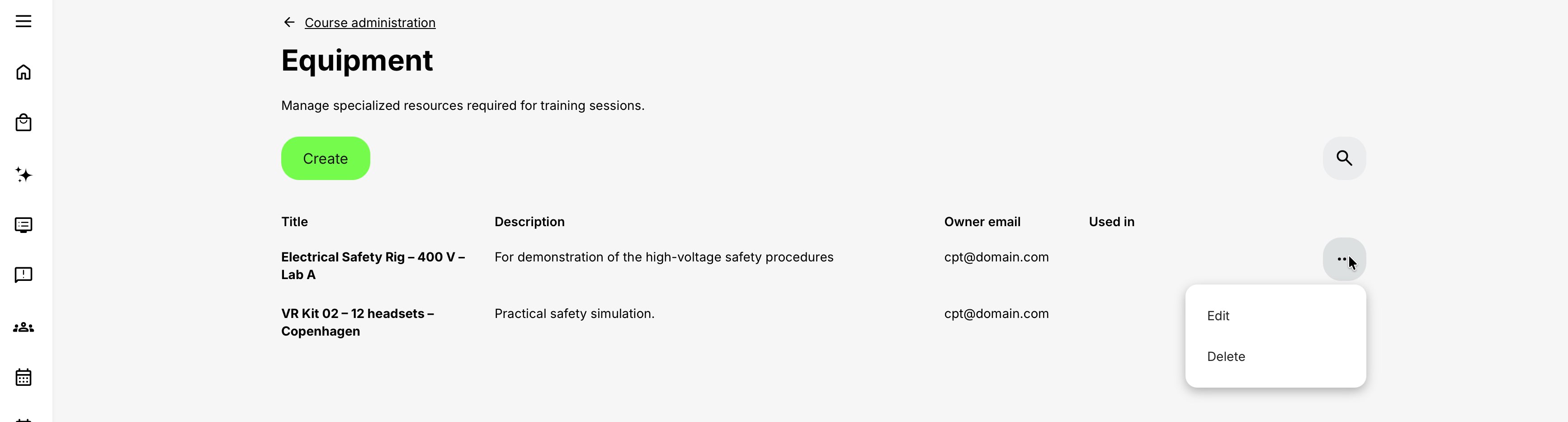
Before editing a shared record, open its usage links. A small wording change may be harmless; changing the identity of VR Kit 01 into VR Kit 02 would make every existing connection misleading.
Do not repurpose a historical record to represent a different physical asset. Rename it only when the same asset has a new approved name. Create a new record when the resource itself has changed materially, then replace assignments deliberately.
Choose module-level or activity-level Equipment
The Equipment feature is available only where Eurekos has a supported scheduled period.
| Configuration level | Available when | Booking meaning | Best use |
|---|---|---|---|
| Course module | The module's Schedule feature is enabled | The Equipment is needed for that Course module's scheduled interval | A facilitated Course or practical Course session uses the resource |
| Event module | Always available because Event Starts and Ends are required | The Equipment is needed for the Event's interval | A classroom, webinar-production, demonstration, or practical Event uses it |
| Activity level | The Training Activity contains two or more modules and activity-level Schedule is enabled | The Equipment is needed for the complete activity schedule | One resource must remain committed across the whole learning path |
Equipment is not a module-level feature for Assignment or Existing Training modules. If a multi-module parent journey requires Equipment throughout, use an eligible activity-level assignment. If only a nested child activity uses the resource, configure it in the child at the appropriate supported level.
Use module-level Equipment for a specific session
Choose module level when the resource is needed only during one Course or Event.
For example, a five-day learning path may use a welding simulator for a two-hour practical Event on day three. Assigning it to that Event reserves the simulator for those two hours rather than for the complete five-day program.
Module level is normally the clearest choice when:
- Different sessions use different resources.
- The Equipment can be released between sessions.
- Other teams may use it during gaps in the learning path.
- The operational owner needs an exact session-level usage record.
Use activity-level Equipment for the complete journey
Choose activity level when one resource must remain committed from the beginning to the end of a learning path.
Examples include:
- A mobile laboratory delivered to one cohort for the full week
- A laptop set issued at induction and returned after the final module
- A simulator installation that cannot be dismantled between sessions
- A production kit reserved for the whole blended program
An activity-level booking can span gaps between modules because the activity Schedule represents the whole journey. This is intentional only when the resource truly cannot be used elsewhere during those gaps.
Single-module activities
An activity with one module does not receive the activity-level Equipment option. Configure Equipment on the Course or Event module itself.
For a Course module, enable Schedule first. For an Event module, use its required Starts and Ends.
Multi-module activities
A learning path with two or more modules can use:
- Activity-level Equipment for resources needed throughout the journey
- Module-level Equipment on scheduled Course and Event modules for session-specific resources
- Both, when the resources and purposes are different
Avoid selecting the same physical resource at both levels without a verified reason. Duplicate-looking assignments make usage difficult to interpret and can create avoidable validation problems.
Assign Equipment to a scheduled Course module
- Open Course Administration → Activities.
- Create or edit the relevant Training Activity.
- Add or open the Course module.
- Open the module's Gear or Features menu.
- Enable Schedule.
- Set the Course module's Starts, Ends, and time zone.
- Enable Equipment.
- Select one or more pre-created Equipment records.
- Select See availability.
- Review the proposed interval and all displayed Equipment, Location, and responsible-instructor commitments.
- Resolve every Equipment overlap.
- Save the module and activity.
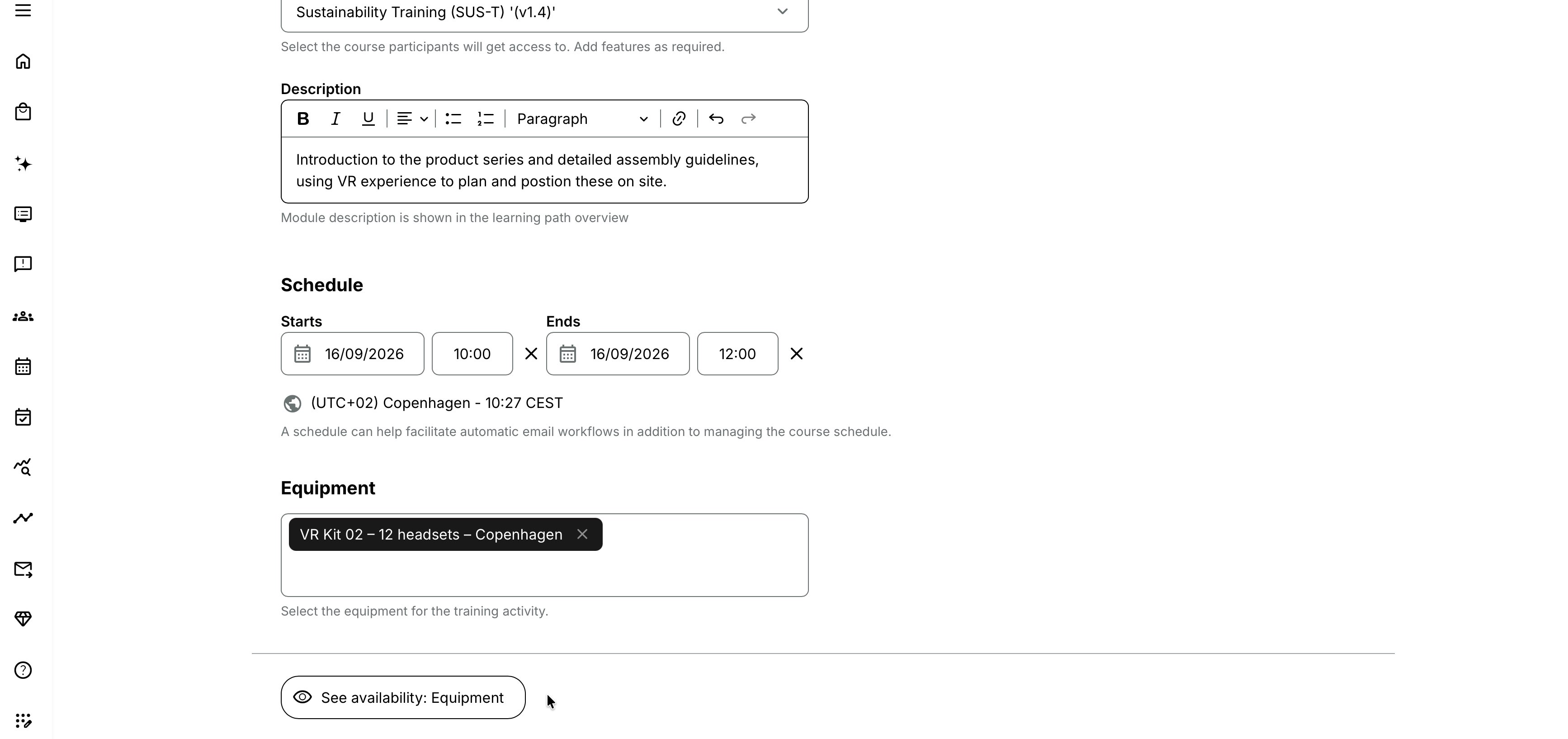
💡 If Equipment is missing from a Course module, check and enable Schedule first. The resource cannot be booked without a period against which availability can be validated.
Assign Equipment to an Event module
- Open or create the Training Activity.
- Add or open the Event module.
- Confirm the Event's required Starts, Ends, and time zone.
- Open the Event module's Gear or Features menu.
- Enable Equipment.
- Select the required Equipment.
- Use See availability to inspect the combined calendar.
- Change the resource or Event period if a conflict exists.
- Save the Event and activity.
Event modules have a built-in mandatory schedule, so Equipment is available without enabling a separate Schedule feature.
Use a module-level Location for the room and Responsible instructor for the facilitator. These resources appear together in the availability check but remain separate assignments.
Assign Equipment to a learning path
- Confirm that the Training Activity contains at least two modules.
- Open activity-level Features.
- Enable Schedule.
- Enter the activity Starts and Ends, or confirm that the intended activity span is correctly derived from its modules.
- Enable activity-level Equipment.
- Select the resource or resources needed for the complete journey.
- Use See availability.
- Review the full highlighted activity period, including nights, weekends, and gaps between modules.
- Resolve any overlap.
- Save the Training Activity.
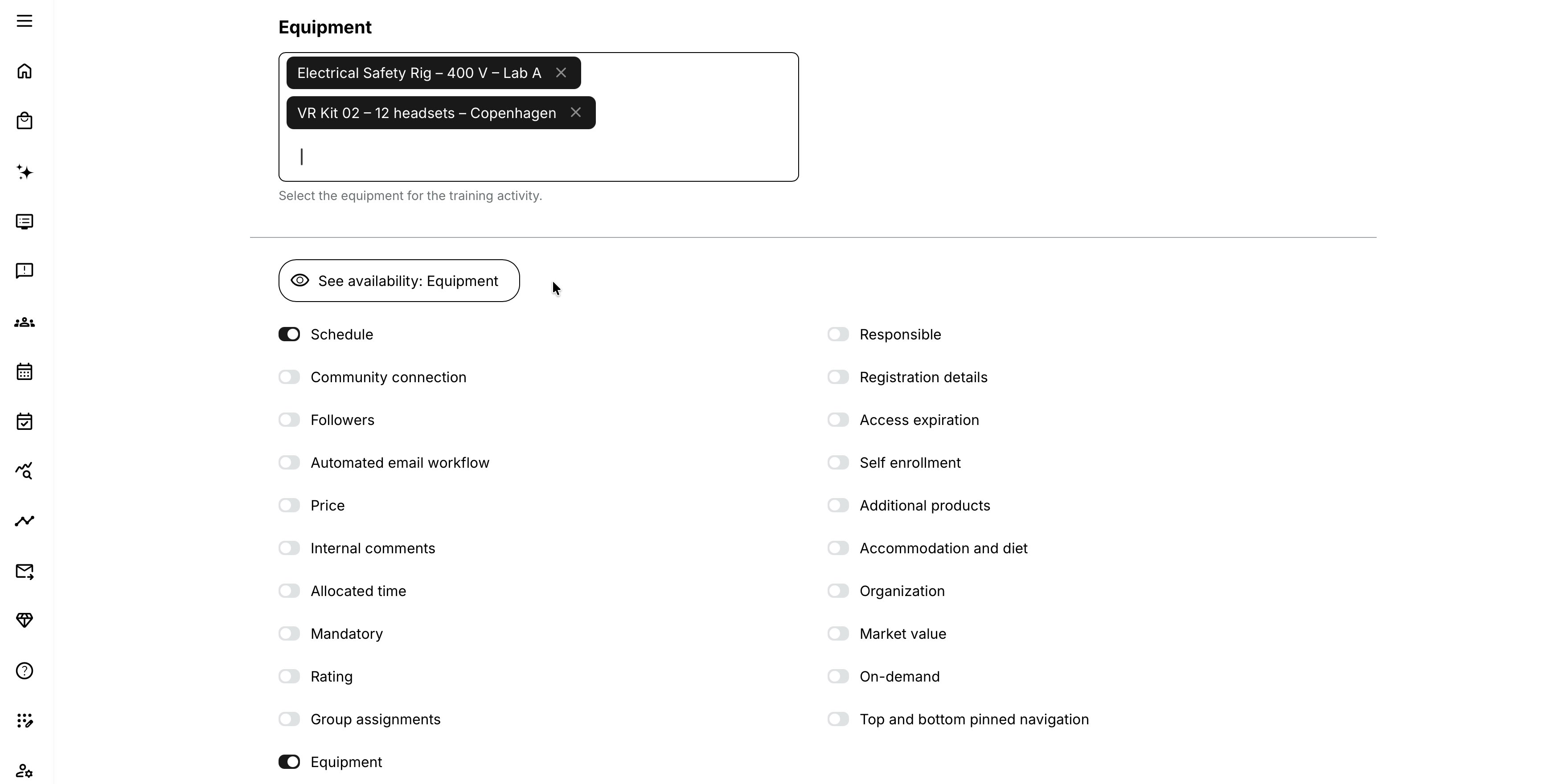
Do not use an activity-level booking simply to avoid assigning Equipment to several modules. It reserves a different period and can prevent other valid uses.
Understand how the Schedule defines the booking
Equipment has no dates of its own. The connected Schedule defines when it is booked.
| Schedule context | How the Equipment booking is defined | Administrator guidance |
|---|---|---|
| Course module Schedule | A Course module can have optional Starts, Ends, and a time zone. Equipment becomes available for selection when Schedule is enabled. | Set a complete period so Availability opens on the relevant week and highlights the intended booking interval. |
| Event module Schedule | Every Event requires Starts and Ends. The Event’s time zone is used when the System evaluates its Equipment booking. | Verify the complete Event period and time zone before checking availability or assigning Equipment. |
| Activity-level Schedule | Any activity can use the Schedule feature, but activity-level Equipment is available only for a learning path containing two or more modules. The activity Start can be based on the earliest module Start, and its End can be based on the latest module End. When explicit activity boundaries are set, the modules must fit within them. The activity and its modules can use different time zones. | Activity-level Equipment can create a long reservation. For example, modules scheduled on Monday and Friday can reserve the Equipment for the complete period between them. Use activity-level Equipment only when the resource must remain with the cohort throughout the learning path. |
| Time zones | The time zone defaults from the platform’s regional configuration but can be changed. Activity and module time zones are displayed separately. Two bookings that show different local times can still overlap as real-world periods. | Confirm that the training time is correct in the delivery Location’s local zone, that activity and module intervals represent the intended real-world period, and that the Equipment owner understands the handover time in their own zone. Check overnight and daylight-saving transitions whenever an overlap appears unexpected. |
Check Equipment availability
Select See availability while configuring a supported activity or module. The popup combines availability for:
- Selected Equipment
- Connected Location
- Selected responsible instructor or instructors
This allows the administrator to evaluate the delivery plan as one operational arrangement while still understanding that different conflict rules apply to each resource type.

If both Starts and Ends are set, the Availability popup opens on the week containing the Start date. The proposed interval is highlighted in light green. Existing booked periods are shown on the calendar.
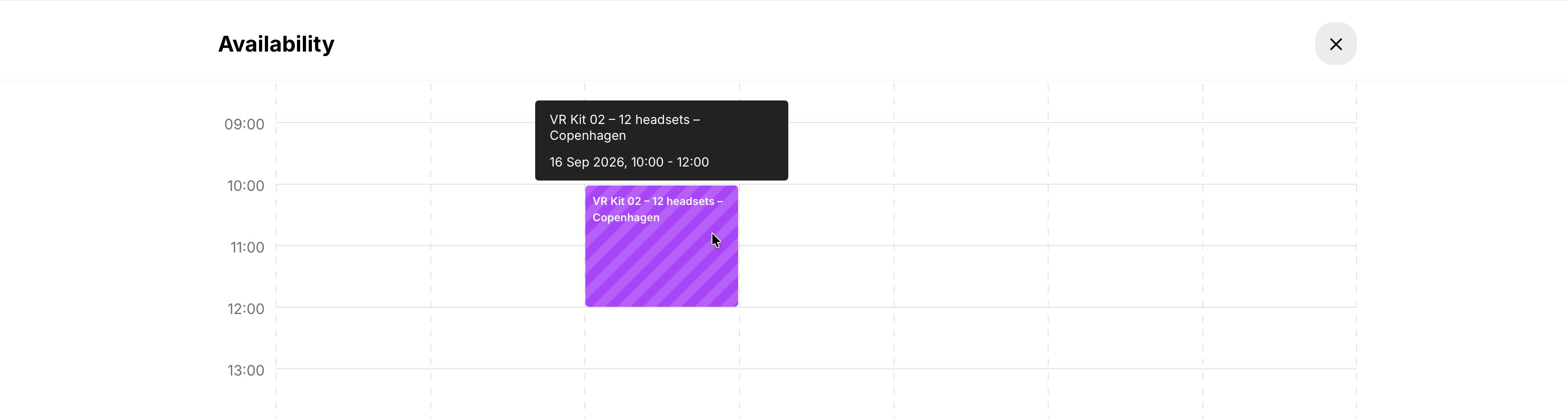
💡 Use the Equipment dropdown in the popup to inspect another resource when the first choice is unavailable. This is useful when equivalent kits, devices, or machines have separate Equipment records.
Read the calendar carefully
Before deciding that Equipment is available:
- Confirm the selected Equipment title and asset identity.
- Confirm the proposed activity or module level.
- Confirm Starts, Ends, and time zone.
- Review the entire highlighted interval, not only the first day.
- Open relevant existing bookings to understand their training and ownership.
- Check the connected Location and instructor calendars.
- Account for setup, pack-down, charging, cleaning, inspection, and transport outside the displayed teaching time.
- Select an alternative or move the Schedule when the plan is not operationally possible.
The calendar reflects records in Eurekos. It does not know about use, repair, transport, or reservations held only in another system unless those periods have also been represented through a controlled process.
Understand conflict behavior
When the same Equipment is already booked for the same period, Eurekos prevents the conflicting activity or module from being created. The administrator receives a message in the form:
Activity (or Module) equipment [Equipment title] is booked for selected period.
Resolve the conflict by:
- Selecting different Equipment
- Moving the new activity or module
- Correcting an inaccurate existing booking
- Removing an assignment that is no longer required
- Changing from an unnecessarily broad activity-level reservation to the correct module-level assignments
Do not create a duplicate Equipment record to bypass the validation. That defeats the control and can leave two delivery teams relying on the same physical resource.
Equipment differs from instructor and Location conflicts
| Resource | Conflict behavior | Administrative response |
|---|---|---|
| Equipment | The overlapping booking is prevented | Choose another resource or time, or correct the existing assignment |
| Responsible instructor | A conflict warning can allow an authorized administrator to proceed | Investigate and override only when the assignment is genuinely possible |
| Location | A room conflict warning can be overridden | Confirm that the overlap is intentional and physically supportable before proceeding |
The stricter Equipment rule reflects that one indivisible resource cannot normally be in two places at the same time. If your real-world resource is actually a pool with several independent units, model those units accurately rather than trying to override the booking.
Build operational buffers into the plan
Availability validates the configured training interval. Many resources are occupied for longer than the participant-facing session.
Consider:
- Collection and handover
- Delivery between sites
- Installation and calibration
- Safety inspection
- Charging or consumable replacement
- Cleaning and reset
- Pack-down and return
- Maintenance after a defined number of uses
Where these periods make the Equipment genuinely unavailable, the training Schedule alone may be too narrow. Use a consistent operational method: widen the booked period where that accurately represents delivery, create an associated controlled booking activity, or maintain enforced buffers in the external asset process. Do not rely on a sentence in the Equipment Description to stop another administrator from scheduling it.
Coordinate Equipment, Location, and instructor
A deliverable session usually needs all three resources to align.
The combined Availability popup makes conflicts visible together, but it does not confirm suitability. A free simulator may lack a qualified instructor; a free room may not have the required power supply.
Add these checks to the delivery owner's readiness process:
- Equipment specification matches the learning design.
- Room conditions and capacity are suitable.
- Instructor is qualified and has accepted the assignment.
- Equipment owner has approved transport or handover where required.
- Participant instructions explain clothing, safety, or prerequisites.
- Contingency Equipment or an alternative delivery plan exists.
Review Equipment from the Activity Description
When Equipment is defined at module or activity level, an administrator can preview it from the Activity Description administration context. Use this preview to confirm that the correct resource is attached to the correct part of the journey.
Do not assume the Equipment record replaces participant instructions. If learners need to know what will be provided, what they must bring, or how the practical session works, explain that in the Event or Activity Description and relevant email workflow. Preview the actual participant experience before publication because visibility can depend on the activity structure and platform configuration.
Avoid exposing internal asset-control detail, personal contact information, or security-sensitive descriptions in content intended for participants.
Change a live Equipment assignment
Before replacing Equipment or moving a Schedule:
- Open the Equipment record's usage links and identify every affected delivery.
- Confirm whether participants are already registered.
- Check the Event, Course module, or activity Schedule and time zone.
- Confirm that the replacement meets the same learning and safety requirements.
- Check combined availability for Equipment, Location, and instructor.
- Save the change.
- Review Activity Description, participant communication, calendar items, and operational handover instructions.
- Inform the Equipment owner and delivery team through the approved process.
Changing Equipment normally concerns delivery operations rather than enrollment entitlement. Even so, participants may need an update if the change affects the Location, required preparation, accessibility, safety, or learning experience.
Clone, repeat, and link activities safely
Clone
Cloning an activity copies its enabled features and filled values except the Community connection. Equipment assignments are therefore copied into the clone.
Treat the clone as an unverified booking until you have reviewed:
- Every copied module- and activity-level Equipment value
- The clone's Starts, Ends, and time zones
- Whether the same resource is appropriate for the new cohort or site
- Combined availability
- Ownership, transport, and maintenance readiness
If the clone is intended as a reusable template rather than a real scheduled delivery, remove production Equipment assignments before others use it.
Repeat
Repeating a scheduled activity clones it and links the new delivery with the source. The original features are copied, so the repeated occurrence can initially contain the same Equipment.
The repeated dates are precisely why the resource must be checked again. For a multi-module learning path, review every module Schedule after repetition and then validate all copied Equipment.
Linked activities
Linked activities remain independent deliveries. Linking does not mean they share one Equipment booking.
When linked-activity synchronization is enabled, saving the activity create/edit form can offer Apply to all. Activity-level features other than Schedule can be synchronized; modules and their features are not synchronized.
This means:
- An activity-level Equipment change can spread to the linked group when Apply to all is selected.
- The activity Schedules remain different.
- Module-level Equipment remains specific to each activity.
Use Apply to this only for delivery-specific Equipment unless every linked occurrence truly needs the same resource and every schedule has been checked.
Nesting and Equipment
An Existing Training module points to an independent child Training Activity. Manage the child's Equipment where the actual Course, Event, or child learning path uses it.
Use parent activity-level Equipment only when the parent itself must reserve the resource across its whole scheduled journey. Do not duplicate the child's booking on the parent merely to make it more visible. Duplicate connections can obscure which delivery owns the resource and make availability harder to interpret.
When participants can choose between nested date options, each child option should have the Equipment required for its own Schedule. Test every option independently.
Practical use cases
| Use case | Recommended configuration | Why |
|---|---|---|
| Reserve a simulator for one Event | A two-week certification journey contains online preparation, a three-hour simulator Event, and an assessment. Assign the simulator to the Event module only. | The simulator is reserved for the session that requires it and remains available for other training during the rest of the journey. |
| Keep a device kit with one cohort | A five-day academy issues one laptop kit during the opening session and collects it after the final module. Enable the activity-level Schedule and assign the kit at activity level. | The kit is reserved across the complete academy period, including gaps between sessions. |
| Use several independent kits | Create a separate Equipment record for each identical first-aid practice kit and include a unique asset ID in every title. Use the Equipment selection in Availability to compare the kits. | Each kit can be booked independently. If Kit 1 is unavailable, administrators can check whether Kit 2 or Kit 3 is free. |
| Coordinate a mobile laboratory across countries | Create one Equipment record for the complete mobile laboratory and assign it to the relevant activity or module. Include transport, setup, and pack-down time in the operational plan. | Bookings that do not overlap during teaching time can still be impossible when the laboratory must travel between countries. |
| Manage Equipment supplied by a venue | Keep the room as a Location and the specialist rig as Equipment when either resource can be booked independently. Check both resources in the combined Availability calendar. If the rig cannot be separated from the room, document that relationship and avoid configurations that imply independent use. | Separate records support accurate availability checks, but only when the resources can genuinely be scheduled independently. |
| Separate shared Equipment from participant Products | Assign a shared simulator as Equipment and offer an optional printed manual as an Additional Product. | The simulator receives booking protection, while the manual appears in the participant’s commercial journey. |
Verify the configuration
Use representative accounts and the routes enabled for your delivery. Check the relevant outcomes before launch and after a material change; an administrator preview alone does not verify the participant experience.
| Scenario or check | Expected result or evidence |
|---|---|
| Resource identity | The record identifies one independently bookable asset or indivisible kit. Its current description, image, owner, and external maintenance or inventory records are suitable; duplicate records do not hide conflicts. |
| Reservation period | The correct activity or module level reserves the resource only when needed. Required Schedule settings, dates, and time zone are saved, including setup, reset, charging, cleaning, and transport needs. |
| Availability and suitability | All Equipment items, the Location, and the responsible instructor are available. Resolve Equipment conflicts and confirm safety, accessibility, qualifications, and practical suitability. |
| Participant and delivery readiness | Participants know what is provided and what to bring. The resource owner approves the operational plan, and a contingency resource or delivery alternative is known. |
| Changed or copied delivery | Recheck current and future bookings, copied assignments, replacement suitability, and Apply to all scope. Notify affected owners or participants; do not repurpose an existing record to represent another physical asset. |
Troubleshooting
| Problem | What to check |
|---|---|
| Equipment is missing from Course Administration | Confirm the user's role includes Administer Equipment, and review platform configuration and organization scope. Course Administrator, Support, Platform Administrator, and Global Administrator roles normally have this permission. |
| The Equipment feature is missing from a Course module | Enable the Course module's Schedule feature first and enter a usable Starts–Ends period. Equipment depends on the Course schedule. |
| The Equipment feature is missing from an Event module | Confirm you are editing the Event module's Gear/Features menu and have permission to edit the activity. Events have a mandatory schedule, so the feature should otherwise be available. |
| The Equipment feature is missing at activity level | Confirm the activity contains at least two modules and activity-level Schedule is enabled. A single-module activity must use module-level Equipment. |
| Equipment is not available on an Assignment or Existing Training module | This is expected. Module-level Equipment is supported for Course and Event modules. Configure the actual scheduled Course/Event or an eligible parent/child activity at the correct level. |
| A newly created Equipment record does not appear in the selector | Confirm it saved successfully, refresh the activity form, search using the exact title, and check organization scope. Ask a more broadly scoped administrator to confirm the record if needed. |
| An Equipment value is visible but disabled | It may belong to content outside the administrator's organization scope. Do not remove it unless a correctly scoped administrator can restore or replace it. |
| I cannot save the Equipment record | Complete the mandatory Title and Description, validate the owner's email format where provided, and retry. If an image was added, test with the supported file type and size or save without it. |
| The Equipment list contains duplicates | Open each record's usage links and verify whether they represent one physical item or genuinely independent units. Move future assignments to one governed record before retiring duplicates; do not simply rename both. |
| Search does not find the resource | Search by the exact distinctive title or asset ID. Check spelling, organization scope, and whether the resource was created in another environment or under a near-duplicate name. |
| See availability opens on the wrong week | Confirm both Starts and Ends are present at the level being edited and check the Start date and time zone. The popup opens on the week containing the configured Start. |
| The proposed period is not highlighted | Check that the activity/module has valid Starts and Ends. Reopen Availability from the same configuration level after saving or correcting the Schedule. |
| The wrong Equipment appears in Availability | Confirm the selected record's full title and asset identity, not only its generic resource name. Use the Equipment dropdown to select the intended item. |
| A booking is blocked with “equipment is booked for selected period” | Open the existing usage, compare exact Starts, Ends, time zones, and assignment levels, then choose another item or time. Correct the existing connection only if it is genuinely wrong. The Equipment conflict cannot be overridden. |
| The conflict is surprising because the dates look different | Compare the actual times and time zones, including overnight and daylight-saving changes. Check whether one assignment is at activity level and therefore spans several module dates and gaps. |
| A short Event conflicts with a much longer booking | Inspect whether the resource is assigned at activity level on a learning path. If it is needed only for certain sessions, replace that broad booking with accurate module-level assignments after owner review. |
| No conflict was detected for the same physical item | Check for duplicate Equipment records. Eurekos validates record identity; two records representing one asset can be booked independently even though the real resource cannot. Consolidate the model safely. |
| All selected Equipment looked available, but Save is still blocked | Review every selected item rather than only the first one in the dropdown. Also confirm the final Schedule did not change after the availability check. |
| An instructor or room conflict can be overridden, but Equipment cannot | This is expected. Equipment uses hard conflict prevention. Select another resource or period; do not create a duplicate record to bypass it. |
| Equipment appears available but is under repair or in transit | Eurekos only knows the bookings and controlled unavailable periods represented in its scheduling model. Check the external asset/logistics system and update the delivery plan through the organization's approved process. |
| Back-to-back bookings are physically impossible | Add setup, reset, and transport buffers to the operational booking model. The participant-facing session times alone may not cover the resource's full unavailable period. |
| The owner did not receive an email | The owner's email documents ownership; automatic booking email is not established by the Equipment source documentation. Use a tested workflow, reminder, or external notification process when action is required. |
| The Activity Description shows unexpected Equipment | Open the activity and every Course/Event module to find both activity- and module-level assignments. Remove or replace only the incorrect connection, then preview again. |
| Participants do not see the practical instructions | Do not rely on the Equipment record as the communication channel. Add what learners need to know to the Event or Activity Description and the appropriate automated workflow, then preview as a participant. |
| A cloned activity booked the original Equipment | Clone copies the Equipment feature and value. Review every copied assignment, update the clone's Schedule, choose the intended resource, and check Availability before opening enrollment. |
| A repeated activity has an Equipment conflict | Repeat copies the source configuration into new dates. Open the repeated activity, verify module dates, then select available Equipment or move the occurrence. |
| Changing Equipment in one linked activity changed several activities | The administrator likely selected Apply to all for an activity-form change. Review the entire linked group. Activity-level features can synchronize; module features and Schedule do not. Correct each affected booking and recheck availability. |
| Changing module-level Equipment did not update linked activities | This is expected. Modules and their features are not synchronized through the linked activity-form update. Maintain each delivery's module Equipment separately. |
| A nested parent and child both appear to reserve Equipment | Identify which Training Activity actually uses the resource. Keep the booking at the supported level that represents real custody and remove a duplicate parent connection if it is not independently required. |
| The Equipment owner or description is outdated in many activities | Update the reusable Equipment record only if it remains the same physical resource. Because it is shared, verify usage links first. Create a new record when the asset identity changed materially. |
| A retired item still appears in future training | Use its activity links to find every connection, replace the Equipment and validate new schedules. Then follow the approved retention/deletion process so historical meaning is not lost. |
| Support needs evidence for a blocked booking | Collect the Equipment title and record ID, both activity/module IDs and titles, assignment levels, Starts, Ends, time zones, organization scope, conflict text, user role, and screenshot of the combined Availability view. Do not include sensitive operational or personal data unnecessarily. |
FAQ
-
Does the owner's email receive a booking notification?
No. Use a separate confirmed process when owner approval or dispatch is required.
-
Can I add more than one Equipment item?
Equipment is a multi-value activity/module feature, so the supported configuration can contain more than one accessible Equipment record. Every selected item must be available for the proposed period.
-
Can I assign Equipment to a Course module?
Yes. Enable the Course module's Schedule first, set its period and time zone, and then enable Equipment.
-
Can I assign Equipment to an Event module?
Yes. Equipment is always available for an Event module because Events require Starts and Ends.
-
Can I assign Equipment to an Assignment module?
Not as a module-level Equipment feature. Assign Equipment to a supported Course or Event module, or to an eligible scheduled multi-module activity when the resource is needed across the complete journey.
-
Can I assign Equipment to an Existing Training module?
Not at that module level. Configure the Equipment on the nested child Training Activity where it is actually used. The parent can have activity-level Equipment only when the parent independently needs it across its full eligible schedule.
-
Can a single-module activity have activity-level Equipment?
No. Use the Equipment feature on its Course or Event module. Activity-level Equipment becomes available for a learning path with at least two modules and Schedule enabled.
-
Why must Schedule be enabled?
Availability needs a Starts–Ends interval. Without it, the system cannot know when the resource is booked or detect an overlap.
-
What period does activity-level Equipment reserve?
It uses the activity Schedule. In a multi-module journey, that span can run from the earliest module Start to the latest module End, so it may include gaps between modules.
-
Does Equipment have its own time zone?
No. The connected activity or module Schedule supplies the time-zone context.
-
What does See availability show?
It shows the selected Equipment's bookings and, when connected, the Location and responsible instructor calendars. With Starts and Ends set, it opens on the relevant week and highlights the proposed interval.
-
Can I check alternative Equipment without closing Availability?
Yes. Use the Equipment dropdown in the Availability popup to inspect another Equipment record.
-
What happens if Equipment is already booked?
The governance rules prevent the overlapping activity or module from being created and identifies the booked Equipment in the conflict message.
-
Can I override an Equipment conflict?
No. Choose another resource or time, or correct the existing assignment. This is stricter than the warning behavior for instructors and Locations.
-
Can I create a second record for the same item to get around a conflict?
Technically a different record has a different calendar identity, but doing this defeats the protection and creates a real risk of double-booking. Correct the model or schedule instead.
-
Does Equipment Management track quantity or stock?
No quantity or inventory field is documented for Course Administration Equipment. Model each independently bookable unit or indivisible kit as a record and manage stock elsewhere.
-
Does it track maintenance or transport?
No. Use an external asset or operational process and ensure unavailable periods are reflected in scheduling decisions.
-
Can Equipment appear on the Activity Description?
Administrators can preview configured Equipment in the Activity Description administration context. Preview the participant-facing page on your platform and use Event or Activity Description content for essential participant instructions.
-
Can I see where Equipment is used?
Yes. The searchable Equipment list includes links to the Training Activities where the resource is in use.
-
Does Clone copy Equipment?
Yes. Cloning copies enabled features and their values, apart from the documented Community-connection exception. Review all copied Equipment against the clone's Schedule before use.
-
Does Repeat copy Equipment?
Yes. Repeat clones and links the delivery, including its configured features. Check the new occurrence's dates and resource availability.
-
Can Equipment changes spread across linked activities?
An activity-level Equipment change can be included when Apply to all synchronizes the activity create/edit form. Schedule and module features are not synchronized by that action. Read the confirmation carefully.
-
What should I do with retired Equipment?
First review every usage link and active or future delivery. Replace the resource in each affected booking before removing it from operational use. Follow your platform's approved deletion or retention process; do not repurpose the old record as a different asset.