Price Manager - Article
Summary
Price Manager is the central place to review and change what people will pay for Training Activities and Additional Products. Each currency has its own amount, so changing one price does not convert or update the others. The new amount applies to future purchases; it does not rewrite completed Transactions. Payment methods, tax, discounts, Storefront availability, and Market Value are managed separately.
In this article you will learn:
- What Price Manager controls—and which commerce decisions remain elsewhere
- When to use Price Manager instead of editing one Training Activity or Product
- How the All, Training Activities, and Products views differ
- How enabled, country-associated, and default currencies affect the list and participant experience
- Why every currency amount is an independent commercial decision rather than an exchange-rate conversion
- How activity prices, Additional Product prices, and Virtual Credit prices differ
- How zero, blank, missing, and localized prices can affect future enrollment and checkout
- Why price does not by itself control Storefront visibility, access, payment method, tax, or availability
- How organization discounts and Coupons from Discount campaigns interact with the configured base price
- What happens to existing signups and historical Transactions when a price changes
- How to govern seasonal changes, international pricing, product catalogs, and non-public activities
- How to troubleshoot missing items, missing currencies, unexpected fallback, and apparently incorrect checkout amounts
What Price Manager is
Price Manager is the central administrative view for maintaining prices across:
- Training Activities
- Additional Products
Open it from Course Administration → Price Manager.
It is especially useful when:
- Many Training Activities use the same set of currencies
- A new currency or market is being introduced
- A portfolio-wide price review is due
- Additional Product prices must be maintained alongside training prices
- Finance or commercial owners need a focused price-quality review
- Prices must be prepared before activities become self-enrollable
Price Manager reduces the need to open every Training Activity or Product separately. It does not replace the detailed item configuration. Use the item itself when you also need to change features, assignment, description, product type, payment method, tax context, or other non-price settings.
Price Manager is a maintenance view, not a pricing engine
Eurekos does not calculate prices from costs, margins, exchange rates, market indices, or another currency. Administrators enter the approved amount for every required currency.
Keep the related pricing concepts separate
| Concept | Where it is primarily controlled | Relationship to Price Manager |
|---|---|---|
| Enabled currency | Settings → Commerce → Currency | Determines which regular currencies can be used for pricing |
| Default currency | Settings → Commerce → Currency | Provides the platform fallback when no country-specific currency or localized price is available |
| Country-to-currency association | Settings → Commerce → Currency | Influences which currency a registered user sees from their profile country |
| Training Activity regular price | Activity Price feature or Price Manager | Price Manager can maintain the amounts used for future activity enrollment |
| Additional Product price | Product record or Price Manager | Maintained independently from the Training Activity price |
| Virtual Credit price | Price configuration where the feature is enabled | Separate from regular currency and requires an eligible organization balance |
| Payment methods | Settings → Commerce and, where enabled, the Training Activity | Determine how the configured amount can be paid; not selected in Price Manager |
| Tax rules and seller | Settings → Commerce and the activity Price feature | Determine tax treatment; Price Manager does not establish the legal tax context |
| Organization discount | Organization configuration | Reduces the Training Activity price for eligible organization members |
| Coupon | Course Administration → Discount campaigns | Applies a percentage discount to an eligible regular activity price at checkout |
| Promotion or invitation price | Invitation or promotion process | Separate route-specific commercial value; do not assume Price Manager overwrites it |
| Market Value | Activity feature and Market Value reporting | Describes estimated value delivered, not the amount charged |
| Transaction amount | Created during enrollment or purchase | Historical evidence; later Price Manager changes do not rewrite it |
| Storefront price visibility | Settings → Commerce and Storefront/activity configuration | Controls whether and where users see price, not the amount itself |
Treat these as connected controls with different owners. A correct number in Price Manager cannot compensate for an unavailable payment method, incorrect tax rule, hidden activity, or unintended discount.
Price Manager compared with item-level editing
Use Price Manager when the task is primarily about reviewing or changing amounts across several records.
Use the Training Activity or Product record when the task includes configuration beyond price.
| Task | Recommended starting point |
|---|---|
| Update several activities in EUR and USD | Price Manager |
| Review all Product prices | Price Manager with the Products filter |
| Add the Price feature to an activity | Training Activity configuration |
| Configure activity payment methods | Training Activity Price feature or Commerce settings |
| Configure tax seller, country, location, or online/onsite context | Training Activity Price feature and Commerce tax settings |
| Create an Additional Product or change its type | Course Administration → Additional Products |
| Connect Products to an activity | Training Activity → Additional Products feature |
| Add a currency or associate it with countries | Settings → Commerce → Currency |
| Create a Coupon | Course Administration → Discount campaigns |
| Review what a participant actually paid | Course Administration → Transactions |
| Change a manually enrolled participant's recorded price where supported | Activity participant list—not Price Manager |
Permissions and ownership
Course Administrator, Support, Platform Administrator, and Global Administrator roles normally have the Course Administration permissions needed to manage Activities and Products, subject to organization scope and platform configuration.
Platform-level Commerce configuration—including currencies, payment providers, customer types, tax rules, seller information, and global price formatting—is normally reserved for Platform or Global Administrators.
This creates a useful separation of responsibility:
- Platform governance decides which currencies and commerce mechanisms exist.
- Commercial or finance owners approve what prices should be charged.
- Course Administrators maintain the approved amounts on Activities and Products.
- Finance verifies Transactions, invoices, and downstream accounting.
Before providing access, define who may:
- Approve a price
- Enter or change a price
- Introduce a new currency
- Change a default currency or country association
- Approve a discount campaign
- Validate tax treatment
- Publish an activity after price review
- Reconcile the first Transactions after a change
Open and understand Price Manager
- Open Course Administration.
- Select Price Manager.
- Use search to locate an item by its recognizable title or other available search information.
- Select the appropriate view:
- All
- Training Activities
- Products
- Review the available price fields for the enabled currencies.
- Enter or update only approved values.
- Save using the action provided by the interface.
- Reopen or refresh the relevant record to confirm that the value persisted.
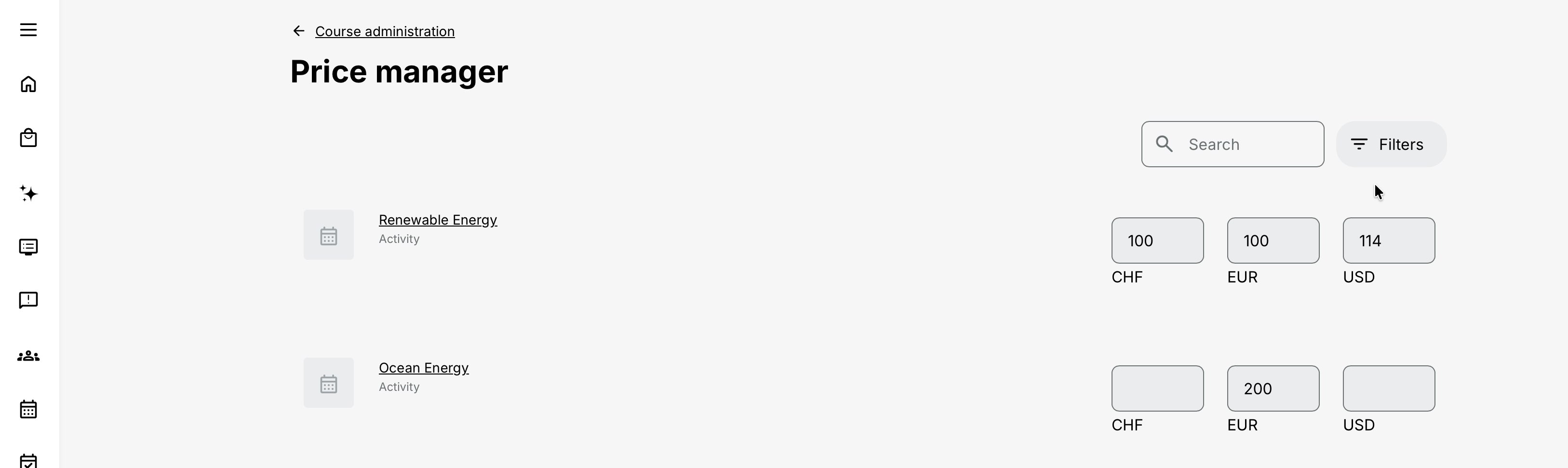
Do not interpret the ability to edit many prices from one screen as permission to change them without review. One misplaced decimal or copied value can affect every future checkout for that item and currency.
Use the correct list view
| View | Use it when | Administrator guidance |
|---|---|---|
| All |
| This is the default view and shows both Training Activities and Products. Always identify the item type before changing a value. A Training Activity and a Product can have similar titles but represent different price components at checkout. |
| Training Activities |
| This view limits the list to Training Activities. An activity does not need to be available for self-enrollment to have a price. Private, invitation-based, manually enrolled, or invoice-managed training may still require a configured price for accounting, offers, or later activation. |
| Products |
| This view limits the list to Additional Products. A Product price is independent of the activity price. Do not copy an activity’s discount or net price into a Product unless that is the separately approved Product price. |
Search for the correct record
Clear naming prevents costly errors. Use titles that distinguish:
- Activity from Product
- Region or market
- Delivery type
- Language
- Cohort or date when relevant
- Product edition or version
- Internal, partner, or public offer
Before editing a similar title:
- Confirm the item type.
- Open the underlying item if necessary.
- Confirm its ID, language, connected activities, and current audience.
- Check whether it is a recurring, cloned, linked, translated, or nested activity.
- Return to Price Manager and edit the intended row.
Price Manager centralizes the amounts; it does not merge related records. Each Activity and Product remains its own object.
Understand enabled currencies
Platform Administrators manage currencies under Settings → Commerce → Currency.
Enabling a currency makes it available for configuration and presentation across the platform. It does not automatically create activity or product prices, confirm payment-provider support, or complete the related tax and invoicing setup.
| Commerce area | How the enabled currency is used |
|---|---|
| Pricing | Administrators can configure activity and Additional Product prices in the currency, including through Price Manager. |
| Storefront and checkout | Participants can see and pay applicable prices in the currency when the surrounding commerce and payment configuration supports it. |
| Transactions and reports | Commercial records can display and report amounts in the currency used for the transaction. |
| Discounts and promotions | Campaigns and promotional configurations can apply to eligible prices in the currency. |
| Subscriptions | Subscription prices and related transactions can use the currency where subscriptions are configured. |
| Documents | Confirmation and Invoice PDFs can display the applicable currency and amount. |
| Communication | Price tokens can insert the configured price and currency into supported messages. |
Important: Price Manager cannot introduce a currency. The currency must first be enabled in the platform Commerce configuration.
Decide whether to enable a currency
Every enabled currency creates prices and supporting processes that must be maintained. Confirm the following before activation:
| Consideration | Confirm before enabling the currency | Risk if incomplete |
|---|---|---|
| Market and audience | Identify the countries, customers, or participant groups that require the currency. | Administrators maintain prices that serve no clear commercial purpose. |
| Activity and Product prices | Approve the required amounts and identify who will enter them. | Activities or Products may have missing or inconsistent prices. |
| Payment provider | Verify that the connected payment service accepts and settles the currency as intended. | Participants may see a price they cannot successfully pay. |
| Tax and seller requirements | Confirm the relevant tax rules, seller identity, and commercial responsibilities. | Checkout or transaction records may not meet business or regulatory requirements. |
| Documents | Check currency symbols, number formatting, and wording in confirmation and Invoice PDFs. | Participant-facing documents may be unclear or incorrectly formatted. |
| Ownership | Assign responsibility for initial setup, price changes, and periodic review. | Prices can become outdated or inconsistent across the portfolio. |
| Missing-price control | Define how incomplete activity and Product prices will be identified before launch. | Items may appear without a valid price for the participant’s currency. |
Enable a currency only when it serves an established commercial requirement and its supporting prices, payment route, documents, and ownership are ready. A larger currency selection does not improve the participant experience when the underlying configuration is incomplete.
How Eurekos chooses the displayed currency
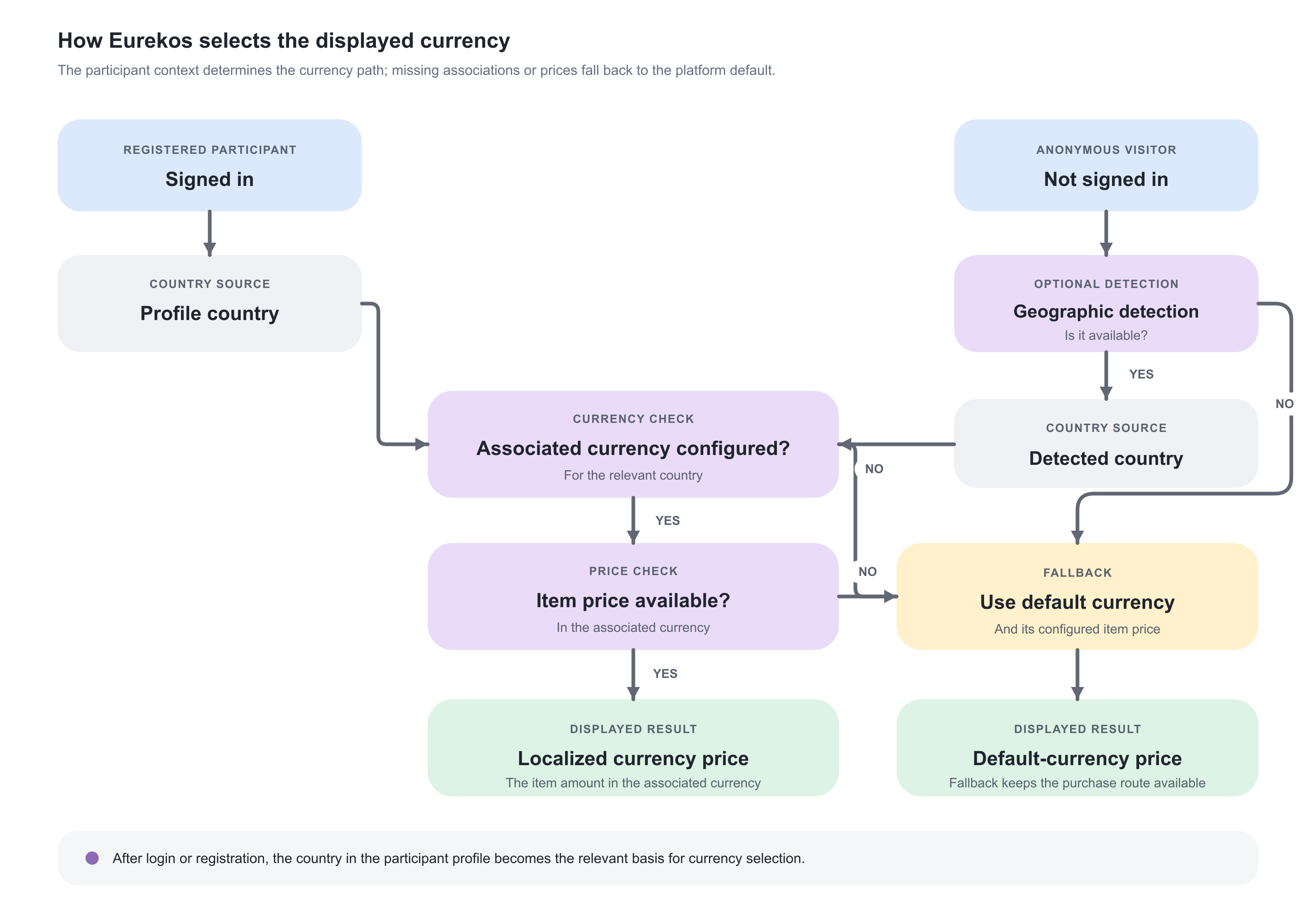
For a registered user, currency presentation is normally based on the country in the user's profile and the country-to-currency associations configured in Commerce.
Example:
| User profile country | Associated currency | Typical displayed price |
|---|---|---|
| Germany | EUR | The item's EUR amount |
| United States | USD | The item's USD amount |
| Switzerland | CHF | The item's CHF amount |
If no currency is associated with the user's country, the platform uses the default currency.
If the selected country currency does not have a price configured for the item, the platform can fall back to the default-currency price. This protects the purchasing flow from a missing localized value, but it may expose a market to a price that was not intentionally designed for it.
Fallback is continuity, not pricing approval
A valid default price can keep checkout working. It does not mean Finance approved that default amount for every country. Review missing localized values before launching a market.
Default currency
The platform always has one default currency. It is used when:
- A user's country has no associated currency
- A localized currency amount is unavailable and fallback is required
- An anonymous visitor cannot be assigned a more specific currency
- Another commerce flow requires a platform fallback
Changing the default currency is a platform-level decision with broad impact. It can alter what users see when no more specific match is found. It does not convert stored prices or rewrite historical Transactions.
At least two currencies must exist before an administrator can select a different default.
Anonymous Storefront visitors
Before login or registration, Eurekos does not have a profile country for an anonymous visitor. The platform therefore uses its default behavior unless an optional geographic-detection integration is configured.
With geographic detection, the likely visitor country can influence the displayed currency. After login or registration, the country in the user profile becomes the relevant basis.
Test both anonymous and registered journeys. A public visitor may initially see one currency and later see another if profile data indicates a different country.
Prices are not converted automatically
Eurekos does not apply live exchange rates. Every amount is entered independently.
For example:
| Currency | Approved price |
|---|---|
| EUR | 120 |
| USD | 140 |
| CHF | 110 |
These amounts can represent:
- Regional purchasing power
- Local market competition
- Reseller arrangements
- Rounded customer-friendly prices
- Currency risk and payment fees
- Strategic market positioning
They do not need to be mathematically equivalent.
Avoid calculating ad hoc conversions while editing. Maintain an approved price matrix with an effective date, owner, and rationale.
Configure Training Activity prices
Price is an activity-level feature. A regular price can be set in the currencies enabled on the platform.
Set a paid price
Enter the approved amount for each required currency. Then verify:
- The user's country selects the intended currency
- The fallback is acceptable when a localized amount is missing
- The intended payment method supports that currency
- Tax and seller rules produce the correct total
- The Activity Description and Storefront communicate price correctly
- Discounts produce the expected net amount
- The Transaction preserves the expected currency and total
Set an activity as free
Enter 0 for the relevant regular price to make the activity free in that price context.
A zero amount can change the learner journey, including whether the simplified free-enrollment flow applies. It can also remove the Coupon field because there is no regular activity price to discount.
Before changing a paid activity to zero, check:
- Whether all intended currencies should become free
- Whether a remaining non-zero currency creates inconsistent regional access
- Whether required Additional Products still create a payable order
- Whether administrator purchase notifications exclude free enrollments
- Whether an external commercial page still advertises a paid amount
- Whether Market Value should continue to report estimated value
A missing price is not the same as zero
Use zero when the approved price is free. Do not leave a currency unconfigured merely to mean free.
A missing localized price can trigger default-currency fallback or make the currency unavailable in a supported administrative price selector. The exact behavior depends on the enrollment route and context.
This distinction matters:
| Configuration | Intended meaning |
|---|---|
| Explicit amount greater than zero | Paid price in that currency |
| Explicit zero | Free price in that context |
| Blank or missing localized amount | No explicit localized price; fallback or route-specific behavior may apply |
Price Activities that are not self-enrollable
Price and self-enrollment control different parts of the commercial process.
| Concept | What it controls | What it does not control |
|---|---|---|
| Price | The commercial or accounting value assigned to the Training Activity. | Whether participants can discover or enroll in the activity themselves. |
| Self-enrollment | Whether eligible participants can use a participant-facing route to enroll or purchase access. | Whether the activity has a commercial value, creates an invoicing requirement, or must be included in financial reporting. |
A Training Activity can therefore require a price even when enrollment is managed by an administrator, customer, partner, or another controlled process.
| Scenario | Why a price is useful | Administrator consideration |
|---|---|---|
| Manual enrollment | Administrators enroll participants while retaining the activity’s standard commercial value. | Confirm whether the configured activity price or an individually agreed price should apply to each signup. |
| Separate invoicing | Customers or partners may be invoiced outside the participant enrollment flow—for example, after delivery, attendance, or completion. | Use the activity price as the agreed amount or pricing reference, and document when invoicing is initiated and by whom. |
| Invitation or partner program | Access is limited to approved participants, organizations, or partner cohorts, although the training remains commercially valued. | Keep enrollment controlled while maintaining the amount required for contracts, partner agreements, or later invoicing. |
| Private delivery | A customer-specific or closed cohort may be sold without appearing in a public catalog. | Confirm whether pricing is per participant, per delivery, or governed by a separate agreement. The activity price should reflect the approved model or act as a documented reference. |
| Individual price agreement | A participant may have a negotiated, sponsored, discounted, or otherwise exceptional price. | Where appropriate, override the activity price for that participant’s signup. Preserve the reason for the exception and the responsible decision owner. |
| Internal cost allocation | The activity’s value can support departmental charging, budget ownership, or cost-center reporting even when no participant makes a payment. | Define whether the price represents a transfer amount, standard training cost, or reporting value, and apply that interpretation consistently. |
| Financial reporting and reconciliation | A configured amount helps administrators compare enrollments, Transactions, invoices, and expected commercial value. | Distinguish the standard activity price from the amount actually charged when overrides, contracts, discounts, or offline invoicing apply. |
| Preparation for a future launch | Prices can be completed and reviewed before the activity becomes available through the Storefront. | Validate all enabled currencies and related Product prices before enabling participant-facing enrollment. |
Use the activity price as the starting point
The configured activity price can provide the standard commercial value while individual signup prices reflect approved exceptions. For example, the same private partner course may have a standard price of EUR 500, while one participant is fully sponsored and another is charged a contract rate of EUR 350.
An override changes the applicable price for that signup; it should not be used as an undocumented substitute for a broader organization, campaign, or contract-pricing model.
A price does not make an activity purchasable. Participant access still depends on the activity’s publication and status, Storefront configuration, audience and organization rules, availability and registration dates, capacity, approval requirements, and supported payment methods.
Configure Additional Product prices
Additional Products are reusable physical or digital items—such as manuals, exams, kits, tools, or learning resources—that are priced separately from the Training Activity.
Use Price Manager to maintain their prices across enabled currencies. Product prices remain independent of the Training Activity price, even when the Product is presented as part of an activity offer.
| Product or pricing area | What happens | Administrator guidance |
|---|---|---|
| Included Product | The Product appears as part of the Training Activity offer and cannot be removed by the buyer. Its presentation communicates that it is included in the offer. | Confirm how the separately configured Product price appears in checkout, Transactions, and participant documents. Do not assume that Included means the Product has no configured value. |
| Optional Product | The participant can select the Product during activity enrollment or purchase it later from the Training page. | Maintain the Product’s current price independently of the activity price. Make the optional nature and additional cost clear during enrollment. |
| Later Product purchase | A Product purchased after enrollment creates a separate Transaction at the Product price applicable at that time. | A price change made before the later purchase affects that new checkout. It does not amend the original activity-enrollment Transaction. |
| Organization and Coupon discounts | These discounts apply to the Training Activity price, not to the Additional Product price. | Describe percentage offers as discounts on the Training Activity unless a separate Product-pricing process has been approved. |
| Tax | Additional Product tax follows the applicable tax rules used in the activity-purchase context. | Confirm the relevant Product, tax, and seller treatment separately. Price Manager maintains the Product amount; it does not determine the tax rate or legal seller. |
Example: discount applied to the Training Activity
A participant buys a Training Activity for EUR 300 with a 20% Coupon discount and an Additional Product costing EUR 50.
| Calculation | Amount |
|---|---|
| Training Activity | EUR 300 |
| Coupon discount: 20% of the Training Activity | −EUR 60 |
| Additional Product | EUR 50 |
| Amount before applicable tax | EUR 290 |
Commercial wording: A campaign promising “20% off everything” would not match this checkout calculation because the Additional Product remains EUR 50. Describe the offer as 20% off the Training Activity unless an approved process also adjusts the Product price.
Configure Virtual Credit prices
Virtual Credits provide an organization-funded payment route for eligible enrollments. Instead of paying through a conventional currency at checkout, the required number of credits is deducted from the paying organization’s available balance.
A Virtual Credit price is maintained separately from prices in EUR, USD, or other enabled currencies. It should represent an intentional organizational charge—not an assumed conversion from the monetary price.
Do not confuse Virtual Credits with other price concepts
| Concept | How it differs from Virtual Credits |
|---|---|
| Regular currency | Virtual Credits are not EUR, USD, or another monetary currency, and no exchange rate automatically converts between them. |
| Coupon | A Coupon reduces an eligible conventional price. It is not a source of Virtual Credits and cannot be combined with Virtual Credit payment. |
| Market Value | Market Value can communicate the perceived or comparative value of an offer. It does not determine the number of Virtual Credits deducted. |
| Card or provider payment | A Virtual Credit Transaction records the use of an organization’s credit balance. It is not evidence that money was captured by a card or external payment provider. |
| Organization balance | The Virtual Credit price defines how many credits an item requires. The organization balance defines how many credits are available to spend. |
Set the Virtual Credit price deliberately
When Virtual Credits are enabled and supported for the item, configure the credit price independently of its regular-currency prices.
For example, an activity priced at EUR 300 does not automatically cost 300 Virtual Credits. Its approved credit price might be 30 credits, 100 credits, or another value defined by the organization’s commercial or allocation model.
When setting the price, consider:
- The organization or partner agreement
- How credits are funded or allocated
- The relative value of other activities and Products
- Whether the price should cover the complete offer or only the Training Activity
- Who approves and maintains the credit model
- How future price changes will be communicated
Understand the enrollment validation
| Validation | What it means in practice |
|---|---|
| Eligible organization relationship | The participant must belong to an organization or sub-organization that is permitted to use Virtual Credits. |
| Paying organization | Where more than one eligible organization context exists, the paying organization may need to be selected. |
| Available balance | The paying organization must have enough Virtual Credits to cover the enrollment. |
| Bulk enrollment | The same eligibility and balance validation applies when several users are enrolled together. |
| Compatible organization context | Users associated with incompatible paying organizations may need to be processed in separate bulk actions. |
| Coupon use | Coupons cannot be combined with Virtual Credit payment. Choose the applicable payment route before completing the enrollment. |
Price and balance are maintained separately. Changing an item’s Virtual Credit price does not add credits to an organization or alter its existing balance. Manage funding, adjustments, and credit history through the relevant organization-credit process.
Payment, tax, and checkout configuration remain separate
Price Manager maintains the base amount. Whether the participant can pay it—and the final amount recorded at checkout—depends on separate Commerce and activity configuration.
| Checkout area | What determines the outcome | What to verify |
|---|---|---|
| Payment methods | Platform Administrators enable payment methods and configure external providers. Where Payment methods on activity level is enabled, an activity can limit the available methods. | At least one suitable payment route is available for the intended audience. |
| Provider and currency support | The external provider or merchant account determines which currencies and payment operations it accepts. | The provider supports the configured currency and can complete the intended Transaction. |
| Invoice and Virtual Credits | Customer-type rules can control Invoice availability. Virtual Credits require an eligible organization, an applicable credit price, and sufficient organizational funding. | Invoice is offered only to the intended audiences, and Virtual Credit payment is available only when its organizational requirements are satisfied. |
| Tax and seller context | Tax can depend on the online or onsite format, seller country and legal entity, activity location, buyer country, customer type, and applicable tax-rule priority. | The correct seller, tax rate, and tax-inclusive or tax-exclusive total are applied. |
| Customer and billing information | Customer type can determine the payment methods and billing fields shown. Company and government purchases may require registration, VAT, PO, EAN, or other billing information. | The intended customer can provide the required information and complete checkout successfully. |
After changing a price, test the complete checkout and resulting Transaction—not only the base amount displayed by Price Manager.
Price Manager does not diagnose external-provider authorization, capture, settlement, or refund failures. Investigate those through the relevant payment and financial processes.
Understand how discounts use the activity price
The amount maintained in Price Manager is the Training Activity’s base regular price. Applicable discounts are calculated from that amount during checkout; they do not replace the reusable price in Price Manager.
| Pricing element | How it works | Scope and administrator guidance |
|---|---|---|
| Base regular price | The approved Training Activity amount maintained in Price Manager or the activity’s Price feature. | Use it as the starting point for applicable checkout calculations. |
| Organization discount | An eligible member receives the percentage configured for their organization. | The discount applies to the Training Activity price for eligible organization members. |
| Coupon | A participant enters an eligible Coupon from a Discount campaign during regular-currency checkout. | Confirm that the campaign includes the intended Training Activity and is valid for the participant’s checkout. |
| Combined discount | When both an organization discount and a Coupon apply, their percentages are added and applied to the Training Activity price. | Calculate the combined result for every relevant audience before changing the base price. |
| Additional Products | Product prices remain separate from the Training Activity discount calculation. | Do not describe an organization discount or Coupon as applying to Products unless a separate Product-pricing process supports that offer. |
Example: combined activity discount
A Training Activity has a base price of EUR 200. The participant receives a 10% organization discount and enters a 20% Coupon.
| Calculation | Amount |
|---|---|
| Training Activity base price | EUR 200 |
| Combined discount: 10% + 20% | 30% |
| Discount amount | −EUR 60 |
| Discounted activity price before applicable tax and Products | EUR 140 |
Before changing a base price:
- Identify active organization discounts.
- Review current Discount campaigns and their activity scope.
- Calculate the expected net activity price for each relevant audience.
- Confirm that Additional Products remain separately priced.
- Test the complete order.
A correct base price can still produce an unintended participant price when active discounts are overlooked.
Distinguish Market Value from price
Market Value represents the estimated business value delivered by a Training Activity. It supports internal value reporting when training is free, discounted, funded centrally, included in a subscription, or sold for less than its estimated value.
It remains separate from both the reusable price and the amount recorded in a Transaction.
| Commercial value | What it represents | Effect on checkout and reporting |
|---|---|---|
| Regular price | The reusable base amount configured for future eligible purchases. | Used by applicable checkout and discount logic. Maintain it through Price Manager or the activity’s Price feature. |
| Transaction amount | The commercial amount and currency recorded for a particular enrollment or purchase. | Preserves the historical outcome and is not rewritten by later price changes. Review it through Transactions. |
| Market Value | The estimated value of the learning or service delivered. | Does not determine the payable price, create revenue, change a Transaction, or calculate tax. Analyze it through the Market Value Report. |
A Platform Administrator enables Market Value under Settings → Commerce → Finance management & reporting → Enable Market Value. A Course Administrator can then enter the value on the Training Activity where the setting is available.
Example: free training with measurable value
A compliance program may be free to employees and create a zero-value Transaction while retaining a Market Value that represents the service delivered. Conversely, changing a Training Activity’s price from EUR 100 to EUR 120 does not automatically change its Market Value.
Use Price Manager for future payable prices, Transactions for recorded commercial events, and Market Value Report for estimated value. Do not use Market Value to replace a missing price, reconcile payment, or calculate tax.
Manual enrollment and specified prices
When the activity Price feature is configured, supported administrator enrollment forms can allow Specify price.
The administrator may be able to select:
- One of the regular currencies with an explicitly configured activity amount
- Virtual Credits when available
- Free
The selected currency initially uses the activity amount but can be changed for that signup in the supported form.
This is a transaction-specific override. It does not update the reusable base price in Price Manager.
Likewise, a later Price Manager change does not rewrite the amount already recorded for that participant.
Use a documented reason for every override, such as:
- Contractual partner price
- Approved goodwill exception
- Staff or instructor enrollment
- Migration of a prior purchase
- Manual correction before finalizing the signup
Historical Transactions do not change
Price Manager affects future use of the price configuration. Existing Transactions remain historical evidence of what applied when they were created.
After increasing an activity from EUR 100 to EUR 120:
- A future eligible checkout uses EUR 120.
- A completed historical EUR 100 Transaction remains EUR 100.
- A manually overridden participant price remains the recorded amount for that signup.
- An external invoice or payment-provider record remains governed by its own process.
- Market Value does not automatically change.
Never edit the current base price to make an old Transaction “match.” Reconcile the historical record and use the proper refund, invoice correction, or accounting process.
Related, linked, repeated, and cloned records
Price Manager edits individual Training Activities and Products. Relationships between records do not create one shared price object.
Recurring or linked activities
Each delivery remains its own Training Activity with its own price, capacity, participants, and Transactions. A linked date selector does not guarantee identical prices across the group.
If prices should match, review every member explicitly. If prices intentionally differ by venue, date, or format, document that policy and test how choices appear to participants.
Cloned activities
A clone begins from copied configuration, but later price maintenance is independent. Changing the original does not prove that the clone changed, and changing the clone does not prove that the original changed.
Multi-language activities
Translated or language-related activities are still separate Activity records. Review every version and currency. A user can otherwise see a different price after selecting another language.
Nested Existing Training
A parent learning journey and its nested Training Activities retain their own commercial records. Determine which level the participant actually enrolls in and which activity owns the payable price.
Additional Products reused across activities
A Product is reusable. Updating its price can affect future purchases wherever that Product is offered. Review every activity using the Product before changing it.
Prepare a governed price change
Before editing Price Manager, confirm the commercial decision, affected records, and operational dependencies. The actual change is made through the Price Manager procedure described earlier, and the result is tested through the validation matrix that follows this section.
| Preparation area | Confirm before making the change | Intended outcome |
|---|---|---|
| Approval and timing | Confirm the approved amounts, currencies, effective date, decision owner, and business reason. | Administrators apply an authorized pricing decision at the intended time. |
| Affected records | Identify the correct Training Activities and Additional Products. Include relevant linked, recurring, cloned, translated, nested, and language-related Activities, as well as reused Products. | Every record that should change is included, without unintentionally changing similarly named or unrelated items. |
| Commercial dependencies | Review active organization discounts, Coupons, subscriptions, Virtual Credit prices, quotations, contracts, purchase orders, and public offers. | The new base price does not create an unintended net price or contradict an existing commitment. |
| Commerce readiness | Confirm that the required currencies, payment methods, payment-provider support, tax rules, seller information, and participant documents are ready. | Participants can complete the intended purchase route and receive accurate commercial documentation. |
| Evidence and ownership | Record the current values where comparison or rollback evidence is required. Identify who will apply the change, perform validation, reconcile the first Transactions, and update affected communications. | The change can be verified, explained, and followed through operationally. |
Effective-date planning: Price Manager maintains the current reusable price and does not provide a documented future-price scheduler. Apply the new amounts during an approved release window unless another controlled process manages the timing.
Validate after a price change
Use a test matrix such as:
| Scenario | What to verify |
|---|---|
| Registered user in country with associated currency | Correct localized currency and amount |
| Registered user in country without an association | Default currency and approved fallback amount |
| Item missing localized amount | Intended default-currency fallback or route-specific behavior |
| Anonymous visitor | Default or configured geographic-detection result |
| Company customer | Billing fields and permitted payment methods |
| Private customer | Consumer payment route and price |
| Organization member | Correct organization discount |
| Coupon user | Correct combined activity discount |
| Activity with Additional Product | Product retains independent price |
| Virtual Credit user | Correct credit price and organization validation |
| Invoice user | Correct amount, tax, and invoice/order output |
| Card/wallet user | Provider accepts currency and Transaction completes |
Common pricing designs
| Pricing design | Configuration approach | Validation and governance |
|---|---|---|
| Global certification with regional prices | Enable only the required currencies and associate them with the target countries. Enter independently approved prices—for example, EUR 450, USD 525, and CHF 430—instead of relying on live currency conversion. | Test profile-country selection, anonymous-user fallback, payment-provider support, tax calculation, and invoices in every supported region. |
| Regional classroom portfolio | Filter Price Manager to Training Activities and maintain the appropriate local-currency price for every scheduled regional offering. Different venues may justify different prices even when the training content is similar. | Review recurring and cloned deliveries individually. Record the commercial reason for regional differences and make offerings distinguishable through their activity titles or commercial register. |
| Internal learning offered free but valued | Set the regular activity price to zero when participants should enroll without payment. Configure Market Value separately when the organization needs to report the estimated value of the learning. | Test the simplified free-enrollment flow and confirm that the resulting administrative notifications match the intended experience. Do not use Market Value as though it were a participant charge. |
| Partner-only invoice program | Configure the activity price even when the activity is not publicly self-enrollable. Restrict access through organization, audience, or invitation controls, and make Invoice available through the appropriate Commerce and activity settings. | Use Transactions and the organization’s ERP reconciliation process to manage the financial lifecycle. Confirm who issues, follows up, and reconciles the invoice. |
| Training with optional materials | Maintain the Training Activity and Additional Product prices separately. The participant may buy the Product during enrollment or later from the Training page. | Do not communicate an activity Coupon or organization discount as applying to the Product. A later Product purchase creates a separate Transaction at the then-current Product price. |
| New-market launch | Prepare all required activity, Product, subscription, payment, tax, document, and support changes before enabling the new currency. Activate it only when administrators are ready to populate and test the portfolio. | Use Price Manager to identify items that require values. Test the complete purchase journey and reconcile the first Transactions after launch. |
| Annual portfolio increase | Maintain an approved external pricing matrix, filter Price Manager by item type, and update prices in controlled batches. | Require a second-person review. Check active Discounts, quotations, customer contracts, and public marketing content so the new base prices do not create contradictory offers. |
Troubleshooting
| Problem | What to check or do |
|---|---|
| Price Manager is missing from Course Administration | Confirm that the user has permission to manage prices within the relevant organization scope. Also confirm that the platform’s Commerce configuration is available and that the required currencies have been enabled. |
| A Training Activity or Product is missing | Clear the search, select All or the appropriate item-type view, and confirm the user’s organization scope. Open the underlying Training Activity or Additional Product directly to verify that it exists and can be managed by the current user. |
| I changed the wrong item | Record the incorrect and intended items, restore the approved price on the incorrect record, and validate both. Improve the titles so item type, market, language, edition, delivery, or cohort is distinguishable before making further changes. |
| A currency is missing or unavailable during administrator enrollment | Confirm that the currency is active under Settings → Commerce → Currency. When using Specify price, confirm that the Training Activity has an explicitly configured amount in that currency. Save the price, refresh Price Manager, and reopen the enrollment form. |
| The participant sees an unexpected or default currency | Check the participant’s profile country, its country-to-currency association, the item’s price in that currency, and the platform default currency. For anonymous visitors, also check whether the platform uses its default currency or geographic detection. Test the same route before and after login. |
| The price is rejected, appears incorrectly formatted, or does not remain saved | Check the required numeric format, decimal separator, currency precision, and whether the field expects a number without a currency symbol or thousands separator. Save and refresh the record. If the value still disappears, record the item ID, currency, attempted value, time, and validation message for Support. Review the platform price-format setting if only the symbol position or display format is incorrect. |
| Zero, blank, and the participant’s payable amount do not agree | An explicit zero means free; a blank amount does not. Check for default-currency fallback, another non-zero currency, required or optional Additional Products, tax, subscription context, and whether the correct activity was tested. Enter zero explicitly when the approved price is free. |
| The discount or Product total is unexpected | Check active organization discounts and Coupon campaigns. These can combine for the Training Activity price, while Additional Products retain their separately configured prices. Confirm whether each Product is Included or Optional and calculate the expected activity discount and Product total independently. |
| A Product price changed in several activities | Additional Products are reusable. Updating one Product can affect future purchases wherever it is offered. Review its connected activities and test each important enrollment and later-purchase route. A Product purchased later uses its then-current price in a separate Transaction. |
| No suitable payment method is available | Confirm that the payment method is enabled in Commerce, permitted for the relevant customer type, supported by the activity-level configuration, and compatible with the selected currency. If Invoice appears unexpectedly, review those same settings. If an external provider rejects the currency, verify support in the provider or merchant account. |
| The checkout total differs from the Price Manager amount | Price Manager maintains the base price, not necessarily the final total. Review tax rules, seller, buyer country, customer type, online or onsite format, activity location, discounts, Additional Products, and the selected payment route. |
| A participant was charged an older or different price | Check when the Transaction was created and whether the enrollment used an invitation, promotion, subscription, administrator override, another currency, Virtual Credits, or Free. Existing Transactions and invoices preserve their original commercial context and are not rewritten by later Price Manager changes. Correct historical financial documents through the approved invoice, refund, or accounting process. |
| Manual enrollment uses a different amount | Check whether the administrator used Specify price and selected another currency, Virtual Credits, Free, or an individually entered amount. A signup-level override can differ from the reusable activity price without changing Price Manager. |
| Virtual Credits are unavailable or the enrollment cannot be completed | Confirm that Virtual Credits are enabled, the item has an intentional credit price, and the enrollment route supports them. Verify the participant’s eligible organization, the selected paying organization, and its available balance. For bulk enrollment, selected users may need to share a compatible paying organization and sufficient balance. |
| Related activities have inconsistent prices | Linked, recurring, cloned, translated, nested, and language-related activities retain independent price configurations. Review each relevant record and determine which activity owns the participant-facing enrollment. Align the prices when the difference is unintended, or document and communicate the commercial reason for the difference. |
| The activity has a price but is missing from the Storefront—or the Storefront hides its price | Price does not publish an activity. Check self-enrollment, status, Storefront section and audience, availability and registration dates, language, organization rules, access restrictions, and capacity. Also review the platform’s Storefront price-display setting, which may show all prices, hide free prices, or hide prices entirely. |
| A newly enabled currency produces unexpected fallback | Confirm its country associations, the platform default currency, and whether every intended Training Activity and Product has an explicit approved amount. Test registered users from associated and unassociated countries, as well as anonymous visitors, before launching the currency publicly. |
| The new price became effective before the planned date | Price Manager maintains the current price and does not provide a documented future-price scheduler. Restore the approved current amount where appropriate, identify affected Transactions, and apply the new price through a controlled release window at the agreed time. |
For the related processes, see Discount campaigns and Coupons, Additional Products, and Transactions. Use Market Value Report for estimated learning value rather than payable amounts.
FAQ
-
What can I price in Price Manager?
Training Activities and Additional Products.
-
Why would I price a Training Activity that is not self-enrollable?
It may still be used for manual enrollment, invoices, invitations, private delivery, reporting, accounting, or preparation for later publication.
-
Does adding a price make an activity visible in the Storefront?
No. Self-enrollment, Storefront configuration, activity status, dates, audience, organization, access, and capacity remain separate.
-
Where do the currencies in Price Manager come from?
From Settings → Commerce → Currency. Price Manager cannot create a platform currency.
-
Does Eurekos convert prices using exchange rates?
No. Enter an independently approved amount for every required currency.
-
How does Eurekos choose a registered user's currency?
It normally uses the country in the user's profile and the country-to-currency association in Commerce.
-
What happens when the user's country has no associated currency?
The platform uses the default currency.
-
What happens when the selected currency has no item price?
Participant-facing commerce can fall back to the default-currency price. Test the precise route. Supported administrator Specify price selectors show the explicitly configured currencies.
-
How is an anonymous visitor's currency selected?
The default behavior applies because no user profile is available. An optional geographic-detection integration can provide a likely country before login.
-
Can I delete a currency?
Platform Administrators can remove it from Commerce configuration. This removes it from future price display but does not change historical Transactions. Review every dependent price and flow before deletion.
-
Does 0 mean free?
Yes, for the regular activity price in that context. Review other currencies, Additional Products, and tax/order components before promising that the complete order is free.
-
Is a blank price the same as zero?
No. Blank means no explicit localized amount; fallback or route-specific behavior can apply. Use zero deliberately for a free price.
-
Can I configure Virtual Credits in addition to a regular price?
Yes, where Virtual Credits are enabled. The credit value is independent of regular-currency prices and requires an eligible funded organization.
-
Does changing a price update earlier Transactions?
No. Historical Transactions retain their recorded amount and currency.
-
Do linked or recurring activities share one price?
No. Every Training Activity retains its own price. Review each member of the linked group.
-
Does a cloned activity remain linked to the original price?
No. Treat the cloned activity as an independent price record after creation.
-
Does Market Value change when I update price?
No. Market Value is a separate reporting attribute.
-
Can I schedule a future price in Price Manager?
The documented Price Manager workflow maintains current values; it does not provide a future effective-date scheduler. Coordinate the change operationally unless another approved process is available on your platform.