Access restrictions - Article
Summary
Access Restrictions let you build a learning journey in which participants unlock training only after meeting the right prerequisites. For example, you can keep an advanced module locked until someone completes a foundation course, attends an event, passes an assignment, earns a certificate or Skill, or reaches the intended date. Participants can still be enrolled and see what they need to do, while Eurekos controls the sequence automatically instead of relying on an administrator to release each person manually.
In this article you will learn:
- What Access Restrictions control and when to use them
- How Access Restrictions differ from enrollment requirements, Access Expiration, Mandatory deadlines, audience visibility, and adaptive learning
- Where restrictions can be configured at activity level and module level
- How activity-level and module-level restrictions affect the participant experience
- How to configure Pass test, Watch video, Earn certificate, Complete course, Attend event, Restriction by date, Complete activity, Pass assignment, and Acquire skill criteria
- How criteria with multiple values use Any of or quantity-based behavior
- How to combine criteria with AND/OR logic without accidentally weakening the gate
- How prerequisites can be completed in the same Training Activity or another activity
- How the platform-level Validate restriction criteria in current activity only option changes module-level behavior
- How required and optional courses, events, and assignments are presented to participants
- How optional adaptive modules stop blocking later content
- How dates and time zones affect availability
- What participants see when content is locked and when it becomes available
- How cloning, repeating, linked activities, organization scope, and live changes affect restrictions
- How to test, govern, and troubleshoot complex prerequisite designs
What Access Restrictions help you achieve
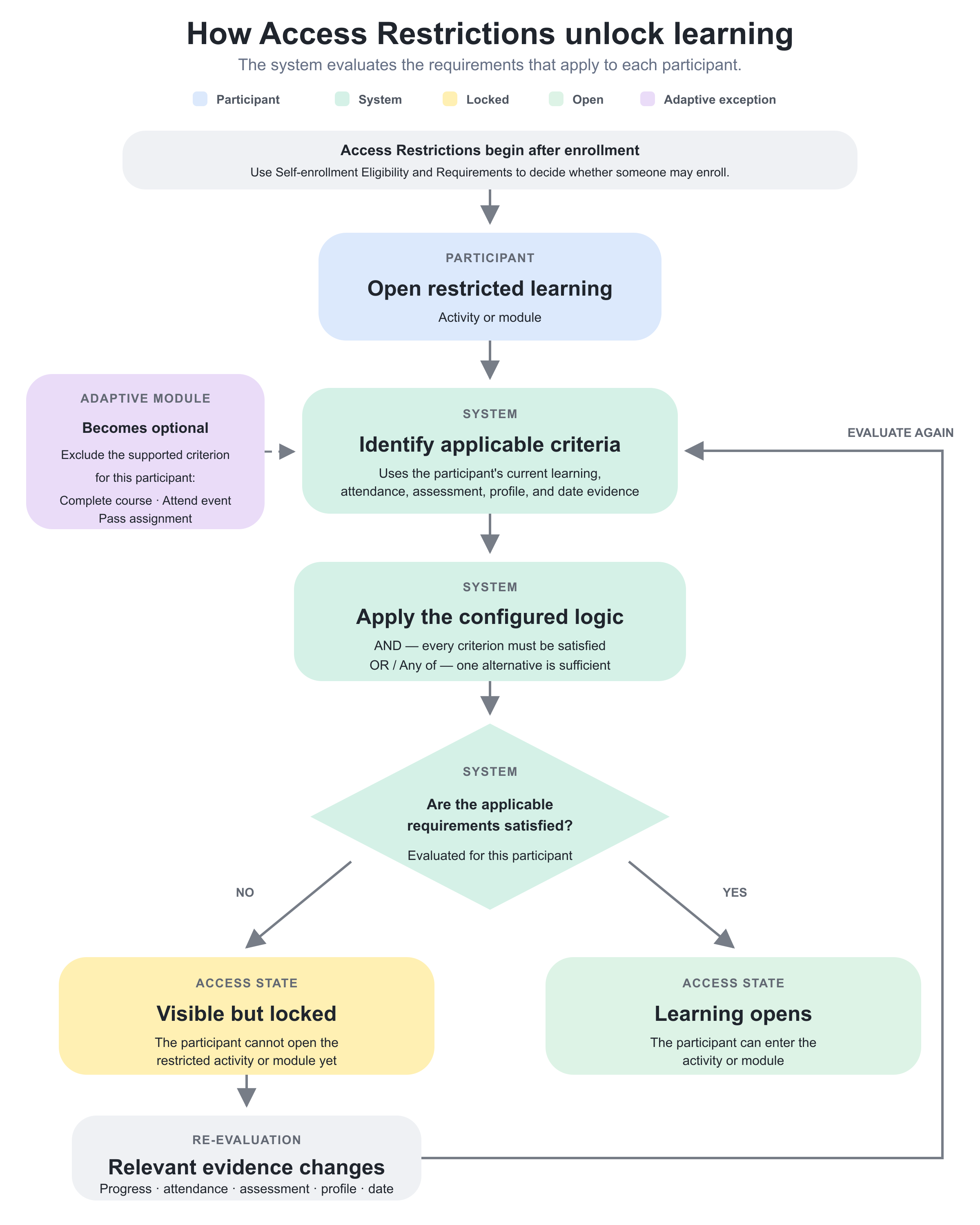
Access Restrictions control whether an enrolled participant may open a Training Activity or one of its supported modules. They allow Course Administrators to turn prerequisite decisions into automatic rules.
Common examples include:
- Keep the practical Event locked until the safety Course is complete.
- Release the final Course only after the instructor marks the Event as attended.
- Allow the assessment after an Assignment has been passed.
- Require a foundation certificate before an advanced learning path can be opened.
- Release a module when the participant has acquired the required Skill and level.
- Make a Course available only when its scheduled date arrives.
- Require several earlier steps—or an approved alternative—before the participant continues.
- Use completion from another Training Activity as recognized prior learning.
The participant remains part of the activity. The restriction controls access inside that relationship; it is not simply a Storefront filter and does not remove the participant's signup.
Module order is not a prerequisite rule
Placing modules in a sequence controls presentation. It does not, by itself, stop a participant from opening a later module. Add Access Restrictions when the sequence must be enforced.
Choose the correct control
Several Eurekos features can appear to “restrict” training, but they act at different stages.
| Business requirement | Use | What happens |
|---|---|---|
| Only the right audience should discover an offer | Storefront audience controls, Organization, and activity visibility | The offer is shown or hidden for the relevant audience |
| A person must meet prerequisites before joining | Self enrollment → Restrict self enrollment until the criteria are met | The user sees enrollment requirements and cannot self-enroll until they qualify |
| An application must be reviewed before participation | Participation approval | Enrollment follows a request, questionnaire, and approval process |
| An enrolled participant must qualify before opening content | Access Restrictions | The activity or module remains locked while the signup stays in place |
| Access should end after a date or lifecycle event | Access Expiration | The participant's activity signup becomes Expired and the complete activity becomes inaccessible |
| Training must be completed by a deadline | Mandatory | A deadline and Overdue label are applied; the deadline does not itself lock the content |
| Different learners should receive or skip different modules | Adaptive module | A module can appear when criteria are met or become optional and leave progress calculations |
| The learner must acknowledge completion | Completion behavior | A Complete button can delay completion after the module's learning criteria are met |
| A Course page should be shown only under page-level conditions | Course page restrictions in Content Authoring | Visibility is controlled inside the Course rather than on the Training Activity relationship |
These controls can be combined, but every layer should have a distinct purpose. For example, an advanced academy can be visible only to partners, require a certificate before self-enrollment, and still keep its live practical Event locked until the preparation Course inside the academy is complete.
Avoid applying the same business rule at several layers without a reason. A prerequisite duplicated as an enrollment requirement and an activity-level Access Restriction can create a confusing design that is harder to support.
Understand where Access Restrictions are available
Access Restrictions can be added at two configuration levels.
| Level | Available when | What becomes locked | Typical use |
|---|---|---|---|
| Activity level | The Training Activity contains two or more modules | The complete learning path | Prevent the participant from entering an advanced program until an external prerequisite is met |
| Module level | The module is a Course or Event | That Course or Event within this activity | Enforce sequence or qualification inside a learning path |
Activity-level restriction
Use activity level when the prerequisite applies to the complete multi-module journey.
For example, an Advanced Technician Program may contain six modules, but no part of it should open until the participant has earned a Foundation Technician certificate. Apply Earn certificate at activity level.
An activity-level restriction is available when the Training Activity has at least two modules. A single-module activity does not receive this activity-level option.
Module-level restriction
Use module level when the participant may enter the learning path but a particular Course or Event must remain locked.
For example:
Safety preparation Course → Complete course Practical workshop Event → Attend event Final assessment Course
Module-level Access Restrictions are supported for Course and Event modules. They are not configured directly on Assignment or Existing Training modules.
An Assignment can still be a prerequisite for a later supported Course or Event through Pass assignment. Likewise, an Existing Training activity can contribute a completion result selected through an appropriate criterion, while the restriction itself is placed on the supported target.
The same module used in several activities
A restriction belongs to the module's placement in a specific Training Activity. If the same Course is used in Activities A and B and is restricted only in Activity A, the participant can still access it through Activity B when that other relationship allows access.
Do not confuse this with where the prerequisite result may be recognized. Completion evidence can be accepted from another activity unless the platform is configured to validate eligible module-level criteria only within the current activity.
Permissions and ownership
Configuring Access Restrictions requires permission to edit the Training Activity and the relevant activity- or module-level Features. Course Administrator, Support, Platform Administrator, and Global Administrator roles normally have this access, subject to platform configuration and organization scope.
The administrator also needs access to the prerequisite values selected in the rule. A user may be allowed to edit the target activity but unable to maintain a Course, Event, test, certificate, Assignment, activity, or other item owned by another organization.
Assign clear responsibility for:
- Journey design—decides which evidence is genuinely required.
- Content and assessment—keeps prerequisite Courses, tests, videos, and Assignments valid.
- Facilitation—records Event attendance and assesses Assignments promptly.
- Certification or Skills governance—controls how achievements are granted, expired, or corrected.
- Course administration—configures and tests the restriction and participant experience.
- Platform governance—owns the current-activity validation and Skills configuration.
- Support—investigates individual access using the activity Change log and participant evidence.
Access Restrictions can affect compliance, safety, and qualification decisions. Do not give an administrator informal permission to remove a prerequisite merely to resolve a support request. Define who may approve an exception and how it must be documented.
Design the journey before configuring criteria
Write the intended rule in plain language first.
For example:
Open the final assessment when the participant has completed the safety Course and either attended the Copenhagen workshop or attended the Stockholm workshop.
Then identify:
| Design question | Example answer |
|---|---|
| What is the locked target? | Final assessment Course module |
| At which level should it be locked? | Module level |
| What evidence unlocks it? | Course completion and Event attendance |
| Must all criteria be met? | Safety Course is required; one workshop is sufficient |
| Where can the evidence be earned? | In the same learning path |
| Can any prerequisite become optional? | No |
| Does a Schedule control timing? | No |
| What should the participant be told? | Complete safety preparation and attend one workshop |
| Who owns exception decisions? | Certification Program Owner |
| How will the design be tested? | New learner accounts covering every AND/OR branch |
If the rule cannot be explained in one or two sentences, consider simplifying the journey or splitting it into clearer stages. The interface can hold many criteria, but a rule that administrators and participants cannot understand is difficult to operate safely.
Configure an activity-level Access Restriction
- Open Course Administration → Activities.
- Create or edit a Training Activity containing at least two modules.
- Open activity-level Features.
- Enable Access Restrictions.
- Select Add criteria.
- Choose the required criterion type.
- Select the test, video, certificate, Course, Event, activity, Assignment, Skill, or date behavior required by that criterion.
- Configure Any of, a course quantity, Skill level, or other criterion-specific option where applicable.
- Add further criteria when needed.
- Set the intended AND/OR relationship.
- Save the Training Activity.
- Test with participants who meet none, some, and all of the requirements.
- Review the participant's locked activity and See requirements message.
- Complete each prerequisite and verify that access changes as intended.
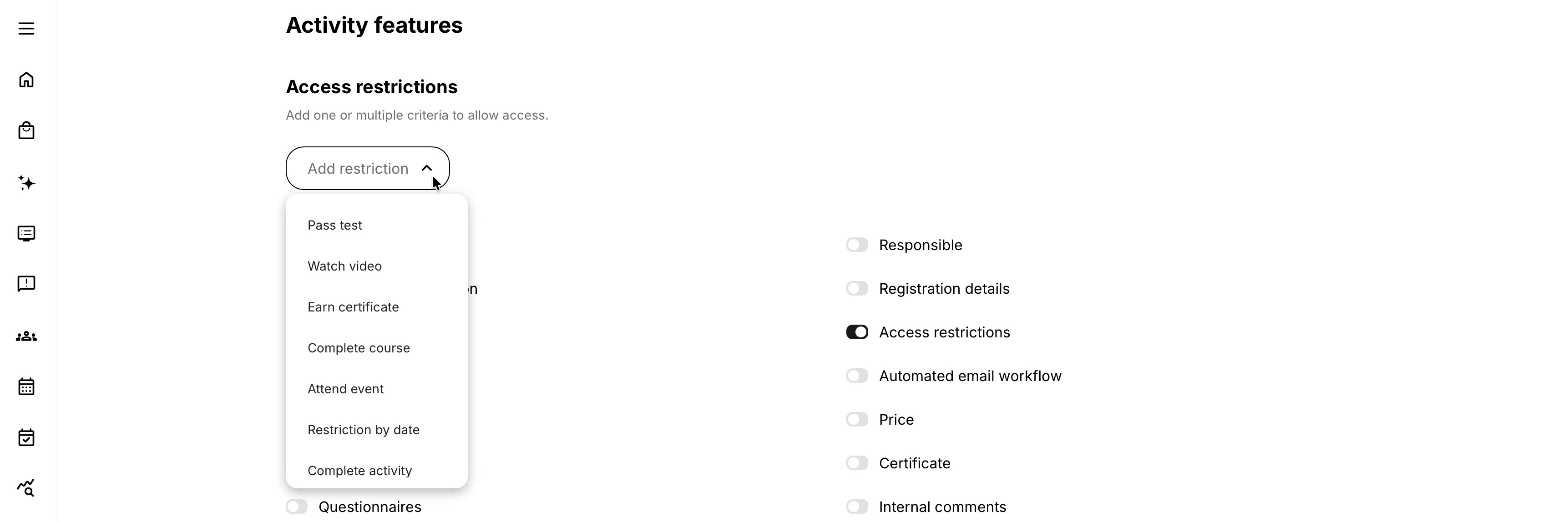
Use activity-level restrictions for a genuine whole-program gate. If the participant should be able to use preparation modules while only a later part remains locked, place the restriction on that later Course or Event instead.
Configure a module-level Access Restriction
- Open the Training Activity for editing.
- Add or open the Course or Event module that should remain locked.
- Open its Gear or Features menu.
- Enable Access Restrictions.
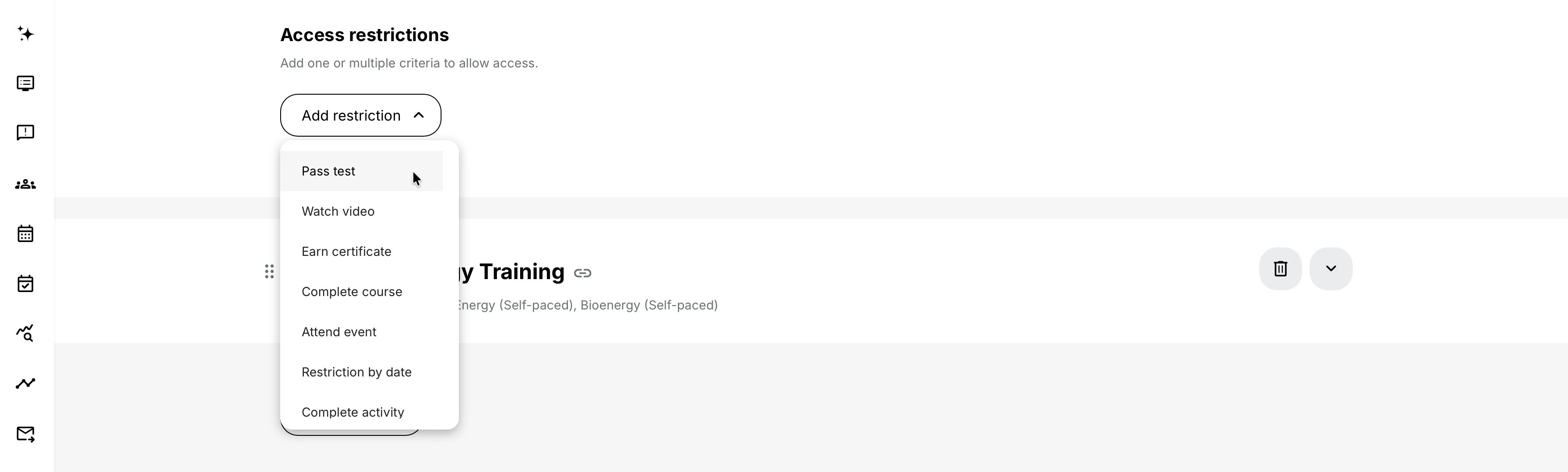
- Add the required criterion.
- Select the prerequisite content, achievement, Skill, or date behavior.
- Configure multiple values and Any of or quantity rules where relevant.
- Add additional criteria and configure AND/OR logic.
- Save the module and Training Activity.
- Preview the learning path as a participant.
- Confirm the target has a lock icon and understandable requirements.
- Satisfy the prerequisites and verify that the module becomes available.
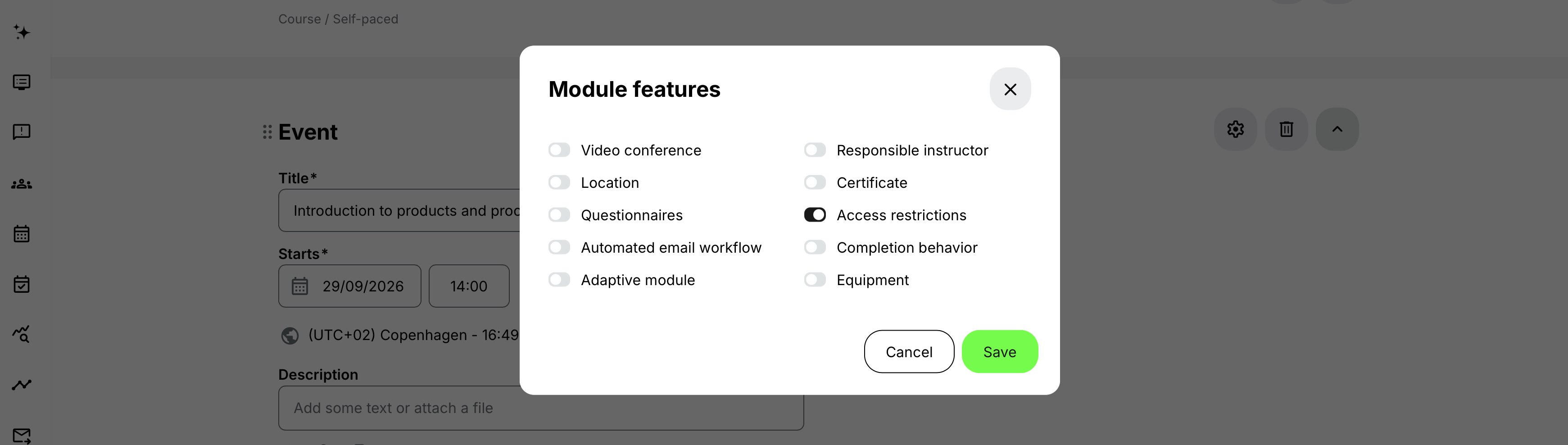
The prerequisite should be reachable. If the required test or Course belongs to another Training Activity, make sure the intended participant is enrolled there or otherwise has legitimate access.
Choose the correct criterion
The following criteria are available for Access Restrictions. Acquire skill appears when Skills are enabled under Settings → General → Skills.
| Criterion | Evidence Eurekos checks | Appropriate use | Important dependency or special case |
|---|---|---|---|
| Pass test | The participant has passed the selected test | Gate practical or advanced content behind an assessment | The participant must be able to reach the Course containing the test; define pass behavior in the test itself |
| Watch video | The selected video has satisfied its tracked viewing requirement | Require an introduction, safety briefing, or demonstration before continuation | The video must be available to the participant and provide the expected tracking result |
| Earn certificate | The selected certificate has been earned | Recognize qualification or prior certification | Confirm the certificate is issued by the correct completion criteria; do not confuse certificate possession with Course completion |
| Complete course | The selected Course completion has been achieved | Enforce foundational learning before a later Course or Event | Supports multiple Courses, Any of, and Complete specific number of coursesbehavior |
| Attend event | Attendance has been recorded for the selected Event | Release follow-up content after live participation | The instructor or administrator must mark attendance; merely reaching the Event date is not attendance |
| Restriction by date | The scheduled date condition for the restricted activity or module is satisfied | Open or close access according to the planned delivery period | Uses the Schedule and time zone of the entity on which the restriction is placed |
| Complete activity | The selected Training Activity has Completed status for the participant | Use an independent learning journey as the prerequisite | Ensure the participant can enroll in and complete the prerequisite activity |
| Pass assignment | The selected Assignment has been marked Passed | Release an assessment, Event, or advanced Course after instructor evaluation | Submission alone is insufficient; the instructor's Passed decision is required |
| Acquire skill | The participant holds the selected Skill and, when configured, an acceptable level | Gate content through a reusable competency framework | Skills must be enabled and correctly granted through certificates, administration, import, or API |
Choose the evidence that represents the real business decision. If a participant must demonstrate competence, Course completion alone may be weaker than passing a test or earning a certificate. If physical participation is essential, require Event attendance rather than waiting for the Event date.
Pass test
Use Pass test when a tracked assessment result should unlock the target.
Typical uses include:
- A pre-test unlocks the advanced track.
- A safety test unlocks a practical Event.
- A product-knowledge assessment unlocks certification content.
The selected test must be available through content the participant can legitimately access. If the requirement popup identifies a test but the participant cannot reach the Course containing it, the journey has a circular or missing enrollment dependency.
Define the assessment's pass threshold, attempts, and feedback in the appropriate Course/H5P configuration. Access Restrictions consume the pass outcome; they do not define how the test is scored.
When a participant passes an applicable test within the same activity, Eurekos can show the New module is available or New modules are available notification for newly unlocked content.
Watch video
Use Watch video when viewing a specific tracked video is a genuine prerequisite.
Appropriate examples include:
- A mandatory safety demonstration before a practical exercise
- A recorded introduction before a facilitated session
- A process demonstration before an assessment
Do not use a video requirement merely to force time-on-content when another evidence type better represents learning. Confirm that the video is tracked, is accessible through the participant's journey, and produces the completion behavior expected by the restriction.
When an applicable video requirement is met within the activity, the learner can receive the new-module notification for content that has just unlocked.
Earn certificate
Use Earn certificate when a formal achievement is the prerequisite.
This is especially useful for:
- Qualification levels
- Regulatory progression
- Partner accreditation tiers
- Advanced recertification paths
- Recognition of a completed program rather than one isolated Course
Confirm that the selected certificate's issuance criteria accurately represent the prerequisite. A certificate can be connected at module or activity level, so select the exact certificate—not simply another item with a similar title.
The unlocked-content notification can appear when the certificate requirement is met within the same activity.
Do not assume how certificate expiration should affect an already unlocked module without testing that specific lifecycle. If current validity is a business requirement, validate expired, renewed, and extended certificate scenarios on your platform before launch.
Complete course
Use Complete course when completion of one or more Course modules should unlock the target.
One Course
Select the required Course. The target becomes available when the participant's Course completion is recognized in the permitted scope.
Several Courses without a quantity rule
When Complete specific number of courses is not enabled, the participant must complete all selected required Courses.
Any of several Courses
Where the criterion exposes Any of, use it when one approved alternative is sufficient. For example, either the English or Danish foundation Course can satisfy a language-equivalent prerequisite.
Complete a specific number of Courses
The quantity option supports journeys with required and optional Courses.
Let:
- K be the number of selected required Courses.
- L be the number of selected optional Courses.
- N be the configured number the participant must complete.
| Configuration | Unlocking behavior |
|---|---|
| Quantity option disabled | All selected required Courses must be completed |
| N = K + L | All selected required Courses must be completed; the requirements message focuses on the required list |
| N < K + L and K < N | The rule can be satisfied by completing all required Courses or any N Courses across the selected required and optional set |
| N < K + L and K ≥ N | Any N Courses from the selected required and optional set can satisfy the rule |
The requirements popup is deliberately written so it does not encourage participants to complete optional learning unnecessarily. Already completed Courses are removed from the missing-requirements list, and the remaining number is reduced accordingly.
This behavior is powerful but easy to miscommunicate. Test every permitted combination and explain approved alternatives in the Activity Description when participants need more context than the popup provides.
When Course completion unlocks content within the same activity, Eurekos can notify the participant that a new module or modules are available.
Attend event
Use Attend event when live attendance must be recorded before the participant continues.
The participant does not satisfy the criterion merely by being registered or by reaching the Event's end time. Attendance must be marked through the Event's attendance process.
With several selected Events:
- Without Any of, all selected required Events must be attended.
- With Any of, attendance at one selected Event is sufficient.
- Optional Events can participate in the evaluation, but the participant-facing requirements message emphasizes the required Events so learners are not encouraged to take optional sessions unnecessarily.
- Events already attended are removed from the missing-requirements message.
Use Any of for equivalent dates or formats, such as one of three practical workshops. Use an AND relationship or separate criteria when the participant must attend distinct sessions with different purposes.
Pass assignment
Use Pass assignment when instructor evaluation should control progression.
Submitting the Assignment does not satisfy the criterion. The Assignment must be assessed and marked Passed.
With several Assignments:
- Without Any of, all selected required Assignments must be passed.
- With Any of, any selected Assignment can satisfy the criterion.
- Optional Assignments can be evaluated without being promoted unnecessarily in the requirements message.
- Assignments already passed are removed from the missing-requirements message.
Plan the operational dependency. A delayed assessment can keep later content locked even though the participant submitted on time. Set instructor ownership, grading expectations, and communication accordingly.
Complete activity
Use Complete activity when an entire independent Training Activity is the prerequisite.
This is preferable to selecting a single Course when the required outcome belongs to a complete program containing several modules, Events, Assignments, or an activity-level certificate.
Before using it, confirm:
- The prerequisite activity's completion logic is correct.
- The intended audience can enroll in or be assigned to it.
- Its modules do not create a circular dependency back to the restricted target.
- Historical completion should count according to the platform's scope configuration.
- Re-enrollment or re-certification does not change the intended interpretation unexpectedly.
Restriction by date
Date-based restrictions use the Schedule of the entity on which the restriction is applied:
- A module-level restriction uses that module's Schedule.
- An activity-level restriction uses the Training Activity's Schedule.
The participant-facing message explains that the content is not yet available or is no longer available and shows the relevant date and time.
Time-zone behavior matters:
- The participant sees the restriction time converted to their time zone.
- Changing the configured time or time zone changes the participant's displayed time immediately.
- Older content without an explicit time zone can fall back to the user's time zone.
- When older content is edited, the form derives a default from the activity or module Schedule, or from the platform default when no Schedule is enabled.
Before publication, test with accounts in each material audience time zone. A date that is correct for the administrator can fall on a different calendar day for the participant.
Do not use Restriction by date as a substitute for enrollment deadlines, Event attendance, Access Expiration, or a Mandatory completion deadline. Those controls solve different lifecycle problems.
Acquire skill
Acquire skill becomes available when Skills are enabled under Settings → General → Skills. It can be used at activity level or module level.
Skills are useful when access should depend on a reusable competency rather than completion of one specific Course. A Skill can be earned through a connected certificate or assigned through supported administration, import, or API processes.
The configuration depends on the platform's Skill model.
Skills with levels
- Add each Skill as a separate restriction item.
- Select an optional required Level.
- Leaving Level blank accepts any level of that Skill.
- Combine several Skill items and other criteria with AND/OR logic.
Skills without levels
- Multiple Skills can be selected within one criterion.
- Use Any skill when holding one of the selected Skills is sufficient.
- Without Any skill, configure and test the intended all-Skills behavior.
Example:
Require Electrical Safety – Level 2 AND either Product A Service OR Product B Service.
The participant sees required Skills, including levels where applicable, in the requirements popup.
Review how Skills are granted and removed. If certificates supply Skills, certificate expiration can remove the Skill. Test the effect on restricted content for participants who have already entered or completed it before relying on the design for compliance.
Combine multiple criteria with AND/OR
Access Restrictions can contain multiple criteria and no specific maximum is documented. The form supports AND/OR logic for combined rules.
AND
Use AND when every condition must be met.
Complete Safety Course AND Attend Practical Workshop AND Pass Final Assignment
This is appropriate for a cumulative certification sequence.
OR
Use OR when any approved alternative is sufficient.
Earn Foundation Certificate OR Acquire Equivalent External Skill
This supports recognized prior learning or alternative qualification routes.
Distinguish logic between criteria from logic inside a criterion
There are two decision layers:
| Logic layer | Example |
|---|---|
| Between criterion types | Complete Course AND Attend Event |
| Within one multi-value criterion | Attend any of Event A, Event B, or Event C |
Do not use top-level OR when only one part of one criterion should be optional. A broad OR can accidentally allow the participant to bypass other mandatory requirements.
For complex designs:
- Write the rule in plain language.
- Draw each AND/OR branch.
- Build one branch at a time.
- Test an account that meets each single criterion.
- Test every valid and invalid combination.
- Confirm the requirements message remains understandable.
If the interface cannot represent the intended grouping clearly, redesign the journey as sequential gates rather than attempting a large expression.
Use prerequisites from another Training Activity
Access Restrictions can refer to evidence earned in another activity. For example:
- Module in Activity A can require completion of a Course in Activity B.
- Module in Activity A can require passing a test contained in Activity B.
- An advanced activity can require completion of a foundation activity.
- A certificate earned through another program can unlock the next level.
The participant must be able to reach the prerequisite. A cross-activity rule does not automatically enroll the person in the other activity.
Check:
- Storefront visibility and self-enrollment
- Administrative or onboarding assignment
- Organization restrictions
- Activity status and dates
- Seats, approvals, prices, or subscription access
- Access Restrictions inside the prerequisite journey
- Whether the participant has already completed equivalent reused content elsewhere
Avoid circular chains such as Activity A requiring Activity B while Activity B requires Activity A.
Decide whether completion from another activity should count
A platform-level setting named Validate restriction criteria in current activity only controls whether supported module-level restriction evidence must be achieved in the current Training Activity.
This setting applies only to module-level Access Restrictions.
| Setting | Result |
|---|---|
| Enabled | The participant must satisfy applicable selected Test, Video, or Course criteria within the current activity context |
| Disabled | A recognized result can satisfy the restriction regardless of the activity through which it was achieved |
This is a platform-wide governance choice rather than a casual per-rule preference.
Enable current-activity validation when:
- Each cohort or certification attempt must generate new evidence.
- Reused Course completion must not bypass the current journey.
- Compliance requires proof inside the present activity context.
Allow cross-activity recognition when:
- Prior learning should count.
- The same foundation content is reused across many programs.
- Repeating an already completed Course would add no value.
Confirm the setting with the Platform Administrator or Eurekos support before designing large prerequisite architectures around one assumption. Changing it can alter access across many module-level rules.
Coordinate Access Restrictions with adaptive modules
Adaptive modules can become optional for an individual participant. An optional module should not continue blocking required later content.
The System excludes a module from applicable Access Restrictions when it becomes optional for that participant. This applies to these criterion types:
- Complete course
- Attend event
- Pass assignment
Example
The Final assessment normally requires the participant to:
- Complete the Foundation Course
- Attend the Coaching Event
- Pass the Practice Assignment
If adaptive logic makes the Coaching Event optional for that participant:
- The Attend event requirement is excluded.
- The participant must still complete the Foundation Course.
- The participant must still pass the Practice Assignment.
- The Final assessment unlocks when the remaining applicable requirements have been met.
Do not assume that every criterion associated with an optional module is excluded. The documented behavior is limited to Course completion, Event attendance, and Assignment passing. Test designs that combine adaptive modules and Access Restrictions using representative participant paths.
Understand the participant experience
When the restriction is not satisfied:
- The activity or module displays a lock icon.
- A description indicates that requirements must be completed.
- See requirements opens a popup listing missing criteria.
- Locked items are visible in Trainings I attend and the user's profile under My trainings, according to their activity relationship.
- A webinar Event's Join action also leads to the restriction popup rather than bypassing the gate.
When a criterion has already been met, it is removed from the missing-requirements list. Completed Courses, attended Events, and passed Assignments therefore stop appearing as outstanding.
When the final requirement is satisfied, the activity or module becomes available. For Pass test, Watch video, Earn certificate, and Complete course criteria satisfied within the same activity, Eurekos can display:
- New module is available: [module]
- New modules are available: [modules]
The popup is an immediate in-platform signal. Do not assume that every unlock condition sends an email. Use an Automated Email Workflow only when its available triggers support the communication requirement, and test the complete flow.
Requirements must be actionable
The popup should help the participant understand what to do next. If a prerequisite appears but cannot be opened, investigate whether the participant:
- Is enrolled in the prerequisite activity
- Has access through the intended organization or subscription
- Is before an availability date
- Is blocked by another restriction
- Is missing payment or approval
- Is looking at a test or video whose parent Course is inaccessible
Access Restrictions do not create the prerequisite journey; they only evaluate its evidence.
Coordinate with self-enrollment requirements
Self-enrollment requirements are configured inside the activity's Self enrollment feature. They support a broader set of criteria for deciding who may join, including profile-based and process criteria such as Organization, Job function, Sign up to activity, and Complete questionnaire.
The important distinction is:
- Enrollment requirement: the person is not enrolled until they qualify.
- Access Restriction: the person can be enrolled but the restricted content remains locked.
Questionnaire completion is an enrollment criterion—not an Access Restriction criterion. When it is the only unmet requirement, the questionnaire opens inline during enrollment. Do not expect Complete questionnaire in the Access Restrictions list.
Managers and Immediate Managers may be able to enter an enrollment flow on behalf of others, but selected users are still validated against configured enrollment requirements. Do not design a controlled enrollment process on the assumption that a managerial role bypasses eligibility.
Use the two layers together only when they serve separate purposes. For example:
- Require partner membership and an application questionnaire before enrollment.
- After enrollment, require completion of preparation before opening the Event.
Coordinate with Access Expiration and Mandatory deadlines
Access Restrictions determine when content becomes available. They do not define how long access remains.
Use Access Expiration to remove access:
- At the time of an activity lifecycle event
- A number of days or months after activity start, activity end, enrollment, or completion
- At a specific date and time
Use Mandatory to set and communicate a completion deadline. An Overdue label does not itself remove access or change completion.
A coherent participant lifecycle can combine all three controls:
- The participant enrolls in the Training Activity.
- Access Restrictions unlock the preparation content when the participant meets the prerequisite.
- Mandatory establishes the compliance deadline by which the participant should complete the activity.
- Access Expiration ends access 30 days after the participant completes it.
Each control has a different purpose: Access Restrictions control when learning opens, Mandatory communicates when it should be completed, and Access Expiration controls when access ends.
Document the purpose of each rule so support staff do not remove or change the wrong control when helping a participant.
Change restrictions on a live Training Activity
Restrictions evaluate participant evidence against the current configuration. Adding or tightening a rule can therefore lock content for people who are already enrolled, while removing or weakening it can release content earlier than intended.
Before changing a live rule:
- Identify the locked target and every prerequisite.
- Review active, completed, and upcoming participants.
- Determine which participants currently satisfy the old and new logic.
- Check certificate, Skill, attendance, Assignment, and completion records.
- Review cross-activity and current-activity validation behavior.
- Test the new rule in preproduction or a controlled activity copy.
- Plan communication for participants whose access changes.
- Save the change deliberately.
- Use the activity Change log to verify the recorded Access Restriction change.
- Recheck representative participant accounts.
The activity Change log records Access Restriction configuration as a description of the criteria. Preserve your business rationale separately when an audit must explain why the rule changed, not only what the field contained.
Avoid changing a prerequisite's underlying Course, test, certificate, or Assignment without reviewing every restriction that refers to it.
Clone, repeat, and link restricted activities safely
Clone
Cloning copies enabled activity and module features and their configured values, apart from the documented Community-connection exception. Access Restrictions are therefore copied.
Review the clone before enrollment:
- Do copied prerequisites belong to the new audience?
- Are referenced Courses, Events, tests, Assignments, certificates, and Skills correct?
- Should prior completion from the source journey count?
- Are dates and time zones still appropriate?
- Can the new participants access cross-activity prerequisites?
- Does organization scope permit the current administrator to maintain every selected value?
A restriction value copied from another organization can remain present but unavailable for reselection. Do not remove it unless a correctly scoped administrator can restore or replace it.
Repeat
Repeating a scheduled activity creates a linked copy and carries its configured features into the new delivery. Review all date restrictions and Event prerequisites against the new occurrence.
If the repeated activity contains participant-specific cohorts or equivalent Event options, confirm that the copied restriction points to the intended new delivery rather than the source Event.
Linked activities
When linked-activity synchronization is enabled, saving the activity create/edit form can offer Apply to all.
- Activity-level features other than Schedule can be synchronized.
- Modules and their features are not synchronized.
- Activity Schedule is not synchronized.
An activity-level Access Restriction can therefore spread across the linked group when Apply to all is selected. A module-level restriction remains delivery-specific.
Read the confirmation carefully. Use Apply to this only when the prerequisite is specific to one cohort, date, region, or qualification route.
Work safely with organization filtering
When the organization filter is enabled, administrators can edit restriction values they are allowed to access while values related to other organizations remain disabled.
This can occur when:
- An activity is cloned from another organizational scope.
- A cross-activity prerequisite belongs to another organization.
- A shared certificate, Course, Event, or other selected value is governed elsewhere.
- The administrator is responsible for the activity but not the referenced content.
Removing an inaccessible value can be irreversible for that administrator because it may no longer appear in the selector. Ask a Global Administrator or appropriately scoped owner to review the design.
Do not broaden organizational access merely to make a restriction easier to edit. Confirm whether the prerequisite should genuinely be shared across those audiences.
Verify the configuration
Use separate test accounts rather than relying only on administrator Preview. Administrators can have permissions, histories, and organization access that ordinary participants do not.
Build a test matrix.
| Test participant | Expected result |
|---|---|
| Meets no criteria | Target is locked and all actionable requirements appear |
| Meets only the first AND criterion | Target remains locked and completed criterion disappears from the list |
| Meets one alternative inside “Any of” | That multi-value criterion is satisfied |
| Meets one side of top-level OR | Target unlocks only if the complete expression says it should |
| Completed prerequisite in another activity | Result follows current-activity validation setting |
| Has Skill but below required level | Target remains locked |
| Has Skill at or above accepted level | Skill criterion is satisfied |
| Has a prerequisite module that becomes optional | Applicable Course/Event/Assignment requirement no longer blocks |
| Is in another time zone | Date and time are displayed correctly and access changes at the intended moment |
| Uses webinar Join while locked | Requirements popup appears rather than joining |
| Uses the same Course in another unrestricted activity | Course remains accessible through that other relationship |
| Prerequisite evidence changes | Check the certificate lifecycle, accepted Skill level, and prior evidence used by the actual rule. Every requirement remains reachable without a circular dependency. |
For a live change, also test one participant who completed the target previously and one with an active recertification or re-enrollment attempt.
Practical configuration patterns
| Configuration pattern | Journey and rule | Why use it |
|---|---|---|
| Sequential blended learning | Journey: Online preparation → classroom Event → final Course assessment Rules: Restrict the Event with Complete course. Restrict the final Course with Attend event. | Participants prepare first, and only confirmed attendees reach the final stage. |
| Instructor-assessed progression | Journey: Course → Assignment → advanced Course Rule: Restrict the advanced Course with Pass assignment. | Progress depends on a documented instructor decision rather than submission alone. |
| Recognized prior learning | Journey: Advanced program Rule: Earn Foundation Certificate OR Acquire equivalent Skill. | Participants can qualify through the organization’s standard pathway or approved existing competence. |
| One of several Event options | Journey: Foundation Course → choice of regional workshop → final module Rule: Use Attend event with Any ofCopenhagen, Aarhus, or online workshop. | One approved delivery is enough; participants are not required to attend every available Event. |
| Date-controlled release | Journey: Cohort content with a shared launch date Rule: Apply a date restriction to the target Course or complete activity. | Enrolled participants can see the journey but cannot open the restricted content before the planned release. |
| Cross-program prerequisite | Journey: Independent Foundation Activity → Advanced Activity Rule: Apply Complete activity at the advanced activity level. | The advanced journey recognizes completion of the complete foundation program. |
| Adaptive optional preparation | Journey: Preparation modules that can become optional after pre-assessment → final assessment Rule: Require completion of the preparation Courses. Adaptive logic excludes applicable Courses that become optional for the participant. | The final assessment remains controlled without forcing participants to complete learning they do not need. |
Why: The final assessment remains controlled without forcing unnecessary learning.
Troubleshooting
| Problem | What to check |
|---|---|
| Access Restrictions is missing at activity level | Confirm the Training Activity contains at least two modules and that you are editing activity-level Features rather than one module's Gear menu. |
| Access Restrictions is missing from a module | Confirm the target is a Course or Event module. Module-level restrictions are not documented for Assignment or Existing Training modules. Also verify edit permissions. |
| The activity or module is not locked | Confirm Access Restrictions is enabled, at least one criterion was saved, and the test participant does not already satisfy it through current or historical evidence. Check AND/OR and Any of logic. |
| The participant is locked even though they completed the prerequisite | Verify the exact selected Course, test, Event, Assignment, certificate, activity, or Skill. Check completion/attendance/pass state, Skill level, current-activity validation, organization scope, and whether a new attempt changed the relevant status. |
| A Course completed in another activity did not unlock the module | Check whether Validate restriction criteria in current activity only is enabled. If it is, applicable module-level evidence must be achieved in the current activity context. |
| Completion from another activity unlocked content unexpectedly | The current-activity validation setting may be disabled. Confirm whether prior learning should count, then coordinate any platform-wide change with the Platform Administrator or Eurekos support. |
| The same Course is locked in one activity but open in another | This is expected. A module restriction belongs to that module's placement in a specific activity; it does not globally lock the reusable Course. |
| The requirements popup lists something the participant cannot open | Confirm the participant is enrolled in or can access the prerequisite activity and its parent Course. Review visibility, organization, subscription, price, approval, Schedule, and other restriction layers. |
| The participant is trapped in a circular prerequisite | Map the full dependency chain. Remove the cycle, provide a reachable starting point, and retest with a new account that has no prior completion history. |
| AND behaves like the participant can bypass a requirement | Inspect whether top-level OR was used too broadly or Any of was enabled inside a criterion. Rebuild the rule from a plain-language expression and test every branch. |
| OR never unlocks the target | Confirm each alternative produces the expected completion evidence and is combined at the intended logic level. Test each branch separately with clean accounts. |
| The AND/OR control is not visible | Add and save the required number of criteria, confirm you are using the current activity form, and check whether logic is being configured within one multi-value criterion instead. Refresh before escalating. |
| Any of is not available | The option appears only for criteria that support multiple selected values. Use separate criteria with OR when the business rule genuinely permits alternatives and the form supports that structure. |
| Complete specific number of courses unlocks earlier than expected | Compare N with the number of required Courses K and optional Courses L. When K ≥ N, any N selected Courses can satisfy the rule. Adjust the number or remove optional alternatives. |
| The requirements message does not list optional Courses or Events | This can be intentional. Participant messaging emphasizes required items so optional learning is not encouraged unnecessarily, even when optional values can satisfy a quantity or Any ofrule. Explain approved alternatives in the Activity Description. |
| A completed Course still appears in the requirements popup | Confirm it is the exact Course selected and that the relevant completion is recognized in the allowed activity scope. Review re-enrollment, changed Course content, completion status, and current-activity validation. |
| An Event did not satisfy Attend event | Check that attendance was explicitly marked for the correct Event and participant. Registration, joining a webinar, or passing the scheduled end time is not enough. |
| An Assignment submission did not unlock the next module | Submission is not the same as Passed. Confirm the responsible assessor marked the correct Assignment Passed and that the restriction references that Assignment. |
| A passed test did not unlock content | Confirm the exact test object, pass result, attempt, and parent Course access. Check whether the participant passed it in an activity context that the platform is configured to accept. |
| Watching the video did not unlock content | Verify the selected video, its tracking/completion result, and that the participant watched it through a supported accessible Course. Test the same video with a clean account. |
| The certificate criterion is not satisfied | Confirm the exact certificate was issued to the participant and inspect its lifecycle. Similar titles, module-level versus activity-level certificates, or a changed certificate connection can cause confusion. |
| Acquire skill is missing | Enable Skills under Settings → General → Skills and confirm the platform's Skill configuration and the administrator's permissions. Then reopen the activity form. |
| The participant has the Skill but remains locked | Check the exact Skill, required level, how the Skill was assigned, current certificate/Skill status, and participant identity. A blank Level accepts any level; a selected level must be met. |
| The wrong combination of Skills is accepted | On Skills without levels, inspect Any skill. On Skills with levels, inspect each separate Skill row and the top-level AND/OR relationship. |
| Complete questionnaire is missing from Access Restrictions | This is expected. Questionnaire completion is a self-enrollment requirement. Configure it under Self enrollment → Restrict self enrollment until the criteria are met. |
| A participant enrolled despite not meeting an Access Restriction | This is expected behavior: Access Restrictions allow enrollment but lock content. Use self-enrollment requirements when qualification must happen before enrollment. |
| A manager can start enrollment but selected staff fail | Enrollment requirements validate the selected users. Review each person's missing requirements; do not assume the manager's role supplies eligibility. |
| The date restriction opens at the wrong local time | Check the restricted activity/module Schedule, its time zone, the participant's preferred time zone, and daylight-saving transition. Test with an account in the affected region. |
| The date restriction uses an unexpected time zone on old content | Older records without an explicit time zone can fall back to the user's zone. Edit carefully and confirm the derived activity/module or platform default before saving. |
| The Join button for a webinar does not open the meeting | Check the Event's Access Restrictions. A locked Join action intentionally opens the requirements popup until the participant qualifies. |
| No “New module is available” popup appeared | The documented popup applies to Pass test, Watch video, Earn certificate, and Complete course criteria met within the same activity. Other unlock types may simply change access. Confirm the module unlocked even if no popup appeared. |
| An optional adaptive module still blocks the target | Confirm the module actually became optional for that participant and the restriction type is Complete course, Attend event, or Pass assignment. Other criterion types are not covered by the documented optional-module exclusion. |
| A participant completed an optional module but progress or access looks different | Separate adaptive progress behavior from restriction behavior. Review the participant-specific adaptive state, current progress calculation, and which prerequisites remain required. |
| A cloned activity contains inaccessible restriction values | Organization filtering may preserve copied values that the current administrator cannot reselect. Do not remove them casually; ask an appropriately scoped administrator to review or replace them. |
| A repeated activity points to the source Event | Open the repeated activity and inspect every Event-related criterion. Replace copied references with the intended occurrence and test attendance-based unlocking. |
| Changing one linked activity changed restrictions in several activities | The administrator likely selected Apply to all. Activity-level features can synchronize across the linked group. Review each activity and correct the rules deliberately. |
| A module restriction did not update across linked activities | This is expected. Modules and their features are not synchronized through the activity-form Apply to all action. Maintain each delivery separately. |
| A live restriction change locked existing participants | Compare the new criteria with each participant's current evidence. Restore or amend the rule if the effect was unintended, communicate the change, and verify the activity Change log. |
| Removing a restriction released content immediately | This is the expected risk of weakening a live gate. Determine who gained access, restore the correct rule if appropriate, and document any compliance or communication action. |
| Support needs evidence for one participant | Collect activity and module IDs, participant ID, criterion description, prerequisite object IDs, signup and completion states, attendance/pass/certificate/Skill evidence, time zones, organization scope, current-activity validation setting, and the exact requirements message. Avoid unnecessary personal data. |
FAQ
-
What is the simplest way to understand Access Restrictions?
They are prerequisites for opening training after enrollment. The participant remains enrolled but sees a lock until the required evidence exists.
-
Does module order force sequential completion?
No. Add Access Restrictions to the later supported Course or Event when sequence must be enforced.
-
Can I restrict the complete Training Activity?
Yes, when it contains at least two modules. Add the restriction at activity level.
-
Which module types support Access Restrictions?
Course and Event modules support module-level restrictions.
-
Can an Assignment be a prerequisite?
Yes. Put Pass assignment on the later Course or Event that should remain locked. The Assignment must be marked Passed.
-
Can a prerequisite come from another activity?
Yes. The participant must have a legitimate way to access and complete that other prerequisite.
-
Does completion in another activity count?
It can. The platform-level Validate restriction criteria in current activity onlyoption can require applicable module-level evidence to come from the current activity instead.
-
Does a restriction on one use of a Course lock it everywhere?
No. The restriction applies to that Course's placement in that Training Activity. Another unrestricted activity can still provide access to the same Course.
-
Can I require any one of several prerequisites?
Yes. Use Any of within a multi-value criterion or OR between appropriate criteria. Test the complete expression so mandatory conditions are not bypassed.
-
What satisfies Attend event?
Recorded attendance. Registration or the passage of the Event date alone is not sufficient.
-
Can I require a particular number of Courses?
Yes. Complete specific number of courses supports quantity-based completion across selected required and optional Courses. Test and explain the combination carefully.
-
What satisfies Pass assignment?
The instructor or administrator must assess the submission and mark the Assignment Passed.
-
Can I use Skills?
Yes, when Skills are enabled. You can require a Skill and, on platforms using Skill levels, an optional minimum level.
-
Can a questionnaire unlock a module?
Not as as an Access Restriction. Use it to gate enrollment or redesign the post-enrollment process with a supported criterion.
-
Does Restriction by date use the administrator's time zone?
It uses the target activity or module Schedule, while the participant sees the resulting date and time in their own time zone.
-
What does a locked participant see?
A lock icon and See requirements action identify missing criteria. Webinar Join also respects the restriction.
-
Is the participant notified when a module unlocks?
An in-platform new-module popup can appear for Pass test, Watch video, Earn certificate, and Complete course criteria met within the same activity. Do not assume that every unlock sends email.
-
What happens if an adaptive prerequisite becomes optional?
Optional Course, Event, or Assignment modules are excluded from the corresponding Complete course, Attend event, or Pass assignment requirement for that participant.
-
Is Access Restriction the same as Access Expiration?
No. A restriction controls when content can be opened. Access Expiration later changes the signup to Expired and removes access to the complete activity.
-
Does a Mandatory deadline lock overdue training?
No. Overdue is a label and deadline state. Use Access Expiration or another deliberate access design if access must end.
-
Do managers bypass restrictions when enrolling staff?
Do not assume so. Self-enrollment requirements validate the selected users even when an eligible manager can enter the enrollment flow. After enrollment, Access Restrictions still govern each participant's content access.
-
Does Clone copy Access Restrictions?
Yes. Review every copied criterion and referenced item before using the clone.
-
Does Repeat copy Access Restrictions?
Yes. Check date restrictions, copied Event references, and the new cohort's prerequisite access.
-
Can a linked-activity update change restrictions in the group?
Yes for activity-level Access Restrictions when Apply to all is selected. Module-level restrictions and Schedule are not synchronized by that activity-form action.
-
Can I audit restriction changes?
The activity Change log includes Access Restriction configuration and describes selected criteria. Maintain separate decision documentation when the reason and approval also matter.