Self-enrollment Eligibility and Requirements - Article
Summary
Self-enrollment allows people to choose and join training for themselves. Eligibility requirements ensure that this option is available only to people who are ready or entitled to participate. Training can remain visible so people understand what is available and what they need to do next, while enrollment remains unavailable until the requirements are met. Eligibility requirements control entry into the Training Activity; Access Restrictions control access to learning after enrollment.
In this article you will learn:
- What must be enabled before Self enrollment is available
- How Storefront visibility and direct-link enrollment controls interact
- How eligibility requirements differ from Access Restrictions, Organization visibility, Participation Approval, and capacity
- How to configure one or several requirements with AND/OR logic
- What each available criterion means and when to use it
- How the Enrollment requirements popup changes as criteria are met
- Why only one Complete questionnaire criterion should be used
- What anonymous visitors see before login
- How managers and manager-like roles are evaluated when enrolling other people
- How to design, test, and troubleshoot pre-enrollment qualification safely
What self-enrollment eligibility helps you achieve
Self enrollment transfers the enrollment choice to the participant. Eligibility requirements keep that choice within the rules of the training program.
Use them when a participant must qualify before receiving a signup, for example:
- Complete foundation learning before registering for an advanced workshop.
- Hold a valid certificate or Skill before booking an assessment.
- Attend an orientation Event before entering practical training.
- Belong to an approved organization or job function.
- Wait until enrollment opens on a defined date.
- Complete one required declaration or questionnaire during enrollment.
- Already be registered for another activity in the same program.
The participant can normally see the Activity Description and understand what is missing. Eurekos prevents self-enrollment until the requirements are satisfied.
Eligibility controls entry—not learning sequence
After enrollment, these requirements have finished their job. If a participant should enroll now but remain unable to open the complete activity or a later module, use Access Restrictions instead.
Understand the complete self-enrollment design
Enabling Self enrollment is only one part of making a Training Activity available.
Review:
- Storefront activation for registered and, where intended, anonymous users
- Storefront sections, categories, and audience targeting
- Activity and module availability
- Organization visibility
- Latest registration
- Seats and waiting-list behavior
- Eligibility requirements
- Participation Approval
- Price, currency, tax, and payment methods
- Activity Description and enrollment-button presentation
- Confirmation and follow-up communication
A free activity with no prerequisites is simple. A public paid activity with organization targeting, limited seats, approval, and prerequisites is a complete business process and should be tested as such.
Confirm platform prerequisites
The activity-level Self enrollment feature is available when Storefront is enabled in the platform's General settings.
Two platform controls can further align discovery and enrollment with Storefront audience rules:
- Filter catalog trainings by Storefront visibility limits discovery to training intentionally visible to the user.
- Block enrollment by Storefront visibility also prevents direct-link enrollment when the activity is outside that user's visible Storefront. Contact Eurekos support for changes to this configuration.
The first control affects what users find. The second closes the direct-link path as well.
If direct links should remain usable for a controlled audience even when an activity is not shown in their normal catalog, do not enable the blocking behavior without testing that use case. If Storefront targeting is a security or contractual boundary, enable both appropriate discovery and enrollment enforcement rather than relying on a hidden card alone.
For more detail, see Setting up the Storefront, Activity Description.
Choose the correct control
| Business requirement | Use | Participant result |
|---|---|---|
| Let eligible people choose training themselves | Self enrollment | Enroll, request approval, enter checkout, or join a waiting list |
| Require qualification before self-enrollment | Restrict self enrollment until the criteria are met | Sees requirements until eligible |
| Have a person review the application | Participation Approval | Creates an enrollment request |
| Keep an enrolled person out until prerequisites are met | Access Restrictions | Signup exists, but activity or supported module is locked |
| Make the offer visible only to selected organizations | Organization visibility | Other audiences do not receive the normal offer |
| End registration at a deadline | Latest registration | New enrollment closes after the deadline |
| Respond when capacity is full | Seats and Waiting list | Enrollment is unavailable or creates Waiting list status |
| End access after enrollment | Access Expiration | Signup becomes Expired at the calculated time |
Avoid expressing the same business rule at several layers without a reason. Requiring the same certificate for Storefront targeting, self-enrollment, activity access, and certificate issuance can create a journey that is difficult to explain and support.
Configure self-enrollment requirements
- Open Course Administration → Activities.
- Open the Training Activity and edit it.
- Add or enable Self enrollment at activity level.
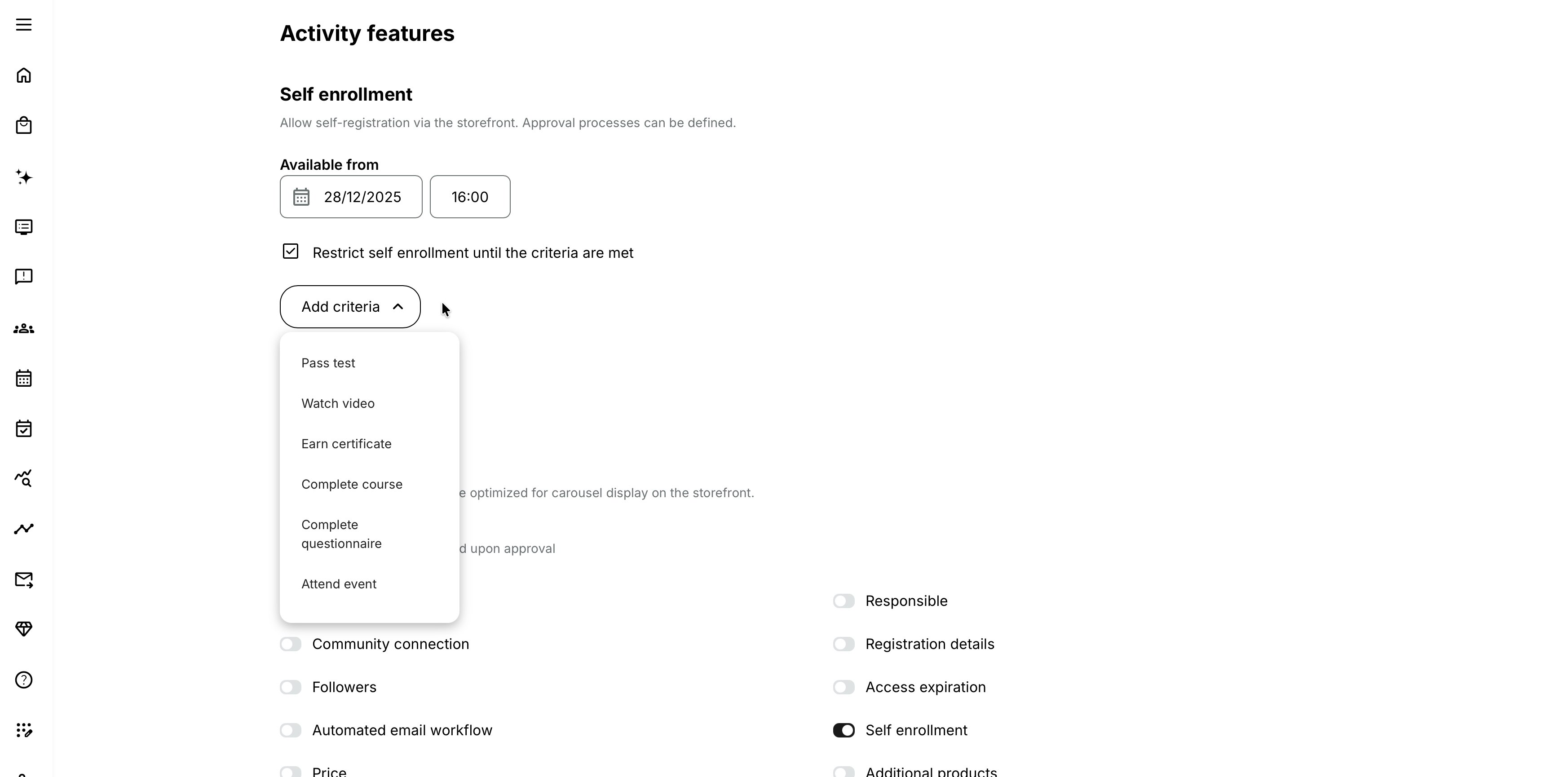
- Enable Restrict self enrollment until the criteria are met.
- Add the required criterion.
- Add further criteria where needed.
- Configure AND/OR logic deliberately.
- Save the activity.
- Review the Activity Description as an eligible authenticated user, an ineligible authenticated user, and—if the Storefront is public—an anonymous visitor.
- Complete each prerequisite and verify that the action changes to Enroll at the intended time.
Use stable prerequisite records with clear ownership. Removing, replacing, expiring, or restricting the prerequisite can leave the target activity impossible to enter.
Understand AND and OR logic
| Logic | What it means | Example |
|---|---|---|
| AND | Every connected criterion must be satisfied. | Complete Foundation Course AND earn Safety Certificate AND job function is Technician |
| OR | Any one of the configured alternatives is sufficient. | Attend Copenhagen Orientation OR attend Stockholm Orientation |
For a mixed rule, write the intended logic in plain language before configuring it:
The participant must complete the foundation Course and either attend one orientation Event or already hold the equivalency certificate.
Then test every valid and invalid branch. Do not rely on visual placement alone to confirm grouping.
Choose the correct criterion
Each criterion evaluates existing evidence or profile data. It does not create the prerequisite enrollment, repair missing evidence, or explain a business exception automatically.
| Requirement | When to use it | Dependencies and important considerations |
|---|---|---|
| Pass test | A selected assessment must have a passing result before enrollment. Suitable for entry-knowledge assessments, safety or compliance checks, language-level assessments, and product-knowledge qualifications. | The requirement uses the recorded result. Configure scoring, the pass threshold, attempts, feedback, and access where the test is authored. Ensure ineligible participants still have a valid route to the test. |
| Watch video | A specific tracked video must be completed before enrollment. Suitable for required briefings, safety demonstrations, program introductions, and informed-participation explanations. | Confirm that the video reports the expected completion and is available to the intended audience. Watching a video should not be presented as proof of comprehension when a test, consent, or other evidence is required. |
| Earn certificate | Entry requires a recognized qualification represented by a certificate, such as foundation certification, product accreditation, or a safety credential. | Review certificate issuance, expiration, revocation, associated Skills, and re-certification. Confirm whether an expired certificate satisfies the policy. Avoid requiring a certificate that can only be earned through the activity it is intended to unlock. |
| Complete course | A selected Course must have a completed learning record. Completion can be recognized from another Training Activity that uses the same Course. | Verify the selected Course, relevant attempt, and completion state. Use Complete activity instead when the participant must complete an entire independent program. |
| Attend event | Recorded attendance at a selected Event is required. Suitable for orientation before assessment, a classroom safety demonstration, or a prerequisite webinar. | Registration is not the same as attendance. Ensure attendance is recorded before enrollment must become available and confirm that the intended Event—not a similarly named delivery—is selected. |
| Restriction by date | Self-enrollment should become available only after a defined date and time. | The date requirement is satisfied once the specified time is reached, subject to all other criteria. It does not replace Latest registration, Availability, Event dates, Mandatory deadlines, or Access Expiration. Confirm the participant-facing time zone. |
| Complete activity | The participant must complete an entire Training Activity, including its required Courses, Events, Assignments, or certification requirements. | The requirement uses the activity’s overall completion state. Review re-enrollment and re-certification attempts to ensure the intended completion record is recognized. |
| Complete questionnaire | A questionnaire response must be collected as part of enrollment. Once the other requirements are satisfied, selecting Enroll opens the questionnaire before enrollment continues. | Use no more than one Complete questionnairecriterion. Multiple criteria can appear without usable completion links. Combine the necessary questions in one questionnaire. Do not confuse it with approval questionnaires, confirmation questionnaires, Training Feedback, Questionnaire modules, or onboarding forms. |
| Pass assignment | An instructor-assessed Assignment must have Passed status before enrollment. | Submission alone is insufficient. Plan assessment capacity and timing so participants receive a decision before registration closes. If the Assignment belongs to another activity, ensure participants can access it and understand how passing unlocks enrollment. |
| Organization | Enrollment is limited to users whose profiles contain the selected organization relationship. | This validates the participant’s eligibility but does not determine every place where the activity is displayed. Use Organization visibility to target the offer itself. Review parent and suborganization behavior, users with multiple organizations, and users without an organization. |
| Job function | Enrollment is limited by professional function, such as managers, technicians, or salespeople. | Eligibility depends on accurate profile data. When an HR or CRM integration supplies Job function, test how synchronization delays and profile changes affect eligibility. |
| Sign up to activity | The participant must already have a signup for another Training Activity without necessarily completing it. Suitable for add-on workshops, optional program Events, and follow-up offers available after registration. | Decide which signup statuses represent the intended relationship. Test Registered, Reserved, Waiting list, Cancelled, and Expired records. Do not describe this requirement as completed prerequisite learning. |
| Acquire skill | Eligibility is based on an awarded Skill rather than one particular learning record. This is useful when several activities or certificates can demonstrate equivalent competence. | Skills must be enabled in General settings. Review the Skill, required level, all sources that can award it, expiration or removal behavior, and organization scope. Ensure participants have a clear and available route to acquire it. |
Understand the authenticated participant experience
When an authenticated user does not meet every required criterion:
- They can open the Activity Description if other visibility controls permit it.
- The primary action is See requirements.
- Selecting it opens Enrollment requirements.
- The popup lists currently missing criteria.
- A requirement already satisfied is removed from the missing list.
- Available requirement links can take the user to the relevant Course, activity, Event, or other destination.
When all ordinary criteria are satisfied, See requirements changes to Enroll, subject to approval, price, seats, dates, and other enrollment controls.
When the only remaining criterion is Complete questionnaire, Enroll opens that questionnaire and the participant can continue after submission.
Make every requirement actionable
The popup should help the participant make progress. Before launch, confirm:
- The prerequisite is visible or reachable.
- The participant can enroll in it where necessary.
- Links open the intended record.
- Dates and schedules allow completion before Latest registration.
- Assessment and attendance can be recorded in time.
- The wording on the Activity Description explains why the prerequisite matters.
If a requirement such as Pass test is not clickable, the participant may lack enrollment in the activity containing the test. Repair the prerequisite route rather than expecting the user to discover it unaided.
Understand anonymous visitor behavior
When an activity is visible to unregistered visitors and has at least one self-enrollment requirement, the anonymous visitor sees a generic message explaining that self-enrollment may require certain conditions. Enroll sends the visitor to login or registration so Eurekos can evaluate their identity and evidence.
The anonymous message:
- Is the same for one or several criteria.
- Does not expose the criterion type or AND/OR structure.
- Is removed after login or account registration.
- Is replaced by the ordinary authenticated result: Enroll when eligible or See requirements when not.
If Storefront visibility also blocks the activity for the authenticated user, the person sees the applicable not-available or requirements message rather than a route that bypasses audience targeting.
Do not promise eligibility to an anonymous visitor. Eurekos cannot evaluate their profile, learning history, certificates, Skills, attendance, assignments, or signups until an identity exists.
Understand manager enrollment behavior
Managers, Partners, and Immediate Managers can see enrollment actions according to their role and relationship. The visible button does not make the selected staff eligible.
For direct manager enrollment:
- The manager can reach the Enroll flow.
- Each selected person's requirements are evaluated.
- If selected users do not meet the criteria, the enrollment fails and the popup lists the ineligible people.
- The manager does not bypass the prerequisite simply because they personally qualify or hold a management role.
For the separate manager request-for-others flow used with Participation Approval:
- The list can display a Requirements column.
- Ineligible people are greyed out and lack the individual request action.
- If included in a bulk request selection, they are skipped and the skipped quantity is reported.
Test the exact route being used. Direct enrollment can reject the selected operation, while bulk approval-request creation can skip ineligible records.
Coordinate requirements with Participation Approval
Eligibility and approval answer different questions:
- Eligibility: Does the participant satisfy the predefined conditions?
- Approval: Does the selected decision-maker authorize this application?
Both can be enabled. The person must satisfy eligibility before the request can proceed, and the approver must then make the admission decision.
Do not duplicate the same questionnaire as both a Complete questionnaire criterion and an approval-stage questionnaire without an explicit reason. Decide whether the response qualifies the participant automatically or supplies information for a human decision.
Coordinate requirements with Seats and Waiting list
Meeting every eligibility criterion does not guarantee a seat.
After the participant becomes eligible:
- Available capacity can allow registration.
- A full activity can offer Waiting list when enabled.
- A full organization allocation can waitlist the person while other organizations retain capacity.
- Latest registration can still close the route.
Likewise, a person on the waiting list may later become ineligible because profile data, certificate validity, or another condition changed. Test automatic promotion with the actual eligibility design.
Coordinate requirements with paid enrollment
Eligibility does not waive price or payment.
An eligible participant can still need to:
- Select a currency or payment method
- Supply billing information
- Apply an organization discount or Coupon
- Purchase Additional Products
- Complete payment or invoice processing
Coupons and prices do not bypass requirements. Keep the Activity Description clear about both qualification and cost.
Change requirements on a live activity
Before adding, removing, or changing a criterion:
- Identify current participants, applicants, waitlisted people, and intended future audiences.
- Determine who currently satisfies the old and new rule.
- Confirm prerequisite access and timing.
- Review linked, repeated, and nested activities.
- Check automated communication and participant-facing explanations.
- Test a newly eligible, newly ineligible, and already enrolled person.
- Record the business decision and effective date.
Changing pre-enrollment eligibility does not remove an existing signup. If current participants should lose access, that is a separate and more consequential decision involving cancellation, Access Restrictions, or Access Expiration.
Practical configuration patterns
| Pattern and requirement | Configuration | Check |
|---|---|---|
| Advanced workshop after foundation learning Only participants who completed the foundation Course may enroll. | Complete course criterion | Confirm that the foundation Course is discoverable, completion is recorded correctly, and the advanced workshop remains open long enough for participants to enroll afterward. |
| Qualification with equivalent routes A participant may enroll after attending either of two regional orientation Events. | Attend event A OR Attend event B | Confirm that attendance for both Events is recorded before registration closes. |
| Role- and competence-based assessment Only technicians with the required Safety Skill may book the practical assessment. | Job function: Technician AND Acquire skill: Safety at the required level | Confirm that profile and Skill integrations update before the booking period begins. |
| One declaration during enrollment Participants must acknowledge a declaration before enrolling. | One Complete questionnairecriterion containing all required questions | Do not create several questionnaire criteria. |
| Program-participant add-on An optional networking Event is available only to people already enrolled in the main program. | Sign up to activity for the main program | Define which signup statuses qualify, and ensure the Event has its own Seats and Schedule. |
Verify the configuration
Use representative accounts and the routes enabled for your delivery. Check the relevant outcomes before launch and after a material change; an administrator preview alone does not verify the participant experience.
| Scenario or check | Expected result or evidence |
|---|---|
| No or partial eligibility | A user meeting no criteria or only some AND conditions sees understandable requirements and can reach the prerequisites before Latest registration. |
| Valid alternatives | Test every valid OR branch and a fully eligible user, including the intended questionnaire, Skill, certificate, Job function, and organization evidence. Expired, absent, or unreliable data does not produce an unintended result. |
| Entry route and identity | Test anonymous, new, and existing users; direct links inside and outside the Storefront audience; and manager enrollment or request routes actually used. |
| After eligibility | An eligible participant reaches the intended seat, waiting-list, approval, and payment outcome. Eligibility alone is not treated as successful enrollment or unrestricted module access. |
| Live rule change | Retest newly eligible and ineligible users, prerequisite links, and waiting-list promotion. Handle existing signups deliberately and retain the approved policy, effective date, and participant communication. |
Troubleshooting
| Problem | What to check |
|---|---|
| Self enrollment is missing | Confirm Storefront is enabled in General settings and the administrator can edit activity-level features. |
| The activity is absent from the Storefront | Check Storefront section and audience, categories, organization visibility, activity status, Available from, Schedule, Latest registration, Seats, language, and external Storefront settings. |
| A direct link still allows an activity outside the user's Storefront | Review Block enrollment by Storefront visibility. Discovery filtering and direct-link enforcement are separate controls. |
| An eligible user sees See requirements | Verify the exact selected Course, activity, test, video, Event, Assignment, certificate, Skill, Organization, Job function, or signup record. Check status, attempt, expiration, profile data, and processing time. |
| An ineligible user sees Enroll | Confirm the requirements are enabled and saved, inspect AND/OR grouping, and verify whether one OR branch is already satisfied. |
| A completed prerequisite remains listed | Confirm it is the exact selected object and the required outcome is Completed, Passed, Attended, earned, or signed up as configured. Similar titles do not represent the same record. |
| The requirement link cannot be opened | Check whether the user has discovery and enrollment access to the prerequisite activity or content. Repair the prerequisite route and organization/Storefront targeting. |
| Pass test is not clickable | The participant may lack access to the activity containing the test. Confirm prerequisite enrollment and content access. |
| The date requirement changed at an unexpected time | Check configured date, platform and participant time zones, and daylight-saving transition. Distinguish it from activity Availability and Latest registration. |
| Several questionnaire requirements cannot be completed | Retain only one Complete questionnaire criterion and combine the questions into it. Multiple entries can be listed without actionable links. |
| Enroll opens a questionnaire | This is expected when Complete questionnaire is the only remaining criterion. Submission continues the enrollment process. |
| An anonymous visitor sees only a generic message | This is expected. Exact eligibility requires an authenticated identity and learning/profile history. |
| The message disappears after login but enrollment is still blocked | The anonymous message is replaced by the authenticated flow. Use See requirements to inspect the actual missing criteria. |
| The user sees Not available in Storefront rather than requirements | Storefront audience enforcement may block the activity before eligibility is evaluated. Review visibility and enrollment-block settings. |
| Manager enrollment failed for the complete selection | One or more selected people may be ineligible. Read the failed-enrollment popup, reduce the selection, and correct participant-specific requirements. |
| A manager request skipped some selected people | The approval request-for-others flow skips ineligible users. Review the Requirements column and skipped count. |
| The participant meets requirements but cannot enroll | Check Participation Approval, price and checkout, Seats and organization limits, Waiting list, Latest registration, activity status, and account state. |
| A certificate holder became ineligible | Review certificate expiration, revocation, re-certification, selected definition, and processing. |
| A user with the correct job title is ineligible | The criterion uses the configured Job function profile value, not free-text title assumptions. Inspect the stored profile field and integration mapping. |
| A user from a suborganization is ineligible | Review the selected Organization, hierarchy behavior, organization layer, and whether the rule expects exact or inherited membership. Test the actual profile relation. |
| A participant is enrolled although requirements were added later | Requirements govern self-enrollment; they do not retroactively remove existing signups. Choose a separate approved access or cancellation process if necessary. |
| A waiting-list participant can no longer be promoted | Recheck current eligibility, Latest registration, self-enrollment visibility, account status, and organization allocation. |
| Support needs evidence for an eligibility problem | Collect activity ID, authenticated user ID, exact criteria and grouping, selected prerequisite IDs, current evidence/profile values, signup status, Storefront settings, timestamps and time zones, and expected versus actual button/message. Exclude unnecessary assessment or personal data. |
FAQ
-
What is the simplest difference between eligibility and Access Restrictions?
Eligibility prevents self-enrollment. Access Restrictions allow the signup but lock the activity or supported module until requirements are met.
-
Where are self-enrollment requirements configured?
Inside the activity-level Self enrollment feature under Restrict self enrollment until the criteria are met.
-
Does Self enrollment require the Storefront
The feature is available when Storefront is enabled at platform level. Visibility and direct-link behavior then depend on the platform and activity configuration.
-
Can I combine several criteria?
Yes. Use AND when all are required and OR for acceptable alternatives. Test every branch.
-
Can I require completion of another Course or activity?
Yes. Use Complete course for a selected Course or Complete activity for a complete Training Activity.
-
Can an Assignment be a prerequisite?
Yes. Use Pass assignment; submission alone is not sufficient.
-
Can an Event be a prerequisite?
Yes. Use Attend event; registration alone is not attendance.
-
Can I use a certificate or Skill?
Yes. Use Earn certificate or Acquire skill. Skills must be enabled at platform level.
-
Can I restrict by organization or Job function?
Yes. These criteria evaluate the authenticated user's profile.
-
Can I open enrollment on a future date?
Yes. Use Restriction by date. Use Latest registration separately when enrollment should later close.
-
Can I require a questionnaire?
Yes, but use only one Complete questionnaire criterion. Put all necessary questions in that questionnaire.
-
Why did See requirements change to Enroll before the questionnaire was completed?
When Complete questionnaire is the only remaining criterion, Enroll becomes the action that opens it.
-
Why did a completed criterion disappear from the popup?
The popup lists missing requirements. Satisfied criteria are removed.
-
Can an anonymous visitor see their exact requirements?
No. They receive a generic eligibility message and must log in or register before Eurekos can evaluate them.
-
Does a direct link bypass Storefront visibility?
It can depend on the platform configuration. Block enrollment by Storefront visibility prevents enrollment through a direct link when the activity is outside the user's visible Storefront.
-
Can a manager bypass the criteria for staff?
No. The selected people are evaluated individually. Ineligible users are rejected or skipped according to the manager enrollment or request flow.
-
Does meeting the requirements guarantee enrollment?
No. Approval, price, seats, organization allocation, waiting list, Latest registration, and activity status can still affect the outcome.
-
Does changing the requirements affect enrolled participants?
It controls future self-enrollment and does not itself cancel an existing signup.