Creating a Training Activity - Article
Summary
A Training Activity is where you package learning for a particular audience and decide how it will be delivered. It can contain a Course, live Event, Assignment, or another Training Activity, together with the dates, enrollment route, access rules, communication, certification, and commercial settings needed to run it. In practical terms, the Course contains the learning content; the Training Activity turns that content into something people can attend, complete, or buy.
In this article you will learn:
- How Training Activities relate to courses, events, assignments, and other Training Activities
- How to create the activity and build its learning structure
- Which settings apply to individual modules and which apply to the overall activity
- What each configuration option does, when to use it, and which dependencies to consider
- How to prepare the activity for participants, self-enrollment, certification, and administration
What you are creating
A Training Activity defines how learning is delivered. Depending on your organization, the result might be called a course, webinar, workshop, learning path, curriculum, certification program, customer onboarding journey, or something else.
The Training Activity is not the learning content itself. A course contains materials such as pages, video, H5P, SCORM, or xAPI content. The Training Activity places that course into a delivery context and can combine it with scheduled events, assignments, and other Training Activities.
This distinction is useful
Content Authoring creates what people learn. Course Administration defines how that learning is delivered.
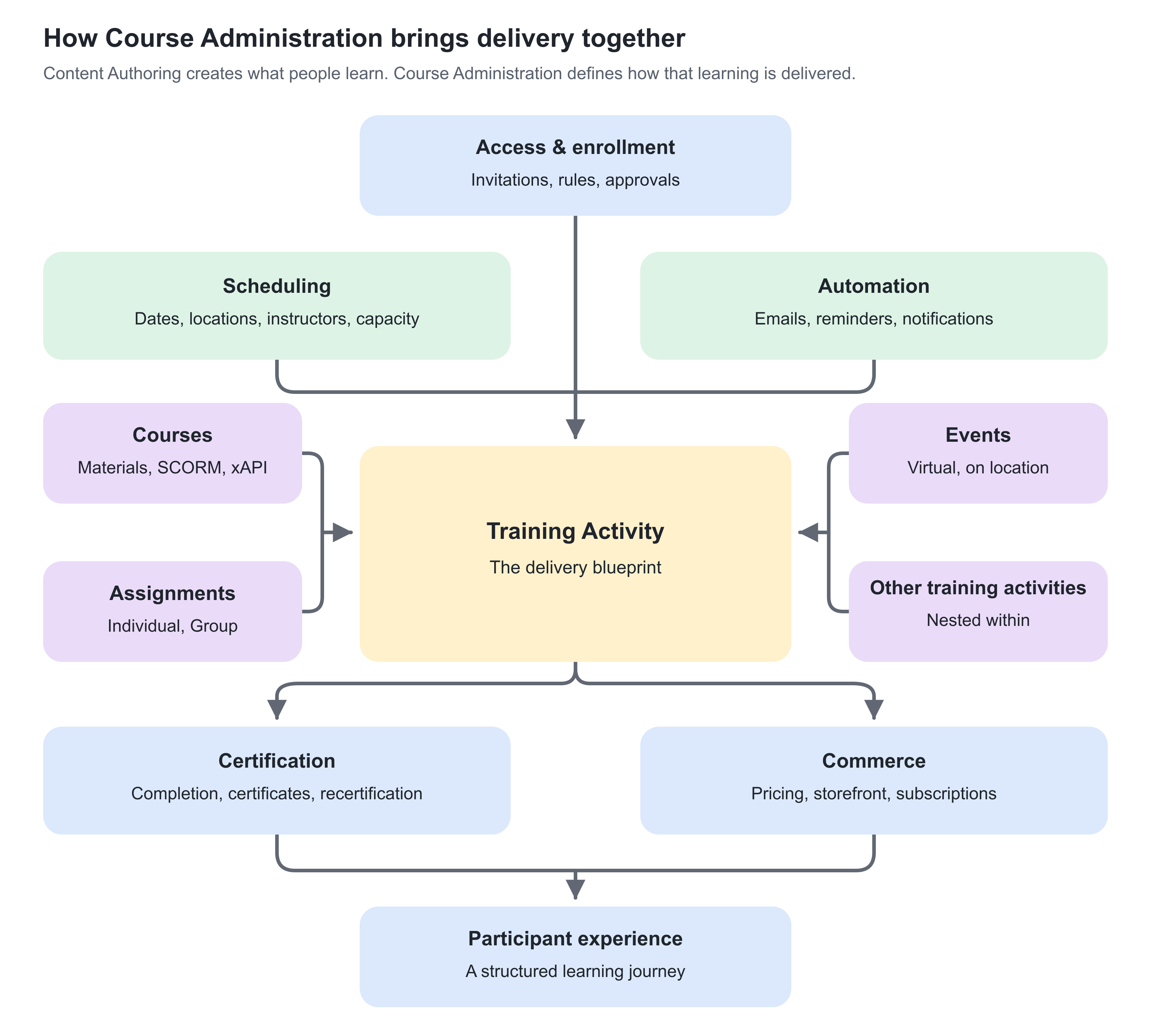
A Training Activity can be very simple. For example, it may contain one self-paced course that is open for self-enrollment and issues a certificate on completion.
It can also define a larger journey with online preparation, virtual or classroom events, assignments, approval, automated communication, capacity limits, payment, certification, and re-certification.
Before you begin
Start with the participant outcome rather than the available settings. Decide:
- What should participants complete or attend?
- Is the learning self-paced, scheduled, or blended?
- Should every participant follow the same route?
- How should people be enrolled?
- Are seats, deadlines, approval, or payment involved?
- What should define completion?
- Should completion result in a certificate or recurring qualification?
- Who will administer and facilitate the training?
You can leave features disabled when they are not needed. A Training Activity does not require every possible process around it.
Some options in this article appear only when the corresponding platform feature, integration, or system configuration has been enabled. Your activity form may therefore contain fewer settings.
Create the Training Activity
Go to Course Administration → Activities and select Create.
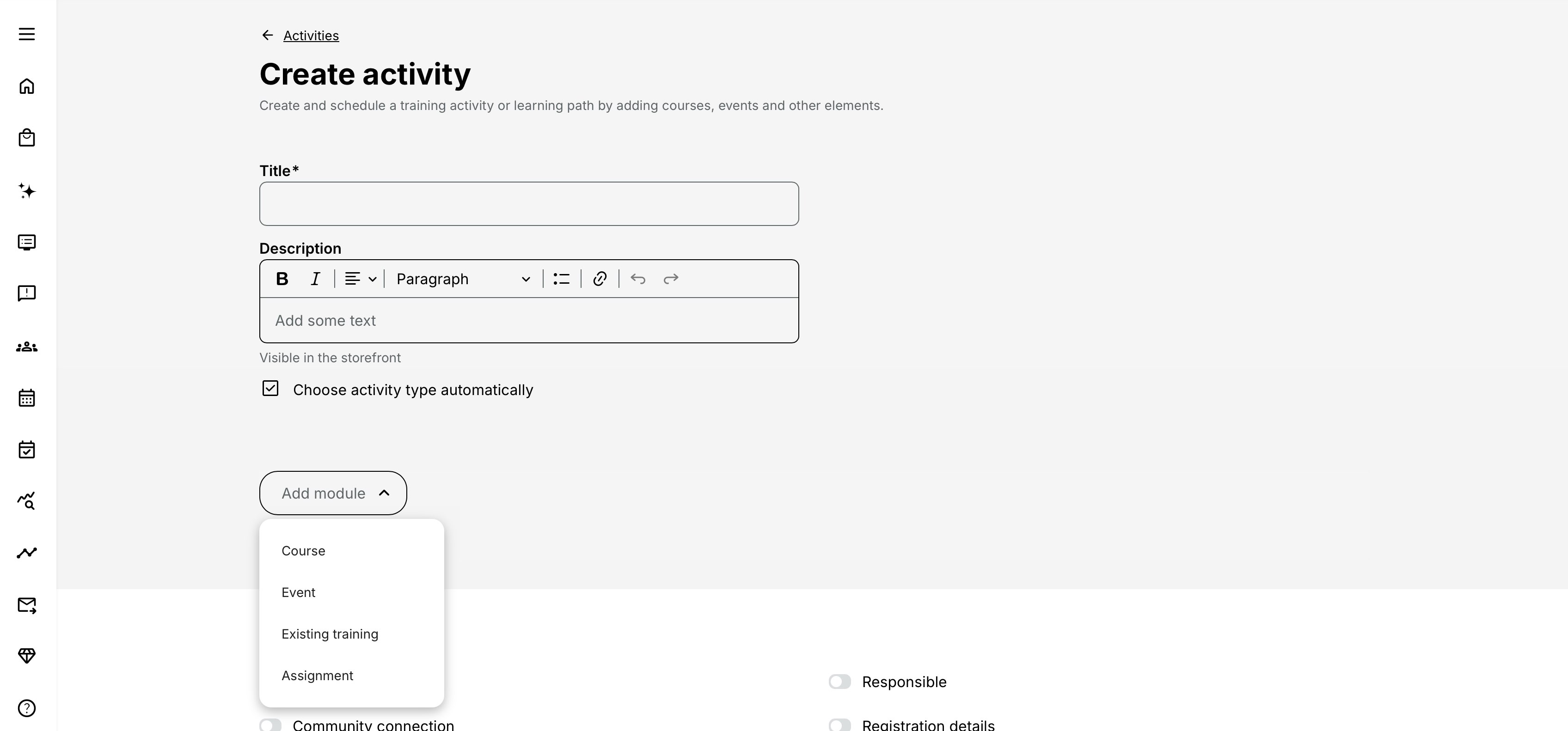
Title
Enter an administrative title that makes the activity easy to identify in lists, search, reporting, and participant-facing areas.
The title is initially used for the Activity Description page. That participant-facing title can later be edited separately. Editing the title on the Activity Description page also updates the readable URL for that page.
Use a naming convention when you expect many deliveries of the same program. For example, include a cohort, location, language, or date in the administrative title while keeping the participant-facing title concise.
Description
Use the description to summarize the activity and its purpose. The text can appear in participant-facing areas such as My Overview, the learning path overview, and the Storefront, depending on platform configuration.
This field is not a replacement for the full Activity Description page. After creating the activity, use that page to build the complete enrollment or catalog landing page with a participant-facing title, banner, structured content, and enrollment information.
Activity type
On most platforms, Eurekos determines the activity type from its structure and configuration. Typical results include:
- Online for online learning
- Webinar when virtual conferencing is used
- Classroom when participants attend a configured location
- On-site when the instructor delivers training at the participant or customer location
- Existing training when the activity contains one Existing Training module
- Learning path when the activity contains two or more modules
If manual type selection is enabled on your platform, you can choose another type for catalog filtering and reporting. Changing the displayed type does not change how a multi-module activity is navigated in Learn mode.
Activities without modules
You can save an activity without adding a module and can even enroll participants in it. However, learners cannot open it because it does not yet contain a learning experience. It appears in Trainings I attend without an active link and is not available in the Storefront.
Use this only when preparing an activity that will be completed later. Add at least one module before making it available to participants.
Build the learning structure
Add one or more modules to define what participants will learn, attend, or submit.
| Module type | Use it for | What you configure first |
|---|---|---|
| Course | Self-paced or facilitated learning built in Content Authoring or imported as SCORM and xAPI content | Select an existing course by title or course code |
| Event | A virtual, classroom, hybrid, or on-site session at a defined time | Add the event title, start and end, time zone, and facilitation options |
| Assignment | Work that participants submit and an instructor assesses | Add a title, instructions, due-date behavior, and assessment responsibility |
| Existing training | Another Training Activity nested as a component or participant choice | Select one or more existing activities and decide how enrollment and progress should work |
You can reorder modules to present them in the intended learning sequence. The order itself does not prevent a participant from opening a later module. Use Access restrictions when a sequence must be enforced.
When a second module is added, the activity becomes a learning path and several activity-level options become relevant, including whole-path certificates and whole-activity restrictions.
Course modules
Select a course that has already been created in Content Authoring or imported. The course selector searches both course title and course code.
The same course can be reused in different Training Activities, but it cannot be added twice to the same Training Activity. If the same content must appear in two places in one journey, reconsider the structure or create an appropriate separate course.
Use a Course module for content that should retain its own progress and completion logic while being delivered as part of this activity.
For more detail, see Courses in a Training Activity, Create a Course.
Event modules
Use an Event module for synchronous learning. Enter the start and end date and time; these are required for an Event module. The platform time zone is selected by default and can be changed.
Depending on enabled integrations and features, an Event module can include:
- A physical location or an on-site location
- A responsible instructor
- Equipment
- Attendance marking
- A reminder before the event
- A virtual meeting or webinar through Zoom, Microsoft Teams, Webex, Google Meet, GoTo, YouTube, or a conference URL
- Recording behavior and a notification when the recording becomes available
Events created directly through Calendar can additionally allow participants to cancel or report non-attendance before a configured deadline. Those Calendar-only controls do not apply to Event modules created through a Training Activity; activity registration and cancellation are governed by the activity's enrollment settings.
The event end cannot be later than the activity end when the activity has a defined end. If participant reminders are enabled, a cancelled activity does not send the event reminder.
For more detail, see Calendar Events and Video Conferencing, Locations.
Assignment modules
Use an Assignment module when participants must create a submission that an instructor reviews.
Configure:
- Title and Description for the task
- Due date, or select no due date
- Remind participants a defined number of hours or days before the due date
- Lock assignment after due date when late submissions must be prevented
The reminder is available only when a due date exists. If locking is enabled, instructors can still manually lock a participant before the deadline or unlock them afterward.
Participants can save a submission as a draft. Drafts are not visible to the instructor and do not create progress. Once published, the responsible instructor is notified and can assess the submission as Not assessed, Passed, or Failed, optionally add a grade, and notify the participant.
An assignment is completed when it is assessed as Passed. A failed or unassessed submission does not complete the module.
If Group assignments is enabled at activity level, the Assignment module can instead require a shared group submission. Participants must be assigned to an activity group before they can submit. Progress and assessment are then shared by the group.
For more detail, see Assignments.
Existing Training modules
An Existing Training module lets you use one or more previously created Training Activities inside the current activity. Common uses include:
- Building a large program from independently administered sub-programs
- Letting participants select one of several dates or locations
- Offering alternative learning tracks
- Reusing a recurring activity without duplicating its configuration
Configure the module carefully:
- Training activity selects the nested option or options.
- Enable tracking progress includes progress from the selected training in the parent activity. Turning it on or off after participants have started recalculates their progress, status, and relevant certification.
- Include linked activities as enrollment options includes all eligible activities in a repeated or linked group, allowing the participant to choose a suitable session. Completed options are omitted.
- Automatically enroll participants enrolls new parent-activity participants into the selected activity. This option is available only when exactly one activity is selected and linked activity options are not being included. It affects new signups only.
- Thumbnail can be selected when the module contains multiple activities. With one activity, its thumbnail is used.
- Show incentive points on completion may appear when Incentives is enabled and automatic enrollment is not used.
If automatic enrollment is enabled, a new participant is registered in the selected activity or placed on its waiting list. Existing participants are not changed.
When progress tracking is disabled, the Existing Training module does not contribute to overall progress. It can still be used as a certificate issuance criterion.
Participants normally choose only activities that are Open. The selection flow can show options that are not generally available for self-enrollment, because the Existing Training module itself provides the route into them. Organization restrictions still filter the available choices.
For more detail, see Recurring events and activities, Existing Training (nesting).
Understand module-level configuration
Module-level settings apply only to the selected course, event, assignment, or nested activity. Activity-level settings apply to the complete participant journey.
The settings available on a module depend on its type and on the features enabled for your platform.
| Feature | Course | Event | Assignment | Existing training |
|---|---|---|---|---|
| Schedule or date | Optional module schedule | Required start and end | Due date instead of a module schedule | Uses the selected activity's schedule |
| Responsible instructor | Yes | Yes | Yes | No separate module instructor |
| Location | Yes | Yes | No | Uses selected activity data |
| Equipment | With a course schedule | Yes | No | No |
| Certificate | Yes | Yes | No | Can contribute to parent certification |
| Questionnaire / feedback | Yes | Yes | No | No |
| Automated email workflow | Yes | Yes | No | No |
| Access restrictions | Yes | Yes | No | No |
| Completion behavior | Yes | Yes | Yes | Limited to hiding the congratulations message |
| Adaptive module | Yes | Yes | Yes | Yes |
Module title and description
Use the module title to make the step understandable in the context of the journey. Use the module description for instructions or context that is specific to this occurrence of the course, event, assignment, or nested training.
Module descriptions appear on the learning path overview. They can therefore explain why the component is included, what participants should prepare, or what happens next without changing the underlying reusable course.
Schedule
A Course module can have its own optional start and end. An Event module always has start and end fields. Each schedule has its own time zone.
For a single-module activity, the activity's displayed schedule can be based on the module when the activity-level Schedule feature is enabled and its own dates are left empty.
For a multi-module activity, the overall range can be derived from the earliest module start and latest module end. If activity-level start or end boundaries are entered, every module must fall within them.
If the activity-level Schedule feature is not enabled, the activity is treated as Self-paced, even when module-level dates exist. Enable the activity schedule whenever dates should define the overall delivery and status.
For more detail, see Schedules for Training Activities and Modules.
Responsible instructor
Assign the person responsible for facilitating the individual module. A module-level instructor and an activity-level instructor are both considered responsible for the activity, but module-level responsibility determines module-specific work such as assignment notifications.
Use module-level instructors when different people facilitate different parts of a learning path. Use activity-level responsibility when the same person oversees the entire journey.
When the module has a Schedule, use See availability to check the instructor, Location, and Equipment before saving. Instructor and Location conflicts can produce a warning that an authorized administrator may deliberately override after review. An Equipment conflict must be resolved by selecting another resource or changing the Schedule.
For more detail, see Administrators, Instructors, and Followers, Availability.
Location and on-site delivery
Add a pre-created location to scheduled Course and Event modules. Availability is checked against the module time.
Use This is an on-site location when the instructor travels to the participant or customer location. A regular classroom location represents participants travelling to the configured venue.
Location capacity and activity seat limits serve different purposes. The location describes the venue; Registration details controls how many participants the activity accepts.
For a multi-module activity, the System derives an activity-level Location summary from the Course and Event modules that have a Location. Modules without a Location are ignored.
If every Location-bearing module uses the same Location entry, that Location can appear in the Activity Description’s Enroll widget and other activity-level contexts. If two or more distinct Location entries are used, the activity-level summary displays Multi-site. Participants can still see the actual Location connected to each module under the heading Modules in this path.
For more detail, see Locations.
Equipment
Assign equipment that must be reserved for the delivery. Equipment is available for Event modules and for Course modules with Schedule enabled. Activity-level equipment may also be available for scheduled learning paths.
The availability view combines the selected schedule, instructors, locations, and equipment. Eurekos warns if equipment is already booked for the selected period.
For more detail, see Availability, Equipment.
Certificate
Select a certificate that has already been created and verify that its issuance criteria match this module.
Course and Event modules can issue certificates. A certificate for the complete journey is configured at activity level when the activity contains two or more modules.
Removing a certificate that has already been issued, or deleting the module that issued it, can remove historical certificates or learning statistics. Eurekos displays a confirmation before the change is applied.
For more detail, see Re-certification, Certificates.
Questionnaire
Attach a pre-created feedback questionnaire to a Course or Event module. Configure whether feedback can be sent at any time or only after completion. You can also:
- Require feedback before the participant receives the certificate
- Enable a separate survey for instructors
A participant can submit the attached feedback once. Enrollment application questionnaires are configured under Self enrollment and are separate from module feedback.
For more detail, see Introduction to Questionnaires and Common Use Cases, Training Feedback.
Automated email workflow
Attach a pre-created workflow to automate communication around the module. Workflows can use schedules and events such as enrollment or completion to notify participants, instructors, managers, administrators, or other stakeholders.
The workflow is designed in the dedicated Automation area. This setting only connects it to the module.
For more detail, see Automated Email Workflows.
Completion behavior
The standard behavior is Complete automatically when the module's normal completion criteria are met.
Enable Completion behavior to override the participant experience:
- Don't show congratulations message keeps normal completion, certificates, and progress but suppresses the completion message. Use it for small informational modules where a celebration would be distracting.
- User confirmation is required shows a Complete button after the normal criteria are met. The module does not become complete until the participant confirms.
For an Existing Training module, only the option to hide the congratulations message is available.
Adaptive module
Adaptive modules personalize which components are required for each participant.
- Module appears if criteria met (Supplemental) keeps the module hidden until its criteria are satisfied.
- Module is optional and excluded from progress tracking if criteria met (Optional) initially treats the module as required, then makes it optional when the criteria are satisfied.
Criteria can include test score, certificate earned, event attendance, job function, organization, SCORM or xAPI completion, and selected test answers. They can be combined with AND/OR logic. At least one criterion is required.
For a supplemental module, Do not count progress makes the module optional when it becomes visible. Without this option, unlocking the module recalculates the participant's activity progress because another required component has been added.
Use Adaptive module when the participant's route should change. Use Access restrictions when the route remains the same but a component must stay locked until requirements are met.
Choose the correct type of rule
Three settings can look similar but control different moments in the journey:
| Setting | When it applies | What the participant experiences |
|---|---|---|
| Restrict self enrollment until the criteria are met | Before enrollment | The activity can be viewed, but the participant cannot enroll until the requirements are satisfied |
| Access restrictions | After enrollment or when opening content | The activity or module is shown as locked until the requirements are satisfied |
| Adaptive module | While the learning path is assembled for the participant | A module is hidden until needed or becomes optional when criteria are met |
Do not use several controls to solve the same requirement unless the participant must be checked at more than one stage.
Configure the overall Training Activity
Activity-level features control the complete learning experience. They appear below the module structure on the create or edit page.
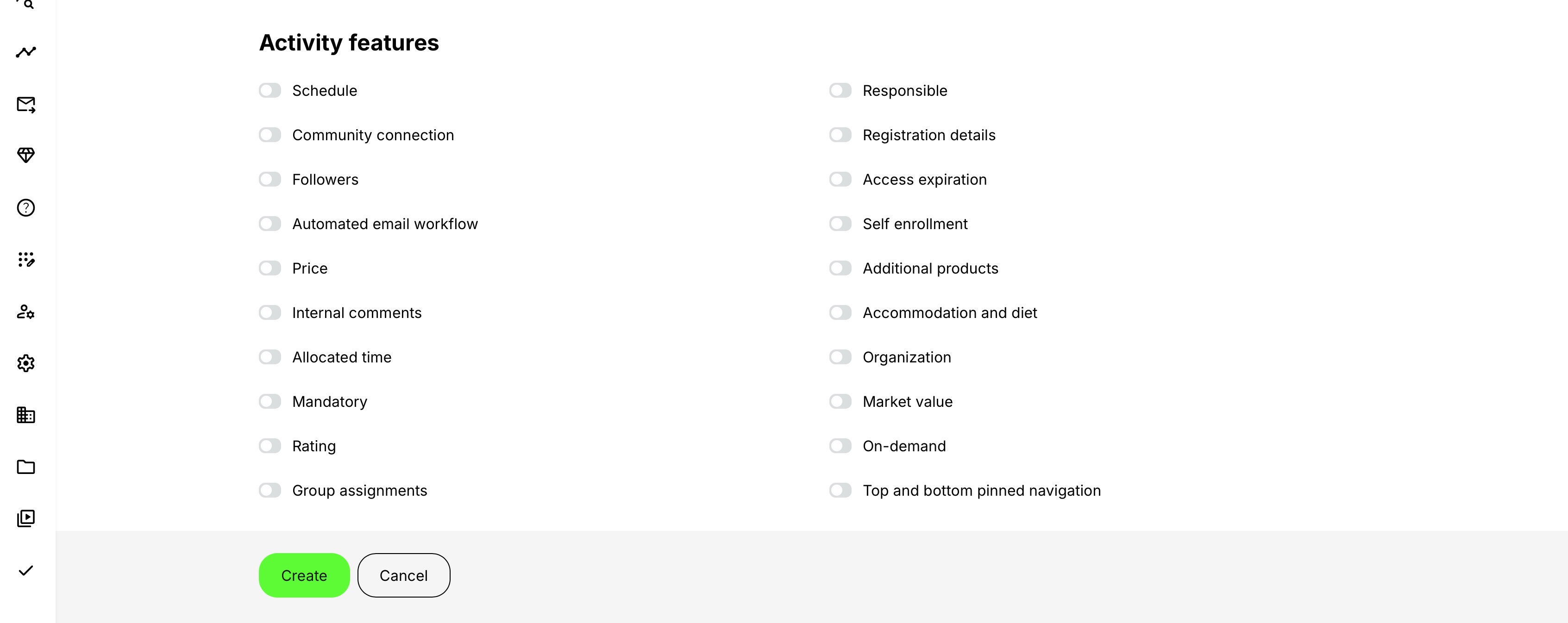
Schedule
Enable Schedule when the overall activity should have a delivery period. Start and end are optional, and each uses the selected time zone.
The schedule influences:
- The status of the activity
- Storefront and Activity Description information
- Registration and minimum-seat notifications
- Date-based access restrictions and deadlines
- Automated email workflows
- Availability checks for resources
If dates are entered at both activity and module level, modules must start on or after the activity start and end on or before the activity end.
Activity status is calculated from the schedule and registration timing:
- Open for a future or self-paced activity that remains available
- Closed when registration is no longer available before the activity starts
- In progress after the activity starts and before it ends
- Completed after the end, or for an activity without dates when all modules are complete
- Cancelled when an administrator cancels it
For more detail, see Schedules for Training Activities and Modules.
Responsible
Assign one or more responsible Course administrators and Instructors.
Course administrators oversee registration and administration. Responsible instructors facilitate learning and can see participant progress for the activity. Responsible users see the activity in their relevant dashboard sections and may receive reminders or operational emails.
If the same people are responsible for the whole activity, configure them here. Use module-level responsibility for exceptions.
For more detail, see Administrators, Instructors, and Followers.
Community connection
Connect the activity to a Eurekos Community, Microsoft Teams team, or Slack channel when that integration is enabled.
For a Eurekos Community, participants and responsible users are synchronized with the community. You can connect an existing community or create one from the activity.
Microsoft Teams and Slack connections synchronize membership according to the integration's rules. Initial synchronization behavior can differ between platform communities and external channels, so review the dedicated integration documentation before connecting an activity with existing participants.
Once a community is connected, its selection is locked. Disabling Community connection removes the relationship and can remove participants from the connected community; a platform community created for the activity can be deleted. Treat this as a consequential change.
For more detail, see Community Connection.
Followers
Add email addresses for stakeholders who should be informed about major changes to the learning structure. Followers do not need to be platform users.
When saving a relevant change, Eurekos asks whether to notify them and lets you add a message. Adding or removing a module, or replacing a course, is considered a follower update. Changes to schedule, responsibility, certificate, or location are not.
Use Automated Email Workflows for repeatable participant or operational communication. Use Followers for occasional structural updates to external stakeholders.
For more detail, see Administrators, Instructors, and Followers.
Registration details
Enable Registration details for scheduled or capacity-controlled training.
Latest registration
Set the deadline as a number of days before the start or as a specific date. After the deadline, self-enrollment closes even if seats remain.
Latest cancellation
Set how late participants may cancel themselves. Administrators can still manage participation according to their permissions and operational process.
Seats
Set the maximum number of active registrations. Leave it unlimited when capacity is not relevant.
When all seats are occupied, additional self-enrollments enter the waiting list if waiting lists are enabled. If waiting lists are disabled, a full activity is not shown in the Storefront.
Minimum seats
Record the minimum number of registrations needed to justify the delivery. This does not cancel the activity or block participants.
Minimum seats notification
Notify the responsible Course administrator when the minimum has not been reached by a defined time before the start. This requires:
- Seats to be set
- An activity-level Schedule with a start date
The notification provides an operational warning and can include an option to cancel the activity.
Automatically enroll waiting list requests
When a seat becomes available, promote eligible waiting-list requests in the order they joined. Promotion respects organization seat limits, the registration deadline, self-enrollment availability, and participant status.
Limit seats per organization
Reserve a maximum number of registrations for particular organizations, or apply the same limit to every organization. When an organization's allocation is full, its additional users enter the waiting list if that feature is enabled.
You cannot reduce an organization limit below the number of its already registered participants.
For more detail, see Registration Details and Capacity, Waiting list.
Access restrictions
Activity-level Access restrictions lock the complete activity until the participant satisfies the configured criteria. This option is available for a learning path with two or more modules. Course and Event modules can have their own restrictions.
Criteria include:
- Pass a test
- Watch a video
- Earn a certificate
- Complete a course
- Attend an event
- Reach a date
- Complete another activity
- Pass an assignment
- Acquire a skill, when Skills is enabled
Multiple criteria can be combined with AND/OR logic. A condition can also allow Any of several values or a specific number of selected courses.
Requirements can reference content in another activity unless the platform is configured to validate module restrictions only inside the current activity. A participant who does not meet the criteria sees the activity or module as locked and can open a requirements summary.
Date restrictions use the schedule of the item being restricted. Configure a schedule before relying on a relative date rule.
If a Course, Event, or Assignment used as a prerequisite becomes optional through Adaptive module logic, it is no longer required to unlock a later module. This prevents an optional route from unintentionally blocking completion of the required journey.
Access expiration
Access expiration removes a participant's access to the entire activity at a defined time. Conditions can be based on:
- Activity start or end
- User enrollment
- Training completion
- A specific date and time
- A number of days or months after one of those events
You can notify the participant a defined number of days before expiration.
The rule affects participants registered after the condition is applied. If expiration depends on completion and a later content or schedule change returns the participant to In progress, the expiration is recalculated.
When access expires, the signup receives Expired status and the activity is removed from participant-facing training and transcript areas. Administrators retain the history in progress and reports. Administrators can also expire or reactivate a signup manually.
Automated email workflow
Attach a pre-created workflow at activity level when its communication should follow the complete journey rather than one Course or Event module. Activity workflows can react to activity schedules, enrollment, completion, deadlines, approval outcomes, and other supported triggers.
Rules that depend on a date require the relevant schedule or deadline to exist. Connect module-specific communication to the module and whole-program communication to the activity so participants do not receive overlapping messages.
For more detail, see Automated Email Workflows.
Self enrollment
Enable Self enrollment to make the activity available through the Storefront. The Storefront must first be enabled in platform settings.
Self enrollment is the gateway to several related options:
Available from
Set when the activity should become available for self-enrollment. Use this to prepare a description and configuration before opening registration. The date is also used by Storefront sorting such as Latest added.
Carousel banner
When available, select the promotional artwork used for activity placement in a Storefront carousel. Its visibility depends on how the Storefront is configured. Use a wide image with important content kept away from the edges so responsive cropping does not remove it.
Restrict self enrollment until the criteria are met
Use enrollment restrictions when participants may view the offering but must satisfy eligibility requirements before registering.
Criteria include test, video, certificate, course, event, date, activity, questionnaire, assignment, organization, job function, signup to another activity, and skill. Conditions support AND/OR logic.
The participant sees See requirements until the criteria are met. Use no more than one Complete questionnaire criterion in the same restriction set; multiple questionnaire criteria are displayed but cannot be completed from the requirements list.
Participation approval
Require a request to be approved before enrollment. Select who approves:
- Immediate manager
- Organization manager
- Course administrator
- One or more specific people, when enabled
You can remind approvers about unprocessed requests and require a questionnaire before the request is submitted.
An optional participation questionnaire can also be required after approval. In that flow, the participant must confirm and submit the questionnaire before the configured deadline. Expired confirmations require an administrator to return the request to Pending before the participant can try again.
Approval and waiting lists are separate stages. Approval confirms eligibility; available seats determine whether the approved participant is registered or joins the waiting list.
For more detail, see Participation Approval and Enrollment Requests, Self-enrollment Eligibility and Requirements, Enroll and register participants, Introduction to Questionnaires and Common Use Cases.
Reselling gateway
This platform-dependent option supports private or closed training purchased for a group. A purchase creates a clone of the original activity, moves the buyer into the clone, grants the buyer contact-management capability, and lets them invite participants. Self enrollment is disabled on the clone.
Use this only as part of a configured reselling process. Event and video-conference behavior in the clone has additional rules. Contact Eurekos support to have this feature set activated.
For more detail, see Reselling Gateway.
Hide from external Storefront
Some platforms connect Eurekos to a separate external catalog. When this client-specific option is enabled, it excludes the activity from that external Storefront without changing the normal activity record. Contact Eurekos support to have this feature set activated.
Storefront and direct-link visibility
Platform settings can filter search results and direct-link enrollment according to Storefront visibility. Therefore, Self enrollment alone does not guarantee that every user sees or can enroll in an activity. Schedules, registration deadlines, seats, organization rules, Storefront audience rules, and the presence of a module all contribute. Contact Eurekos support to have this feature set activated.
On-demand
Use On-demand when the participant should request a training that will be arranged around their needs rather than enroll in a predefined delivery.
Choose:
- Contact information for a standard request form
- Questionnaire for a pre-created, structured request form
The Activity Description shows Request training instead of Enroll. An on-demand activity without a schedule displays Flexible. Requests are sent to the address configured in Commerce settings, and logged-in users receive confirmation.
On-demand does not itself make the activity visible. Self enrollment must be enabled for Storefront availability.
For more detail, see On-demand Training Requests.
Organization
Use Organization to control which organization's members can discover the activity in the Storefront.
Selecting a parent organization normally includes its suborganizations. Selecting a suborganization includes that suborganization and its nested levels, but not its parent. Optional controls can restrict visibility to the selected organization only or stop inheritance at a chosen suborganization level.
This feature controls the self-enrollment audience. It does not prevent an administrator from enrolling a user manually, and API or QR enrollment can follow different rules. If the platform also uses the Organization layer or blocks direct-link enrollment by Storefront visibility, access is more restrictive.
For more detail, see Organization Visibility and Audience Targeting.
Price
Enable Price when enrollment is commercial or uses virtual credits.
Regular price
Enter a price in one or more currencies enabled for the platform. Enter 0 to make the activity free.
Price in Virtual credits
Set a virtual-credit price when the credit system is enabled and the administrator has the required role.
Manage payment methods
Select the payment methods that participants can use for this activity. The choices depend on the payment gateways configured for the platform.
Manage tax rules
Classify the activity as online or on-site and, where required, set the seller's country, legal entity, and tax location. These values determine which platform tax rule applies. A configured event or activity location can take precedence over seller and buyer rules.
BankID identity validation may also be available at checkout when the integration is enabled.
For more detail, see General Settings, Price Manager, Transactions, Tax rules and Seller registration details, Discount campaigns and Coupons.
Additional products
Attach one or more pre-created products to the activity. Products can be:
- Included, in which case they appear during enrollment and cannot be removed
- Optional, in which case participants can add them during enrollment or purchase them later from Learn mode
Additional products use the activity's tax rules. Activity-level organization discounts and coupons do not reduce the additional product price.
For more detail, see Additional Products.
Certificate and re-certification
For a learning path, select the certificate issued for completing the overall activity and verify its issuance criteria. A single-module activity does not show the activity-level Certificate option; configure the certificate on its Course or Event module instead.
Re-certification behavior, expiry, reminders, attempts, and extensions are configured through the certificate. If Configure rules for module attempts is enabled on the platform, the activity certificate can also expose module options to:
- Override access restrictions after the first certification attempt
- Keep Course-module progress in later activity attempts
Use these options only when the re-certification design intentionally reuses prior achievement.
For more detail, see Re-certification, Certificates.
Questionnaire
Attach feedback for the whole activity. As at module level, select when feedback becomes available, whether it is required for the certificate, and whether instructors also provide feedback.
Use activity-level feedback to assess the complete journey. Use module-level feedback to evaluate a particular course or event. Application questionnaires belong under Self enrollment.
Mandatory
Enable Mandatory when registered participants must complete the activity by a deadline.
Set the deadline:
- A number of days after activity start or user enrollment
- A number of months after the relevant event
- At a specific date and time
The deadline appears prominently to participants. After it passes, the activity is labelled Overdue, but the label does not itself block learning or change completion. Participants cannot cancel themselves from a mandatory activity.
Use Automated Email Workflows to remind participants and escalate approaching or missed deadlines. The deadline is reapplied to new re-certification attempts and recalculated for active signups when its configuration changes.
Rating
Enable Rating to ask participants to rate the activity from 1 to 5 after completion. The average can appear on the Activity Description and Storefront when rating display is enabled in Commerce settings.
A participant can rate an activity once per attempt. Re-certification creates a new opportunity to rate.
For more detail, see Ratings and Participant Feedback.
Accommodation and diet
Enable this feature to collect booking information during self-enrollment, including enabled options such as:
- Visa assistance
- Hotel booking assistance
- Transport to or from the activity location
- Dietary requests
For free activities using simple enrollment, the questions appear in a popup after Enroll. For paid or standard checkout flows, they appear on checkout. When a manager enrolls someone else, the participant receives a link to provide their own preferences.
For more detail, see Accommodation and Dietary Requirements.
Group assignments
Enable Group assignments when one or more Assignment modules should be completed by teams.
After saving, create activity groups and assign registered participants. A user can belong to only one group in the activity. The Assignment module must also have Group assignment enabled.
Group members share drafts, the final submission, assessment, and progress. Moving or removing a participant changes which group submission and status they inherit.
Allocated time
Enter the total number of minutes allocated for events when the activity represents a contracted or budgeted amount of facilitated time.
Allocated time is displayed in participant and administrative areas and reporting. When time validation is enabled, events in the same activity cannot overlap, and new event time cannot exceed the remaining allocation. Event time can be counted when events reach the configured operational status, such as Ready for invoicing.
This feature is not the same as the estimated duration of self-paced course content.
Equipment at activity level
For a scheduled learning path with two or more modules, activity-level Equipment can reserve a resource for the overall activity. Use module-level equipment when different resources are needed for specific sessions.
Comments for other administrators
Use internal comments to record delivery notes, exceptions, or administrative context that participants should not see. Do not place participant-facing instructions here; add those to the Activity Description or module description.
Contact hours and program number
These fields appear when enabled for your platform.
- Contact hours records formal facilitated learning time and can be presented with enrollment information.
- Program number stores an organizational reference for the activity and can be used in activity search and reporting.
Priority
When enabled, set a value from 1 to 100 to influence the activity's order in Trainings I attend. This is different from Focus, which is a separate action used to prioritize an activity in the Storefront.
For more detail, see Promote, Focus, and Prioritize Training.
Market value
When Finance management and reporting enables Market Value, record the internal value of the activity. It is not shown to participants and is used in market-value reporting.
For more detail, see Market Value Report, Price Manager.
Top and bottom pinned navigation
When enabled, previous navigation appears below the page header and next navigation remains at the bottom. This changes navigation between course pages and learning-path modules, including the simplified mobile presentation.
Use it when participants benefit from persistent forward and backward navigation across long pages.
Event operations limit
On platforms where this client-specific feature is enabled, set the last date and time after which Advanced Instructors may not create or reschedule calendar events for this activity. It does not restrict other instructor roles.
Complete Activity Settings
After creating the activity, open Activity Settings from the activity page. These settings control classification, language, discoverability, integration data, and reporting.
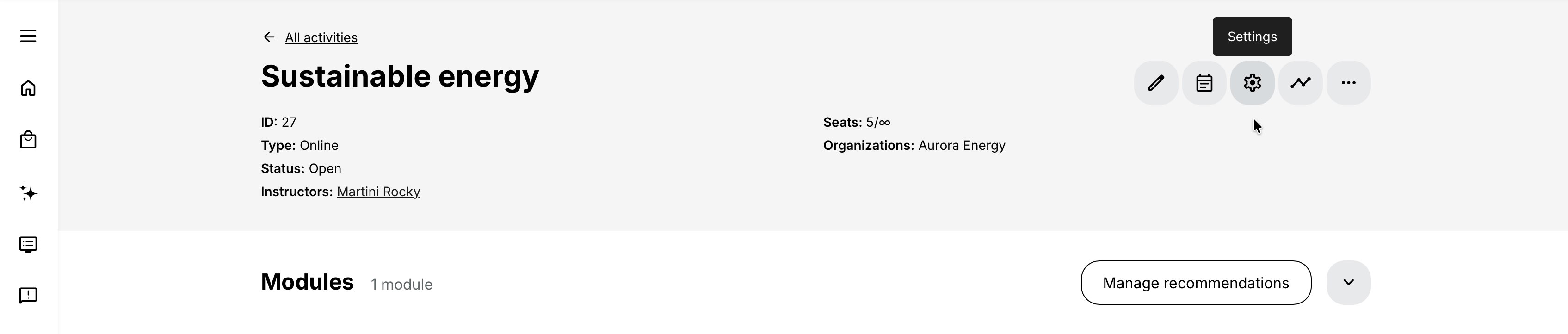
Language
Language is the required field on Activity Settings. The available values come from languages enabled for the platform.
Choose the delivery language, not merely the administrator's working language. The value can influence Storefront presentation and language filtering.
Tags, categories, and products
Apply the vocabularies enabled for Training Activities. Tags categorize and filter training in the Storefront and can also support audience-specific presentation.
All tag fields allow multiple values. When a selected category has child tags, a Products selector appears so the relevant children can be applied.
Although Language is the only required form field, Eurekos can continue to remind you when Language or Category has not been completed. Categories are especially important when the Storefront is organized by vocabulary rows.
Keywords
Add terms that should help users find the activity through global search. Use participant language and common synonyms, not internal shorthand alone.
SEO
For a public, anonymously accessible Storefront, configure:
- Allow this training to appear in search results
- SEO title
- Meta description
If SEO title or meta description is empty, search engines can use the Activity Description title and page content. SEO behavior applies only when production indexing is enabled. Search engines may take several days to reflect a change.
Extra information
When enabled in catalog configuration, enter Cost center and Revenue account. Use them to connect enrollment and transaction data to your financial administration.
Training in other languages
Link independently created language versions of the same offering. Each activity must have the correct Language value.
The Storefront presents one activity tile in the registered user's profile language. For anonymous users, browser language is used when supported; otherwise the platform default is used. Other available languages are listed as alternatives rather than separate tiles.
The participant can switch language from the enrollment area and is redirected to that activity's description page. Link only genuine language variants; the interface does not prevent you from linking activities with the same language.
Search evaluates the language version currently presented to the user. A matching term that exists only in another linked language version may not return a result.
Custom enrollment button
When custom enrollment buttons are enabled for the platform, replace the standard button on the Activity Description page with:
- A custom Button label
- A custom Button URL
- An option to open the URL in a new tab
The platform can apply this to all training or paid training only. The custom label appears on the Activity Description page; later pages keep their standard button labels.
Use this when enrollment must continue in another system. Confirm that the external flow handles access or enrollment correctly, because a custom URL does not replace Eurekos enrollment logic by itself.
External ID
When enabled, enter an external identifier of up to 255 characters for integration or data synchronization. Some integrations automatically populate or require this field.
Reporting
Enable Exclude activity from user's transcript when the activity should not appear in individual or bulk transcripts. Disabling the option restores it to transcripts.
Build the Activity Description
Open Activity Description from the activity page to create the participant-facing landing page.
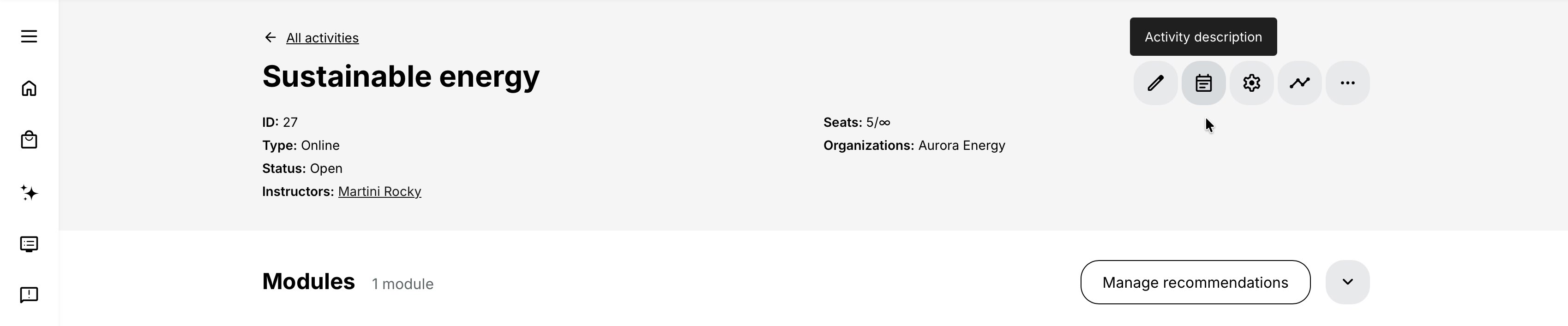
Configure:
- A clear participant-facing title
- A banner image, video, or playlist
- An explanation of the audience, outcomes, format, and expectations
- Practical information such as dates, preparation, location, certification, and cancellation terms
- Any additional content widgets needed to make the enrollment decision clear
The page begins from the platform's Activity Description template. The Enroll, Banner, and Modules-in-this-path widgets cannot be removed, although their presentation can be configured.
For an activity with one Course module, an existing Course Description can supply the initial title and widgets. Later changes to the Course Description are not automatically copied into an Activity Description that already exists.
Preview the page as a participant before opening self-enrollment. The administrative preview and the actual Storefront audience can differ because organization, Storefront, schedule, seat, and access rules are evaluated for the viewing user.
For more detail, see Setting up the Storefront, Activity Description.
Save, review, and make the activity available
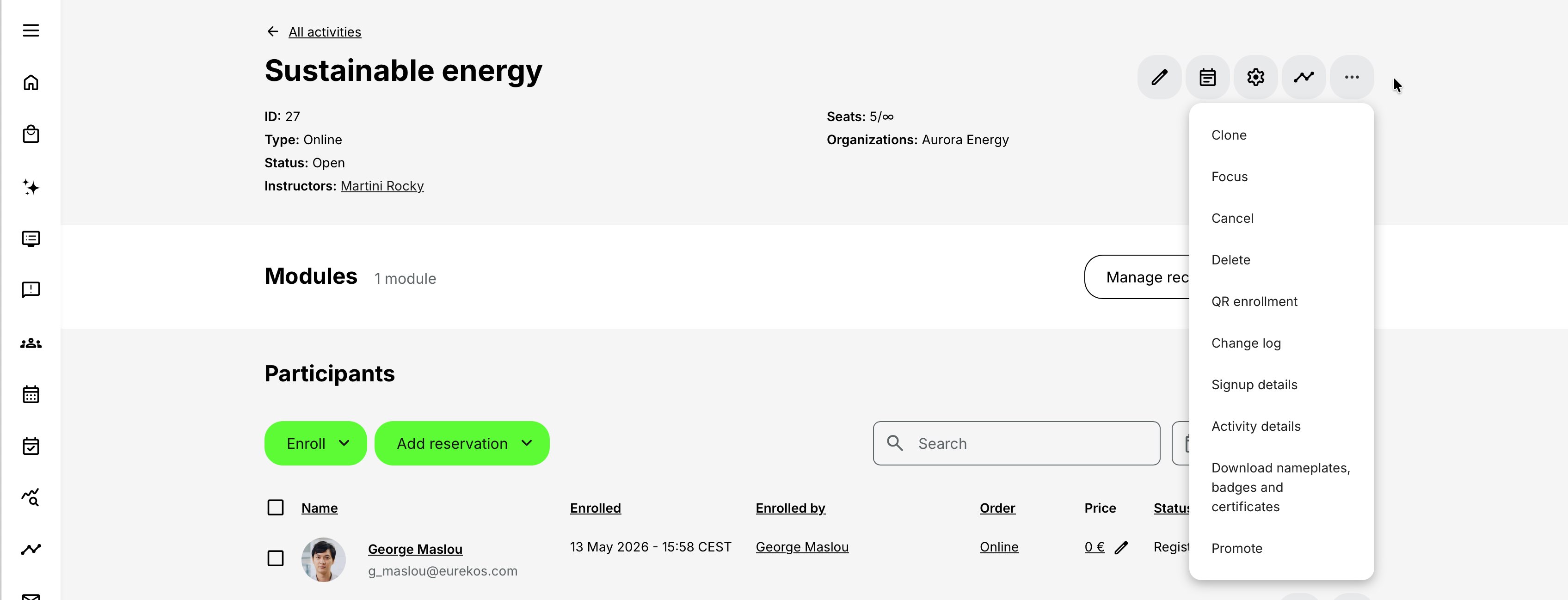
After saving, the activity page gives you access to:
- Edit for structure and activity features
- Preview for the participant view
- Activity Description for the enrollment landing page
- Activity Settings for classification, language, SEO, and reporting
- Analytics for participant progress
- Participants for signup management
- Additional operations such as clone, repeat, link, cancel, export, and change log
Permissions and organization-filter behavior
What you can select and edit depends on your role and organization access. When the Organization Filter is enabled, administrative roles normally work with activities and related content they created, content belonging to their organization, untagged shared content, or activities for which they are responsible. Administrators and Global Administrators retain full access.
If a single-value field already references content from another organization, the field can be locked. In a multi-value field, inaccessible values remain locked while you can continue working with values you are allowed to manage. This can affect courses, questionnaires, certificates, automation, responsible users, Existing Training selections, restrictions, equipment, and other related objects.
If a setting appears disabled on an existing activity, check organizational ownership and access before assuming that the feature is unavailable. Disabling and later re-enabling a feature can also restore its previously saved values.
Notify participants about changes
When an activity with active registrations is Open, Closed, or In progress, changing an activity or module schedule, location, or Assignment due date can prompt you to notify participants. Review the proposed notification before sending.
Followers are notified through their separate structural-update prompt. Automated Email Workflows continue to follow their configured triggers.
Recommendations
If a Course module contains an H5P Question Set, Manage Recommendations can become available after the activity is saved. Recommendations use participant answers to suggest modules or course pages for revision.
Recommendations guide the participant; they do not unlock restricted content. If a recommended item is restricted or adaptive, the participant must also satisfy those rules.
For more detail, see Recommendations and Learning Guidance.
Focus and promote
Focus is a separate activity action that prioritizes a self-enrollable activity in Storefront presentation. Focused activities can be ordered relative to one another from the Focused tab. It does not change the participant's order in Trainings I attend; use the activity's Priority field for that. Priority can be enabled by the Eurekos support team when this is required.
When Promotions are enabled, Promote sends a configurable message about the activity to selected contact managers. Contact managers can then invite participants. Promotion is different from Followers: promotion distributes an offering, while Followers receive selected structural updates about an activity they already follow.
For more detail, see Promote, Focus, and Prioritize Training.
Enroll participants
Participants can reach the activity in many ways, including:
- Administrative enrollment of existing or new users
- Import
- Self-enrollment, with or without approval
- Manager enrollment
- Invitations
- QR code or smart link
- Onboarding rules
- Organization assignment
- Subscription purchase or automatic subscription enrollment
- Existing Training automatic enrollment
- Questionnaire automation
- API or integration
Each route can interact with seats, waiting lists, organization limits, access, payment, or approval differently. Use the dedicated enrollment documentation before launching a complex process.
For more detail, see Enroll and register participants, Onboarding Rules, Waiting list.
Practical configuration patterns
| Pattern | Structure | Typical settings | Why |
|---|---|---|---|
| Simple self-paced course | One Course module | Self enrollment, free price, optional module certificate, participant-facing description | Participants can discover, enroll, complete the content, and receive recognition without manual administration. |
| Blended certification program | Preparation course → Event → Assignment | Module schedules, instructors, location or video conference, assignment due date, access restrictions, activity-level certificate, feedback, automated email workflow | Each delivery component has its own requirements while the complete journey results in one certificate. |
| Recurring instructor-led training | Parent learning path with an Existing Training module containing linked date options | Participant choice, seats, waiting list, locations, reminders, registration deadline | Participants select a suitable delivery while each cohort remains independently administered. |
| Commercial customer training | One or more Course and Event modules | Self enrollment, Activity Description, price and currencies, payment methods, tax rules, organization visibility, Additional Products, certificate | The Training Activity becomes a complete Storefront offering with checkout, fulfillment, and achievement. |
| Mandatory compliance training | Course or learning path with a required assessment | Enrollment through onboarding or administration, Mandatory deadline, access restrictions, automated reminders and escalation, certificate, re-certification | The organization can assign the correct population, track deadlines, document completion, and renew qualification. |
| Personalized learning path | Required foundation modules with supplemental or optional modules | Adaptive Module criteria, access restrictions for the final assessment, recommendations, activity-level certificate | Participants receive the content they need without lowering the common completion standard. |
Verify the configuration
Use representative accounts and the routes enabled for your delivery. Check the relevant outcomes before launch and after a material change; an administrator preview alone does not verify the participant experience.
| Scenario or check | Expected result or evidence |
|---|---|
| Participant-facing offer | Preview the title, description, languages, banner, and mobile layout. Dates, price, location, seats, and certification agree with the maintained settings. |
| Learning route | Complete the intended module sequence with a representative participant. Eligibility, access restrictions, adaptive paths, completion, and certificate criteria lead to a reachable outcome. |
| Delivery dates and resources | Every module fits within the activity dates. Time zones, instructors, locations, and Equipment agree and have no unresolved conflicts. |
| Enrollment and audience | Test the actual discovery or invitation route, direct links, organization rules, registration deadlines, approval, cancellation, seats, and waiting list as applicable. |
| Communication and questionnaires | Application, confirmation, and feedback questionnaires appear at the intended stage. Emails have valid triggers and tell the participant what to do next. |
| Commercial and reporting setup | Where commerce is used, complete a test checkout including Products, discounts, tax, and payment. Language, categories, keywords, and external references support the intended reporting. |
FAQ
-
Why can I not add a certificate at activity level?
For a single-module activity, add the certificate to the Course or Event module. The activity-level Certificate feature becomes available when the activity contains two or more modules, allowing a separate certificate for the complete learning path.
-
Does placing modules in order force participants to complete them in that order?
No. Module order controls presentation and navigation. Add Access restrictions when a later module must remain locked until an earlier requirement is completed.
-
Why is the activity shown as Self-paced when its module has dates?
The activity's displayed schedule depends on the activity-level Schedule feature. Enable that feature. For a single module, you can leave its activity dates empty and let the range be derived from the module. For a learning path, the range can be derived from the earliest and latest module dates.
-
Why is the activity not available in the Storefront?
Check that Self enrollment and the Storefront are enabled, at least one module exists, the Available from date has arrived, the registration deadline and start have not made enrollment unavailable, seats remain or waiting lists are enabled, and the viewing user satisfies organization and Storefront audience rules.
-
Can I add the same course twice to one Training Activity?
No. A course can be reused across different Training Activities but cannot be selected twice in the same activity.
-
What is the difference between Access restrictions and access expiration?
Access restrictions keep the activity or module locked until requirements are met. Access expiration removes an enrolled participant's access at a later time, such as a number of months after enrollment or completion.
-
Does automatic enrollment into an Existing Training module affect current participants?
No. It applies only to participants who enroll in the parent activity after the option is enabled. It is available only when the module contains one selected activity and linked activity options are not included.
-
Does Minimum seats cancel the activity automatically?
No. Minimum seats is an administrative threshold. When its notification is configured with Seats and an activity start date, the responsible Course administrator is warned and can decide what to do.