Additional Products - Article
Summary
Additional Products are optional or included extras offered with a Training Activity, such as a workbook, equipment kit, printed manual, exam service, or digital resource. Each Product has its own description and price and can be reused across activities. Participants can see what is included, choose eligible add-ons during enrollment or later, and receive a separate purchase record for fulfillment.
In this article you will learn:
- What an Additional Product is and when to use one
- How Additional Products differ from Course content, supplemental resources, Training Activities, and Incentives Shop rewards
- How the reusable Product record and its Training Activity connection form two configuration layers
- How to create, name, describe, illustrate, price, and govern a Product
- How Included and Optional Products behave
- How to connect one or more Products to any Training Activity
- What buyers, participants, Managers, and Immediate Managers experience
- How optional Products can be purchased later from Learn mode
- How regular currencies, Virtual Credits, payment methods, tax, Coupons, and organization discounts interact
- Which confirmation emails and Transactions support fulfillment and reconciliation
- What changes affect future checkouts and what remains in historical orders
- How clones, repeated activities, linked activities, language versions, and organization scope affect Product administration
- How to troubleshoot missing Products, incorrect totals, discounts, tax, notifications, and later purchases
What an Additional Product is
An Additional Product is a reusable commercial item associated with one or more Training Activities. It lets an administrator present something alongside the training while keeping the Product's identity and price distinct from the activity itself.
Examples include:
- A printed participant manual
- A workbook or reference guide
- A physical equipment or starter kit
- A separately priced examination or assessment service
- A digital resource delivered outside the Course
- A membership card, license, or other value-added item
- A free companion item that should still be visible in the offer
The feature supports both physical and digital business use cases. Connecting a Product does not itself turn it into learning content, create a Course module, record learning completion, manage warehouse inventory, ship a physical item, or deliver a digital license. Those outcomes require the appropriate learning configuration, operational process, or integration.
Use a Product for a commercial item—not merely for another piece of learning
If the learner must open, complete, pass, or be assessed on something as part of progress or certification, add the appropriate Course, Event, Assignment, Existing Training, Questionnaire, or other learning component. Use an Additional Product when the item needs to be presented or priced separately in the purchase journey.
Understand the two configuration layers
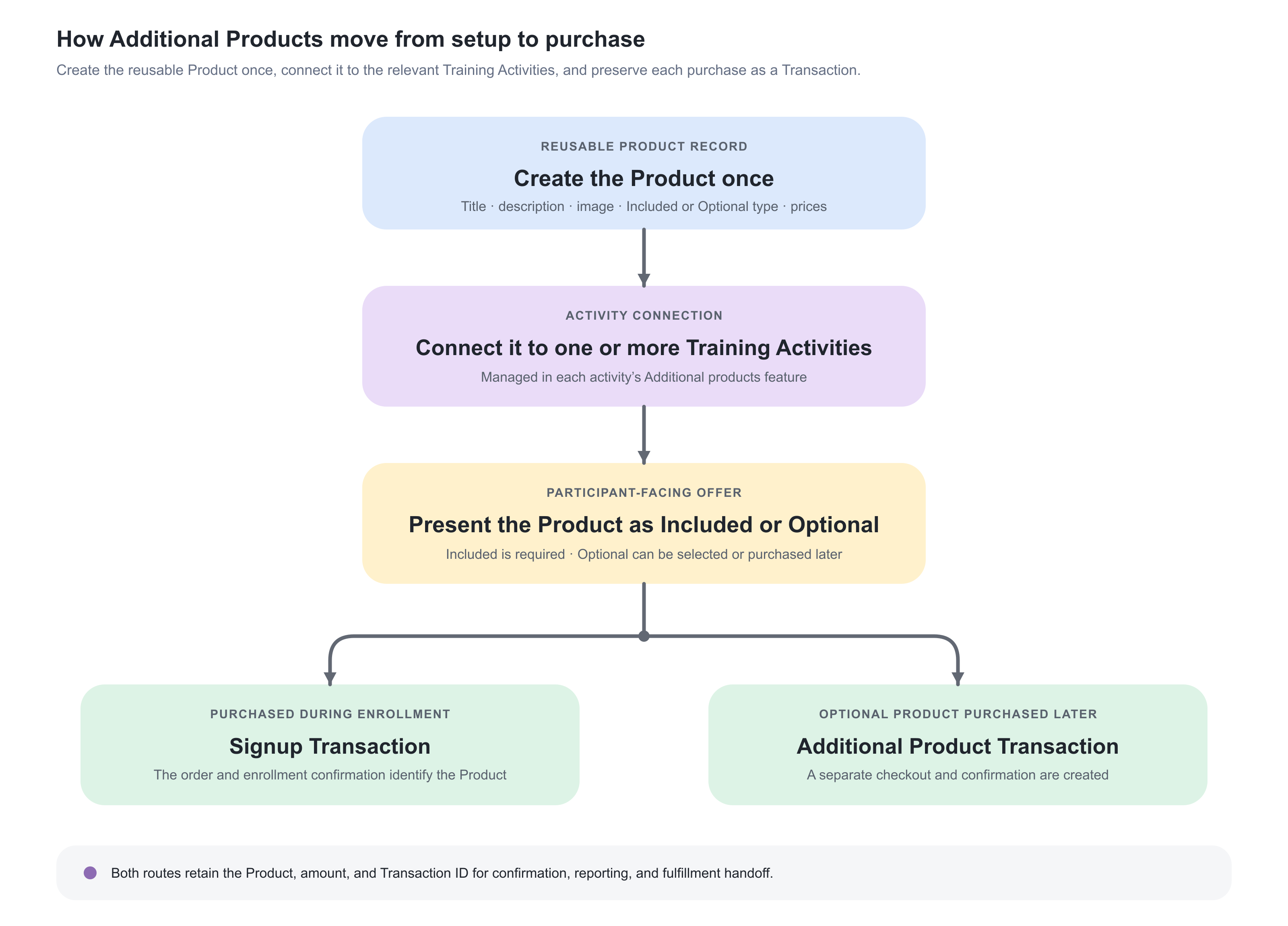
Additional Products use two connected layers.
| Layer | Where it is managed | What it controls |
|---|---|---|
| Product record | Course Administration → Additional Products | Product title, description, image, Included/Optional type, and Product prices |
| Activity connection | Training Activity → activity-level Additional products feature | Which reusable Products are offered with that particular Training Activity |
Create the Product once, then connect it to each appropriate activity. This reduces repeated setup, but it also means that a change to the shared Product can affect future purchases across all activities using it.
The Product does not inherit its price from the Training Activity. The activity and every connected Product are separately maintained commercial components.
Choose the correct feature
Several Eurekos concepts can be described casually as a product or resource. They are not interchangeable.
| Requirement | Use | Result |
|---|---|---|
| Include learning that contributes to progress or completion | Course, Event, Assignment, Existing Training, or another activity module | The participant uses it within the learning structure |
| Provide a downloadable reference inside a Course | Course content or supplemental resource | The file is part of the learning experience rather than a separate purchase |
| Sell or visibly bundle a physical or digital item with training | Additional Product | The item appears in the training purchase context with its own Product record and price |
| Sell access to another independent learning journey | Another Training Activity, nesting, subscription, or an appropriate bundled commercial design | Enrollment and learning records remain traceable |
| Let users redeem earned incentive points for rewards | Incentives Shop Product | Reward availability, point cost, quantity, and fulfillment are managed in the Incentives feature—not Course Administration Additional Products |
| Classify training by product family for Storefront filtering | Activity Category/Product vocabulary tags | The tags describe and target the activity; they do not add a checkout item |
| Collect accommodation, diet, travel, or visa information | Accommodation and diet feature | The buyer supplies operational information; no Product purchase is created merely by collecting it |
Do not use an Additional Product to represent an item that should be automatically accessible inside the Course unless a separate delivery process provides that access. A Product purchase and a learning entitlement are different records.
When to use Additional Products
Use Additional Products when:
- The item should be visible as part of the value offered with training.
- The item needs a price independent from the activity price.
- The buyer must receive the item with enrollment or may choose it as an option.
- An enrolled participant should be able to buy the optional item later.
- Managers should be able to purchase the item while enrolling someone they supervise.
- Transactions and confirmation emails should identify the item separately.
- The same Product can be reused consistently across more than one activity.
Additional Products does not replace an inventory, shipping, licensing, or order-fulfilment system. Plan a separate approved process if you need to reserve or reduce stock, create shipping labels, track dispatches and returns, generate licence keys or similar. Other other services for complex product and stock management.
Permissions and ownership
Course Administrator, Support, Platform Administrator, and Global Administrator roles normally have the Course Administration permission to administer Products, subject to platform configuration and organization scope.
Connecting a Product also requires permission to edit the Training Activity. A user may be able to see an existing connection without having scope to find or reselect the underlying Product.
Separate responsibilities conceptually:
- Product owner—maintains title, description, image, type, and lifecycle.
- Commercial owner—approves regular-currency and Virtual Credit prices.
- Course Administrator—connects the correct Product to the correct activities.
- Platform Administrator—maintains currencies, payment methods, tax, Commerce forms, agreements, and email configuration.
- Finance—reconciles Transactions, providers, invoices, and refunds.
- Fulfillment owner—ships the item, grants external digital access, or follows up with the buyer.
A clear owner matters because editing one reusable Product can affect several live offers.
Choose Included or Optional
The Product type defines buyer choice and later availability.
Included Product
An Included Product appears as part of the Training Activity enrollment purchase and cannot be removed by the buyer.
Use it when:
- Every participant must receive the manual or kit.
- The item is an inseparable part of the offer.
- The item should be listed to make the package's value visible.
- The operational model requires one item for every completed purchase.
Included describes the relationship to the order: it is not optional. It does not, by itself, guarantee that the Product's configured price is zero or mathematically embedded in the displayed Training Activity amount. Review the Product price and test the complete checkout total.
Examples:
- If the activity price is EUR 300 and the Included Product price is EUR 0, the Product can communicate included value without adding a Product amount.
- If the activity price is EUR 300 and the Included Product price is EUR 50, the Product remains required and the configured Product amount can contribute to the order.
Use the first design when “included in the advertised training price” is the promise. Use the second only when the advertised amount and checkout clearly explain that the required Product is a separate price component.
Optional Product
An Optional Product can be selected by the buyer during activity enrollment. An enrolled participant can also purchase it later from the Training page in Learn mode.
Use it for:
- A printed manual when a digital version is already available
- An equipment kit that only some participants need
- An optional assessment service
- A premium workbook or reference package
- An additional item that may become useful after the training begins
An optional Product purchased later creates its own purchase and Transaction. It does not reopen or amend the original enrollment order.
Type belongs to the reusable Product
Plan for the same behavior everywhere the Product is connected. If the same physical item must be Included in one offer and Optional in another, create separately named Product records unless your platform configuration explicitly supports a connection-level type override.
For example:
- Field toolkit – included in certification package
- Field toolkit – optional add-on
This keeps future checkout behavior, pricing, reporting, and support conversations clear.
Plan the Product before creating it
Document the intended offer first.
| Decision | Example |
|---|---|
| Product purpose | Printed participant workbook |
| Type | Optional |
| Audience | Public participants and manager purchases |
| Connected activities | Facilitation Fundamentals – EN and DA |
| Regular prices | EUR 35; DKK 260 |
| Virtual Credit price | Not offered |
| Tax treatment | Follows approved connected-activity tax setup |
| Discount treatment | No Coupon or organization discount |
| Delivery | Warehouse ships within three business days |
| Fulfillment recipient | Training operations mailbox configured in Commerce Automation |
| Participant message | Order receipt plus delivery expectation on Activity Description |
| Returns/refunds | External published policy |
| Owner and review date | Commercial Operations; quarterly |
Before creation, answer:
- Is the item genuinely Included or Optional?
- Should its price be zero, regular currency, Virtual Credits, or a supported combination?
- Which currencies and markets are approved?
- Is the item physical, digital, or a service?
- What exact action fulfills it?
- Which buyer, participant, billing, and shipping information is required?
- Which team receives the administrator notification?
- What happens if the item is unavailable?
- How are cancellation, refund, return, or replacement handled?
- Is the Product reused across activities with different schedules or audiences?
- Could an existing Product already meet the requirement?
Do not create duplicate Product records merely because two activities use the same item. Conversely, do not reuse one Product when edition, language, type, price ownership, fulfillment, or legal terms differ.
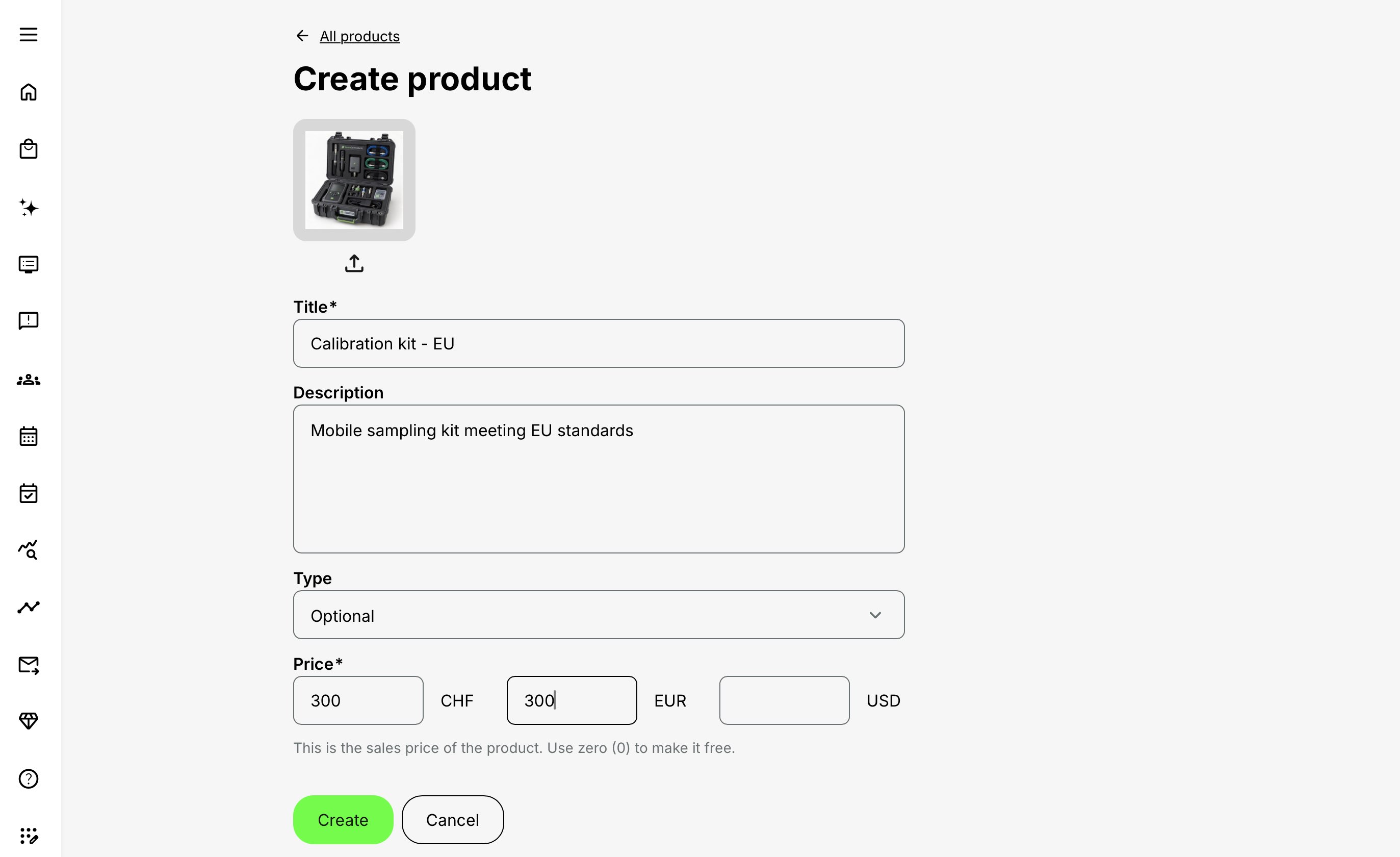
Create an Additional Product
- Open Course Administration → Additional Products.
- Select Create product.
- Add an appropriate Image.
- Enter a clear Title and a useful Description.
- Set the Type to Included or Optional.
- Enter the approved Price for each enabled currency the Product must support. Enter 0 deliberately when the Product should be free; do not treat a blank amount as zero.
- Where Virtual Credits are enabled and supported by the business model, enter the approved Virtual Credit price.
- Select Create.
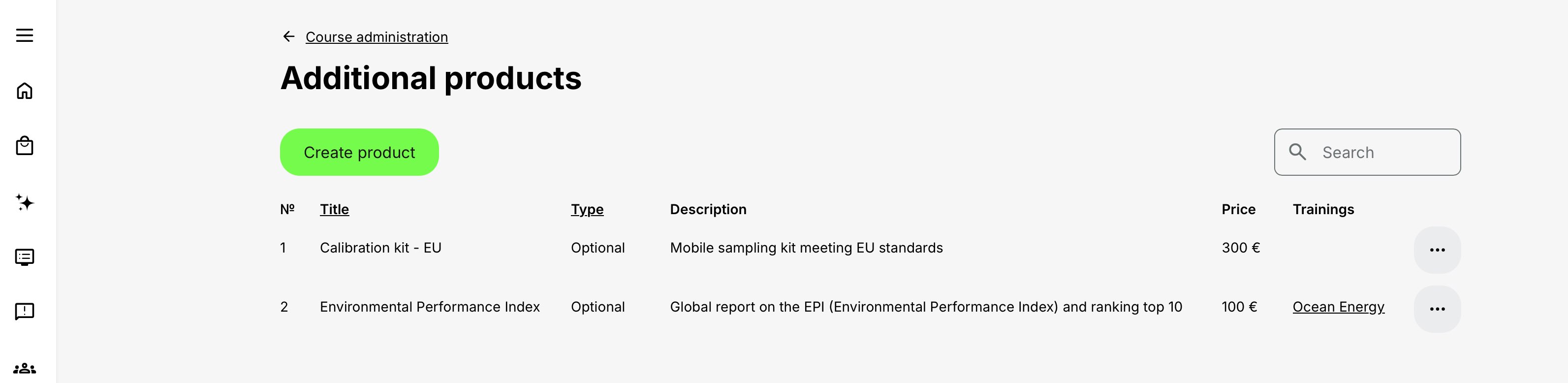
- Confirm the new record in the Additional products overview, including its type, description, price, and activity connections.
- Connect the Product to a controlled test Training Activity and test every intended purchase route before offering it more broadly.
Creating the reusable Product record does not make it available to participants by itself. The Product must also be connected to the appropriate Training Activity.
The Product overview lists the reusable records with information such as type and description so administrators can identify them. Use naming and descriptions that remain recognizable when several similar items exist.
Configure the Product fields
Title
The Title identifies the Product in administration, the buyer's purchase journey, and relevant order or Transaction context.
Include distinctions that affect the purchase or fulfillment:
- Item name
- Edition or version
- Language
- Physical or digital format
- Included or Optional role where useful
- Region or fulfillment variation
Examples:
- Leadership workbook – 2027 edition – EN
- Calibration kit – EU – optional
- Certification handbook – digital – included
Avoid titles such as Materials, Product 1, or Book. They are difficult to distinguish in the activity selector, Transactions, emails, and fulfillment queue.
Description
Explain what the buyer receives and anything needed to make an informed choice.
For an Optional Product, cover:
- What it contains
- Who benefits from it
- Physical or digital format
- Language and edition
- Expected delivery or access method
- Relevant compatibility or prerequisites
- Material return or cancellation conditions
For an Included Product, explain why it is part of the offer and whether a separate amount is shown.
Do not put volatile delivery dates, stock claims, prices, or legal terms only in free text. Maintain prices in the Product fields and authoritative terms in the appropriate Commerce/legal configuration. Keep the description aligned with operational reality.
Type
Select Included or Optional according to the behavior described earlier.
Changing the type of a reused live Product can change future purchase behavior in every connected activity. Before changing it, identify all connections and decide whether a new Product record is safer.
Image
Use an image that helps the buyer identify the item. A clear product image is particularly useful when similar manuals, kits, editions, or formats are offered.
The image should:
- Show the actual item or an honest representation.
- Remain readable at the displayed size.
- Avoid embedded text that cannot be localized or accessed by assistive technology.
- Match the edition and format being sold.
- Respect image ownership and brand requirements.
Test it wherever the Product appears. Do not assume the administration preview has the same dimensions as checkout or the Training page.
Regular-currency prices
Product prices are independent from the Training Activity price. Maintain an approved amount for every required enabled currency.
Important behavior:
- Currencies must first be enabled in Settings → Commerce → Currency.
- Registered users normally see the currency associated with the country in their profile.
- The platform's default currency provides fallback where applicable.
- Eurekos does not calculate exchange-rate conversions; every amount is an independent commercial value.
- Enter an explicit zero when the Product should be free in a currency.
- A blank or missing value should not be treated as an intentional zero.
- Price Manager can update Product prices across the portfolio.
If a Product has EUR, USD, and DKK prices, review each one as its own decision. Changing EUR does not calculate new USD or DKK values.
Virtual Credit price
Where Virtual Credits are enabled, a Product can have a price in Virtual Credits. This is separate from regular currencies and depends on the applicable purchase route, user/manager organization relationship, and available organization balance.
Before offering it:
- Confirm the organization has sufficient credits.
- Confirm who is authorized to spend them.
- Test activity and Product pricing together.
- Confirm how a later optional purchase is represented.
- Check the resulting Transaction and balance.
- Remember that Coupons do not combine with Virtual Credits..
Connect Products to a Training Activity
Additional Products is an activity-level feature. It is not configured on an individual Course, Event, or Assignment module.
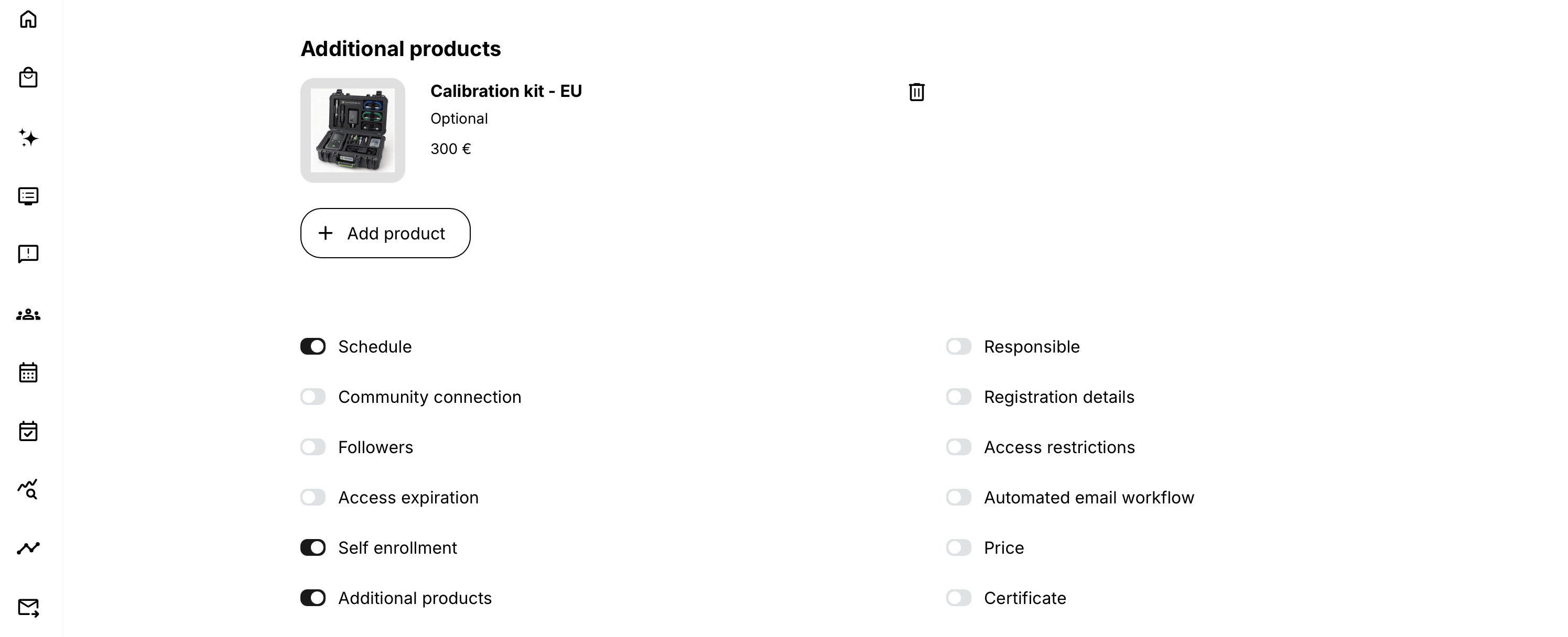
- Open the Training Activity in edit mode.
- Go to the activity-level Features section.
- Enable Additional products.
- Select Add product.
- Choose one or more existing Product records from the selector.
- Confirm the selection.
- Save the Training Activity.
- Review the Activity Description and test enrollment checkout.
- For Optional Products, also test purchase from Learn mode after enrollment.
Additional Products can be connected to any Training Activity, including:
- A one-module Course activity
- A one-module Event activity
- A one-module Assignment activity
- A multi-module learning path
The platform does not impose a documented limit on the number, type, or price of Products connected to an activity. The buyer experience and fulfillment process still impose practical limits. A long list of add-ons can obscure the main offer, increase checkout abandonment, and create operational errors.
Use the Product ID or another stable internal reference when titles are similar. A Product description should help, but title alone is not a safe control for high-value or regulated items.
Present the offer clearly
The Activity Description and enrollment area should tell the buyer what is included, what is optional, and what the final amount can contain.
Include:
- What the Training Activity provides
- Which Products are Included
- Which Products are Optional
- Whether prices are shown separately
- Physical or digital format
- Delivery method and expected timing
- Geographic restrictions
- Required address or company information
- Cancellation, returns, and support route
The Activity Description's Enroll information can indicate that Additional Products are available. The checkout supplies the actual selection and price context. Do not rely on a product count alone to communicate a required paid item.
Use wording such as:
The course fee is EUR 300. A printed workbook is optional and costs EUR 35 plus applicable tax.
Or:
The certification package includes the equipment kit shown below. The kit is required and appears as a separate EUR 50 line in checkout.
Avoid “everything included” if the buyer will see an additional required amount.
For more detail, see Activity Description.
Understand the purchase journeys
Product purchased during activity enrollment
During a supported training enrollment checkout:
- The buyer selects or reaches the Training Activity.
- Eurekos resolves the applicable activity and Product prices, currency, customer information, payment methods, and tax context.
- Included Products appear and cannot be removed.
- Optional Products can be selected or left out.
- The buyer supplies required enrollment, billing, company, and other configured form information.
- Terms of Use and Privacy Policy appear as a checkbox or linked text according to Commerce agreement settings.
- The order is completed through the selected payment method.
- The resulting Transaction and confirmation identify the activity and purchased Products.
- Operations fulfills the Product through the approved process.
A free Product can still appear to communicate value. A free Training Activity can still produce a payable order if a connected required or selected Product has a price. Test the complete total rather than judging the flow from the activity price alone.
Optional Product purchased later from Learn mode
An enrolled participant can buy a connected Optional Product later from the Training page.
This is a separate commercial event:
- The participant selects Buy additional product or the equivalent action.
- The purchase uses the Product's current applicable price.
- A separate checkout is presented.
- A separate Additional Product Transaction is created.
- The dedicated Additional Product administrator confirmation is used.
- The original signup Transaction is not rewritten.
This lets a learner decide after beginning the training, but it has important consequences. A Coupon used during enrollment is not carried forward, and a price changed after enrollment can affect the later purchase.
Manager and Immediate Manager purchase
Managers and Immediate Managers can make supported purchases on behalf of the people they supervise, including Additional Products.
The effective experience depends on:
- The manager relationship stored in Eurekos
- Organization and suborganization scope
- Whether the Training Activity is available for the supported manager-enrollment route
- Buyer and participant customer information
- Currency and payment method
- Virtual Credit organization and balance where used
- Required terms and checkout fields
Test who is recorded as buyer, who receives training access, who receives confirmation, where the Product is delivered, and which organization owns the cost. Do not assume the manager's address should be used for a physical item intended for the participant.
Silent and administrative enrollment routes
Manual enrollment, imports, onboarding, nested automatic enrollment, API processes, and other background routes do not necessarily present the buyer with the standard Product checkout.
Do not assume that an Included Product has been ordered or fulfilled merely because a user became a participant through one of these routes. Test whether the specific route creates the intended Product purchase evidence. Where it does not, handle Product entitlement and fulfillment as a separate controlled operation or choose a checkout-based route.
Prices, discounts, tax, and payment
Additional Product prices are maintained separately from the Training Activity price. They may appear in the same checkout, but discounts and tax do not necessarily apply to every component in the same way.
| Area | How it works | Administrator guidance |
|---|---|---|
| Product price | Each Included or Optional Product has its own price. It is not part of the Training Activity price. | Maintain and test the Product price separately in every supported currency. |
| Organization discount | The discount reduces the Training Activity price only. It does not reduce Additional Product prices. | Describe the offer as a discount on the training fee, not the complete order. |
| Coupon | A Coupon from Course Administration → Discount campaignsapplies only to the eligible Training Activity price. This remains true for Included and Optional Products and when an organization discount also applies. | A 100% Coupon can still leave a Product amount to pay. Confirm the final checkout total before advertising an order as free. |
| Tax and VAT | Additional Products are included in the applicable tax calculation using the Training Activity purchase context, including the configured buyer, seller, location, and Commerce tax rules. | Test the complete order and invoice for every relevant customer and delivery scenario. |
| Payment and Transactions | Products purchased during enrollment form part of that checkout. An Optional Product purchased later creates a separate Transaction using its current price. | Confirm that the intended currency, payment method, tax result, and documentation work for both enrollment and later purchases. |
Example order
| Order component | Calculation | Amount |
|---|---|---|
| Training Activity | Base price | EUR 300 |
| Activity discount | 20% of the Training Activity price | –EUR 60 |
| Included equipment kit | Separate Product price | EUR 50 |
| Optional printed workbook | Separate Product price | EUR 35 |
| Subtotal before applicable tax | EUR 325 |
The discount reduces only the Training Activity price. It does not reduce either Product price. The final tax presentation and amount depend on the platform configuration and buyer context.
Test before launch
Test the complete checkout and resulting documents with the combinations that apply to the offer, including:
- Private, Company, and Government customers
- Domestic and cross-border buyers
- Valid, invalid, and missing VAT information
- Online and onsite Training Activities
- Relevant activity locations and seller entities
- Included, Optional, and later Product purchases
- Free or heavily discounted Training Activities with payable Products
If a physical or digital Product requires different tax treatment from the connected Training Activity, confirm that the configured checkout and invoice meet the approved tax requirements. Eurekos does not offer different tax treatment on related products.
Payment methods govern the complete checkout
The Training Activity and platform Commerce configuration determine the payment methods offered in the supported enrollment flow. Product pricing does not activate a payment provider or Invoice method by itself.
Test the full order with:
- Card or other connected online payment
- Invoice
- Free/zero-value behavior
- Virtual Credits where applicable
- Every enabled currency
- Manager purchase
- Product-only later purchase
Terms, privacy, and buyer information
Checkout can show Terms of Use and Privacy Policy as required acceptance or linked text according to Commerce agreement configuration.
For physical or externally delivered Products, ensure the checkout collects only the data needed to fulfill the order. Depending on the process, that can include:
- Recipient name
- Email and phone
- Delivery address
- Company and VAT information
- Purchase-order or EAN reference
- Participant versus buyer identity
Define:
- The lawful purpose for collecting the information
- Who may access it
- Which email recipients receive order details
- How it is transferred to the fulfillment provider
- Retention and deletion rules
- How corrections are handled
An Activity enrollment address may be a billing address and not necessarily the intended shipping address. Make this distinction explicit in the form or fulfillment follow-up.
Confirmation emails and fulfillment
Product purchased with training enrollment
When the Product is purchased in the common Training Activity enrollment flow:
- The administrator email uses Settings → Email Sending → Commerce → Enrollment confirmation – admin.
- It is sent to the recipient configured under Settings → Commerce → Automation → Email receiver.
- The participant/buyer receives the Enrollment confirmation receipt – user, including the Additional Product details.
Optional Product purchased later
When an Optional Product is purchased separately from Learn mode:
- Eurekos creates a separate purchase and Transaction.
- The administrator email uses Settings → Email Sending → Commerce → Additional product order confirmation – admin.
- It is sent to the Commerce Automation Email receiver.
- Verify the participant-facing receipt and wording on the platform as part of the end-to-end Product-only test.
Configure the operations recipient deliberately
The Commerce Automation Email receiver should be a monitored operational address with a defined owner and backup—not an individual's unmonitored mailbox.
The team receiving it should know how to:
- Identify Product, buyer, and participant
- Find the corresponding Transaction
- Verify payment or invoice context
- Obtain approved delivery details securely
- Record fulfillment externally
- Handle out-of-stock, address, refund, and replacement exceptions
- Avoid shipping twice when a message is resent
An email confirms that Eurekos sent order information; it is not a stock reservation, dispatch confirmation, proof of delivery, or accounting settlement.
Transactions and reporting
Use the purchase-route distinction above when reconciling records: the enrollment record covers the training and selected Products, while a later Optional Product purchase has its own Additional Product Transaction. Before calling two records a duplicate charge, compare their types, timestamps, Product, amount, and payment-provider references.
Transactions Report
Use Analytics → Transactions for structured export and reconciliation. The report can:
- Filter by Transaction type such as Signup or Additional Product.
- Include Additional Product information.
- Show price, currency, tax, total, buyer/customer context, status, and identifiers according to the selected fields.
- Preserve historical purchase context even when a Product or user profile later changes.
The Additional Products column was added to the Transactions report export so Finance and Operations can identify Product-related purchases in bulk.
For more detail, see Transactions Report, Transactions.
Use purchase information for fulfilment
Eurekos records the purchase and provides the information needed to identify what was ordered. The available details depend on the checkout form, customer type, payment method, and reporting configuration.
| Information | Examples |
|---|---|
| Order | Transaction ID and type, Training Activity, Additional Products, quantity, and order date |
| Buyer and customer | Buyer name and email, customer type, country, address, company, VAT, EAN, or purchase-order information where collected |
| Commercial | Product amounts, discounts, tax, total, currency, payment method, provider or invoice reference, and Transaction status |
The Transaction details and confirmation identify the purchased Products and their commercial values. This information can be passed to the team or service responsible for physical delivery, digital access, examination booking, licensing, or another fulfilment process.
Eurekos does not manage stock, picking, dispatch, tracking, returns, licence generation, or external financial reconciliation as part of the standard Additional Products feature. Use the Transaction ID when connecting the Eurekos purchase to those external processes.
An address collected during checkout may be a billing address rather than the intended delivery address. Make that distinction clear when physical delivery is required.
For complete field definitions, filters, exports, and reporting guidance, see Transactions and Transactions Report.
Change a live Product safely
Because the Product is reusable, a change can affect future checkout and later-purchase experiences in every connected activity.
Before editing:
- Identify every connected Training Activity.
- Check current Storefront visibility and active enrollment campaigns.
- Review linked, recurring, cloned, translated, and nested activities.
- Identify participants who can buy the Optional Product later.
- Review current prices in every currency and Virtual Credits.
- Check external sales pages, contracts, quotes, and fulfillment instructions.
- Decide whether the change is a correction or a new edition that deserves a new Product record.
Create a new Product rather than overwrite the old one when:
- The physical item or edition changes materially.
- The language changes.
- Included/Optional behavior must differ.
- Fulfillment provider or region changes.
- Historical reporting must distinguish the versions clearly.
- A future offer needs a new price while existing participants should retain access to the old optional item.
Historical purchases do not become the current Product
Changing a title, description, image, type, or price does not rewrite a completed Transaction, invoice, confirmation, or already fulfilled order. Historical records should be interpreted from their recorded purchase context.
Changing the current price affects future Product checkouts, including a later purchase made by somebody who enrolled before the price change.
Removing a Product connection
Removing the Product from an activity prevents it from being offered through that connection going forward. It does not:
- Refund earlier purchases
- Remove Product details from historical Transactions
- Cancel fulfillment
- Change the participant's training signup
- Rewrite an invoice or confirmation
Coordinate the removal with Storefront messaging, current participants, Operations, and Finance.
Cloned, repeated, linked, nested, and translated activities
Clone
Cloning an activity copies its enabled features and filled information, including the Additional Product connection. The clone is a new Training Activity, but it can still point to the same reusable Product.
Review the clone before publication. A Product suitable for the source year, country, language, price, or fulfillment process may be wrong for the clone.
Where organization filtering limits the cloning administrator's access to the Product, the copied connection can remain visible even though that administrator cannot reselect it. Attempting to change it can produce a warning. Ask an appropriately scoped administrator to review the connection rather than deleting or replacing it blindly.
Repeat and linked activities
Repeat copies activity-level features, so the new delivery can begin with the source Product connections. Each repeated activity remains its own record.
When Allow updating linked activities is enabled, saving the activity form can offer Apply to this only or Apply to all. Activity-level features other than Schedule can be synchronized, which means an Additional Product change may be propagated across the linked group.
Before choosing Apply to all, check whether every delivery uses the same:
- Product edition and language
- Included/Optional offer
- Price and currency strategy
- Region, seller, tax, and fulfillment path
- External advertising
The Product record can be shared, but its connection to each activity is still part of that activity's configuration.
Nested activities
An Additional Product belongs to the activity where it is connected. A parent learning path and a nested child are independent Training Activities with their own purchase and Product configuration.
Decide which enrollment route owns the commercial offer. Avoid displaying or charging substantially the same Product on both parent and child unless two deliberate purchases are intended.
Multi-language activities
Language-related activities are separate records. Connect the appropriate language Product to each one. If title, description, image, legal wording, or fulfillment differs by language, use distinct Product records with clear language labels.
Do not expect translating an Activity Description to translate a Product record automatically.
Product governance and operational practice
Use a naming convention
A scalable pattern is:
[Item] – [Edition/language] – [Included/Optional] – [Region if needed]
Examples:
- Facilitator workbook – 2027 EN – Optional
- Safety kit – v3 – Included – EU
- Exam voucher – Level 2 – Optional – Global
Minimize Product choice
Offer only items relevant to the training. Too many optional choices increase decision load and support questions. Group or explain related options on the Activity Description, and test the checkout on mobile.
Review quarterly and before each cohort
Check:
- Product is still available.
- Description and image match the current item.
- Prices and currencies are approved.
- Fulfillment owner and email receiver are active.
- Tax and payment methods remain correct.
- Connected activities are intentional.
- Optional later purchase still works.
- External terms, delivery expectations, and returns are current.
Realistic use cases
| Use case | Requirement | Recommended design |
|---|---|---|
| Included participant kit | Every attendee in a practical workshop must receive a calibrated kit. |
|
| Optional printed workbook | The digital workbook is part of the Course, but some learners want a printed copy. |
|
| Free webinar with a paid manual | Webinar attendance is free, but participants may buy a specialist manual. |
|
| Visible bundle value | The commercial price already includes a handbook, but Sales wants buyers to see its value. |
|
| Manager purchase for a team member | A Manager enrolls a staff member and buys an optional equipment kit. |
|
| Separate examination service | Learners may buy a proctored external examination after completing their preparation training. |
|
| Different languages and editions | English and Danish activities require different printed manuals. |
|
Verify the configuration
Use representative accounts and the routes enabled for your delivery. Check the relevant outcomes before launch and after a material change; an administrator preview alone does not verify the participant experience.
| Scenario or check | Expected result or evidence |
|---|---|
| Included and Optional selection | Included Products cannot be removed; Optional Products can be selected or omitted. Test a free activity with and without the Product and the supported later-purchase route. |
| Amount and payment | Check approved currencies, zero versus blank, fallback, tax, payment methods, and funded Virtual Credits where used. Test organization discounts and Coupons, including a 100% activity discount with a payable Product. |
| Buyer and participant | Where managers buy for others, verify identities, billing and delivery information, language, and confirmation recipients. Do not assume the buyer is the delivery recipient. |
| Confirmation and handoff | The correct enrollment or Product-only confirmation reaches the monitored receiver and backup. Operations can match the Transaction and approved delivery data and avoid duplicate fulfillment after a resend. |
| Reporting | Distinguish Sign-up and later Additional Product Transactions. Include Product information in exports and reconcile payment or invoice context through the approved Finance process. |
| Shared Product change | Identify all connected offers, including existing participants able to buy later. Recheck future checkout after changes; historical Transactions and documents retain their original context. |
| External operations | Inventory, delivery, returns, refunds, replacements, and availability have named external owners. Silent or administrative enrollment routes have an explicit Product handoff where needed. |
Troubleshooting
| Problem | What to check or do |
|---|---|
| Additional Products is missing from Course Administration | Confirm platform feature availability, the user's Administer Products permission, role, and organization scope. Course Administrator, Support, Platform Administrator, and Global Administrator roles normally have access subject to configuration. |
| The Additional products feature is missing from the activity | Confirm the user can edit the Training Activity and that the feature is available on the platform. Look in activity-level Features, not the settings for an individual Course, Event, or Assignment module. |
| The Product does not appear in Add product | Confirm the Product was saved, the administrator's organization scope permits access, and the correct production Product was created. Refresh the activity form and search using its exact title. Check for an inaccessible Product copied from another organization or activity clone. |
| The Product was added but does not appear to the participant | Confirm the activity was saved, the Product remains connected, and the user is following a supported checkout or Learn-mode route. Check Product type, activity Self enrollment, Activity Description, payment configuration, participant signup/access, and whether the test bypassed checkout through manual or automated enrollment. |
| An Included Product can be removed | Confirm the selected Product record is actually type Included, not a similarly named Optional copy. Save both Product and activity, clear stale page state, and retest from a new checkout. |
| An Optional Product cannot be selected during enrollment | Check that the Optional Product is connected to the exact activity, has a valid applicable price, and that the user reached full checkout. A simplified zero-value or non-checkout enrollment route may not present the same options. |
| An Optional Product is missing from Learn mode | Confirm the user is Registered and can access the Training page, the Product is Optional and still connected, and the current Product configuration supports the user's currency and payment context. An Included Product is not a later-purchase option. |
| A newly connected Optional Product appeared for existing participants | This can be expected because Optional Products can be purchased later from the Training page. Disconnect it or adjust the design if the existing population should not receive the offer; changing the connection does not alter completed purchases. |
| A Product selected at enrollment does not appear in the order | Check whether the selection was retained through checkout, the Product price was valid, and the final submission succeeded. Inspect the Transaction details and confirmation. Record user, activity, Product, timestamp, currency, and payment method if escalating. |
| An Included Product was not fulfilled after manual enrollment | Manual or automated enrollment may not provide a Product checkout or purchase signal. Verify whether a Product appears in the user's Transaction. If it does not, fulfill through the approved separate process or use a purchase route designed to create the Product order. |
| The Product price is missing | Confirm the currency is enabled and the Product has an explicit amount for the user's applicable currency or approved fallback. Blank is not the same as zero. Review Course Administration → Price Manager. |
| The participant sees the wrong currency | Check the user's profile Country, country-to-currency association, default currency, Product amounts, anonymous-user context, and the selected buyer when a Manager purchases for someone else. |
| The converted amount is wrong | Eurekos does not calculate exchange-rate conversion. Correct the independently approved amount for that currency and review every connected activity's future checkout. |
| A free Product still changes the order unexpectedly | Confirm its amount is explicitly zero in the actual checkout currency, not blank or zero only in another currency. Review tax, other Products, activity price, and fallback behavior. |
| A free activity becomes payable | Review Included and selected Optional Products. A zero activity price does not make separately priced Products free. |
| An Included Product increased the total unexpectedly | Included means the buyer cannot remove it; it does not force a zero Product price. Review the Product amount and the advertised offer. Set an approved zero price when its value should already be contained in the activity fee. |
| A Coupon did not discount the Product | This is expected. Coupons apply to the Training Activity price only. |
| An organization discount did not discount the Product | This is also expected. Organization discounts apply to the activity component only. |
| A 100% Coupon still leaves an amount due | Inspect Included and Optional Product amounts and tax. Correct campaign language if it promised a free complete order rather than free training. |
| Virtual Credits cannot be selected | Confirm the feature is enabled, Product and activity have supported Virtual Credit configuration, the participant is connected to an eligible organization, the correct organization is selected, and sufficient balance exists. Check whether the particular enrollment or later-purchase route supports the intended combination. |
| The tax amount looks wrong | Verify buyer country, customer type, VAT data, seller, activity online/onsite and location context, Product price, discounts, and platform tax rules. The Product follows the activity purchase tax context. Escalate legal classification questions to the tax owner. |
| A physical Product needs a different tax rule from the course | The documented Product behavior follows the Training Activity tax rules. Confirm with the platform and tax owners whether the combined offer is supportable. Use a separate approved sales process if distinct legal treatment cannot be represented accurately. |
| The buyer was not asked for a delivery address | Review the customer-type and Commerce checkout forms. The Product feature does not independently make address fields required. Collect only approved information and distinguish billing from shipping address. |
| The order email went to the wrong administrator | Check Settings → Commerce → Automation → Email receiver. This is a platform Commerce recipient and may affect more than one Product or activity, so coordinate the change with the Platform Administrator and Finance/Operations. |
| No administrator email was received | Confirm the correct template is enabled, the Commerce Automation Email receiver is valid, the Transaction completed to the relevant stage, and the platform has not reached its sending limit. Check Settings → Email Sending logs, SMTP/provider delivery, spam, and quarantine. |
| The enrollment email does not show the Product | Confirm the Product was included in the completed checkout and inspect the correct Enrollment confirmation receipt – user template. Compare the Transaction details before resending or editing a live template. |
| A later purchase used a different price from enrollment day | This is expected when the Product price changed. A later Optional Product order uses the price applicable when that new checkout occurs. |
| The later Product does not appear on the signup Transaction | This is expected. Find the separate Transaction with type Additional Product. |
| Two Transactions look like a duplicate Product charge | Compare Transaction type, time, amount, Product, provider Reference ID, buyer, and activity. One can be signup and one a later Product purchase. If two provider captures exist for the same intended purchase, follow the approved duplicate-payment and refund process. |
| Cancelling the activity did not refund the Product | Cancellation, payment, Product fulfillment, and refund are separate processes. Check Transaction and provider or invoice status, return policy, and fulfillment state before processing financial and access corrections. |
| Refunding the Product did not cancel training access | This can be correct. The Product and activity enrollment are separate components. Update access only when the approved policy requires it and verify both systems afterward. |
| Changing the Product updated several activities | The same reusable Product is connected to them. Restore the approved current record if appropriate or create a new version and reconnect only the intended activities. Review future checkout; historical Transactions remain unchanged. |
| A cloned activity has the wrong Product | Clone copies the Additional Product connection. Open the clone before publication and replace or remove the Product. If organization scope prevents reselection, ask a correctly scoped administrator to make the change. |
| A Product change spread across linked activities | The administrator may have selected Apply to all while saving an activity-form change. Review the linked group and correct each affected activity. Product-record changes themselves also affect all connections to that reusable Product. |
| The translated activity shows the wrong language Product | Language-related activities are independent. Connect the matching Product record to each activity; Product title, description, and image are not automatically translated by the activity relationship. |
| The nested parent and child both charge for a similar Product | Inspect Product connections on both activities and determine which enrollment route owns the commercial offer. Remove the unintended connection for future checkout and investigate existing Transactions individually. |
| Operations shipped twice after a confirmation was resent | Use Transaction ID and fulfillment-system status as the deduplication key. A resent email should not be treated as a new order. Correct the fulfillment process and apply the approved return or replacement policy. |
| An unavailable Product can still be purchased | The documented Additional Product feature does not manage warehouse stock. Disconnect the Product from active activities, update participant-facing information, notify Operations and Support, and implement an external availability control before offering it again. |
| A digital Product purchase did not grant external access | The Product record does not automatically create an external entitlement. Verify the fulfillment email, API/integration, license service, and Transaction status. Grant access only through the approved secure process. |
| Support needs evidence for one Product order | Collect Transaction ID, Product and activity IDs, buyer and participant IDs, purchase route, timestamp/time zone, type, amount, currency, tax, payment method, provider or invoice reference, confirmation recipients, and fulfillment-system reference. Never collect or store card details. |
FAQ
-
Can I create a Product directly inside the activity?
The activity feature selects reusable Products. Create and configure the Product in the Additional Products area first, then add it to the activity.
-
Can I add a Product to any Training Activity?
Yes. Additional Products can be connected to one-module activities of any type and to multi-module learning paths.
-
Is there a limit to how many Products I can connect?
No product-count, type, or price limit is documented for the activity feature. Keep the buyer experience and fulfillment capacity practical even when the platform allows more.
-
What is the difference between Included and Optional?
An Included Product appears in enrollment checkout and cannot be removed. An Optional Product can be selected during enrollment or purchased later from the Training page.
-
Does Included mean the Product price must be zero?
No. Included controls buyer choice. Review the separately configured Product price and complete order total. Use zero when the item's value is already contained in the advertised activity price and no additional Product amount should be charged.
-
Can an Optional Product be purchased after enrollment?
Yes. An enrolled participant can buy it later from Learn mode. That purchase creates a separate Additional Product Transaction using the current applicable Product price.
-
Can an Included Product be purchased later?
Included Products belong to the enrollment order and are not optional later purchases. If the same item must also be sold later, create an appropriate Optional Product design.
-
Can a Product be free?
Yes. Enter an explicit zero in the applicable currency when the Product should be free. It can still appear in checkout to communicate value.
-
Can a Product use several currencies?
Yes. Configure independent amounts in enabled currencies. Eurekos does not convert them automatically.
-
Which currency does the participant see?
A registered user's profile country normally determines the associated currency, with the platform's default currency used as fallback where applicable. Test anonymous, missing-country, and unsupported-country cases.
-
Can Products be priced in Virtual Credits?
Yes, where Virtual Credits are enabled. Test the supported route, user or manager organization, available balance, Transaction, and resulting credit deduction.
-
Do Coupons discount Additional Products?
No. Coupons reduce the eligible Training Activity price, not Product prices.
-
Do organization discounts reduce Additional Products?
No. Organization discounts also apply to the Training Activity component only.
-
Why is there still an amount due after a 100% Coupon?
The order may contain a priced Included or Optional Product and applicable tax. The Coupon removes only the eligible activity-price component.
-
Is tax calculated on Products?
Yes. Additional Products are included in applicable tax/VAT calculations and follow the rules used in the Training Activity purchase context.
-
Can Products have their own payment methods?
Product price does not independently activate payment methods. The supported checkout uses the platform and Training Activity Commerce configuration. Test later Product-only checkout separately.
-
Can Managers buy Products for staff?
Yes. Managers and Immediate Managers can make supported purchases for the users they supervise, including Additional Products. Test buyer, participant, organization, payment, delivery, and confirmation data.
-
Does a digital Product automatically grant access elsewhere?
Not by virtue of the Product connection alone. Use an approved fulfillment process or integration to deliver files, licenses, vouchers, or external-system access.
-
Which email is sent when the Product is bought with enrollment?
The Commerce Enrollment confirmation – admin goes to the configured Automation Email receiver, and the user's Enrollment confirmation receiptincludes Product details.
-
Where can I report on Product purchases?
Use Course Administration → Transactions for operational investigation and Analytics → Transactions for structured reporting. Filter for Additional Product Transactions where needed.
-
What happens if I add an Optional Product after people enrolled?
Existing participants with applicable access can encounter the newly connected Optional Product in Learn mode. Test the intended population and current price before adding it to a live activity. No purchase is created until the participant completes the Product flow.
-
What happens if I add an Included Product after people enrolled?
It does not retroactively add the Product to their completed enrollment order. Plan fulfillment for the historical cohort separately if they should also receive it.
-
What happens if I remove a Product from an activity?
It stops being offered through that connection going forward. Historical Transactions, invoices, confirmations, and fulfillment obligations remain.
-
Can one Product be reused across several activities?
Yes. That is a central benefit. Remember that changing the Product record or price can affect future purchases in every connected activity.
-
Does cloning an activity copy Product connections?
Yes. Enabled activity features and their filled information are copied, including Additional Products. Review them before publishing the clone.
-
Can a linked-activity update change Products across a recurring group?
Yes. Where linked-activity updating is enabled, applying activity-form changes to all can synchronize activity-level features other than Schedule. Review every delivery before propagating Product changes.
-
Are Course Administration Products the same as Incentives Shop Products?
No. Additional Products are sold or presented with Training Activities. Incentives Shop Products are rewards redeemed with earned incentive points and use separate availability, quantity, fulfillment, and Transaction management.