Promote, Focus, and Prioritize Training - Article
Summary
Organizations often need to draw attention to particular training—while opportunities are being distributed, while people browse available training, or after they have enrolled. Promote, Focus, and Priority support these different stages by helping intermediaries share training, highlighting selected Storefront offers, or keeping important assigned training prominent for participants. They change how training is presented or prioritized, not the underlying rules governing who can see, join, or access it.
In this article you will learn:
- The practical difference between Promote, Focus, and Priority
- Which platform and activity prerequisites each feature has
- How to Focus and order Storefront activities
- Why Focus does not change Storefront search-result order
- How organization filtering affects the Focused tab
- How Contact Managers receive Promotions and invite people
- How to configure Promotion recipients, content, deadline, and reminder
- How Priority orders registered training on the participant dashboard
- How to test and troubleshoot all three capabilities
Choose the right prominence tool
| Business objective | Use | Where the effect appears |
|---|---|---|
| Ask trusted contacts to distribute an activity to participants | Promote | Email to Contact Managers and their invitation workflow |
| Feature an offer before enrollment | Focus | Top of applicable Storefront list presentation |
| Put an assigned or enrolled activity higher in a participant's work list | Priority | Trainings I attend on the Dashboard |
These features do not create the same outcome:
- A focused activity is not emailed automatically.
- A promoted activity is not necessarily placed at the top of the Storefront.
- A high-priority activity does not become visible to someone who is not enrolled.
- None of the three makes an unavailable activity enrollable.
Design prominence as part of the complete journey
Before increasing visibility, confirm that the destination is ready:
- Activity Description is complete and understandable.
- Self enrollment and Storefront audience are correct where applicable.
- Organization targeting and direct-link policy are intentional.
- Schedule, Latest registration, Seats, and Waiting list are accurate.
- Price, tax, and payment methods are valid.
- Eligibility and Participation Approval are explainable.
- Modules, access, certificates, and participant communication are ready.
Promotion can amplify a configuration error. Focus can put an unavailable offer in a prominent position. Priority can elevate a training without telling the participant why it matters. Pair the tool with clear participant and stakeholder language.
Focus a Storefront activity
Focus is available only when:
- Storefront is enabled in General settings; and
- The Training Activity has the Self enrollment feature enabled.
To focus an activity:
- Open Course Administration → Activities or the Activity details page.
- Open the activity's actions menu.
- Select Focus.
- Open the Focused tab to review its position.
- Drag and drop it into the intended order among other focused activities.
- Verify the Storefront as the intended audience.
Select Unfocus from the same action menu when the activity should return to normal presentation.
The action can remain available for a self-enrollment activity whose current status is Completed, Cancelled, or Closed. Focusing does not reopen it or override status.
Understand the Storefront effect
Focused activities are presented at the top of the Storefront list for registered and anonymous users who would otherwise be allowed to see them.
Focus does not override:
- Storefront audience and section rules
- Organization visibility
- Anonymous-user configuration
- Activity status
- Available from and Schedule dates
- Latest registration
- Capacity
- Language or portal context
The phrase “for all users” means all viewers for whom the activity is a valid Storefront result; it does not bypass their visibility rules.
Focus does not change search-result order
When a visitor actively searches the Storefront, the Focus order does not control the order of those search results. Focus controls the applicable Storefront list presentation.
Use the Focused tab
The Focused tab appears when at least one activity is focused. It uses the same main activity columns as the Activities tab, except that the selection checkbox, grouped-activities icon, and Self-enrollment column are omitted. The view mode can still be changed.

The tab's order represents the order of focused activities in the Storefront. Drag and drop activities to reorder them.
A newly focused activity is added to the top, even if it was focused previously and then unfocused. Review the complete order after every addition so an older strategic item is not displaced unintentionally.
When focused activities exist, a Focused / Not focused filter also becomes available on the Activities list and on relevant Course Administrator or Assistant dashboard activity lists. In the Self-enrollment column, a focused activity can show the tooltip Allowed, Focused.
Focus permissions and organizations
Administrative roles, including Course Administrator and Assistant where permitted, can Focus or Unfocus activities and use the Focused tab.
Organization filtering changes the scope:
When the Organization layer/filter is off:
- Administrative roles can work with the full focused-activity list according to their normal permissions.
When it is on:
- Administrator and Global Administrator retain broad content access.
- Platform Administrator, applicable Affiliate Administrator, Course Administrator, and Assistant see and manage focused activities within their permitted organization scope.
- A higher organization level can access content from lower nested levels.
- A lower suborganization does not gain access to parent-level content.
- A user without an organization can receive the Focused tab for activities that are not tagged to an organization.
The tab itself may be unavailable where the user has no accessible focused content. Test organization-scoped administration as well as participant Storefront visibility.
Configure Priority for participants
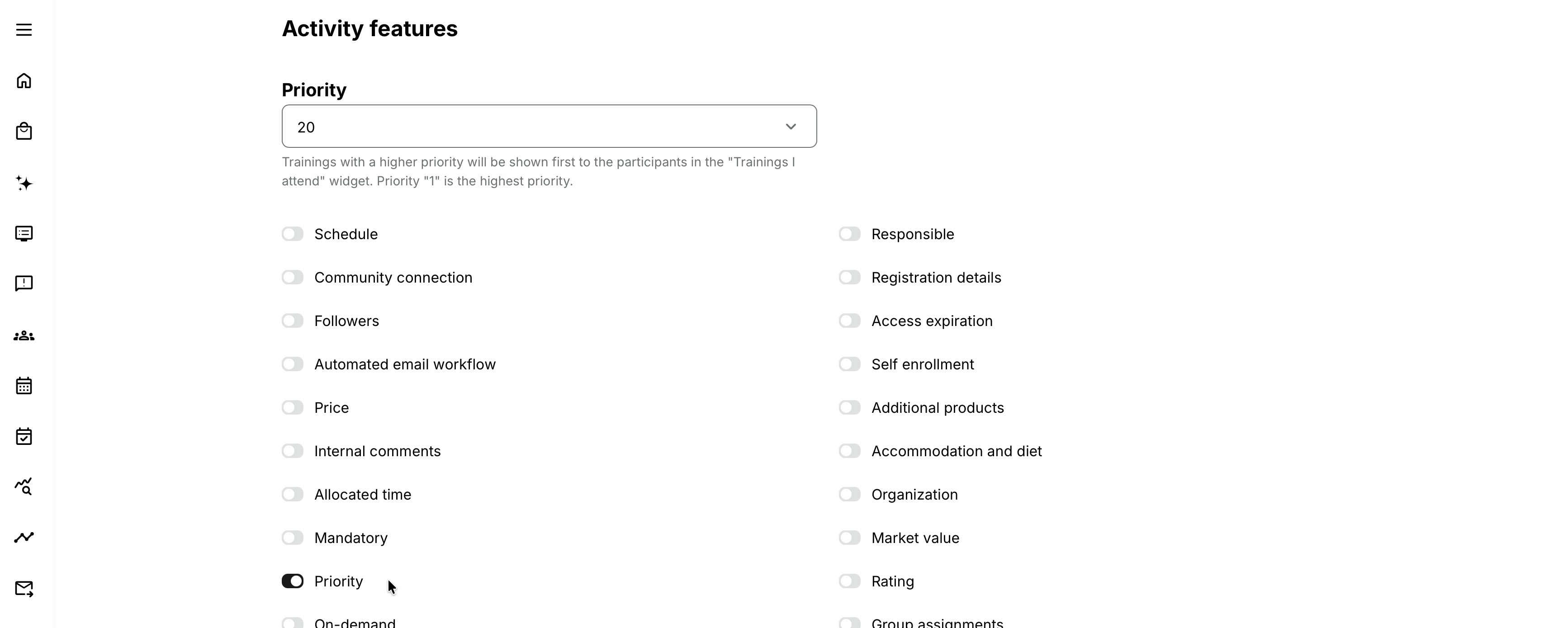
Priority is a separate activity feature enabled by Eurekos support upon your request.
Once enabled:
- Edit the Training Activity.
- Add or enable Priority at activity level.
- Select a value from 1 to 100.
- Save the activity.
- Verify its relative position in Trainings I attend for a participant with several active activities.
Priority affects the ordering of training that the participant already attends. It does not:
- Enroll anyone
- Make the activity mandatory
- Add a completion deadline
- Focus the Storefront offer
- Change Storefront search
- Notify the participant
Use a small, documented set of priority bands rather than assigning arbitrary values activity by activity. For example, your governance could distinguish urgent compliance, time-sensitive operational training, and normal development—provided the tested value direction is applied consistently.
A common use case is a series of certifications that should remain in a consistent order in Trainings I attend. Assign deliberate Priority values so the intended sequence takes precedence over normal ordering factors, such as the participant’s most recent activity.
Priority controls presentation order only. It does not prevent participants from opening or completing the activities in another sequence. If one certification must be completed before another becomes available, configure the appropriate enrollment process or Access Restrictions in addition to Priority.
Promote an activity to Contact Managers
Promotion is an optional distribution workflow. It lets an administrator send an activity and custom message to all or selected Contact Managers, who can then invite other users.
It is useful when:
- Local managers decide who should attend.
- Partner contacts distribute training to their members.
- Customer coordinators fill allocated seats.
- A central team advertises availability through trusted intermediaries.
Promotion is not the same as direct participant invitation. The Contact Manager receives the offer and uses the invitation process to nominate or invite people.
Confirm Promotion configuration
A platform owner enables or disables Promote functionality in the Activities Promote configuration. The supporting feature modules remain part of the platform setup; administrators use the configuration setting rather than enabling or disabling technical modules for each campaign.
When Promotion is disabled:
- Promote is unavailable.
- The Contact Manager profile checkbox is not available through Forms.
If a user was already marked as a Contact Manager, that stored value remains when Promotion is turned off and becomes effective again if the feature is re-enabled.
Assign Contact Managers
Administrator, Platform Administrator, or Global Administrator roles can assign the Contact Manager role extension from Edit profile → Personal Information, subject to permissions.
Contact Manager values can also be imported and exported, and the User list can be filtered by Contact manager: Yes/No.
When a user is designated as a Contact Manager—whether newly created or already existing—they are added to all active Promotions, including Promotions created earlier. They can receive the Promotion email and applicable future reminders.
This is a significant distribution behavior. Before adding Contact Managers in bulk, review active Promotions and decide whether those users should receive them.
The Contact Manager extension lets the person receive Promotions and invite users. It is distinct from:
- Responsible Course administrator
- Responsible Instructor
- Organization Manager used in approval
- Activity Follower
- Immediate Manager relationship
Create a Promotion
- Open the Training Activity.
- Select Promote from the available activity action.
- Choose All contact managers or Specific persons.
- Write the email subject.
- Write the email body.
- Insert only supported tokens from the editor's token list.
- Optionally enable Set deadline.
- Optionally enable Remind if open seats remain and write the reminder text.
- Review audience, activity availability, links, and content.
- Submit the Promotion and verify delivery plus the Contact Manager invitation route.
Recipients
Use All contact managers only when the activity is genuinely relevant to every active Contact Manager. Use Specific persons for customer-, region-, partner-, or business-unit-specific distribution.
Promotion does not replace activity Organization visibility. The recipient may receive a message but still need the correct organization and permissions to use the intended invitation or participant route.
Include:
- Why this activity is being offered
- Who should be invited
- Key date, location, format, and prerequisite information
- Available places where appropriate
- Promotion deadline
- What the Contact Manager must do
- Where to obtain help
Deadline
Enable Set deadline to define when the Promotion stops being active. After the deadline, it appears inactive or greyed in the listing.
The Promotion deadline governs the intermediary campaign. It does not change the activity's Latest registration, Schedule, or availability. Align all dates so a Contact Manager is not asked to invite people after activity registration has already closed.
Reminder while seats remain
Enable Remind if open seats remain when Contact Managers should receive a follow-up while places are still available. The reminder uses the same general Promotion email structure with the custom reminder text configured on the Promotion.
Review seat calculation, organization allocations, waiting lists, and invitation reservations. “Open seats” can be more nuanced than the overall number when organizations have separate limits.
From Promotion to invitation and enrollment
The intended flow is:
Administrator promotes activity → Contact Manager receives the offer → Contact Manager invites permitted people → Invitees accept or follow the configured route → Signup, capacity, payment, and access rules apply
Participant records can identify invitations created through Promote separately from invitations created directly from an activity, using the applicable status tooltip.
Promotion itself does not guarantee enrollment. Capacity, registration dates, eligibility, approval, price, account status, and invitation behavior still determine the result.
For more detail, see Introduction to Invitations and Promotions.
Realistic use cases
| Scenario and objective | Recommended configuration | Result and considerations |
|---|---|---|
| Storefront campaign Give a newly launched activity greater visibility in the Storefront. | Enable Focus for the self-enrollable activity and position it above other focused offers. Test the Storefront as both an anonymous visitor and a registered user. | The activity receives greater prominence in applicable Storefront listings. Focused ordering does not determine the order of ordinary search results. |
| Mandatory work queue Make an assigned activity prominent for participants who must complete it. | Enroll or assign the participants, configure Priority so the activity appears prominently in Trainings I attend, and add Mandatory with a clear deadline when completion is genuinely required. | Priority helps participants notice the activity after enrollment, while Mandatory defines the completion obligation and deadline. Priority alone does not make training mandatory. |
| Partner-led invitation Ask selected partner contacts to invite the appropriate participants. | Use Promote for the selected partner Contact Managers, explain who should be invited, and set the campaign deadline before Latest registration. Send reminders only while usable seats remain. | Contact Managers receive a controlled invitation opportunity without making the activity broadly prominent. Align the promotion period with registration and capacity. |
| Combined launch Support both broad discovery and managed partner distribution. | Use Focus for Storefront prominence and Promote for intermediary-led invitations. Apply Priority only after participants have enrolled. | Each feature serves a different stage and audience. Test the Storefront, promotion experience, and enrolled-participant view independently. |
Verify the configuration
Use representative accounts and the routes enabled for your delivery. Check the relevant outcomes before launch and after a material change; an administrator preview alone does not verify the participant experience.
| Scenario or check | Expected result or evidence |
|---|---|
| Focus: Storefront prominence | With Storefront and Self enrollment enabled, intended registered and anonymous users see the offer. Check the Focused-tab order after adding an item and test search separately. |
| Priority: participant ordering | With Training weight and sorting enabled, the chosen 1–100 value follows a tested convention. Configure Mandatory separately if a completion deadline is required. |
| Promote: Contact Manager distribution | Confirm enabled Promotion, current Contact Managers, intended recipients, and existing active Promotions before adding managers. Test subject, tokens, images, deadline, and reminder. |
| Resulting enrollment | The invitation and participant route supports the intended audience, capacity, approval, and price. Promotion deadlines leave enough time before Latest registration, and organization-scoped administrators see only appropriate records. |
Troubleshooting
| Problem | What to check |
|---|---|
| Focus is missing | Confirm Storefront is enabled, the activity has Self enrollment, and the user has the relevant administrative permission and organization scope. |
| The Focused tab is missing | At least one accessible activity must be focused. Also check organization filtering and the user's access to focused content. |
| A newly focused activity displaced another | New items are added at the top. Drag and drop the complete list into the intended order. |
| A focused activity does not appear first in search | Expected: Focus does not control Storefront search-result order. |
| A focused activity is invisible to one audience | Check Storefront section, anonymous access, organization targeting, status, dates, seats, language, and audience rules. Focus does not override them. |
| A focused activity cannot be enrolled in | Review activity status, Latest registration, capacity, eligibility, approval, price, and Self enrollment availability. |
| Priority is missing | Ask the platform owner to enable training weight field and sorting in Activities configuration. |
| Priority appears to have no effect | Test in Trainings I attend with a participant enrolled in several relevant activities. It does not affect the Storefront. |
| Activities sort opposite to the assumed Priority order | Verify two distinct values on the current platform, then correct the organization's numbering convention and affected activities. |
| Promote is missing | Confirm Promote functionality is enabled in the platform Activities Promote configuration and that the user has permission for the action. |
| Contact Manager is missing on profiles | Promotion may be disabled. The field cannot be exposed through Forms while the feature is off. |
| A new Contact Manager received an old campaign | This is expected for an active Promotion. New Contact Managers are added to old and new active Promotions. Review active campaigns before assigning the extension. |
| The Promotion form rejects the body | Check for unsupported or malformed tokens. Use the listed Email: Activity Promote or supported platform tokens. |
| An image cannot be added | Promotion-email images larger than 10 MB are rejected. Optimize or replace the asset. |
| The Promotion is greyed out | Its configured deadline may have passed. Check deadline and time zone; create or update the appropriate campaign rather than changing the activity's registration dates blindly. |
| No reminder was sent | Confirm Remind if open seats remain, the Promotion is active, eligible capacity remains, the Contact Manager is active, and scheduled email processing ran. |
| A Contact Manager cannot invite | Check Contact Manager value, active Promotion, organization scope, invitation permission, activity availability, deadline, and capacity. |
| An invitee cannot enroll | Promotion does not override participant visibility, eligibility, approval, dates, seats, price, or account state. Test the invitee's route directly. |
| Support needs evidence | Record activity and Promotion IDs, Focus/Priority values, Storefront audience, Focused position, Contact Manager status, deadline, reminder setting, email logs, invitation status, timestamps, and expected versus actual result. |
FAQ
-
Does Focus make the activity visible to everyone?
No. It elevates the activity for viewers already allowed to see it. Storefront, organization, date, status, and other visibility rules still apply.
-
Does Focus affect Storefront search results?
No. Focus order does not change search-result order.
-
Why can I focus a Closed activity?
The action depends on Storefront and Self enrollment feature availability, not whether the activity is currently enrollable. Focus does not reopen it.
-
What happens when I focus a new activity?
It is added to the top of the Focused tab. Reorder the list if that should not be its final Storefront position.
-
Does Priority make training mandatory?
No. It affects order in Trainings I attend. Use Mandatory to assign and track a completion deadline.
-
Which Priority number appears first?
Lower is higher. Establish and publish your convention after a two-activity test.
-
Who receives a Promotion?
All Contact Managers or the specific Contact Managers selected. A person added as Contact Manager is also added to every active Promotion.
-
Is a Promotion an enrollment or seat reservation?
No. It enables the Contact Manager invitation flow. Later signup and capacity rules determine enrollment and reservation.
-
Is a Contact Manager the activity's Course administrator?
Not automatically. They are distinct roles/relationships with different purposes.
-
Is the Promotion deadline the registration deadline?
No. Set and align Promotion deadline and Latest registration separately.