Locations - Article
Summary
Locations help Course Administrators manage where classroom and hybrid training takes place. They provide consistent venue information for planning the delivery, confirming that a suitable space is available, and helping participants understand where to attend. The same information can support the activity experience, enrollment communication, Event details, and calendar entries, reducing uncertainty for both administrators and participants.
In this article you will learn:
- How a Location entry, its Room field, on-site location, activity Seats, and Equipment differ
- How to create and maintain reusable Location records
- What every Location field means and where participants may see it
- How to create separate Location entries for several rooms at the same venue
- How to connect a Location to Course and Event modules
- How a learning path can use several locations
- How Location Capacity is validated against activity capacity
- Why Location Capacity does not replace Registration details
- How the combined Availability view identifies scheduling conflicts
- When a conflicting room booking can be overridden and why Equipment behaves differently
- How Schedules and time zones control the booked period
- How Google Maps, enrollment emails, calendar entries, Activity Description, and automated workflows use Location data
- What happens when a Location or Schedule is changed after participants enroll
- How cloning, repeating, and linked activities affect Location assignments
- How to troubleshoot missing Location entries, capacity errors, incorrect maps, double bookings, and outdated participant information
What a Location is
A Location is a reusable record for one physical training space. Each entry combines information about the venue with the particular space that can be selected for a scheduled Course or Event. It contains one Title, one Address, one optional Room name, one required Capacity, and optional contact and web information.
A Location does not contain a list of child rooms. If a training center has several rooms that must be booked or capacity-checked separately, create a separate Location entry for each room. Repeat the shared venue information and change the Room and Capacity values for the individual space.
For example:
| Separate Location entry | Title | Address | Room | Capacity |
|---|---|---|---|---|
| Entry 1 | Copenhagen Training Center | Shared venue address | Auditorium | 120 |
| Entry 2 | Copenhagen Training Center | Shared venue address | Workshop Room A | 24 |
| Entry 3 | Copenhagen Training Center | Shared venue address | Workshop Room B | 16 |
Each row in this example is an independent Location record. Administrators select the complete entry representing the required room. Its Capacity is used for validation, and its scheduled use appears in Availability.
This provides one reusable source for each bookable space instead of repeatedly entering venue information in individual activities. However, shared details are not inherited between entries. If the common address or contact information changes, review every Location entry created for that venue.
Location information can support:
- One classroom Event
- A scheduled Course delivered in person
- A learning path using different rooms on different days
- A conference or academy program with several venues
- Recurring delivery at the same training center
- Hybrid training that has both a physical venue and a video conference
Create the Location before editing the Training Activity
The Location feature selects a pre-created record. Create and validate the complete Location entry first, then connect it to the scheduled Course or Event module that uses that space. Create another entry for every additional room that must be booked separately.
Keep the related concepts separate
Several settings concern physical delivery, but they control different things.
| Concept | What it controls | What it does not do |
|---|---|---|
| Location entry | One reusable bookable space, including its title, address, optional Room, required Capacity, and optional contact and web information | Does not contain multiple child rooms, enroll participants, or establish the activity's seat limit by itself |
| Room field | Identifies the particular room represented by that Location entry | Does not create a separate nested room record; another bookable room requires another Location entry |
| On-site location | Identifies that training takes place at a customer's or client's site | Does not reserve a centrally managed space or provide the same availability control unless a reusable Location entry is selected instead |
| Schedule | The date, time, and time zone during which the module uses the Location | Is not stored in the Location record; the same room can be used at different times |
| Seats in Registration details | Maximum activity enrollment capacity | Is not automatically created from Location Capacity |
| Equipment | Reusable physical resources such as devices, kits, or specialist equipment | Does not describe the venue or participant arrival address |
| Responsible instructor | The person facilitating the scheduled training | Does not reserve a room, although instructor availability appears in the same combined view |
| Video conference | The online meeting or webinar connection | Does not replace a Location when participants also attend in person |
The safest configuration treats these as separate controls that must agree. A Location entry with Capacity 20, an activity configured for 30 Seats, and 30 registered participants are not reconciled by selecting the Location; the capacity mismatch must be corrected.
When to create a reusable Location
Create a Location when:
- The venue or training space will be used more than once.
- Participants need a reliable address and contact details.
- Location Capacity should be compared with activity capacity.
- Administrators need to see when a room is already booked.
- The same site has several bookable rooms; create one Location entry for each room.
- Location data should be reused in Event details, emails, or calendar entries.
- A Google Maps integration should display the venue.
Use the separate On-site location option when the training is delivered at a customer's location and the central organization is not booking one of its managed Location entries. Put practical arrival information in the Event or Activity Description when the on-site designation alone is not enough.
Do not create a physical Location for online-only delivery. Configure the Event's Video conference instead. For hybrid delivery, use both only when the participant experience clearly explains which attendance options are available.
Permissions and ownership
The standard Course Administrator, Support, Platform Administrator, and Global Administrator roles can administer Locations. The optional Assistant role can also have this capability when enabled on the platform.
The exact records visible to an administrator can depend on role, organization scope, and platform configuration. Use a clear ownership convention so administrators know who maintains each site and who can authorize a conflicting booking.
Recommended governance fields outside the platform, if they are not evident from the Location itself, include:
- Venue owner
- Booking contact
- Who may override a conflict
- Last verification date
- Accessibility and safety-information owner
- Process for temporary closures or capacity changes
Create a Location
- Open Course Administration → Locations.
- Select Create.
- Enter a participant-friendly Title.
- Enter the complete Address.
- Enter the Room when the entry represents a named room within the venue.
- Enter the required Capacity for the space represented by this entry.
- Enter a participant-facing phone number and email when appropriate.
- Add a URL when clicking the address should direct participants to an approved web page, and decide whether it should open in a new tab.
- Save the Location.
- If the venue has another separately bookable room, create another Location entry and repeat the shared venue information with the other Room and Capacity.
- Review how every entry appears in the Location list and in a test Training Activity.
- If Google Maps is configured, confirm that the map resolves to the intended entrance or venue.
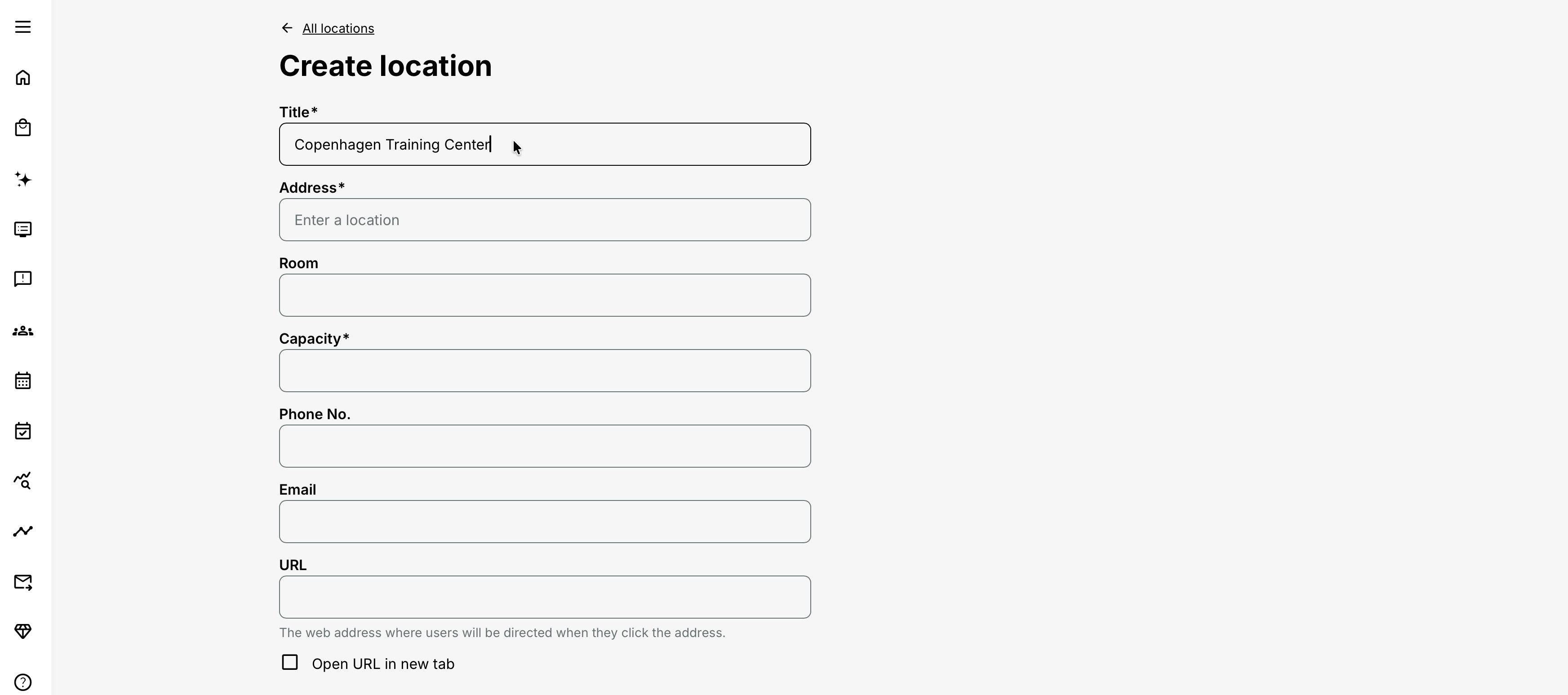
Complete every field marked as required in your platform. Before production use, connect the Location to a scheduled test module and validate its capacity, availability, participant display, and calendar output.
Understand every Location field
Title
The required recognizable name of the venue or site represented by this Location entry. Use the name participants and administrators will understand—not an unexplained facilities-system code. The title identifies the Location in administration and can appear in participant-facing training and Event information.
Good examples:
- Copenhagen Training Center
- North Campus
- Customer Experience Academy – London
- Hotel Aurora Conference Center
Avoid:
- LOC-0042 without a readable name
- “Main office” where several regions have a main office
- A room name without the venue name when participants would not know which site it belongs to
Include a city, campus, or other qualifier when duplicate site names could exist. When several Location entries share one venue, use the Title consistently and distinguish the entries through the Room field. If your administrative lists do not make otherwise identical titles easy to distinguish, adopt a tested naming convention while keeping the Room field accurate.
Address
The required physical address for this Location entry. Enter the address participants need for travel and arrival. Include enough detail to distinguish the correct building or entrance.
The address can appear in participant-facing Location information, Event and enrollment communication, and calendar content. When Google Maps is integrated, the address is also used to present the map.
Use a consistent address structure, for example: Street and building number Postal code and city State/region where needed Country
Because the field accepts an unspecified format, consistency is an administrative responsibility. An ambiguous or incomplete address can produce an incorrect map and an unusable calendar entry even though the Location saves successfully.
Put temporary arrival instructions—reception, parking, access codes, floor, accessibility route, security check-in, or what to bring—in the Event or Activity Description unless they are stable properties of the venue and fit your approved Location convention.
Room name
The optional name of the room or bookable space represented by this Location entry. Enter the room when participants and administrators must distinguish a particular space within the venue. If a venue has several bookable rooms, create a separate Location entry for each room.
The Room value travels with the complete Location entry when it is selected for a scheduled Course or Event module. The system can compare the entry's Capacity and show the entry's booked periods.
Examples:
- Auditorium
- Workshop Room A
- Lab 2.14
- Conference Hall – East Wing
Avoid generic names such as “Room 1” unless the venue itself uses them and participants can navigate successfully from that information.
Several rooms at the same venue
One Location entry contains only one Room field. It does not contain a collection of rooms. Create a separate Location entry for every room that needs its own Capacity or availability history, even when the rooms share the same title, address, phone number, email, or URL.
For example, create three records for:
- Copenhagen Training Center — Auditorium — Capacity 120
- Copenhagen Training Center — Workshop Room A — Capacity 24
- Copenhagen Training Center — Workshop Room B — Capacity 16
Repeat the common venue information in all three records. These entries remain independent: changing the address, phone number, email, or URL in one entry does not update the other entries automatically.
Do not create a new Location entry for every scheduled occurrence of the same physical room. Reuse the existing entry and let the module Schedule establish when it is booked. Duplicate entries representing the same physical room can prevent the Availability view from identifying a real conflict because the system sees them as different Location records.
Capacity
The required maximum number of people supported by the physical space represented by this Location entry. Set a realistic operating capacity for every Location entry, taking the intended room layout and safety rules into account.
When the Location entry is connected to a Training Activity module, the system compares its Capacity with the activity's seat restriction. An entry whose Capacity is lower than the configured Seats value cannot be connected.
Capacity should reflect the supported training setup, not only the fire-code maximum. A room may hold 50 people theatre-style but only 24 for a workshop requiring tables and Equipment. If one room is routinely used in materially different layouts, adopt a conservative capacity or create clearly named and governed Location variants only when administrators can prevent them from being booked as though they were different physical rooms.
Location capacity does not configure enrollment capacity
Set the Training Activity's Seats separately in Registration details. The Capacity on the selected Location entry provides a validation ceiling; Seats controls how many places the activity can occupy through registration and reservation.
Phone number
A telephone number participants can use to contact the Location. Include a stable reception, venue, or Event-support number when direct participant contact is appropriate.
The number is visible in enrollment confirmation information. It may therefore be distributed to every registered participant.
Do not use a private staff number unless the owner has approved that use and can support the expected volume. Include the country code for international audiences.
A participant-facing Location contact address. Use a monitored venue, reception, or Event-support mailbox when participants may need logistical help.
The email is visible in enrollment confirmation information.
The documented purpose of this field is contact information. Do not assume that entering it automatically sends a booking notice to the venue owner. If the venue must confirm every reservation, establish a separate operational process or administrator reminder.
URL
An optional web address opened when a user selects the Location address. Add a URL when the address should direct participants to an approved venue page, travel page, map, or other stable source of arrival information.
The user is directed to the configured web address when they select the address. Enable Open URL in new tab when the destination should open separately from Eurekos.
Use a complete and trusted URL. Test it from the participant experience and confirm that it does not require permissions the intended audience lacks. Do not use the URL as the only source for critical changes or temporary arrival instructions.
Google Maps integration
When Google Maps has been configured through the platform's integration options, a map can appear alongside the Location information, including in the enrollment-confirmation context.
The integration is platform-level; creating a Location does not enable Google Maps by itself.
For reliable results:
- Use a complete, internationally recognizable address.
- Include country and postal code.
- Avoid internal building nicknames without a street address.
- Confirm the marker points to the correct site, not merely the postal-code center.
- Put entrance-specific instructions in the Event or Activity Description.
- Retest after changing the address.
If the map is absent, first determine whether Google Maps is configured for the platform. If it is configured but points to the wrong place, correct the address rather than relying on participants to interpret an inaccurate map.
Connect a Location to a Course or Event module
Location is a module-level feature for supported Course and Event modules.
Event module
- Open Course Administration → Activities.
- Create or edit the Training Activity.
- Add or open the Event module.
- Confirm its Starts, Ends, and time zone.
- Open the module's Gear or Features menu.
- Enable Location.
- Select the pre-created Location entry representing the intended room or training space.
- Use See availability to review that entry for the selected period.
- Resolve any capacity or conflict message.
- Save the Event and Training Activity.
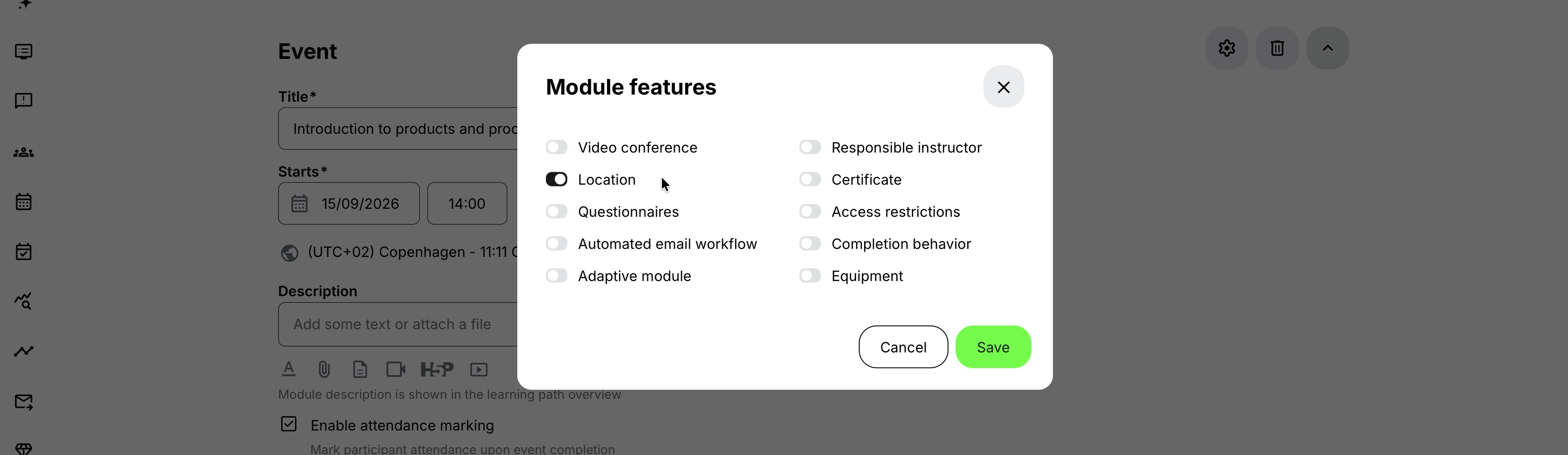
Event modules always have Starts and Ends, so the selected Location entry can be evaluated against a defined interval.
Scheduled Course module
A Course module can also use a Location when the Course is delivered in a scheduled, facilitated context.
- Open the Course module's Features.
- Enable and configure Schedule.
- Enable Location and select the Location entry representing the intended space.
- Review availability for the scheduled interval.
- Save the module and activity.
Do not assign a Location to an indefinitely self-paced online Course merely to display an office address. Use the Activity Description for general organizational information and reserve Location for real physical delivery.
Understand the activity-level Location summary
Physical Locations are selected on supported Course and Event modules. There is no separate physical Location setting for the complete Training Activity.
The System nevertheless creates an activity-level Location summary for participant-facing and communication contexts such as the Enroll widget and the Activity location email token. This summary is calculated from the distinct Location entries used by the activity’s modules.
Modules without a Location do not affect the calculation. This is important in blended learning paths that combine classroom meetings with virtual Events, Assignments, self-paced Courses, or other modules that do not require a physical venue.
| Locations configured on the modules | Modules in this path | Activity-level Location |
|---|---|---|
| Location A on every module | Each module shows Location A | Location A |
| Location A on one module; no Location on the remaining modules | The applicable module shows Location A | Location A |
| Location A on several modules; no Location on the remaining modules | Each applicable module shows Location A | Location A |
| Location A on one module and Location B on another; other modules have no Location | Each applicable module shows its own Location | Multi-site |
| Location A, Location B, and Location C on different modules | Each module shows its own Location | Multi-site |
The calculation uses distinct Location entries—not the first module, the first scheduled meeting, or the number of modules that have a Location.
For example:
- An in-person opening session at Location A followed by two virtual calls displays Location A.
- Two meetings at Location A separated by virtual or self-paced modules display Location A.
- An opening meeting at Location A and a closing meeting at Location B display Multi-site, regardless of the modules between them.
- Two different room-specific Location entries at the same training center also produce Multi-site. The label means that the activity uses more than one Location entry; it does not necessarily mean different cities or buildings.
Multi-site is a summary rather than a complete venue plan. Participants should use Modules in this path and the activity schedule to see the Location assigned to each session.
When one shared Location is displayed, its configured URL can provide directions or venue information. When Multi-site is displayed, the individual module Locations provide the relevant venue-specific links.
Use On-site location for customer delivery
The module features include an On-site location option to identify training carried out at a client's location.
Use it when:
- The customer provides the venue.
- The exact address is delivery-specific and is not managed as a reusable Location entry.
- Central room availability and capacity should not be treated as your organization's booking responsibility.
Use a reusable Location entry instead when the same client space is used repeatedly and administrators need governed address, room, Capacity, and availability data.
On-site is an identification choice, not a complete logistics plan. Provide the confirmed address, arrival contact, access procedure, Equipment responsibility, and participant instructions through the appropriate description and communication channels.
Align Location capacity with activity Seats
The Training Activity's enrollment capacity is configured through Registration details → Seats. The Capacity on the selected Location entry is checked against that value.
| Configuration | Result |
|---|---|
| Location Capacity 30; activity Seats 24 | Compatible |
| Location Capacity 24; activity Seats 24 | Compatible |
| Location Capacity 20; activity Seats 24 | The Location entry cannot be connected while the seat restriction remains higher |
| Location Capacity 20; no finite activity Seats | The Location does not automatically create a 20-seat enrollment limit; configure Seats deliberately |
Choose which value should change
Reduce Seats when the selected Location is fixed and participant capacity must respect it.
Choose a Location entry with a larger Capacity when the activity must retain its intended enrollment capacity.
Do not increase Capacity in the Location record merely to pass validation unless the physical space genuinely supports that number in the required layout.
Multiple modules with different capacities
If every participant attends every scheduled module, the smallest selected Location Capacity usually determines the practical maximum cohort size. Configure the activity Seats accordingly.
If participants split into groups or tracks, document exactly which participants attend which room and ensure the learning and enrollment design supports that separation. A general activity seat count does not by itself allocate people among rooms.
Location capacity and the waiting list
The waiting list responds to the activity's Seats and organization seat allocations, not directly to the Location's Capacity field.
To keep the process aligned:
- Select the appropriate Location entry.
- Set activity Seats no higher than the supported capacity.
- Enable the platform and activity waiting-list options when excess demand should be retained.
- Test registration, reservation, and promotion.
Changing the Location without reviewing Seats can leave enrollment behavior inconsistent with physical delivery.
For more detail, see Enroll and register participants, Waiting list.
Check availability
The Location, Equipment, and Responsible instructor features share a combined Availability view.
When both Starts and Ends are configured:
- The view opens to the week containing the Start date.
- The proposed interval is highlighted.
- Existing booked periods for the selected Location entry, Equipment, and responsible people can be reviewed together.
This provides one operational picture of whether the delivery can take place as planned.
Location conflicts
If the same Location entry is already booked during an overlapping period, Eurekos warns the administrator. The administrator can cancel or deliberately proceed and override the Location conflict.
Override is useful only when the overlap is intentional and physically possible—for example, an administrative placeholder, an agreed shared-space arrangement, or a record known to be obsolete.
Before overriding, verify:
- Both bookings use the same Location entry and refer to the same physical space.
- The dates, times, and time zones are correct.
- Neither booking is a recurring or linked delivery that was overlooked.
- The physical space is not genuinely divisible into separately bookable rooms that should have separate Location entries.
- Both delivery owners have agreed to the arrangement.
- Participants will receive unambiguous arrival information.
The warning is not an automatic resolution. Proceeding records the second booking; it does not merge the activities, divide the physical space, or notify the other Course Administrator.
Availability depends on record identity. If the same physical room has accidentally been created as two Location entries, the system can treat them as different resources and may not warn about the real overlap. Maintain one authoritative Location entry per physical room and reuse it.
Equipment conflicts are stricter
Equipment appears in the same Availability view, but its conflict behavior is not identical. When the same Equipment is already booked for the proposed period, Eurekos prevents the conflicting activity or module from being created.
Do not assume that the ability to override a Location warning also permits an Equipment conflict. Select different Equipment or change the Schedule.
Instructor availability
Responsible instructors also appear in the combined view. Existing activity bookings and instructor availability blocks can reveal a conflict. Review instructor guidance and availability separately because a room being free does not mean the instructor is available.
Availability depends on Schedule
A Location entry is available or unavailable only for a particular time interval. Configure Starts, Ends, and time zone before relying on the availability view.
The Location record does not hold its own time zone. The Course or Event module's Schedule supplies the booking context. A 09:00 booking in one time zone is not the same instant as 09:00 in another.
Coordinate Equipment with the Location
Equipment is managed as a separate reusable resource in Course Administration → Equipment. A record has a required title and description, with an optional image and owner email.
Equipment can be connected:
- To Course modules when Schedule is enabled
- To Event modules, which always have a schedule
- At activity level for learning paths with two or more modules when activity Schedule is enabled
Use Location for where training happens and Equipment for what must be available there.
Example:
Location: Copenhagen Training Center Room: Workshop Room A Equipment: Simulation unit 4, projector kit, safety set Instructor: Alex Morgan Schedule: 14 October, 09:00–16:00 Europe/Copenhagen
Review all resources in the combined Availability view. A valid Location Capacity does not prove that the required Equipment is available, and an available Equipment item does not prove that it is stored at or can be transported to the selected venue.
For more detail, see Calendar Events and Video Conferencing, Equipment.
Understand participant-facing Location information
Location data is operationally important because it appears in several participant contexts.
| Context | How Location information is used | Administrator guidance |
|---|---|---|
| Before enrollment | Location information can appear on the participant-facing Activity Description when the Training Activity is available through the Storefront. This helps prospective participants evaluate travel and whether the delivery is suitable. | Do not publish private residences, restricted facilities, unmonitored phone numbers, or sensitive site information. Provide security-sensitive instructions through an authenticated or post-enrollment channel. |
| Enrollment confirmation | The confirmation can include Location details, including the participant-facing phone number and email. A map can accompany the information when Google Maps is configured. | Review the standard enrollment System Email and a real delivered message. The Location supplies the data, while Email Sending controls the system template and delivery settings. |
| Event details and Learn mode | A scheduled Event can display its Location. In a multi-location learning path, participants can use this information to identify the venue for each Event. | Add session-specific instructions to the relevant module description—for example, “Use the east entrance for the evening workshop.” |
| Downloadable calendar information | Registered participants can download scheduled information to their calendars. The Location accompanies the Event details when configured. | Test the entry in the calendar applications used by your audience. Confirm that the Location Title, Room, Address, date, time, and time zone make sense without referring to the administrator view. |
| Activity list | Administrators can see Location information in the expanded Activity list. This provides a quick overview when several deliveries operate across different regions or offices. | Use clear, consistent Location Titles and Room names so administrators can distinguish simultaneous deliveries. |
| Automated Email Workflows | Workflow tokens include Activity locationand Module location. Module locationreturns the Location configured on the relevant Course or Event module. Activity location uses the Location summary calculated across the Training Activity: if every module that has a Location uses the same Location entry, the token returns that Location; modules without a Location are ignored. If two or more different Location entries are used, the token returns Multi-site. | Use Module location when participants need the address, room, link, or joining instructions for a particular session. Use Activity location only for communication about the complete activity. Remember that separate rooms are separate Location entries, so using two rooms at the same venue produces Multi-site. |
Change a Location after participants enroll
Changing a venue or room is operationally significant. It can affect participant travel, Location Capacity, instructor and Equipment logistics, maps, calendars, and automated messages.
When a scheduled activity or Course/Event module has Location information and registered active participants, editing the date and/or Location can open a notification prompt. The administrator can choose to email participants about the latest changes.
The prompt appears when:
- At least one active participant signup is Registered.
- The Training Activity is Open, Closed, or In progress.
- The applicable Schedule or Location has been changed.
Safe change process
- Select the replacement Location entry.
- Confirm its Capacity supports the activity Seats.
- Review Location, Equipment, and instructor availability.
- Confirm Schedule and time zone.
- Save the activity and choose the participant-notification option.
- Review the message for the latest date and Location changes.
- Check Event calendar or conferencing synchronization where applicable.
- Review Automated Email Workflow messages that contain fixed venue text.
- Test the Activity Description and participant Event view.
- Contact high-risk participants directly when travel has already begun or accessibility arrangements are affected.
Do not assume that changing the Location record automatically explains the change to every participant. The update prompt, System Emails, calendar lifecycle, and automated workflows are separate communication mechanisms.
Editing the master Location record
A correction to a Location entry's address, contact details, Room, Capacity, or URL can affect every future use and any participant view that reads the current record.
Before making a material master-data change:
- Determine which upcoming activities use the Location.
- Decide whether the site is being corrected, renamed, or replaced.
- Create a separate Location when the new venue is operationally distinct.
- If several Location entries represent rooms at the same venue, update every affected entry; shared information is not inherited.
- Revalidate Capacity and availability.
- Notify participants through the affected Training Activities where required.
Do not rename “Old Campus” to “New Campus” if they are different physical places; doing so can make historical and current activity records misleading.
Clone, repeat, and link activities with Locations
| Action | What happens to Location configuration | What to review |
|---|---|---|
| Clone | Cloning copies the Training Activity’s enabled features and configured values, including module-level Location assignments. The cloned activity is independent of the source. | Review every Course and Event Schedule, confirm that each copied Location entry is appropriate for the new delivery, compare Location Capacity with the clone’s Seats, check availability, and replace customer-specific on-site information. Treat the copied Location as a new booking rather than proof that the space is suitable or available. |
| Repeat | Repeat creates a new scheduled activity linked to the source. Copied features can retain the same Location entry while the delivery dates move. | Review the new Schedule and check availability for every occurrence. A space that normally accommodates a weekly series may be unavailable on one date because of another Event, maintenance, or a closure. |
| Linked activities | Linked activities remain independent delivery records. Each activity can have different Locations, instructors, prices, capacities, and other operational settings. | Maintain module-level Location assignments separately for each delivery. Do not assume the linked group’s Apply to all behavior synchronizes module structure or Location features. |
For more detail, see Recurring events and activities.
Common use cases
| Use case | Recommended configuration | Important considerations |
|---|---|---|
| One classroom workshop | Create one Location entry for the training center and workshop room. Set a realistic Capacity, add an Event module, configure its Schedule and time zone, and connect the Location entry. | Set activity Seats no higher than Location Capacity. Verify the Location details in the participant’s enrollment confirmation and calendar entry. |
| Multi-day academy at one site | Create a separate Location entry for each bookable room, repeating the shared venue information. Add one Event module per session and assign the appropriate entry to each. | Use the combined Availability view to prevent accidental overlaps. Put session-specific arrival instructions in the relevant module description. |
| Conference using several venues | Create a separate Location entry for every bookable space at every site. Entries for rooms at the same venue can repeat the venue Title, Address, and contact information. Assign the correct entry to every scheduled Event. | Present the complete venue plan in the Activity Description. Use module-level emails when participants need different joining instructions for individual sessions. |
| Customer on-site delivery | Use On-site location when the customer owns the venue and it is not managed as a reusable Location entry. | Record confirmed logistics in the Event description. Create an administrative task to verify the address, access arrangements, Equipment, and local contact. |
| Repeated regional classroom training | Use Repeat to create the scheduled deliveries, then select the appropriate regional Location entry on each repeated activity. | Linked activities can present alternative dates while retaining separate Locations, Seats, participants, and travel details. Verify every repeated delivery independently. |
| Hybrid session | Configure both the physical Location and the supported Video conference. | Explain whether participants choose their attendance mode or whether the online connection is only a contingency. Test that in-person and remote participants receive the correct instructions and calls to action. |
| Technical workshop requiring scarce Equipment | Select the Location entry, Equipment, and Responsible instructor, then review them together in Availability. | A Location conflict may be deliberately overridden after review. An Equipment conflict must be resolved by choosing another resource or changing the Schedule. |
Location governance and design practices
Use one authoritative entry per bookable space
Maintain the Address, Room, Capacity, phone, email, and URL in the Location entry for that physical space. Reuse the same entry whenever the room is scheduled. Avoid creating duplicates or copying stable values into many workflow templates or descriptions.
When several rooms share one venue, some venue information must be repeated across their separate Location entries. Maintain a process for updating all related entries when the shared address or contact information changes.
Adopt a naming convention
Recommended Title and Room combinations include:
| Title | Room |
|---|---|
| Copenhagen Training Center | Auditorium |
| Customer Experience Academy – London | Workshop Room A |
| North Campus – Building 4 | Lab 2.14 |
Use the Title consistently to identify the venue and the Room field to identify the individual space. Test how both values appear in the Location list and module selector so administrators can distinguish entries reliably.
Review participant exposure
Assume the Location Title, Address, Room, phone number, email, and URL can become participant-facing. Use organizational contacts and approved web pages, not personal details, where possible.
Separate stable and delivery-specific information
Keep stable data in the Location:
- Site name
- Postal address
- Room name and Capacity for that entry
- Main venue contact
Keep delivery-specific data in the Event or Activity Description:
- Instructor-specific arrival instructions
- Temporary access code
- Catering plan
- Parking arrangement for one date
- Equipment participants must bring
- Session-specific contact person
Audit regularly
At an appropriate interval, verify:
- Address and map
- Room names across the separate entries for each venue
- Safe operating capacities
- Contact phone and mailbox
- Accessibility details in participant guidance
- Upcoming bookings
- Duplicate entries representing the same physical room and obsolete records
Do not silently repurpose an old Location entry for a different physical venue or room.
Verify the configuration
Use representative accounts and the routes enabled for your delivery. Check the relevant outcomes before launch and after a material change; an administrator preview alone does not verify the participant experience.
| Scenario or check | Expected result or evidence |
|---|---|
| Bookable venue identity | The selected record represents the actual room or space, with no duplicate hiding a conflict. The title, address, room, map, and trusted contact links identify the correct venue. |
| Capacity and booking | The actual training layout supports the activity Seats and organization allocation. The correct Course or Event has valid dates and time zone; instructor, Location, and Equipment availability has been reviewed. |
| Exceptions and logistics | Location conflict overrides are approved; Equipment conflicts are resolved rather than treated as overridable. Arrival, accessibility, parking, and temporary instructions are provided without exposing security-sensitive information. |
| Participant information | Activity Description, confirmations, Event details, calendar output, and reminders show consistent venue information. Use Module location for multi-venue paths and explain both attendance options for hybrid delivery. |
| New dates or venue changes | Recheck cloned, repeated, and linked deliveries individually. A named owner maintains venue data and coordinates notifications when the location changes. |
Troubleshooting
| Problem | Likely explanation | What to check or do |
|---|---|---|
| Locations is missing from Course Administration | The user lacks the required role, permission, or organization scope. | Confirm the user's access. Standard Course Administrator, Support, Platform Administrator, and Global Administrator roles can administer Locations; platform configuration can further restrict visibility. |
| A Location entry is missing from the module selector | The entry was not saved, the wrong module feature is open, or the administrator cannot access the record. | Confirm the entry exists, open the Location feature on the correct Course or Event module, verify permissions, and refresh the activity edit page. |
| The Location feature is missing from a Course module | The Course has no usable scheduled interval. | Configure Schedule for the Course module before relying on Location and resource availability. |
| The selected Location cannot be connected | Its Capacity is lower than Registration details → Seats. | Reduce Seats to a supported value or select a Location entry with sufficient Capacity. Do not change Capacity merely to bypass validation. |
| The activity accepts more participants than the space can hold | Location Capacity does not automatically configure the activity's Seats. | Correct Seats, review Registered, Reserved, and other seat-occupying signups, and move or communicate with participants according to the approved operational plan. |
| The waiting list did not start when Location Capacity was reached | Waiting-list behavior follows activity Seats and organization limits, not Location Capacity directly. | Enable and configure the waiting list, then align Seats with the selected Location Capacity. |
| See availability opens on the wrong week | The Start date or time-zone context is incorrect. | Confirm both Starts and Ends and verify the selected time zone. Availability opens from the configured Start date. |
| The proposed period is not highlighted | Start or End is missing or configured at a different level from the resources being reviewed. | Confirm valid Start and End values at the applicable module or activity level. |
| The Location appears double-booked | Two activities use the same Location entry during overlapping intervals. | Compare exact dates, times, time zones, module levels, and Location selections. Include repeated and cloned deliveries in the review. |
| No warning appeared for an apparently overlapping room booking | The bookings may use different Location records, even if both records describe the same physical room, or the intervals may not overlap exactly. | Confirm both modules use the same authoritative Location entry. Remove duplicate entries for the same room after reviewing their current uses, and compare exact time boundaries and time zones. |
| Several rooms at one venue appear to conflict with one another | The same Location entry may have been selected for different physical rooms. | Create one Location entry for each separately bookable room and select the correct entry on every module. Do not use one general venue record for independent rooms that require separate availability. |
| An administrator overrode a real Location conflict | A second booking was saved after Proceed was selected. | Decide which delivery should move, update its Location or Schedule, notify participants, review calendars and workflows, and document the correction with both delivery owners. |
| The Location conflict can be overridden but the Equipment conflict cannot | Location and Equipment use different conflict rules. | This is expected. Select different Equipment or reschedule; an Equipment conflict cannot be resolved through the Location override. |
| The Google map is missing | Google Maps is not configured or the Address is incomplete. | Confirm the platform integration, complete the Address, save the Location, and test again. |
| The Google map points to the wrong place | The free-format Address is ambiguous. | Include street number, postal code, city, relevant region, and country. Keep entrance instructions in the Event or Activity Description. |
| The configured URL does not open the expected page | The URL is incomplete, inaccessible, or outdated. | Enter a complete approved web address, test it as a participant, and confirm whether Open URL in new tabis appropriate. |
| The participant sees the venue but not the room | The selected Location entry has no Room value, or the wrong entry is connected. | Open the selected Location record, confirm its Room field, and inspect the participant-facing Event details and enrollment communication. |
| The participant sees the wrong Location in an email | The message may use an activity-level token or fixed venue text instead of the relevant module Location. | Identify whether it is a System Email or Automated Email Workflow. Prefer Module location for a specific Course or Event and remove outdated fixed text. |
| The enrollment email contains an outdated phone number or Address | The selected Location entry contains old information, or a previously delivered email reflects the earlier data. | Correct the Location entry, identify upcoming activities that use it, and communicate the correction. If several room entries share the venue, update all affected entries. |
| Participants were not prompted about a Location change | The required status or signup conditions were not present, or the prompt was declined. | Confirm the scheduled activity or module has an active Registered signup and the activity is Open, Closed, or In progress. Communicate manually when the prompt is unavailable. |
| The Activity Description still contains the old venue | The venue was entered manually rather than supplied dynamically by the Location. | Update the Activity Description revision and review connected automated messages. |
| A downloaded calendar still shows the old Location | A previously imported file may not behave like a synchronized calendar invitation. | Verify the Event's calendar integration and update behavior, communicate explicitly, and provide an updated calendar action where appropriate. |
| A cloned activity unexpectedly uses the source Location | Clone copies the Location feature and selected value. | Review every scheduled Course or Event module in the clone, select the intended Location entry, and check availability before enrollment. |
| A repeated occurrence has the wrong venue | Repeat copied the source Location assignment. | Edit the new linked delivery's module-level Location. Avoid a broad linked-group update for delivery-specific venue changes. |
| Changing one linked activity did not update the others | Linked activities remain independent and Location is a delivery-specific module feature. | Update the relevant module in every delivery that should change. |
| The recorded Capacity is higher than the usable training layout | The value may reflect the legal maximum rather than the intended room setup. | Correct Capacity or reduce activity Seats. Account for tables, accessibility, safety zones, and Equipment. |
| Participants cannot find the correct entrance | The postal Address is insufficient for the actual arrival process. | Keep the Address accurate and add entrance, floor, reception, parking, and accessibility guidance to the relevant Event or Activity Description. Test the map, URL, and calendar entry. |
| The Location contact receives participant messages unexpectedly | Phone and email are participant-facing contact information. | Replace them with an approved shared support contact or remove optional details when direct venue contact is not intended. |
| A hybrid Event gives unclear joining instructions | Physical and online information is inconsistent across features and messages. | Review Location, Video conference, module description, reminders, System Emails, and workflows together. State clearly who attends physically, who joins online, and which action applies to each audience. |
| The Enroll widget shows Multi-site instead of an address | Two or more Course or Event modules use different Location entries. | Review the Location on every applicable module. If the different entries are intentional, Multi-site is correct. Make the individual venues clear in Modules in this path and the schedule. |
| The Enroll widget shows one Location even though some modules have no Location | Modules without a Location are ignored when the activity-level summary is calculated. | Confirm that every module requiring a physical venue has been configured. If all configured module Locations use the same entry, showing that Location is expected. |
| An activity-level email token displays Multi-site | The activity uses two or more distinct Location entries. | Use a module-level workflow and Module location when the recipient needs the address or room for a particular session. |
FAQ
-
What is the difference between a Location and a room
A Location is the complete reusable record selected for a scheduled module. Room is one field within that record. It names the physical room represented by the entry; it does not create a nested room resource.
-
Can one Location contain several rooms?
No. Each Location entry contains one optional Room field and one required Capacity. Create a separate Location entry for each room that needs to be booked or capacity-checked independently, even when the rooms share the same venue and address.
-
How do I configure several rooms at the same venue?
Create one Location entry for each room. Repeat the shared Title, Address, phone number, email, and URL as appropriate, then enter the individual Room and Capacity. Remember that later changes to shared information must be applied to every affected entry.
-
Should different buildings use separate Location entries?
Yes. Every independently selected training space is a separate Location entry. Use a complete and accurate Address for each building and a Room value where a particular space within that building must be identified.
-
Can the same room be reused for many activities?
Yes. Reuse the same Location entry every time that physical room is scheduled. Each module Schedule defines when it is booked, and Availability can reveal overlapping uses. Do not create another entry for the same room for each delivery.
-
Where is Location configured on a Training Activity?
Open the Gear or Features menu for the supported Course or Event module and enable Location. Select the pre-created Location entry representing the intended space.
-
Can a Course module have a Location?
Yes, when the Course is delivered as a scheduled in-person module. Configure its Schedule before relying on availability and participant date/location communication.
-
Can an Event module have a Location?
Yes. Event modules have required Starts and Ends, making them the standard place to connect a Location entry for instructor-led delivery.
-
Can a learning path use multiple locations?
Yes. Assign the relevant Location entry to each Course or Event module. This supports multi-day, multi-room, multi-site, and conference programs.
-
Can I set one Location for the complete learning path?
No. Physical Locations are assigned to the Course and Event modules that use them.
If all modules requiring a physical Location use the same Location entry, the Enroll widget and other activity-level contexts display that shared Location. Modules without a Location do not prevent the shared Location from being shown.
If two or more distinct Location entries are used, the activity-level summary displays Multi-site. Participants can find the individual venue for each session under Modules in this path.
-
What is On-site location?
It identifies delivery at a client's or customer's site. Use a reusable Location entry instead when the space should be centrally maintained with its Address, Room, Capacity, and availability.
-
Can I configure both a Location and a video conference?
Use both for a genuine hybrid Event. Explain the attendance model clearly and test both the physical and online participant experience.
-
Does Location Capacity limit enrollment automatically?
No. Configure the activity's enrollment limit in Registration details → Seats. The Capacity on the selected Location entry is used to validate that the physical space can support that configured limit.
-
What happens if Location Capacity is lower than the activity's Seats value?
Eurekos prevents the Location entry from being connected. Reduce Seats to a valid operational capacity or choose an entry representing a larger space.
-
Does increasing Location Capacity increase activity Seats?
No. These values are maintained separately. Update Seats only when the intended enrollment capacity should change.
-
Does Location Capacity control the waiting list?
Indirectly only through good configuration. The waiting list is governed by activity Seats and organization allocations. Align Seats with the selected Location Capacity before opening enrollment.
-
What does See availability show?
It opens a combined calendar view for the selected Location, Equipment, and responsible instructor. With Starts and Ends configured, it opens to the relevant week and highlights the proposed interval.
-
Can I override a Location conflict?
Yes. An overlap involving the same Location entry produces a warning that an authorized administrator can deliberately override. Confirm the physical and operational situation before proceeding.
-
Why might duplicate Location entries hide a conflict?
Availability compares selected records. If two entries represent the same physical room, the system can treat them as different resources and may not warn when their schedules overlap. Maintain one authoritative entry per physical space and reuse it.
-
Can I override an Equipment conflict in the same way?
No. Equipment conflict handling is stricter and prevents the conflicting activity or module from being created. Choose another resource or time.
-
Does the Location have its own time zone?
The scheduled Course or Event supplies the time-zone context. Confirm the module time zone corresponds to the venue's local time.
-
Where can participants see the Location?
Depending on the training and platform configuration, Location information can appear on the Activity Description before enrollment, in enrollment confirmation, in Event information, and in downloadable calendar entries.
-
What does the URL field do?
It defines the web address opened when a user selects the Location address. Enable Open URL in new tab when the destination should open separately from Eurekos. Test the URL from the participant experience.
-
When does Google Maps appear?
The map appears when the platform's Google Maps integration is configured and the Location has usable address information.
-
What happens when I change the Location after enrollment?
For a scheduled activity in Open, Closed, or In progress status with active registered participants, saving a date or Location change can prompt you to email those participants about the latest updates.
-
Does changing a Location update participants' personal calendars?
Calendar behavior depends on how the Event and calendar integration are configured. Use the participant-notification prompt and verify the relevant calendar lifecycle; do not assume every previously downloaded calendar file updates itself.
-
Does Clone copy Location assignments?
Yes. Cloning copies configured activity/module features and values. Review the copied Location entry against the clone's Schedule, Seats, and availability.
-
Does Repeat copy the Location?
Yes. Repeat copies the activity features into the new linked delivery. Review the new dates and confirm the same Location entry is intended and available.
-
Can linked activities use different Locations?
Yes. Each linked activity remains an independent delivery and can use its own Location entry. Module-level Location features remain delivery-specific.