Schedules for Training Activities and Modules - Article
Summary
Schedules provide the time framework for training delivery. They show when the overall program and its individual learning components take place, helping participants plan their attendance and administrators coordinate registration, communication, instructors, locations, and equipment. Depending on the learning design, timing may be defined for the complete activity, for individual modules, or for both—including journeys that combine self-paced learning with scheduled sessions.
In this article you will learn:
- How activity-level and module-level schedules differ
- Why the activity-level Schedule determines scheduled versus self-paced classification
- How single-module and multi-module activity schedules are calculated
- Which date fields are optional and which are required
- How module dates are validated against the learning-path period
- How Eurekos handles time zones and edited dates
- How schedules affect status, Storefront presentation, registration, deadlines, automation, availability, rooms, equipment, and recurring delivery
- How to design, test, and troubleshoot a coherent schedule
What a Schedule helps you control
A Schedule gives the learning journey a time context.
Use it when administrators or participants need to know:
- When the complete activity starts or ends
- When a Course module becomes relevant
- When an Event is delivered
- Which activities are upcoming, in progress, or completed
- When registration should close
- When a minimum-seat decision must be made
- When reminders or follow-up communication should run
- Whether an instructor, room, or equipment item is available
- Which dates belong to a recurring or linked delivery
A Schedule does not by itself enroll participants, lock content, create a mandatory deadline, expire access, mark attendance, or send every required message. It supplies dates that those processes can use.
Understand the schedule layers
| Level | What it describes | Where it is configured |
|---|---|---|
| Training Activity Schedule | The overall delivery or learning-path period and whether the activity is treated as scheduled | Activity-level Features |
| Course-module Schedule | The period associated with one Course occurrence in this activity | Course module Features |
| Event schedule | The required start and end of the live or in-person session | Event module or Calendar Event |
| Assignment due date | When work is due | Assignment module; not the same as the shared Schedule feature |
| Existing Training schedule | Dates belonging to the independent nested activity | The selected child Training Activity |
The same Course can be reused in several Training Activities with different module schedules. Changing the Course occurrence does not change every other use of the Course.
The activity-level feature controls classification
The presence of the activity-level Schedule feature determines whether the Training Activity is classified as scheduled.
This applies to both single-module and multi-module activities:
- Activity-level Schedule disabled → activity is shown as Self-paced.
- Activity-level Schedule enabled → activity can use its own or its modules' dates as the effective schedule.
Module dates alone do not make the activity scheduled
If a Course or Event module has dates but the activity-level Schedule feature is disabled, the overall Training Activity is still classified as Self-paced. The module dates continue to govern their own component, but the activity-level list and filtering behavior follows the activity classification.
Enable the activity-level Schedule deliberately whenever the complete offer should be treated as a scheduled delivery.
Configure an activity-level Schedule
- Open Course Administration → Activities.
- Open the intended Training Activity and edit it.
- Add or enable Schedule under activity-level Features.
- Enter Starts and Ends where the overall period should be explicitly bounded.
- Select the correct time zone.
- Review every module date.
- Save and resolve any validation message.
- Verify the effective schedule on the Activity page, Activity Description, and Activity list.
The activity-level Starts and Ends fields are optional. This allows the feature to be enabled while the effective period is derived from the module schedule.
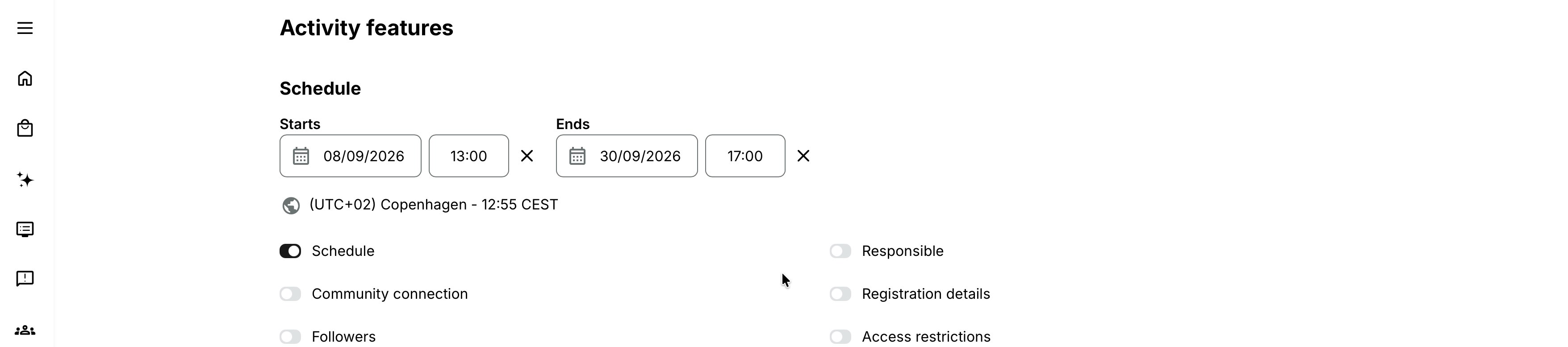
An activity can also have an activity-level Schedule before it contains modules. Add the learning structure before publication and verify the final derived dates afterward.
Configure a Course-module Schedule
Course modules can use the Schedule feature to associate a date period with that particular Course occurrence.
Use it when:
- A self-paced Course should open within one phase of a scheduled program.
- Preparation must take place before an Event.
- A follow-up Course belongs after the live delivery.
- Automation needs Course-level dates.
- Administrators need to see when that module belongs within the wider path.
- Edit the Training Activity.
- Open the Course module's settings.
- Add or enable Schedule.
- Enter Starts, Ends, and time zone.
- Confirm the dates fit within any explicit activity period.
- Save and test participant access and communication separately.
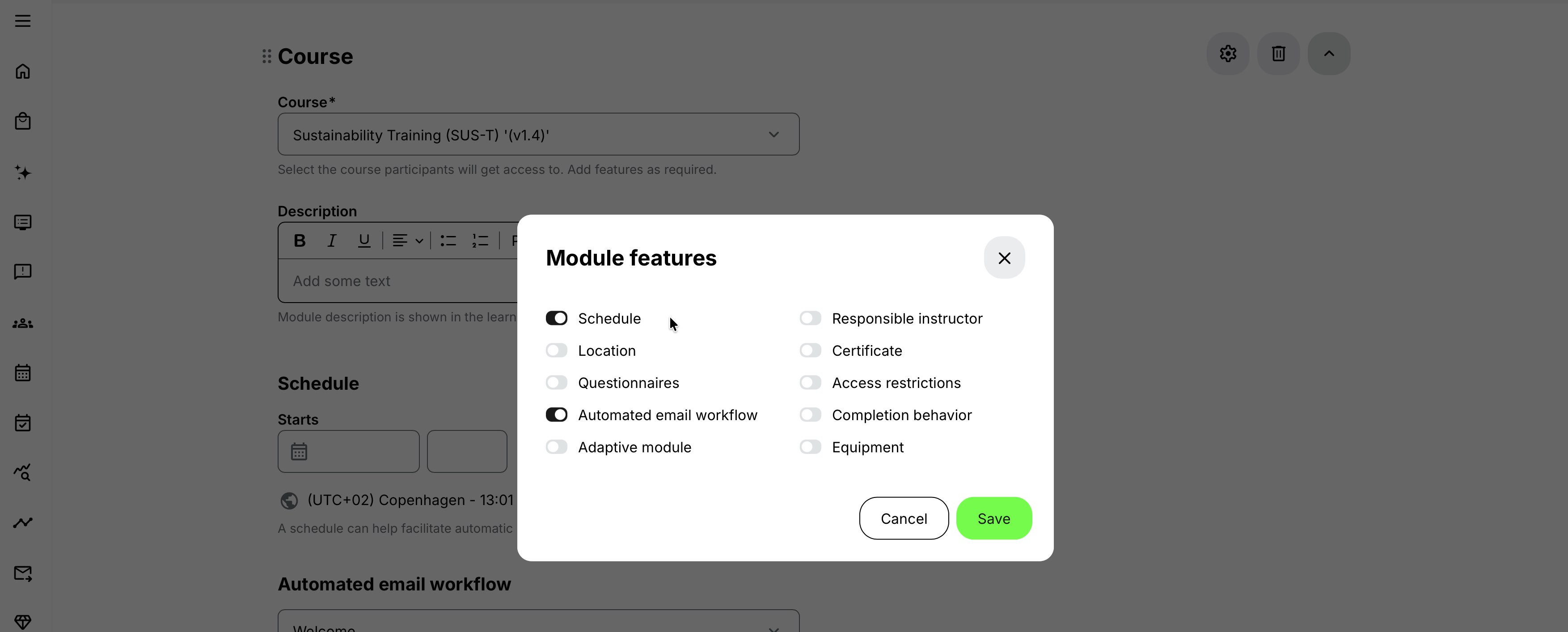
A module Schedule is not automatically an Access Restriction. If participants must be prevented from opening the Course before a prerequisite or date, configure the appropriate Availability or Access Restriction behavior as well.
Configure an Event schedule
Event modules always require Starts and Ends. The Event cannot represent a scheduled session without them.
When a new Event is created, Eurekos preselects dates using the platform's date/time settings. The documented default uses a start approximately one time-picker step—commonly 30 minutes—after the current time and an end one default duration later. Platform configuration can change the time-picker step and the default difference between new Event start and end.
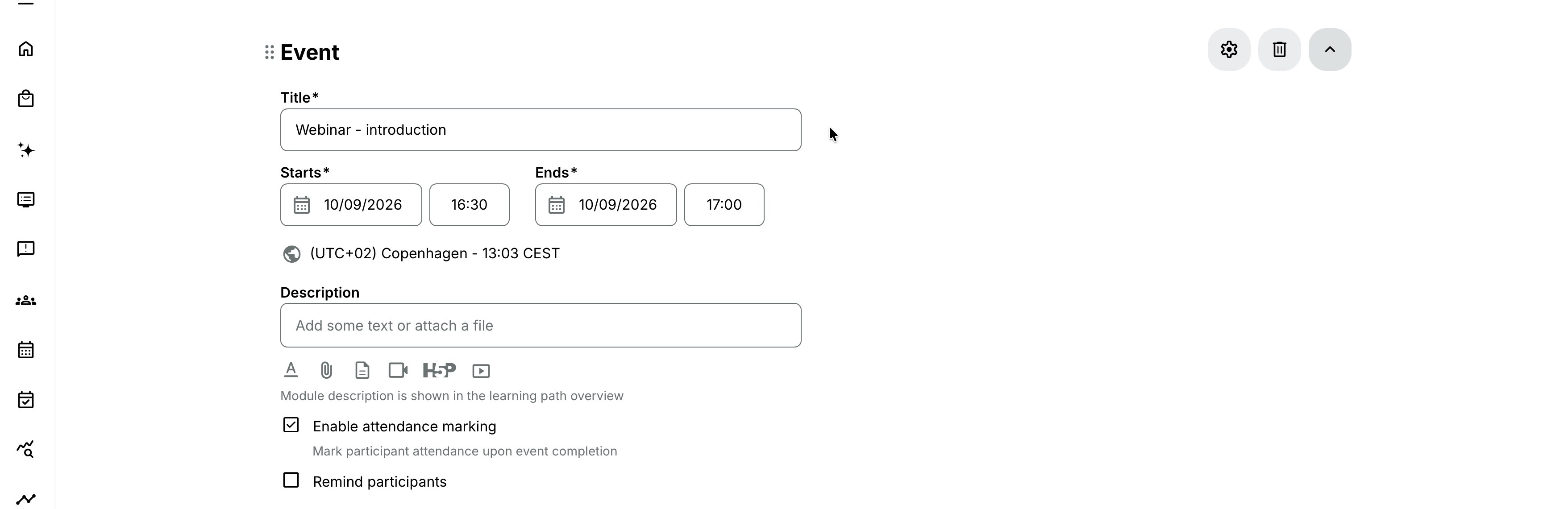
Always replace defaults with the actual delivery time. Also review:
- Time zone
- Location or on-site designation
- Video-conference configuration
- Instructor or Responsible user
- Availability conflicts
- Equipment
- Reminder
- Attendance and recording behavior
For more detail, see Calendar Events and Video Conferencing.
Understand a single-module activity
When the activity-level Schedule feature is enabled for a single-module activity, the effective schedule can be based on that one module.
This means you can:
- Enable the activity-level Schedule.
- Leave its Starts and Ends empty.
- Configure the Course-module schedule or use the Event's required dates.
- Let the activity presentation use that module period.
This is useful when the one module already contains the definitive delivery dates and duplicating them at activity level would add maintenance.
If explicit activity dates are entered, treat them as the overall boundary and ensure the module remains inside them.
Understand a multi-module activity
When the activity-level Schedule feature is enabled, a multi-module activity presents a period based on its scheduled modules:
- Activity Starts is taken from the earliest module date.
- Activity Ends is taken from the latest module date.
Example:
| Module | Starts | Ends |
|---|---|---|
| Preparation Course | 1 September | 8 September |
| Live Event | 10 September, 09:00 | 10 September, 16:00 |
| Follow-up Course | 11 September | 20 September |
The effective learning-path period is 1–20 September.
Explicit activity Starts and Ends can define the permitted outer boundary. Do not add an arbitrary activity range that conflicts with the actual module journey.
Follow schedule validation
Where an activity-level period is explicitly configured, Eurekos validates the relationship between the activity and its modules:
- Every scheduled module must start at or after the activity Start.
- Every scheduled module must end at or before the activity End.
- A module End cannot be later than the activity End.
If a module falls outside the learning-path range, change either the activity boundary or the module schedule according to the real business design.
Do not widen the activity automatically without reviewing:
- Participant communication
- Latest registration and cancellation
- Minimum-seat notification
- Mandatory deadlines
- Access Expiration
- Email workflows
- Instructor, room, and equipment availability
- Linked or recurring dates
Understand Starts and Ends editing behavior
When you change a date, Eurekos keeps the existing End time where possible.
If the new Start moves beyond the current End, the End must be recalculated so the period remains valid. The same principle applies to activity Schedules, Course-module Schedules, Event modules, and Events created through Calendar.
After changing a Start date, never verify only the date. Check both the resulting End date and End time.
Configure time zones deliberately
The default time zone comes from the platform's Regional settings and can be changed.
Time zones are displayed separately for the Training Activity and each scheduled module. They do not need to be identical, although using different zones should reflect a deliberate delivery model.
Use different zones only when there is a clear reason, such as:
- A global learning path administered in one reference zone with regional live sessions
- A participant-facing Event fixed to the venue's local time
- A cross-region virtual cohort with an agreed delivery zone
Review:
- How the administrator enters the date
- How the participant sees it
- Calendar invitation conversion
- Automated email tokens
- Daylight-saving transitions
- Reporting and export timestamps
Do not type a time-zone abbreviation into the title or description as the only control. Configure the actual time zone and use prose only to make the participant experience clearer.
Coordinate Schedule with activity status
For a scheduled activity, the current time and activity period contribute to status:
- Future activity → normally Open, subject to registration configuration
- Registration closed before Start → can show Closed
- Between Start and End → In progress
- After End → Completed at activity level
- Cancel action used → Cancelled
Activity-level Completed does not prove that every participant completed the learning. Participant signup, progress, attendance, assessment, and certificate states remain separate.
For a Self-paced activity without an activity-level Schedule, status can instead reflect its undated structure and applicable module completion state.
For more detail, see Activity list.
Coordinate Schedule with the Storefront
Schedule information can appear on the Activity Description and Storefront offer. It helps participants compare dates and select among linked deliveries.
The participant-facing result can also depend on:
- Activity status
- Available from
- Latest registration
- Seats and waiting list
- Organization and Storefront audience
- Self-enrollment requirements
- Linked activity options
A date on the page does not guarantee that enrollment is still possible.
If the activity is classified as Self-paced because the activity-level Schedule feature is disabled, it can appear as Self-paced even though an Event module has its own date. Enable and test the overall Schedule when that presentation would mislead participants.
Coordinate Schedule with registration
Registration Details can depend on the activity Start:
- Latest registration – Days before start
- Minimum seats notification
Both require a usable activity-level Start context. Module-only dates should not be assumed to satisfy these activity-level calculations.
When the Start changes:
- Recalculate the intended registration deadline.
- Review whether registration should reopen or close.
- Check pending requests, invitations, and waiting-list entries.
- Review the minimum-seat decision date.
- Update participant communication.
Coordinate Schedule with Mandatory deadlines
Mandatory can calculate a completion deadline as a number of days after the activity starts.
If the activity has no usable Start date, that deadline cannot be calculated as intended. If the Start moves, review affected signup deadlines and automated reminders.
Do not confuse:
- Activity End—the end of the scheduled delivery period
- Mandatory Deadline—when an individual should complete
- Latest registration—when new enrollment closes
- Access Expiration—when access actually ends
These can be different dates by design.
Coordinate Schedule with Access Expiration
Access Expiration can be calculated from activity Start or activity End. It can also be based on enrollment, completion, or a fixed date.
Changing the Schedule can therefore change the basis for future expiration calculations and can affect completion status. Existing signup behavior depends on when the expiration rule was applied; review both old and new participants.
An activity reaching End does not itself mean participants lose access. Configure Access Expiration only when access should end.
Coordinate Schedule with Automated Email Workflows
Automated Email Workflows can use Start or End as timing references.
Examples:
- Preparation instructions seven days before Start
- Joining information one day before an Event
- Feedback request after End
- Course Administrator reminder before the program begins
If the required Schedule is missing, a schedule-based notification can be skipped. Attach the workflow at the same level as the date it should use:
- Activity-level workflow for overall activity Start or End
- Course-module workflow for Course-module Schedule
- Event-module workflow for the Event's date and participant state
After changing dates, inspect the Notification timeline. Do not assume previously scheduled messages move or cancel exactly as intended without verification.
Coordinate Schedule with instructors, locations, and equipment
Scheduled Course and Event modules can create commitments for:
- Responsible instructors
- Course Administrators
- Locations and rooms
- Equipment
Use Availability and resource checks before saving. A date can be valid within the learning path while still conflicting with another activity.
Time zones must be included in conflict review. Two records that display different local times can overlap in absolute time.
Schedule enough preparation and reset time around physical resources. Eurekos evaluates the configured period, not informal setup instructions written in a description.
Coordinate Schedule with recurring and linked activities
Repeat creates a new linked delivery from a scheduled source. The administrator selects a new Start and can preserve the original duration.
Even when duration is preserved, review:
- Every Course and Event date
- Assignment due dates
- Registration and cancellation deadlines
- Mandatory deadlines and Access Expiration
- Automated Email Workflows
- Locations, equipment, and instructors
- Time-zone and daylight-saving changes
Linked activities do not share one Schedule. Each delivery remains an independent Training Activity with its own dates and status.
Filter scheduled and self-paced activities
The Activity list provides Schedule and date controls.
| Schedule filter | Result |
|---|---|
| Scheduled | Activities with an activity Schedule that intersect the selected date range |
| Without schedule | Self-paced activities; selected dates are ignored |
| All | Self-paced activities plus scheduled activities matching the selected date range |
The date range applies only to scheduled activities. An activity is excluded when it starts after the selected End or ended before the selected Start.
Remember that module dates do not change the activity classification when the activity-level Schedule feature is disabled.
Change a live Schedule safely
Before changing a live date or time:
- Identify registered, invited, approved, reserved, waitlisted, completed, and expired people.
- Review participant calendar invitations and external conferencing events.
- Check location, equipment, and instructor availability.
- Recalculate registration, cancellation, minimum-seat, Mandatory, and expiration dates.
- Inspect scheduled email workflows and system reminders.
- Review linked and nested activities.
- Decide whether the change applies to this activity only.
- Communicate the old and new dates clearly.
- Verify Start, End, duration, and time zone after saving.
- Test the participant view and Notification timeline.
Do not change only an external Outlook, Teams, Zoom, or other calendar record. Eurekos remains the operational source for the Training Activity schedule and its connected processes.
Practical configuration patterns
| Configuration pattern | Configuration | Why and what to check |
|---|---|---|
| One scheduled webinar | Enable the activity Schedule, leave its dates derived from the single Event, and configure the Event’s required Starts, Ends, and time zone. | One definitive Event schedule determines the participant-facing activity period without requiring duplicate date entry. |
| Blended learning path | Set the activity period to 1–30 September. Schedule the preparation Course for 1–10 September, the live Event for 12 September, and the follow-up Course for 13–30 September. | The modules form a coherent journey within one explicit program boundary. Use Access Restrictions and automation to enforce the required sequence; module order alone does not control access. |
| Global self-paced Course with a campaign window | Configure self-enrollment Availability or registration dates. Do not enable an activity Schedule when the learning itself remains self-paced. | The offer can open and close for enrollment without implying that every participant must study during one shared scheduled period. |
| Recurring classroom sessions | Create one scheduled source activity and repeat it as linked monthly deliveries. Verify the local time, room, equipment, instructor, and registration dates for every delivery. | Participants can choose a suitable delivery while each scheduled session remains operationally independent. |
Verify the configuration
Use representative accounts and the routes enabled for your delivery. Check the relevant outcomes before launch and after a material change; an administrator preview alone does not verify the participant experience.
| Scenario or check | Expected result or evidence |
|---|---|
| Schedule classification | The activity appears Scheduled or Self-paced as intended. Optional activity boundaries and derived dates reflect the actual learning journey rather than only the registration period. |
| Module dates and resources | Every Course phase and Event has the intended dates and time zone within the activity boundary. Duration, instructor, Location, Equipment, and external-service commitments agree. |
| Dependent dates | Registration, cancellation, minimum-seat notification, Mandatory deadlines, Access Expiration, and activity- or module-level messages use the intended reference dates. |
| Participant presentation | Activity list, Activity Description, calendar invitation, and external conference show consistent dates. Test the relevant time zones and linked or nested delivery choices. |
| Live rescheduling | Recheck downstream dates, notifications, resources, and external synchronization. Inform affected participants and confirm repeated or linked deliveries were changed only within the intended scope. |
Troubleshooting
| Problem | What to check |
|---|---|
| Schedule is missing | Confirm the administrator can edit activity or Course-module Features. Event dates are configured directly on the Event. |
| The activity shows Self-paced despite module dates | Enable the activity-level Schedule feature and verify the effective schedule. |
| The activity-level Schedule is blank but dates appear | For a scheduled single- or multi-module activity, the effective period can be derived from module dates. |
| The activity will not save because of module dates | Ensure every module starts at or after activity Start and ends at or before activity End. |
| An Event End is rejected | The End may be after the activity End or before its Start. Correct the actual delivery boundary. |
| Changing Start altered End unexpectedly | Moving Start beyond the earlier End requires recalculation. Re-enter and verify the intended duration and End time. |
| A newly created Event has the wrong time | Replace the platform-generated default and review the configured time-picker step, default duration, time zone, and daylight-saving context. |
| Participants see another local time | Compare activity, module, participant, platform, calendar, and external-service time zones. Confirm the same instant is being converted rather than incorrectly entered. |
| Latest registration is missing or wrong | Check activity-level Schedule Start and whether the registration deadline is fixed or calculated Days before start. |
| Minimum seats notification cannot be configured | Add finite Seats and an activity-level Schedule with Start. |
| A schedule-based email was skipped | Confirm the workflow is attached at the correct level and the required Start or End exists. Inspect the Notification timeline. |
| An instructor, room, or item is double-booked | Review exact time zones and all assignments in Availability, Locations, and Equipment. Add operational setup buffers to the configured period where needed. |
| The activity became Completed although learners are unfinished | Activity-level status follows the scheduled period; participant progress and completion are separate. |
| The activity ended but participants retain access | This is expected unless Access Expiration or another access rule ends it. |
| A repeated activity retained an outdated module date | Review every module after Repeat. Preserving overall duration does not guarantee every internal date and deadline is correct. |
| An external calendar shows a different date after an edit | Update from Eurekos, verify synchronization and user settings, and compare external processing. Do not maintain the external record as an independent source of truth. |
| An older activity is missing from Activity list results | The default Start filter can exclude past scheduled activities. Change the date range or use Without schedule/All as appropriate. |
| Support needs evidence for a schedule problem | Collect activity and module IDs, feature state, Starts/Ends and time zones at every level, recent changes, relevant downstream rules, participant view, external event/invitation evidence, and expected versus actual timestamps. |
FAQ
-
Is Schedule configured at activity or module level?
Both. The activity-level feature controls the overall scheduled classification and period. Course modules can have a Schedule, and Events require Starts and Ends.
-
Can an activity with no modules have a Schedule?
Yes. Add the structure later and revalidate the final effective period before publication.
-
Are activity Starts and Ends required?
No. The fields are optional at activity level. The effective schedule can be derived from modules when the feature is enabled.
-
Are Event dates required?
Yes. An Event needs Starts and Ends.
-
Why does an activity with dated modules show Self-paced?
The activity-level Schedule feature is disabled. Module dates do not change the overall classification by themselves.
-
How is a single-module schedule calculated?
With the activity-level Schedule enabled, the effective activity period can come from that module's Schedule or Event dates, even when the activity Starts and Ends are blank.
-
How is a multi-module schedule calculated?
The effective Start is the earliest module date and the effective End is the latest module date, within any configured activity boundary.
-
Can a module start before the activity?
Not when an explicit activity boundary applies. Modules must start at or after activity Start and end at or before activity End.
-
Does an activity End remove participant access?
No. Use Access Expiration when access should end.
-
Does reaching activity End prove participant completion?
No. Activity status and participant completion are separate.
-
Does a Schedule enforce module order?
No. Use Access Restrictions for required sequence and Availability for the intended access window.
-
Where does the default time zone come from?
From the platform's Regional settings. It can be changed on the activity or module.
-
Can modules use different time zones?
Yes. Use this only deliberately and test participant, email, and calendar presentation.
-
What happens when I move Start beyond End?
The system must recalculate the End so the period remains valid. Verify both date and time after editing.
-
Why did a registration or email date move when I changed Schedule?
The connected rule is calculated relative to activity or module Start/End. Review every downstream date.
-
Are linked activities using one shared Schedule?
No. Each delivery has its own dates.