Administrators, Instructors, and Followers - Article
Summary
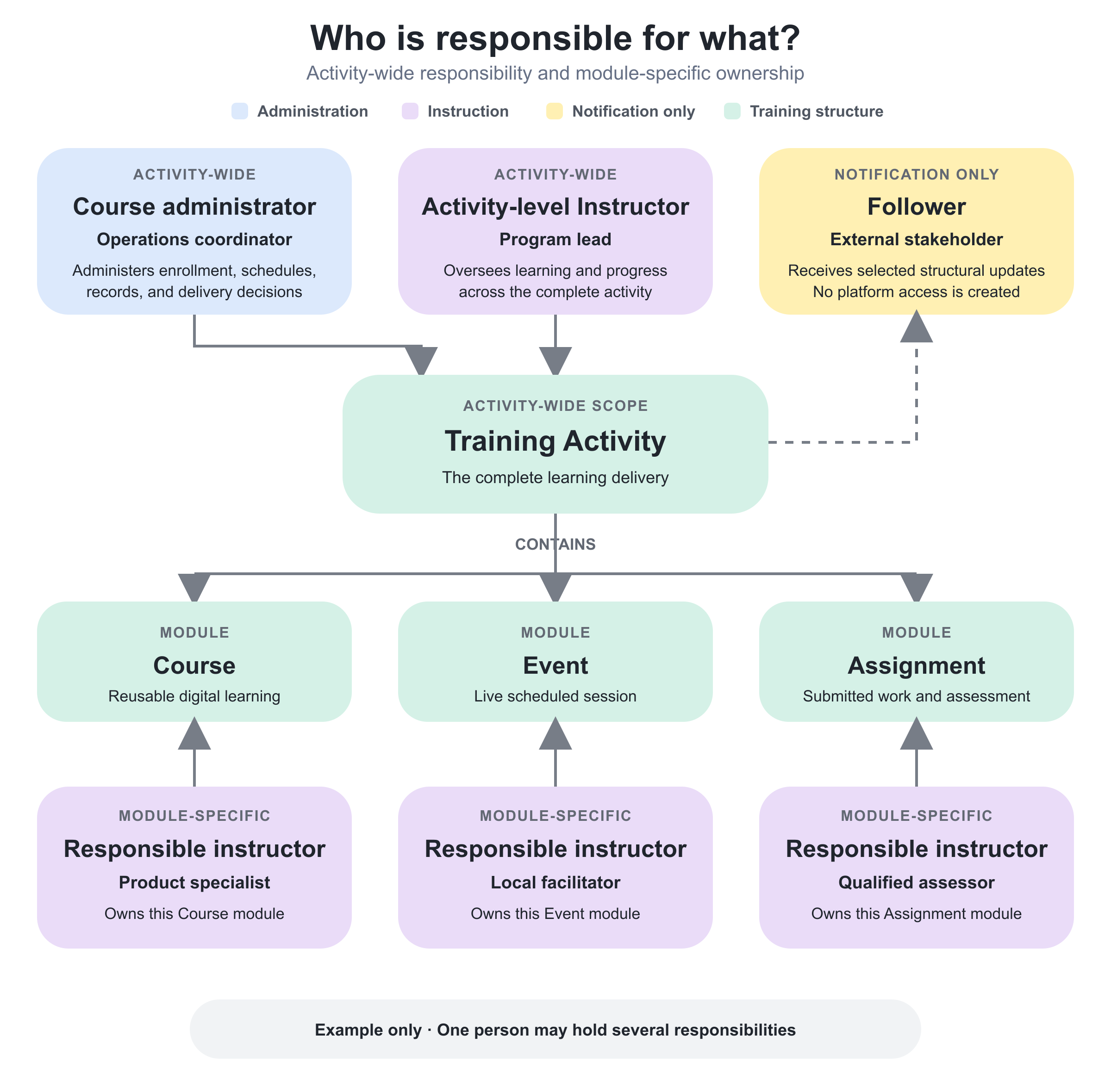
Training delivery often depends on several people with different responsibilities. Course administrators coordinate the activity and its participants, instructors lead or assess the learning, and Followers keep selected stakeholders informed without receiving access to the platform. Keeping these responsibilities distinct makes ownership clear across the complete activity and its individual learning modules.
In this article you will learn:
- How activity-level Course administrator and Instructor responsibilities differ
- When to assign a Responsible instructor at module level
- What responsible users see in dashboards and Progress
- How instructor availability and conflicts work
- How organization filtering affects whom you can select and edit
- What Followers receive and which changes trigger the notification prompt
- How Followers differ from participant updates and Automated Email Workflows
- How to test and troubleshoot ownership and communication
Give every delivery clear ownership
Course administration normally involves at least two kinds of responsibility:
- Administrative ownership: registration, participant records, scheduling, reporting, and operational decisions.
- Instructional ownership: facilitation, learner support, attendance, assessment, and progress follow-up.
Some organizations use the same person for both. Others divide responsibility across a central coordinator, lead instructor, session facilitators, and external stakeholders.
Eurekos supports both activity-wide and module-specific responsibility so the system can reflect the operating model.
Understand the three concepts
| Setting | Who or what is selected | Purpose | Platform access created? |
|---|---|---|---|
| Course administrator at activity level | Platform user | Administrative responsibility for the complete Training Activity | Uses that user's existing role and permissions; selection does not create an account |
| Instructor at activity level | Platform user | Instructional/facilitation responsibility for the complete activity | Uses existing role and permissions |
| Responsible instructor at module level | Platform user | Responsibility for one Course, Event, Assignment, or supported module | Uses existing role and permissions |
| Follower at activity level | Email address | Optional notification about selected structural changes | No. A Follower is not a platform user relation |
Assignment to an activity expresses responsibility; it does not grant unlimited administrator rights. The person's platform role, permissions, organization scope, and the feature they use still matter.
Configure activity-level responsibility
- Open Course Administration → Activities.
- Create or edit the Training Activity.
- At activity level, add or enable Responsible.
- Select the responsible Course administrator or administrators.
- Select the responsible Instructor or instructors.
- If the activity is scheduled, select See availability before saving.
- Save and verify the activity in each responsible user's dashboard and permitted administration views.
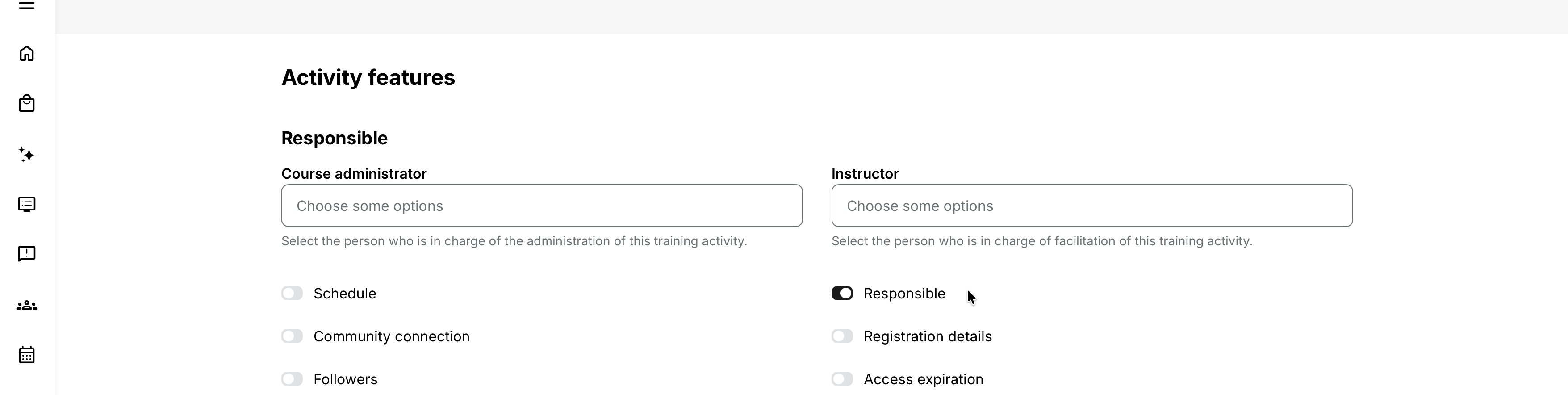
Use activity-level responsibility when the selected people oversee the complete delivery.
Course administrator
The responsible Course administrator is the operational owner of the activity. Depending on platform role and configuration, tasks can include:
- Managing registration and participant records
- Reviewing activity configuration
- Handling enrollment requests when Course administrator is selected as approver
- Receiving the minimum-seat warning when configured
- Coordinating dates, rooms, instructors, communication, and cancellation
- Reviewing activity reporting
Selecting Course administrator as the Participation Approval route means all Course administrators configured as responsible for that activity can receive the corresponding request and reminder emails.
Assign at least one person who actively monitors the activity. A name in a field is not an operating process; agree who owns decisions and who covers absence.
Instructor
The activity-level Instructor facilitates or oversees learning across the complete activity. Responsible instructors can:
- Receive the activity in Trainings I instruct
- Open the learning experience for preview or facilitation according to permissions
- View participant progress for the activity
- Exercise advanced instructor and Event-related capabilities where configured
Use the activity-level Instructor when one lead instructor owns the whole journey. Use module-level responsibility when different components have different facilitators.
Configure module-level Responsible instructors
Course, Event, Assignment, and other supported modules can have their own Responsible instructor feature.
- Edit the Training Activity.
- Open the relevant module's features.
- Add Responsible instructor.
- Select the person or people responsible for that component.
- If the module is scheduled, review See availability.
- Save and test the instructor's dashboard, preview, notifications, and progress access.
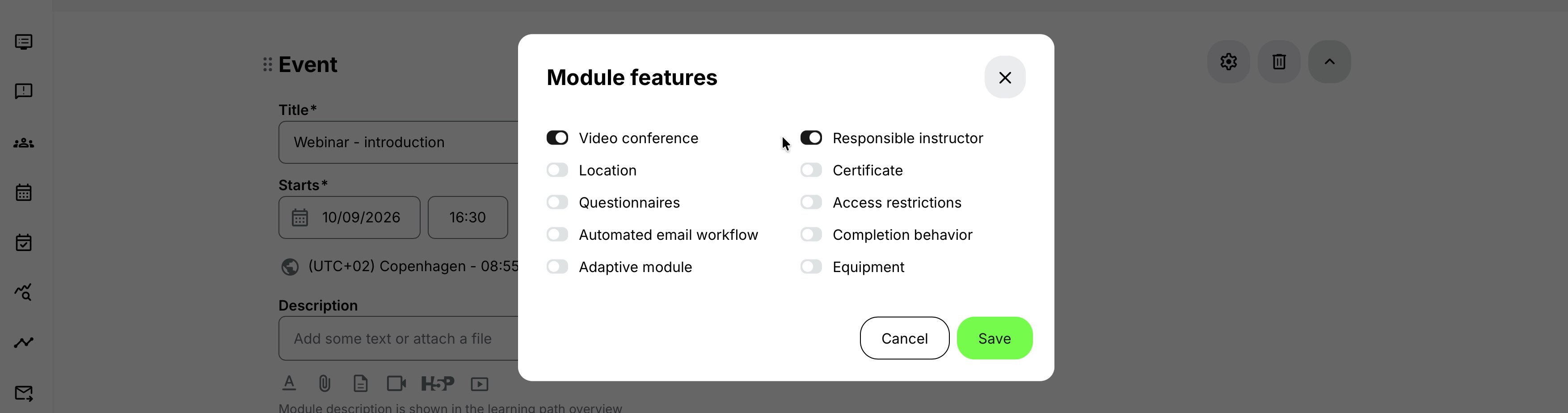
Both activity-level and module-level instructors are considered responsible for the activity for advanced instructor features and Event-module activity permissions. Module-level responsibility adds specificity; it does not make the activity-level lead irrelevant.
Understand module-specific priority
Some operational notifications use the most specific responsibility.
For Assignment submissions:
- In a learning path, the module-level Responsible instructor receives the submission email.
- In a single-module activity with instructors at both levels, the module-level Responsible instructor receives it.
- In a single-module activity without a module-level instructor, the activity-level Instructor can receive it.
This avoids sending assessment work to every general activity owner when a specialist has been assigned.
Test notification ownership for Events, Assignments, questionnaires, approvals, and other workflows used by the activity. Do not assume one selection redirects every system email.
Trainings I instruct and preview
Users selected as responsible see the activity in Trainings I instruct on the Dashboard.
From there, their experience can include:
- Opening the activity
- Previewing its modules
- Navigating an Existing Training selector in the same way as an enrolled participant
- Accessing facilitation or participant information according to permissions
If the activity is absent, verify the exact user account, responsibility level, activity status, organization scope, and dashboard filtering.
Do not enroll an instructor merely to make the activity visible unless they also need a participant learning record. Responsible and participant are separate relationships.
Progress access for responsible instructors
An activity-level responsible Instructor can see the activity's participant progress in Progress, subject to platform permissions and organization filtering.
This lets instructors:
- Identify participants who have not started
- Monitor completion across modules
- Prepare for a live session
- Review Assignment or assessment outcomes where permitted
- Follow up with participants who need support
Access to Progress can expose personal and learning data. Assign only people with a legitimate operational need and remove responsibility when it ends.
Check instructor availability
Availability can be reviewed when:
- The activity has a Schedule and activity-level Responsible instructors; or
- An Event module has a Responsible instructor and dates; or
- Another supported scheduled module uses responsible instructors.
Select See availability to open the combined availability view. It shows the selected instructors' scheduled commitments and availability items. When start and end are both set, the view opens on the week containing the start and highlights the requested period.
If Skills are enabled, administrators can filter instructors by several Skills in the availability view. This helps find people who are both qualified and free.
Availability is a planning aid. Confirm local working time, time zone, travel, preparation, and contractual limits outside the booking grid where necessary.
For more detail, see Availability.
Handle a scheduling conflict
When the selected responsible person is already booked in another activity or has an Availability item for the same period, saving the activity displays a conflict notification.
- Cancel closes the warning and does not save the activity.
- Proceed closes the warning and saves the activity despite the conflict.
Proceed only when the overlap has been reviewed and accepted—for example, the item is informational, the instructor has support, or the two commitments do not conflict operationally.
The ability to proceed means the platform warns about double-booking; it does not impose an absolute scheduling prohibition.
Organization filtering and selection
With organization filtering, administrators may only be able to select or edit responsible people inside their permitted content and organization scope.
Depending on configuration:
- An activity can be editable because the administrator created it, belongs to its organization, or is assigned as a responsible Course administrator or Instructor.
- Responsible users associated with another organization can appear disabled rather than editable.
- A pre-existing value outside the editor's scope may remain visible but locked.
Do not remove or replace a locked value simply to make the form easier to edit. Confirm the intended cross-organization ownership with a higher-level administrator.
Add Followers
Use activity-level Followers for people who need an optional email when the activity's learning structure changes but who do not need platform responsibility or access.
- Edit the Training Activity.
- Add or enable Followers at activity level.
- Enter the stakeholder email address or addresses.
- Save the activity.
- When a qualifying structural change is later saved, review the notification prompt.
- Choose whether to notify the Followers and add a useful message.
Follower email is configured under Settings → Email sending → System emails → Activities → Follower notification and can be adapted through the platform's translation/email interface.
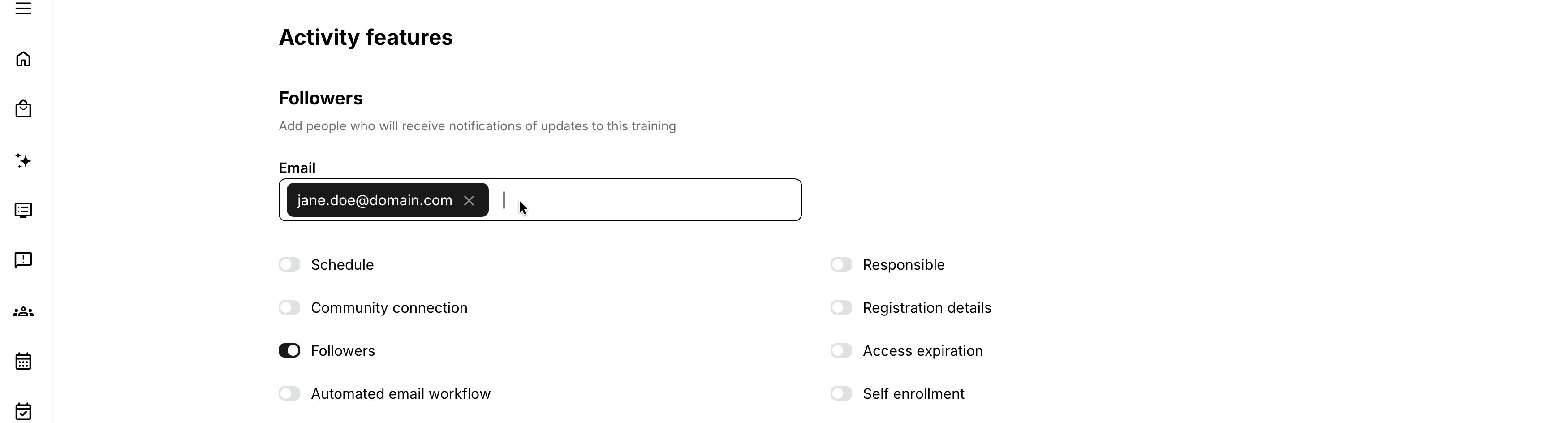
Suitable Followers include:
- Customer contacts
- Program sponsors
- External coordinators
- Subject-matter owners
- Partners who need structural change awareness
Do not use Followers for people who must administer, facilitate, approve, or access reporting.
Know which changes prompt a Follower notification
The Follower prompt is deliberately limited to significant changes in the activity's module structure.
Qualifying activity updates are:
- A module is added
- A module is removed
- The Course selected in a module is replaced
The following are not treated as Follower updates:
- A minor Course version or content edit, such as a page, layout, widget, or Course-page change
- Activity- or module-level Schedule changes
- Responsible user changes
- Certificate changes
- Location changes
- Adding or removing options inside an Existing Training module
When a qualifying update is saved, notification is optional. The editor receives a confirmation prompt with a text area for the message.
Write what changed, why, who is affected, and whether the recipient must act. The system does not automatically create a useful business explanation from the structural change.
Choose the correct communication mechanism
| Need | Use |
|---|---|
| Notify selected external stakeholders about a module added, removed, or replaced | Followers |
| Notify registered participants about changed dates, locations, or Assignment deadlines | Participant update notification prompt |
| Send repeatable messages based on dates, enrollment, progress, or status | Automated Email Workflows |
| Notify an approver about an enrollment request | Participation Approval emails |
| Notify an assessor about an Assignment submission | Responsible instructor and Assignment system email |
| Notify a coordinator that minimum seats were not reached | Registration Details minimum-seat email |
One person can receive messages through more than one mechanism. Review overlap so a lead instructor who is also a Course administrator and workflow recipient does not receive confusing duplicates.
Realistic use cases
| Use case | Recommended configuration | Important considerations |
|---|---|---|
| One owner for a simple activity | Assign one Course administrator and one activity-level Instructor. Add module-level responsibility only when a specialist owns an assessment or individual live session. | Keep responsibility clear and avoid assigning additional administrators or instructors without a defined operational role. |
| Multi-instructor learning path | Assign a program lead at activity level and a specialist to each relevant Course, Event, or Assignment module. | Check each person’s availability and confirm who receives notifications and handles participant questions, attendance, feedback, or assessment. |
| External customer stakeholder | Add the customer coordinator as a Followerwhen they only need updates about structural changes. | Do not assign a platform role solely to send these updates. Following provides awareness without unnecessary administrative access. |
| Qualified instructor scheduling | Filter the availability view by the required Skills, review the proposed activity period, and select an available instructor. | If an availability conflict is deliberately accepted using Proceed, document the reason and confirm the commitment with the instructor. |
Verify the configuration
Use representative accounts and the routes enabled for your delivery. Check the relevant outcomes before launch and after a material change; an administrator preview alone does not verify the participant experience.
| Scenario or check | Expected result or evidence |
|---|---|
| Responsible account and level | Active, appropriately scoped users cover activity ownership and module-specific instruction. Test priority where responsibilities exist at both levels and review organization-filtered or locked values with an authorized administrator. |
| Operational access | Each responsible person can find Trainings I instruct and use the intended activity, Existing Training navigation, and Progress views without broader data access than needed. |
| Notifications and availability | Test the Assignment, approval, minimum-seat, and workflow messages used by the activity. Scheduled responsibility fits the time zone and Availability; any Proceed exception is approved. |
| Followers | Verify addresses, wording, and one qualifying and one non-qualifying change. Followers receive the intended information without being treated as platform users with access. |
| Personnel change | A replacement can carry out the role and receive its notifications. Remove obsolete responsibilities and access, update absence cover, and send structural updates only when appropriate. |
Troubleshooting
| Problem | What to check |
|---|---|
| A responsible person cannot be selected | Check their account status, role, organization relation, the editor's organization scope, and whether the field uses autocomplete. |
| A selected responsible value is locked | Organization filtering may let the editor retain but not change a value outside their scope. Ask an appropriately scoped administrator to review it. |
| The activity is missing from Trainings I instruct | Verify the exact account is selected at activity or supported module level, the activity is saved, and dashboard/status/organization filters permit it. |
| The instructor cannot see participant Progress | Check whether they are an activity-level responsible Instructor, their permissions, organization layer, participant scope, and the Progress filters. |
| The wrong person received an Assignment email | Review module-level Responsible instructor first. It takes priority over activity-level responsibility for the documented Assignment cases. |
| No one received an enrollment-request email | If Course administrator is the approver, confirm responsible Course administrators exist and the relevant system emails are enabled. |
| No minimum-seat warning arrived | Confirm Registration Details, minimum seats, notification timing, activity start, and at least one responsible Course administrator. |
| Availability opens on the wrong week | Confirm both start and end are set and inspect the activity/module time zone. |
| A conflict warning appears unexpectedly | Review the instructor's other activities and Availability items across the selected period and time zone. |
| The activity saved despite a conflict | The editor selected Proceed. The warning does not impose a hard block. Resolve the schedule operationally. |
| The Follower notification prompt did not appear | Confirm Followers are enabled and the change was a module add/remove or Course replacement. Date, location, responsibility, certificate, Course-content, and Existing Training-option edits do not qualify. |
| A Follower received no message after the prompt | Confirm that the editor chose to notify, validate the Follower address and Follower System Email, and check Settings → Email Sending → Logs, sending limits, and external quarantine or spam handling. |
| A Follower cannot open the activity | Expected: the Follower setting does not create an account, role, organization membership, or permission. Share an appropriate participant or administrator route separately. |
| Stakeholders received duplicate mail | Map Follower, participant-update, workflow, approval, Assignment, and other system-email roles for the same person. Remove unintended overlap. |
| Support needs evidence | Record activity/module IDs, exact user or Follower address, role and organization scope, responsibility level, schedule and conflict, change type, prompt choice, timestamp, and mail-log result. |
FAQ
-
Is a Course administrator the same as an Instructor?
No. The first expresses administrative ownership; the second expresses facilitation responsibility. One person can be selected for both where their duties genuinely include both.
-
Should I set an Instructor at activity or module level?
Use activity level for responsibility across the complete journey. Use module level for the person who owns a specific component. Both can be used together.
-
Does selecting a responsible person grant a new platform role?
No. The person uses their existing account, role, permissions, and organization scope.
-
Does an instructor need to be enrolled?
Not for responsible access. Enroll them only if they also need a participant record and completion history.
-
Can Eurekos prevent double-booking?
It warns about a conflict and lets the administrator cancel or proceed. Operational policy determines whether proceeding is allowed.
-
Is a Follower a Eurekos user?
No. Followers are email addresses and receive no platform access from the feature.
-
Are Followers notified every time the activity is saved?
No. The prompt appears for a module added or removed or a selected Course replaced, and the editor still chooses whether to send.
-
Are Followers notified when a date changes?
No. Use the participant update process, direct stakeholder communication, or an appropriate workflow.
-
Are Existing Training option changes sent to Followers?
No. Adding or removing options inside the Existing Training module is not a qualifying Follower update.