Recurring events and activities - Article
Summary
Recurring Training Activities bring repeated deliveries of the same training together as one participant-facing offer. Participants can find the training once and choose an eligible date, location, or format, while administrators continue to manage each cohort independently. This supports regularly scheduled workshops, webinars, and certification programs without mixing their participants, capacity, communication, or learning records.
In this article you will learn:
- When to use Repeat, Link, Clone, multiple Calendar Events, or Existing Training
- What a linked activity group controls - and what remains separate
- How Preserve original duration adjusts a repeated schedule
- Which information is copied and which items require manual review
- How to link and unlink existing scheduled activities
- What the primary activity means and how it changes
- How one linked group is presented in the Storefront
- How different prices, seats, organizations, and availability affect the options shown
- Which Activity Description, Activity Settings, and activity-form changes can be applied across the group
- How participants change dates and how administrators move participants
- How linked groups become choices inside an Existing Training module
- How to diagnose missing options, unexpected content, and schedule problems
What a recurring Training Activity is
Eurekos represents recurring delivery as a group of separate Training Activities connected by a link. Each activity represents one concrete delivery, such as:
- The same virtual workshop in September, October, and November
- The same classroom course in Copenhagen and Aarhus
- Morning and afternoon sessions of the same event
- Several cohorts of a multi-week blended learning path
- An English program delivered on several dates
The group tells Eurekos that these activities are alternatives belonging to the same series. It can consolidate their Storefront presentation and allow participants to select or change delivery.
A linked group does not merge the activities
Every activity keeps its own ID, schedule, modules, participant signups, capacity, waiting list, price, transactions, instructors, communication, progress, completion, certificates, Activity Description, and reports. Linking creates a relationship and participant choice; it does not create one shared operational record.
This design provides flexibility. A single series can have different venues, time zones, instructors, prices, or available seats while still appearing as one recognizable offer.
Choose the correct structure
Several Eurekos features can appear similar to recurrence but solve different problems.
| Need | Use | Result |
|---|---|---|
| Create another dated delivery from an existing scheduled activity and group them | Repeat activity | Copies the activity, adjusts its schedule, and adds it to the same linked group |
| Group scheduled activities that already exist | Link activity | Connects the records without copying either one |
| Create an independent starting copy that should not be offered as another date | Clone activity | Creates a separate activity without a linked-group relationship |
| Require the same cohort to attend several sessions | Several Calendar Event modules in one Training Activity | The sessions are parts of one participant journey, not enrollment alternatives |
| Offer a choice of recurring sessions inside a larger program | Existing Training with Include linked activities as enrollment options | The parent journey presents eligible members of the linked group as choices |
| Offer the same training in another language | This training is available in other languages | Connects separate localized versions; this is independent of linked date groups |
| Reschedule an enrolled participant administratively | Move from the participant list | Creates or transfers enrollment to a compatible activity according to administrator options |
Recurrence versus several required events
Use a linked group when the participant chooses one delivery instead of another. Use several Calendar Event modules inside one activity when the same participant is expected to attend all or several sessions in the same journey.
Example:
- “Choose the workshop on 10 October or 24 October” - two linked Training Activities.
- “Attend the introduction on 10 October and the practical session on 24 October” - two Event modules in one Training Activity.
Repeat versus Clone
Repeat and Clone both use an existing activity as a starting point, but only Repeat creates the recurring relationship.
| Behavior | Repeat | Clone |
|---|---|---|
| Requires a scheduled source activity | Yes | No general recurrence requirement |
| Creates a new Training Activity | Yes | Yes |
| Joins source and copy in one linked group | Yes | No |
| Provides Preserve original duration | Yes | No |
| Intended for alternative deliveries | Yes | Not necessarily |
| Can offer Calendar-created event copying | No; Calendar-created events are not copied by Repeat | Clone can ask whether Calendar-created events should also be cloned |
Use Clone for a genuinely independent activity, a template-like starting point, or an offering that should have its own Storefront entry. Use Repeat when participants should recognize and choose among related deliveries.
Plan the recurring series
Prepare the source activity before repeating it. Although every repeated activity can be edited later, a clean source reduces correction across the group.
Review:
- The activity-level schedule and time zone
- All module dates, deadlines, and access periods
- Calendar Event joining details and conferencing configuration
- Module order and restrictions
- Registration dates, capacity, waiting list, and organization allocations
- Price, tax, coupons, subscriptions, and additional products
- Responsible instructors and Course Administrators
- Certificates, questionnaires, and email automations
- Activity Description and Activity Settings
- Storefront sections and audiences
- Whether any content is specific to the source date or venue
Decide what is common across the series and what should remain delivery-specific. This decision becomes important when Eurekos later asks whether a change should apply to one activity or all linked activities.
Establish a naming convention
The Storefront can present the linked group as one offer, but administrators still work with separate records. Use internal titles that make each delivery unmistakable.
Example:
- First Aid - Copenhagen - 2026-10-08 - Cohort 01
- First Aid - Aarhus - 2026-11-12 - Cohort 02
The participant-facing Activity Description title can remain Practical First Aid Certification across the group.
Include dates in the internal title only as a management aid; maintain the authoritative schedule in the Schedule feature.
Repeat a scheduled activity
Repeat activity can be used for a Training Activity that has a schedule. It creates a copy and connects the new activity to the source.
- Open Course Administration → Activities.
- Find the scheduled Training Activity.
- Open More and select Repeat.
- Set the new Start date.
- Keep or clear Preserve original duration.
- Review the calculated or manually entered End date.
- Create the repeated activity.
- Open and verify the new activity before enrollment begins.
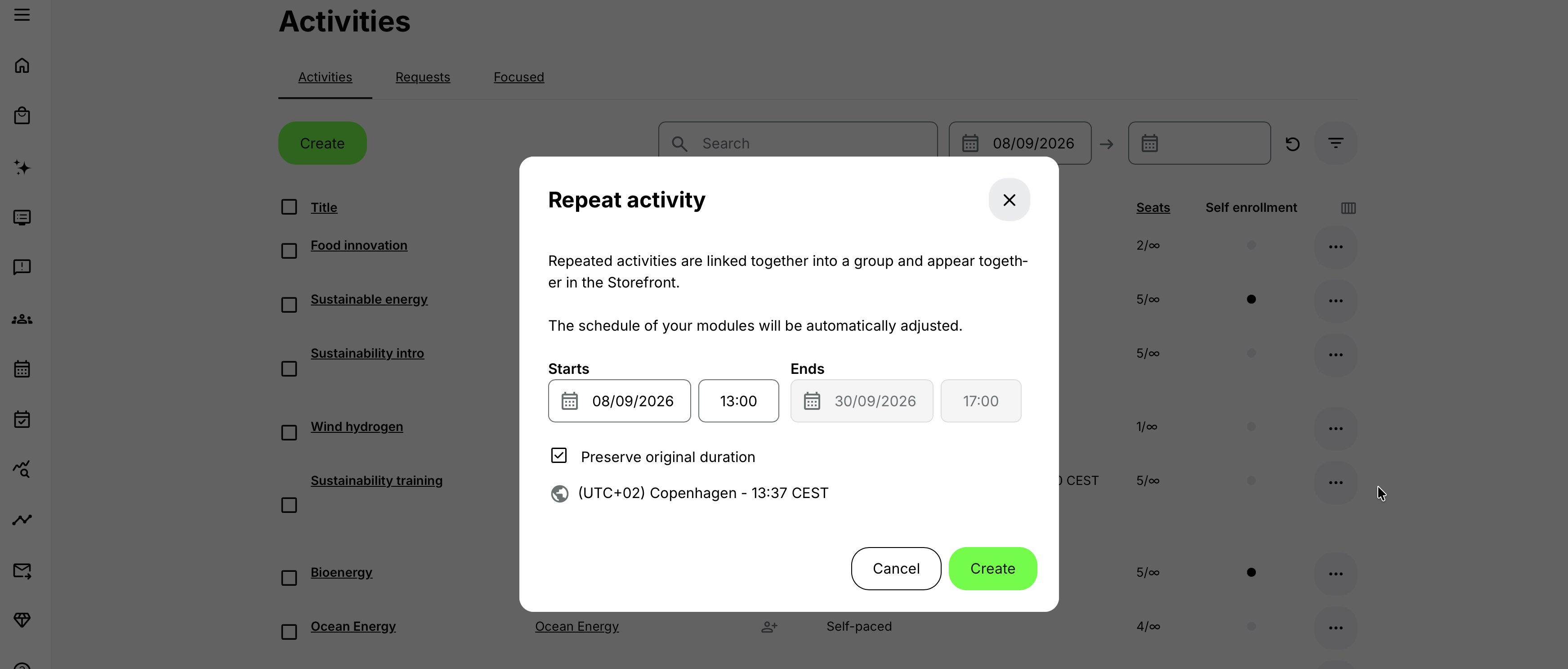
If the source contains one module, Eurekos creates the repeated activity and leaves you on the current activity or list page. If the source is a learning path, the new activity is created and you are redirected to its edit form. A warning asks you to confirm that the module schedules fit within the learning-path schedule.
The activity has already been created when that edit page opens. Complete the review even if the repeat operation itself appeared successful.
Preserve original duration
Preserve original duration is enabled by default.
When enabled:
- You choose the new Start date.
- The End field is unavailable for manual editing.
- Eurekos calculates the new End by preserving the original time difference between Start and End.
- Re-enabling the option recalculates End from the currently selected Start.
- Applicable schedules in the copied journey are shifted by the original interval.
Example: An activity runs from Monday 09:00 until Friday 16:00. Moving its start forward by four weeks while preserving duration places its end four weeks later and retains the original overall span.
When disabled:
- Start and End can be entered independently.
- The new activity remains linked to the source.
- You must review and, where necessary, adjust the module schedules and deadlines manually.
Disable it when the new delivery intentionally has another duration, such as an accelerated cohort, a different weekly pattern, or a schedule affected by holidays.
Review every learning-path date
Preserving duration does not remove the need for verification. Check that:
- Every module begins on or after the activity Start.
- Every module ends on or before the activity End.
- Assignment due dates moved as intended.
- Access and enrollment deadlines still make sense.
- Time zones and daylight-saving changes did not shift local delivery times unexpectedly.
- Relative reminder and email dates still provide enough notice.
The activity-level schedule and each module schedule remain separate configuration layers.
Understand what Repeat copies
Repeat creates a new Training Activity from the source setup. The new record can then be changed independently.
| Area | What Repeat copies or resets | Administrator guidance |
|---|---|---|
| Copied starting configuration | The new activity begins with the source activity’s structure, enabled features, Activity Description, page content, and banner, subject to the exceptions below. The new record can then be changed independently. | Treat the result as a starting configuration. Review every copied setting before opening the new delivery. |
| Participant and commercial records | Participant signups, progress, completion, issued certificates, waiting-list entries, and transaction history are not copied. These records remain associated with the original delivery. | Enroll the new audience through the repeated activity’s own enrollment route. Do not expect source participants or their learning records to appear automatically. |
| Team or Community connection | The source activity’s Team or Community connection is not copied. Participants are therefore not synchronized to a collaboration space merely because the source activity was connected to one. | Decide whether the new cohort needs a separate community or should share an existing one. Then create or reconnect the appropriate collaboration space. |
| Events created through Calendar | Calendar events created for the source through the Calendar are not copied by Repeat. This differs from Event modules that form part of the copied Training Activity structure. | Recreate or associate the required Calendar events deliberately. Review all resulting dates, locations, hosts, and video-conference links before enrollment opens. |
| Clone behavior for Calendar events | When using Clone instead, Eurekos can ask whether Calendar-created events should also be cloned and then require new dates and times. The cloned activity does not become part of a linked recurring group. | Use Clone when you need an independent copy and may want its Calendar events copied. Use Repeat when you are creating a related recurring delivery. |
| Operational Event state | Delivery-specific operational state does not carry into the repeated activity. For example, an Event that reached Ready for invoicing after attendance was recorded returns to the pre-attendance Mark attendance stage. | Review each Event’s operational state and complete the attendance process separately for the new delivery. |
| Participants and enrollment | Repeating an activity creates another delivery; it does not create another signup for the source participants. | Configure and use the new delivery’s own administrative enrollment, self-enrollment, invitation, or automation process. |
| Email workflows and communications | Copied email workflows remain part of the starting configuration. Relative timing rules may adjust correctly to the new schedule, while fixed dates and delivery-specific content may not. | Review triggers, fixed dates, custom text, meeting links, recipients, and other delivery-specific information before enrolling participants. |
Extend a linked group
There is no set limit to the number of activities in a linked group. Repeat any member of an existing group to create another delivery; the new activity joins the same group rather than creating a separate pair.
Use the See linked group icon in the Activity list to display only the activities related to that member. The existing search and filters still apply, which can make some members appear missing. Select the icon again or clear other filters to return to the complete list.
Maintaining a long-running series works best when you:
- Create future deliveries before the last available option closes
- Use predictable internal titles
- Keep shared content current
- Review every delivery's capacity, instructor, location, and price
- Remove or cancel obsolete offerings through the correct activity process
- Check what participants see rather than relying only on the administrative group list
Link activities that already exist
Use Link activity when the deliveries have already been created independently and should now be offered as alternatives.
- Open Course Administration → Activities.
- Open More for one activity and select Link.
- Select the scheduled activity or existing linked group that should be connected.
- Confirm the link.
- Use See linked group to review the result.
- Test the Storefront and each Activity Description.
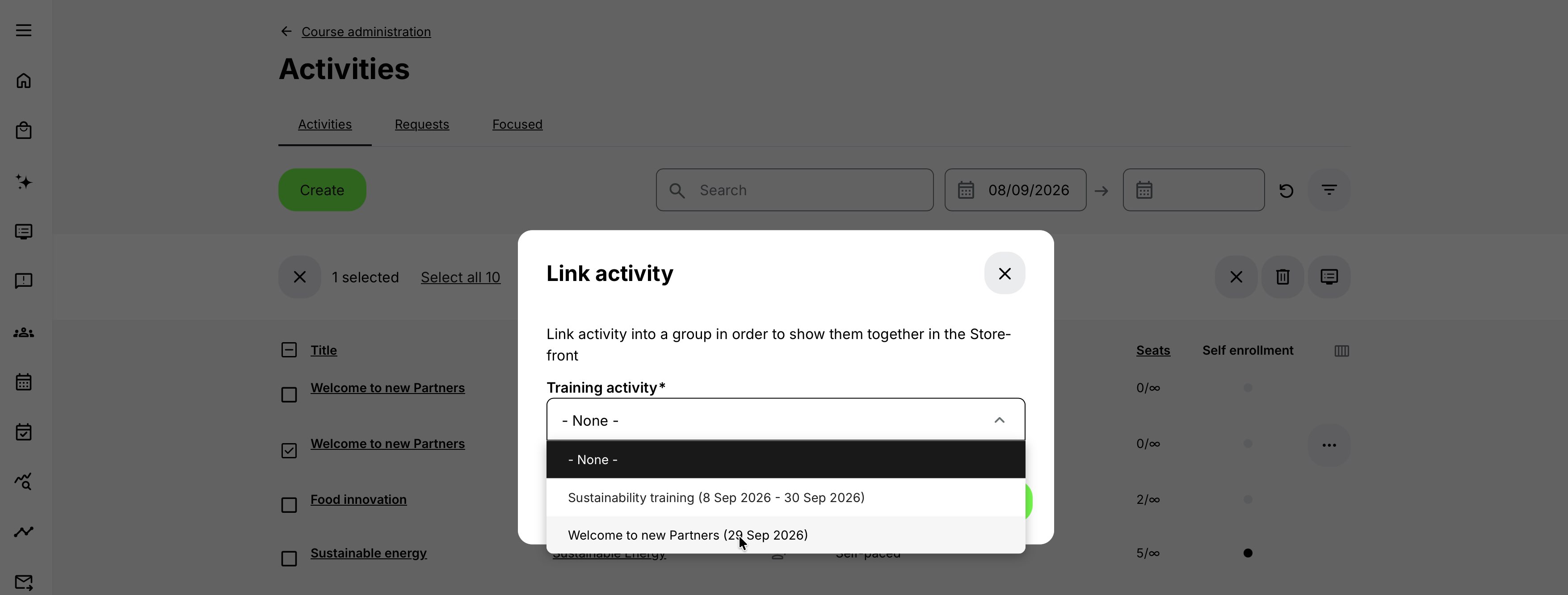
The Link selector contains eligible scheduled activities and existing groups. An activity can be linked even if self-enrollment is disabled, but Storefront presentation still requires the individual option to be available to the viewer.
Completed and Cancelled activities cannot be newly linked. If they were connected earlier, they can still be unlinked.
Link and Unlink are available to Administrator, Global Administrator, Platform Administrator, Course Administrator, and Support roles, subject to organization and platform access.
Linking does not prove equivalence
The system can allow scheduled activities with different structures to be linked. That does not mean they are suitable alternatives for participants or eligible for every Change dates flow.
Before linking, compare:
- Module structure and Course IDs
- Required and optional components
- Certification outcome
- Duration and contact hours
- Price and included products
- Eligibility and organization restrictions
- Delivery language
- Reporting and compliance purpose
Link only activities that participants can reasonably understand as versions of the same offer. Use Existing Training choices for deliberately different pathways and language relations for translations.
Unlink an activity
Use Unlink when an activity should no longer be presented or managed as part of the recurring series.
Unlinking removes the group relationship. It does not delete the activity, cancel its participants, erase progress, change its schedule, or remove its Activity Description. If it remains eligible for the Storefront, it can appear as its own offering after unlinking.
Before unlinking, check:
- Whether participants or campaigns use its direct link
- Whether an Existing Training module expects the linked group as options
- Whether a participant may be planning a Change dates action
- Whether Storefront audiences should expose the now-independent activity
- Whether the activity is the primary member of the group
If the primary activity is unlinked and the group still has several members, Eurekos chooses a new primary according to the group rules.
Understand the primary activity
Every linked group has exactly one Primary activity, indicated beside the linked-group icon in the Activity list.
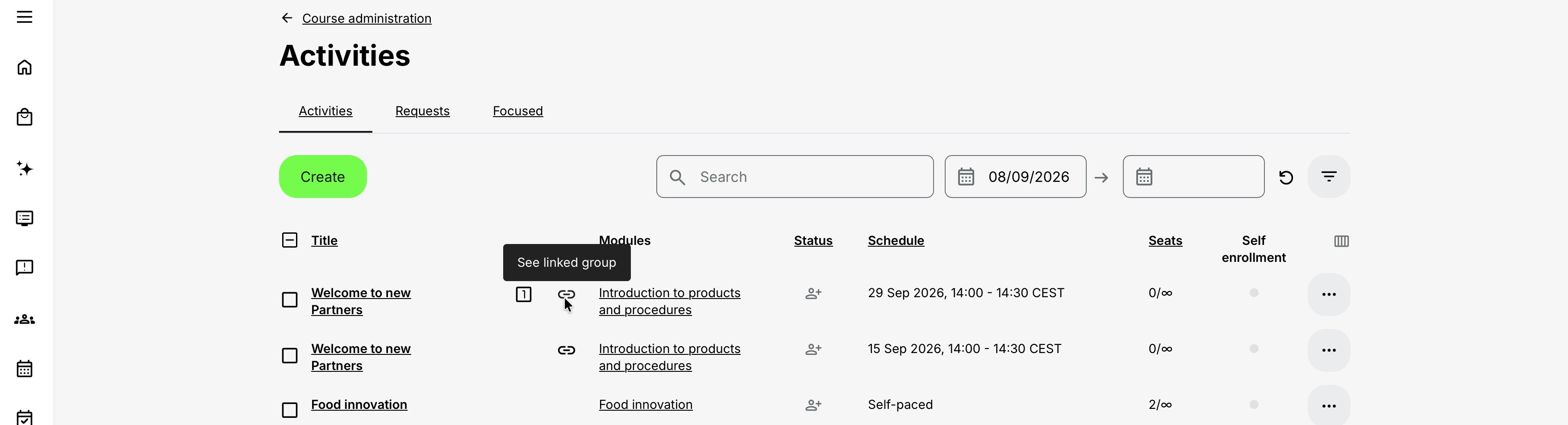
The primary is selected as follows:
- When Repeat creates a new group, the original source activity becomes Primary.
- When Link creates a new pair, the target selected in the Link dialog becomes Primary.
- Adding another activity to an existing group does not replace its current Primary.
- A Cancelled activity cannot remain Primary.
- If the Primary is unlinked, cancelled, or deleted and the group continues, the earliest scheduled eligible member becomes the new Primary.
- Unlinking, cancelling, or deleting a non-primary member leaves the Primary unchanged.
Primary is group metadata. It does not necessarily determine which delivery a participant sees first in the Storefront; the nearest available activity normally supplies that presentation. It also does not make the other activities read-only.
Integrations can use the group's identifier and primary flag to recognize related activities. Confirm the intended interpretation with the integration owner rather than assuming only the Primary should be imported or reported.
Understand Storefront presentation
In the standard Storefront, eligible linked activities are presented as one offering rather than one card per delivery. Timeline view can show the individual scheduled activities separately.
The standard presentation uses the nearest available activity to supply the banner and other non-price information. Selecting the offer opens an Activity Description page for an available member of the group.
The Enroll widget provides an Options selector for other eligible deliveries. Selecting one opens that activity's own Activity Description, where its current schedule, location, instructor, price, seats, and action are shown.
Each option is filtered independently
Membership in the linked group does not override eligibility. An option can be omitted because of:
- Activity status
- Passed or future availability dates
- Latest registration date
- Self-enrollment configuration
- Storefront section and target audience
- Organization or suborganization rules
- Capacity when no waiting list is available
- Subscription or other platform-specific access controls
Storefront section audiences also govern discovery through Storefront search, Global Search, and the Catalog API. Linking an activity to a visible member does not make every member discoverable to that audience.
If a user follows a direct link to an unavailable non-enrolled member, Eurekos can redirect to the nearest eligible activity in the group. A user already registered in the selected member sees Go to training instead of Enroll.
Test groups with mixed organization rules while signed out and with representative user profiles. Organization context can affect both the redirect and the options displayed.
Prices in a linked group
Every activity retains its own price.
- If all eligible Storefront activities in the group have the same price, that price is shown.
- If prices differ, the group can show From followed by the lowest price among the activities currently available in the Storefront.
- Cancelled and Completed activities do not contribute to that lowest displayed price.
The lowest group price is promotional orientation, not the price of every option. The participant must review the price on the selected Activity Description and at checkout.
Capacity and waiting lists
Capacity and waiting lists belong to each individual activity. A full delivery is hidden from the Options selector when no waiting list is available. With a waiting list, it can remain selectable according to the enrollment flow.
Capacity in one member is not shared with another, and releasing a seat does not transfer a participant between dates automatically unless the configured waiting-list or re-enrollment process does so.
Keep linked content synchronized deliberately
Linked activities remain independently editable. When the platform setting Allow updating linked activities is enabled, saving certain changes opens Update linked activities with two choices:
- Apply to this only
- Apply to all
The source page replaces or updates the corresponding data across the group according to the area being edited. This is not a field-by-field merge.
Synchronization matrix
| Administrative area | What Apply to all updates | What remains separate |
|---|---|---|
| Activity Description | Page content and customized widgets when saving, restoring a revision, pasting content, or replacing the banner | Activity Description title |
| Activity Settings | Activity Settings fields | Multi-language relation |
| Create/Edit Activity | Description field, activity type, and activity-level features except Schedule | Internal title, Schedule, modules, and module-level features |
The distinction between Description field and Activity Description page matters. Applying an edit-form change can synchronize the short activity Description, while the separate landing-page action synchronizes its content widgets.
Activity Description special cases
The linked update prompt can appear when:
- Saving Activity Description changes
- Restoring a revision
- Pasting page content
- Replacing the banner
Apply to all replaces the linked Activity Description content and widget customizations. A delivery-specific venue note, sponsor message, or preparation instruction can be overwritten.
Changing the Activity Description title does not trigger the prompt and does not update other page titles.
Activity Settings special cases
Applying Activity Settings to all can synchronize classification and governance such as tags, Language, keywords, SEO, and other enabled fields. The multi-language relation is excluded and remains individually managed.
Review organization-specific tags, external identifiers, custom enrollment buttons, finance metadata, and transcript behavior before applying a settings page broadly.
Create/Edit Activity special cases
Apply to all from the activity form updates the Description field, type, and activity-level features except Schedule. It does not update:
- Internal activity title
- Activity-level Schedule
- Modules
- Module-level features
Because activity-level features can include price, registration, certificates, questionnaires, access rules, and automation, inspect the complete source configuration before applying it to all deliveries. A broad update can be correct for one common series and harmful for a group with intentional variation.
When no update prompt appears
If Allow updating linked activities is disabled, changes apply only to the current activity and no group choice is shown.
A missing prompt can also be expected for fields explicitly excluded from synchronization, such as titles and Schedule.
A safe update sequence
- Open See linked group and identify every member.
- Choose the activity containing the correct shared configuration.
- Record any delivery-specific exceptions.
- Make one focused change.
- Review the Update linked activities message.
- Select Apply to all only when replacement is intended.
- Open at least one other activity and verify the result.
- Test the participant-facing group after operational changes.
Use Activity Description revisions to recover an overwritten page. Other activity-level changes may not have the same restoration route.
Linked updates and Activity-list bulk actions are different
The linked update prompt uses one activity as the source for the group. Activity-list bulk actions operate on explicitly selected activities and require their own confirmation. Large bulk selections can be queued for background processing.
Let a participant select a date before enrollment
For an eligible user, the linked group appears as one Storefront offer with available deliveries in the Activity Description Options selector.
The participant selects the preferred date or delivery, reviews its specific details, and enrolls in that activity. Only that selected activity receives the signup.
The user can therefore choose based on:
- Schedule and time zone
- Location or delivery method
- Instructor
- Price
- Seats or waiting-list availability
- Organization access
- Other delivery-specific information
Keep the Activity Description title and core explanation consistent enough that participants recognize the alternatives, while making distinguishing information visible in the generated Enroll widget.
Let an enrolled participant change dates
Platform Re-enrollment controls the participant's self-service movement between eligible deliveries.
Re-enrollment enabled
When an enrolled participant opens another eligible linked option, the Enroll widget can show Change dates and Re-enroll. It explains that the current enrollment will move to the new date.
After confirmation:
- The current signup is cancelled.
- The participant is registered in the selected activity.
- Eligible progress and related records can transfer according to activity compatibility.
Review capacity, waiting lists, price differences, transactions, certificates, and event communication. A date change should not be assumed to issue a refund, settle a price difference, or recreate every third-party event registration without the relevant commerce and integration workflows.
Re-enrollment disabled
The participant does not receive the managed move behavior. If another linked option remains independently self-enrollable, selecting Enroll can create a second signup while leaving the original signup active.
If duplicate attendance must be prevented, require administrator handling or enable and test the intended re-enrollment process.
Eligibility for Change dates
An alternative shown in Change dates needs Schedule and self-enrollment. Matching also depends on structure:
- Single Course module: activities containing the same Course can be eligible.
- Single Event or Assignment module: only linked activities are eligible.
- Learning path: the Course-module structure must match. Existing Training modules are not included in this structural comparison.
An activity-level schedule is required for relevant learning-path and Assignment cases. Linking structurally different activities does not make them valid self-service move targets.
Administrator Move
An administrator can move a participant from the activity's participant list even when platform re-enrollment is disabled. Administrator Move has broader compatibility rules and can allow the administrator to cancel or retain the source signup.
Progress, report data, status, and certificates are processed in the background and may not appear immediately on the target.
For more detail, see Enroll and register participants.
Use a linked group inside Existing Training
An Existing Training module can present a recurring group as options within a larger parent activity.
- Create or link the recurring deliveries.
- Add an Existing Training module to the parent activity.
- Select one suitable member of the linked group.
- Enable Include linked activities as enrollment options.
The module then expands the selection to eligible members of that linked group. Administrators can maintain future sessions in the group without explicitly adding every delivery to every parent activity.
When this option is enabled:
- Automatically enroll participants is no longer available.
- The participant must choose a delivery.
- Completed activities are removed from the choices.
- Only Open activities are available in the selection flow.
- A delivery disappears immediately before its start according to the Existing Training enrollment validation.
This flow is not identical to Storefront self-enrollment. An Open activity that is not generally self-enrollable can still be offered through an authorized Existing Training selection. The parent activity and selected activity still create separate signup and progress records.
For more detail, see Existing Training (nesting).
Common recurring-delivery scenarios
| Recurring-delivery scenario | Recommended configuration | Important considerations |
|---|---|---|
| Monthly virtual workshop | Create and verify the first workshop, then use Repeat activity for the later dates with Preserve original duration. Keep a shared Activity Description and present the linked deliveries as one Storefront offer. | Regenerate or verify each video-conference connection and assign the correct host for every workshop. |
| Multi-week learning path offered quarterly | Repeat the complete learning path and shift its start date. Review every Course schedule, Event, Assignment deadline, access restriction, certificate, and email automation. | Treat the edit-page warning as a required operational review. Changing the activity start date does not guarantee that every module-level date and dependency is correct. |
| Existing regional deliveries that should become one offer | Use Link activity to connect the independently created deliveries. Keep their different locations, instructors, prices, and capacities, while aligning the participant-facing title and core description. | Verify which activity becomes Primary and which available delivery supplies the Storefront card’s displayed date. |
| Recurring session inside an onboarding program | Build the sessions as a linked group. Select one group member in an Existing Training module and enable Include linked activities as enrollment options. | The onboarding activity remains unchanged while future eligible Open sessions enter the selection list and completed sessions are removed. |
| Private customer cohorts | Repeat the delivery, then customize each activity’s organization, Activity Description, capacity, price, and responsible team. | Use Apply to all cautiously. A group-wide update can overwrite or remove an intentional customer-specific difference. |
| Same content in several languages and dates | Create one complete activity per language and connect the translations through Activity Settings. Within each language, create a separate linked group for its recurring dates. | Do not use one mixed-language linked group as a substitute for proper language relationships and fully localized content. |
Verify the configuration
Use representative accounts and the routes enabled for your delivery. Check the relevant outcomes before launch and after a material change; an administrator preview alone does not verify the participant experience.
| Scenario or check | Expected result or evidence |
|---|---|
| Delivery relationship | Repeat, Link, Clone, or Existing Training produces the intended relationship. Internal titles distinguish deliveries while the participant-facing offer remains clear. |
| Independent delivery readiness | Verify each activity’s dates, time zone, duration, access periods, resources, host, conferencing link, capacity, organization allocation, and price. Configure Calendar-created events and Team/Community connections separately where required. |
| Storefront choices | Representative users see the intended standard offer and eligible dates, including the correct From price, nearest date, banner, and schedule. Existing Training presents the intended Open options. |
| Shared changes | Confirm the Primary activity and integration dependencies. Test Apply to all only for intended shared fields and retain delivery-specific content and excluded settings separately. |
| Changing delivery | Test supported re-enrollment, Change dates, and administrator Move routes, then verify participant access, Transactions, certificates, communication, and external registrations. |
Troubleshooting
| Problem | What to check or do |
|---|---|
| Repeat is not available | Confirm that the activity has a schedule and that your role can manage it. Also check its status and organization scope. |
| Link is not available | Confirm that the activity is scheduled and is not Completed or Cancelled. Link is limited to the supported administrative roles. An already grouped activity can be extended by linking to the existing group. |
| The repeated End date is wrong or cannot be edited | Preserve original duration locks End and calculates it from the new Start using the source duration. Clear the option to set Start and End manually, then review every module date. |
| A module falls outside the new learning-path schedule | Open the repeated activity's edit form and adjust the activity or module dates until every module begins and ends within the learning-path schedule. Also check Assignment due dates and access deadlines. |
| A Calendar event is missing from the repeated activity | Repeat does not copy events created for the source through Calendar. Recreate or associate the event, then verify its location, host, conferencing, reminders, and participant communication. |
| The Team or Community connection is missing | This connection is deliberately not copied. Configure the new delivery's collaboration space after deciding whether cohorts should be separate or shared. |
| The Storefront shows several cards instead of one | Confirm that the activities belong to the same linked group by using See linked group. Standard Storefront presentation consolidates the group, while Timeline view intentionally shows scheduled activities separately. Also verify that apparently duplicate cards are not separate language versions or unlinked clones. |
| The Storefront card shows another banner or schedule than expected | The standard group presentation uses the nearest available activity, not necessarily the Primary activity. Open that delivery and correct its Activity Description or schedule, or review which activities are currently eligible. |
| An expected delivery is missing from Options | Check its status, availability, latest registration, self-enrollment, Storefront audience, organization rules, capacity, waiting list, and other access controls. The member can remain in the administrative group while being ineligible for that viewer. |
| The group displays an unexpected From price | Compare every activity currently available in the Storefront. From uses the lowest eligible price and excludes Cancelled and Completed members. The price on the chosen Activity Description and checkout is authoritative. |
| Change dates is missing | Confirm that platform re-enrollment is enabled and that the target has Schedule and self-enrollment. Then check structural compatibility: same Course for a single-Course activity, linked target for a single Event or Assignment, or the same Course-module structure for a learning path. |
| The participant remained enrolled in the old date | If re-enrollment is disabled, enrolling in another linked activity does not cancel the first signup. An administrator Move can also retain the source when that option is selected. Cancel the unintended signup only after checking progress, payment, certificate, and communication consequences. |
| Apply to all overwrote a delivery-specific Activity Description | Apply to all replaces linked page content. Open Revisions on the affected Activity Description, restore the correct version, and choose Apply to this only when prompted. |
| A field did not synchronize to the group | Confirm that Allow updating linked activities is enabled and that Apply to all was selected. Titles, Schedule, modules, module-level features, and multi-language relations are intentionally excluded in their respective administrative areas. |
| The Primary marker changed | If the former Primary was unlinked, cancelled, or deleted, Eurekos selects the earliest scheduled eligible activity in the remaining group. Adding or removing a non-primary member does not change it. |
| See linked group does not show every expected activity | Search and other Activity-list filters continue to apply inside the group view. Clear them before concluding that a member is missing. |
| A large Activity-list change has not completed | Bulk operations involving more than 50 activities can be queued for background processing. This is separate from the linked-group Apply to all prompt. Allow the queued process to run and review its completion message before repeating the action. |
FAQ
-
What is the difference between Repeat and Link?
Repeat creates a new activity from a scheduled source and adds it to the same linked group. Link connects scheduled activities that already exist; it does not copy either activity.
-
What is the difference between Repeat and Clone?
Both create a new Training Activity, but Repeat also creates or extends a linked group and provides schedule-preservation behavior. Clone creates an independent activity that appears separately unless it is linked later.
-
Must self-enrollment be enabled to Repeat or Link an activity?
No. The administrative group can be created without self-enrollment. Self-enrollment, Storefront visibility, dates, audiences, and eligibility determine whether the group and each delivery become participant-facing enrollment options.
-
Does the source activity need a schedule?
Yes for Repeat, and scheduled activities are required when establishing a linked group through Link. A missing or removed schedule can also make a delivery unsuitable for Storefront selection and Change dates.
-
Can I link a Completed or Cancelled activity?
Not as a new group member. A Completed or Cancelled activity does not offer Link. If it belonged to a group before reaching that status, it can still be unlinked and is excluded from available participant choices.
-
Is there a limit to the number of linked activities?
No fixed group limit is defined. Operationally, use clear titles, future-delivery maintenance, and filtered group review so a large series remains manageable
-
Must linked activities have identical modules?
Link itself can connect scheduled activities with different structures. However, the activities should make sense as alternatives, and self-service Change dates for a learning path requires matching Course-module structure. Linking alone does not guarantee move compatibility.
-
Does linking merge participants, seats, prices, or reports?
No. Every activity retains its own signups, capacity, waiting list, price, transactions, progress, certificates, and reporting. The group provides relationship, presentation, and delivery choice.
-
Can linked deliveries have different prices, instructors, or locations?
Yes. Those differences are a central benefit of separate activity records. Make them clear on each Activity Description. When eligible prices differ, the Storefront group can display From with the lowest available price.
-
Do edits automatically update every linked activity
Only when the administrator chooses Apply to all in a supported area. Otherwise the edit affects only the current activity. Several important fields, including titles, Schedule, modules, module features, and multi-language relations, remain separate.
-
Are linked activities the same as language versions?
No. Linked activities normally represent alternative deliveries. Language versions are connected through This training is available in other languages, and each language can have its own recurring date group.
-
Are Calendar-created events copied by Repeat?
No. Recreate or associate Calendar-created events for the new delivery. Review copied Event modules and their video-conference details separately.
-
Can a participant be enrolled in two linked dates?
Yes. If re-enrollment is disabled and both options can be enrolled independently, choosing another delivery can create a second signup without cancelling the first. Re-enrollment provides the managed Change dates behavior.
-
Can an administrator move a participant when re-enrollment is disabled?
Yes. Administrator Move from the participant list is independent of the platform re-enrollment setting and supports its own compatibility and source-signup options.
-
Can one linked group be reused in several parent learning paths?
Yes. An Existing Training module can select a member of the group and include linked activities as enrollment options. Each parent and selected delivery still retains separate enrollment and progress behav
-
Can first-attempt prerequisites be skipped on renewal?
Yes, for Course and Event modules when Override access restrictions upon activity recertification is available and enabled. Keep restrictions that remain necessary for every attempt.