Registration Details and Capacity - Article
Summary
Registration Details provides the booking framework for a Training Activity, from accepting registrations to managing changes before delivery. It helps the organization run viable sessions by balancing minimum and maximum attendance, distributing limited places fairly, and managing demand when an activity becomes full. Together, these rules give participants and administrators a consistent understanding of whether a place is available and what happens when circumstances change.
In this article you will learn:
- What each Registration Details setting controls
- How Latest registration and Latest cancellation differ
- Which signup and invitation statuses occupy seats
- How maximum Seats and Minimum seats solve different problems
- How minimum-seat notifications depend on Seats and the activity Schedule
- How to allocate seats to selected organizations or apply one limit to every organization
- What happens when the activity or an organization allocation becomes full
- How automatic waiting-list promotion chooses the oldest eligible person
- How capacity affects self-enrollment, administrator enrollment, imports, onboarding, managers, APIs, and approval
- How to change and troubleshoot capacity safely
What Registration Details helps you control
Registration Details is an activity-level feature for the commercial and operational boundary around a Training Activity.
It can answer five different questions:
- Until when may somebody register?
- Until when may a participant cancel themselves?
- What is the maximum overall capacity?
- What minimum attendance makes the delivery viable?
- How should limited places be distributed and refilled?
Use it for classroom sessions, virtual workshops, examinations, coached programs, limited licenses, customer allocations, and any other delivery where timing or capacity matters.
Self-paced training can also use Registration Details when enrollment is time-limited or seats represent a commercial or contractual allocation. Do not add a finite limit without an operating process for full activities, cancellations, waiting lists, and exceptions.
Keep the related controls separate
| Control | Business question | Main effect |
|---|---|---|
| Latest registration | When should new enrollment close? | Self-enrollment and invitation actions stop after the deadline |
| Latest cancellation | Until when may a participant cancel themselves? | Participant-controlled cancellation closes; administrator management remains separate |
| Seats | What is the maximum overall capacity? | Seat-occupying signups fill the activity and can trigger waiting-list or Storefront behavior |
| Minimum seats | How many participants are needed to justify delivery? | Defines an operational threshold; does not cap enrollment |
| Minimum seats notification | When should the responsible Course Administrator be warned about underbooking? | Sends a decision prompt before the scheduled start |
| Limit seats per organization | How many places may each customer or organizational audience take? | An organization can be full while overall places remain |
| Automatically enroll waiting list requests | Who should receive a released eligible place without manual action? | Oldest eligible waiting-list entry is promoted after background processing |
Do not confuse a minimum with a maximum. Seats and organization limits restrict enrollment. Minimum seats helps administrators decide whether a delivery is viable.
Configure Registration Details
- Open Course Administration → Activities.
- Open the intended Training Activity and edit it.
- Add or enable Registration details at activity level.
- Configure only the fields needed for the operating model.
- Save the activity.
- Review the Activity page, detailed Activity list, Activity Description, and Storefront.
- Test enrollment with available capacity, no capacity, and any relevant organization allocation.
The feature can provide:
- Latest registration
- Latest cancellation
- Seats
- Minimum seats
- Minimum seats notification
- Limit seats per organization
- Automatically enroll waiting list requests, when waiting lists are enabled for the platform
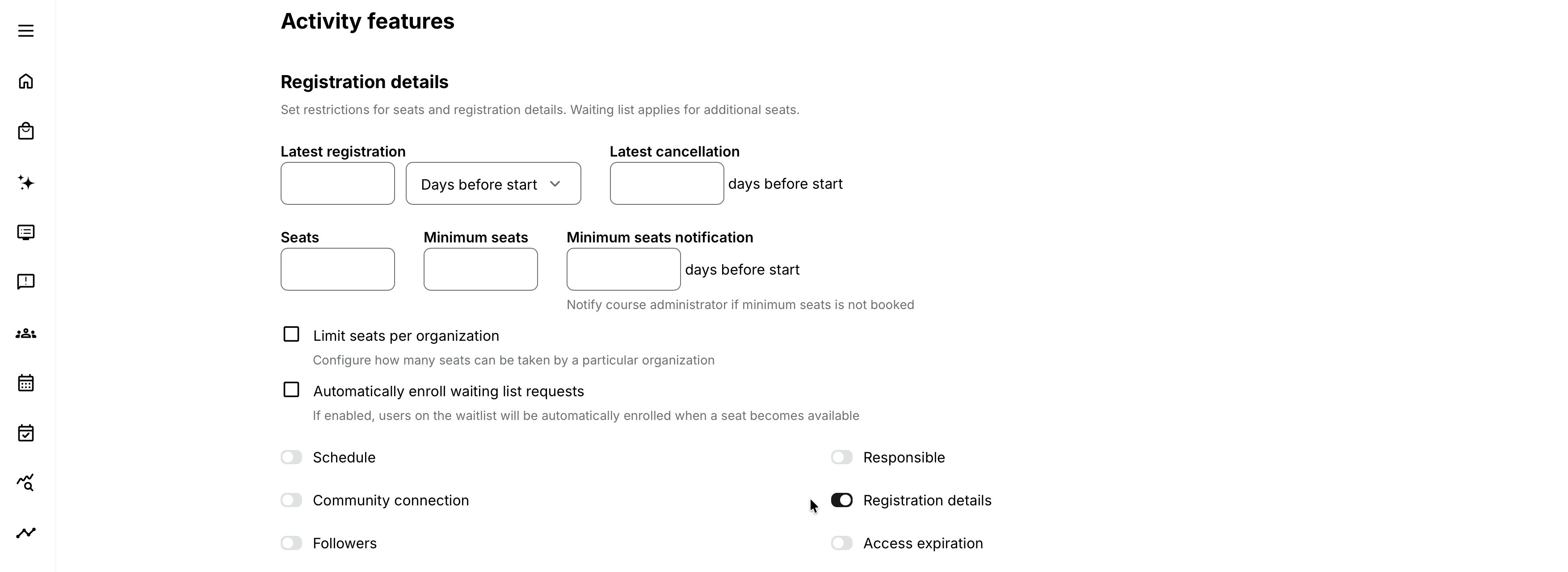
Set Latest registration
Latest registration defines when new registration should close.
Choose:
- Days before start
- At specific date
Use Days before start when every delivery should close the same amount of time before its scheduled activity start. Use At specific date for a fixed campaign or deadline that does not need to move with the schedule.
After Latest registration passes:
- Self-enrollment closes even if seats remain.
- Automatic waiting-list promotion does not register another person.
- The Invite action is unavailable.
- Participant-facing enrollment routes can disappear or show that registration is closed.
- Administrators can still evaluate permitted exceptions through the relevant administrative process.
Schedule dependency
Days before start needs an activity-level Schedule with a usable start date. Module dates do not replace the activity start for this calculation.
When the activity start changes, review the derived registration deadline and all already-sent participant communication.
Where the deadline appears
The registration deadline can appear:
- On the Activity page
- On the Activity Description
- In the detailed Activity list under Registration
The Activity-list value can show:
- Never when no Latest registration applies
- Time remaining before registration closes
- Closed after the deadline
Registration status is not the same as activity status. An activity can be Open or scheduled in the future while registration is already Closed.
Set Latest cancellation
Latest cancellation defines how late an enrolled participant may cancel their own participation.
Use it when the organization needs preparation time for:
- Catering or accommodation
- Instructor and room commitments
- External-provider charges
- Materials or equipment
- Replacement from the waiting list
- Customer billing or cancellation terms
After the participant cancellation deadline, the self-service action is no longer available. Administrators can still manage the signup according to their permissions and approved policy.
Latest cancellation does not automatically:
- Cancel the participant
- Refund payment
- Remove a Transaction
- Release a reserved resource before anybody acts
- Move another person from the waiting list
- Change certificate or progress records
State the cancellation terms clearly on the Activity Description and in commercial or joining communication. A technical deadline without an explained policy creates avoidable support work.
Set overall Seats
Seats is the maximum overall capacity of the Training Activity.
Use a finite value when delivery is constrained by:
- Room or venue capacity
- Instructor-to-participant ratio
- Webinar or external-service license
- Equipment
- Assessment capacity
- Contracted places
- Support or facilitation workload
Leave capacity unlimited when there is no meaningful maximum. The Activity page then shows occupied seats against infinity. With a finite value, it shows occupied seats against the configured maximum. The Activity list also contains a Seats column.
Seats is not the same as room or equipment capacity
A room can hold 30 and the activity can be limited to 20. Eurekos does not replace operational reconciliation between activity Seats, room capacity, instructor availability, equipment, external licenses, and safety policy.
Understand which records occupy seats
| Record or signup status | Occupies a seat? | Notes |
|---|---|---|
| Pending approval request | No | Capacity is checked when approval reaches an enrollment outcome |
| Invitation without reservation | No | An offer is not a held place |
| Invitation with Reserve seat | Yes | Capacity is held before acceptance |
| Reserved signup | Yes | The place is intentionally held |
| Waiting list | No | Demand is recorded without regular access or capacity |
| Registered signup | Yes | Active enrollment occupies capacity |
| Expired signup | Yes | Expiration ends access but does not free the seat |
| Cancelled signup | No | Cancellation releases occupied capacity |
Use the participant and invitation status filters before concluding that the counter is wrong. Reserved and Expired records are common reasons the occupied number exceeds the visible Registered count.
Supported administrative exception actions can increase the configured maximum when a full activity is deliberately overbooked. Check the Change log before treating a larger seat count as an error.
Understand what happens when the activity is full
The result depends on the platform waiting-list setting.
Waiting list enabled
Additional eligible participants can enter Waiting list status when overall Seats are full. The activity can remain visible and explain the waiting-list action.
Waiting list disabled
A full activity is not shown in the Storefront. A direct Activity Description route may still explain why enrollment is unavailable, depending on other visibility settings. Different administrative and integration routes can respond differently. Do not assume that every full-capacity operation creates a waiting-list record.
For more detail, see Waiting list.
Configure Minimum seats
Minimum seats records the number of participants required for the delivery to be operationally viable.
Examples:
- A workshop needs at least eight participants to justify the instructor cost.
- A classroom must reach ten registrations before travel is confirmed.
- A customer cohort requires five attendees before a private delivery proceeds.
Minimum seats does not:
- Limit the number of registrations
- Place anyone on a waiting list
- Close self-enrollment
- Cancel the activity automatically
- Cancel or move participants
- Guarantee that every registered participant will attend
It is a decision threshold for the Course Administrator.
Seats is required for Minimum seats to work. Choose a minimum that does not exceed the intended maximum and define what the administrator should do when it is not reached.
Configure Minimum seats notification
Minimum seats notification warns the responsible Course Administrator when the threshold has not been reached by the configured time before the activity begins.
It requires:
- A finite Seats value
- Minimum seats
- An activity-level Schedule with a Start date
- A responsible Course Administrator
If the activity has no activity-level Start date, Eurekos prevents the notification configuration from being saved because it cannot calculate the warning time.
When the threshold is not reached, the responsible Course Administrator receives:
Settings → Email Sending → Activities → Activity minimum seats isn't booked – course administrator
The email can provide an action to cancel the activity. It does not cancel automatically.
Design the operational decision
The responsible administrator should know whether to:
- Continue recruitment
- Run with fewer participants
- Ask a customer to nominate more people
- Move participants to another linked delivery
- Change venue or facilitator arrangements
- Cancel the activity
Configure the warning early enough for that decision and for participant communication. A notice on the morning of an international workshop is technically valid but operationally useless.
Limit seats per organization
Enable Limit seats per organization when the total activity capacity must be distributed across customers, departments, regions, partners, or other organizations.
Choose either:
- Specific organizations with individual limits
- Same seats limit for all organizations
An organization allocation is a maximum within the overall activity capacity. It does not reserve that number exclusively for the organization unless the complete enrollment design and timing produce that outcome.
Example:
- Overall Seats: 30
- Organization A limit: 10
- Organization B limit: 10
- Organization C limit: 10
If Organization A occupies all 10 of its places while the activity has only 20 overall occupied seats, another Organization A user can be waitlisted while an eligible Organization B user can still register.
Existing participants constrain new limits
You cannot set an organization limit below the number of places already occupied by that organization.
Before adding or lowering limits:
- Filter participants by organization and signup status.
- Include Reserved and Expired records where they occupy capacity.
- Identify users who belong to more than one organization.
- Compare each proposed allocation with current occupancy.
- Decide how untagged or differently related users should be handled.
Do not use organization limits as a substitute for Storefront audience targeting. The limit controls capacity; Organization visibility controls who can discover or access the offer.
Understand organization-limit outcomes by enrollment route
When an organization's allocation is full:
| Enrollment route | Documented result |
|---|---|
| Participant Storefront enrollment, waiting list enabled | Participant enters Waiting list status |
| Participant Storefront enrollment, waiting list disabled | Enrollment is blocked with a no-seats message for the organization |
| Manual enrollment, organization/group enrollment, QR enrollment, or email invitation | User is placed on the waiting list when that route supports it; administrator cannot create an ordinary place while the allocation is full |
| User import | User is imported and placed on the waiting list without a specific administrator warning about the organization limit |
| Onboarding | User is placed on the waiting list |
| API | The request is validated and can return No seats are left rather than creating a waiting-list signup |
| Manager enrollment | Manager cannot register the user once the applicable allocation is full |
Integration behavior is not uniform. Design imports and APIs to inspect the resulting signup or error rather than assuming registration.
Enable automatic waiting-list promotion
When a seat becomes available, a scheduled background process changes an eligible signup from Waiting list to Registered.
The process follows oldest eligible first.
An earlier waiting-list entry can be skipped when:
- The user account is blocked.
- The signup is Cancelled.
- Latest registration has passed.
- The activity is no longer available for self-enrollment for another reason.
- The user's organization allocation remains full.
The skipped person remains on the waiting list unless another action changes the signup.
Automatic promotion applies to both:
- Overall activity Seats
- Seats available under an organization limit
Promotion is asynchronous. A seat can be released before the next eligible Waiting list record changes to Registered.
Choose manual promotion instead when
- A person must reconfirm availability.
- Travel or visa lead time matters.
- Payment must be checked first.
- Business priority outweighs waiting time.
- The next participant must preserve organization balance.
- Approval evidence requires another review.
Do not enable automation merely to remove manual work when the next-seat decision is not actually first-eligible-first.
Coordinate capacity with Participation Approval
A Pending or Potential fit request does not occupy a seat.
When the request is approved, Eurekos checks current capacity. If no applicable seat is available and waiting lists are enabled, the approver can add the person to the waiting list or use an authorized Enroll anyway exception.
The request can be Approved while the signup is Waiting list. Report these as separate states.
Post-approval confirmation can delay the final capacity outcome. Do not assume the place is held while the participant is deciding unless a separate reservation exists.
Coordinate capacity with commerce
A price, payment authorization, Coupon, invoice arrangement, or Transaction does not independently create capacity.
For paid activities:
- Define whether a waiting-list action occurs before or during checkout.
- Avoid capturing payment for access that cannot be delivered without an approved policy.
- Recheck seat availability before retrying or manually correcting a Transaction.
- Keep refunds and cancellations as separate controlled processes.
A Waiting list signup does not mean the participant has a confirmed paid place.
Coordinate capacity with linked and nested activities
Each linked or recurring Training Activity has its own:
- Seats
- Organization allocations
- Registration and cancellation deadlines
- Waiting list
A free seat in another date does not satisfy the current activity's queue. Offer or move the participant through the appropriate linked-date process.
An Existing Training module connects a parent activity to an independent child activity. Parent enrollment does not create capacity in the child. If automatic child enrollment reaches a full child activity, the child can create its own waiting-list outcome.
Review parent and child signups separately.
Change Registration Details on a live activity
Before changing dates or capacity:
- Review all participant, invitation, request, and waiting-list statuses.
- Compare occupied seats with the new maximum.
- Compare organization occupancy with new allocations.
- Identify participants already promised a place.
- Review paid Transactions and contractual commitments.
- Check scheduled communication and Latest registration.
- Review Minimum seats and its notification timing.
- Decide whether automatic promotion may act after the change.
- Record the reason and approver.
- Verify the Change log and participant-facing result.
Changes to Seats are recorded in the activity Change log. Do not repeatedly increase capacity to resolve one enrollment without reviewing venue, facilitator, equipment, external license, and safety limits.
Practical configuration patterns
| Pattern | Configuration | Purpose and checks |
|---|---|---|
| Classroom workshop | Seats: 20 Latest registration: 5 days before the start Latest cancellation: 7 days before the start Minimum seats: 8 Minimum-seats warning: 14 days before the start Automatic waiting-list promotion:Enabled | Operations receive enough notice to decide whether the workshop should proceed, while places released through cancellation can be filled before registration closes. |
| Customer allocations | Overall Seats: 30 Organization limit: 10 places for each contracted customer | Prevents one customer from consuming the complete delivery. Decide whether unused allocations should remain unavailable or be adjusted closer to delivery. |
| Curated executive program | Seats: 16 Participation Approval: Enabled Organization allocations: Configured Waiting list: Enabled Automatic promotion: Disabled | Admissions can consider participant suitability, customer balance, travel, and seniority before offering a released place. |
| Rolling self-paced license | Seats: Finite license capacity Activity Schedule: Not enabled Minimum-seats notification: Not used Waiting-list policy: Defined | Capacity represents a limited number of licenses rather than a physical room. Expired signups continue to occupy seats, so define how licenses will actually be released. |
| Recurring monthly delivery | Configure Registration Details separately for each linked activity. Use the same relative registration deadline where appropriate, but set delivery-specific Seats. | Each date retains independent operational capacity. Repeat copies the starting values, so verify every new delivery before publication. |
Check: Repeat copies starting values; verify every new delivery before publication.
Verify the configuration
Use representative accounts and the routes enabled for your delivery. Check the relevant outcomes before launch and after a material change; an administrator preview alone does not verify the participant experience.
| Scenario or check | Expected result or evidence |
|---|---|
| Available and full capacity | Test an available seat, full overall Seats, and a full organization allocation, with Waiting list enabled or disabled as intended. Reconcile the practical room, instructor, Equipment, license, and safety constraints. |
| Deadlines and cancellation | Verify fixed or relative Latest registration, participant cancellation before and after the cutoff, and promotion before and after registration closes. |
| Enrollment routes and promotion | Exercise administrator, manager, import, onboarding, approval, and integration routes actually used. Test blocked, Cancelled, and organization-limited queue members rather than assuming all routes act alike. |
| Minimum-seat decision | The responsible Course Administrator receives the notification and decision link in useful time. Seats, Schedule Start, minimum attendance, and operational cancellation authority agree. |
| Occupied counts and live changes | Account for Reserved and Expired signups without treating pending requests as held seats. Verify linked and nested capacity separately, document overrides, and check the Change log and participant result after changes. Keep payment, refund, and access decisions distinct. |
Troubleshooting
| Problem | What to check |
|---|---|
| Registration Details is missing | Confirm the administrator can edit activity-level Features and the activity is in an editable state. |
| Days before start cannot be calculated | Add or correct the activity-level Schedule Start date. Module dates do not replace it. |
| Registration shows Never | Confirm Latest registration is enabled, has a valid value, and can resolve from the activity Schedule when using Days before start. |
| Registration closed earlier or later than expected | Compare fixed versus relative configuration, activity Start, time zone, daylight-saving change, and recent Schedule edits. |
| Invite is unavailable | Check whether Latest registration passed, the activity is full, permissions apply, or the activity is no longer in an eligible status. |
| A participant can no longer cancel themselves | Check Latest cancellation and Event-specific attendance/cancellation controls. Administrator cancellation remains separate. |
| The occupied counter exceeds Registered participants | Include Reserved signups, reservation-backed invitations, and Expired signups. Filter each status before changing Seats. |
| The activity disappeared from the Storefront when full | Waiting lists are probably disabled. Confirm overall Seats, organization allocation, Storefront settings, and platform waiting-list configuration. |
| The activity is visible but the participant is waitlisted | Waiting lists are enabled and either overall capacity or the person's organization allocation is full. |
| Minimum seats cannot be saved | Configure finite Seats first. |
| Minimum seats notification cannot be saved | Add an activity-level Schedule with a Start date and verify Seats and Minimum seats. |
| The Course Administrator did not receive the underbooking email | Confirm the threshold was unmet at the configured time, the activity Start exists, a Responsible Course Administrator is assigned, the system template is enabled, and email processing completed. |
| The underbooked activity was not cancelled | This is expected. The notification prompts a decision; it does not cancel automatically. |
| An organization limit cannot be lowered | Current occupied seats for that organization exceed the proposed value. Include Reserved and Expired records and multi-organization users. |
| A user is waitlisted while overall seats remain | Their organization allocation is full. |
| An import created waiting-list records without warning | This is documented when the organization limit is exceeded. Inspect imported users and resulting statuses after every capacity-sensitive import. |
| An API enrollment failed instead of joining the waiting list | Handle the documented No seats are left validation. The API route does not necessarily create the same status as participant or onboarding flows. |
| A manager cannot enroll a permitted user | Check overall Seats, organization allocation, manager scope, participant organization, Latest registration, and eligibility requirements. |
| Automatically enroll waiting list requests is missing | Waiting lists must be enabled at platform level. Reopen the activity after activation. |
| A released seat did not promote anyone | Allow background processing, then check Latest registration, self-enrollment availability, account and signup status, organization allocation, and whether automatic promotion is enabled. |
| The oldest person was skipped | The process is oldest eligible first. Check blocked account, Cancelled signup, closed registration, unavailable self-enrollment, and organization allocation. |
| More participants are registered than the earlier maximum | Review Enroll anyway or manual conversion actions and the Change log. Supported exceptions can increase capacity. |
| A full linked date has a queue although another date has places | Seats and waiting lists are not shared. Offer or move participants through the linked-activity process. |
| A nested child is full although the parent has places | The parent and Existing Training child have independent capacity and signups. Review the child activity. |
| Support needs evidence for a capacity problem | Collect activity ID, Schedule and time zone, Registration Details values, participant/invitation statuses, organization memberships and limits, waiting-list order, relevant timestamps, enrollment route, Change log, and expected versus actual outcome. Exclude unnecessary personal data. |
FAQ
-
Is Registration Details configured at module level?
No. It controls registration and capacity for the complete Training Activity.
-
Is an activity Schedule required?
Not for every field. It is required for start-relative Latest registration and for Minimum seats notification.
-
What does Never mean in the Registration column?
No Latest registration deadline is currently calculated.
-
Does Closed mean the activity is cancelled?
No. Closed means registration ended. The activity can remain scheduled and proceed for registered participants.
-
Does Latest registration remove existing access?
No. It closes new registration. Existing participant access follows activity status, Schedule, Access Restrictions, and Access Expiration.
-
Does Latest cancellation prevent an administrator from cancelling someone?
No. It controls the participant's self-service cancellation deadline. Administrator actions follow permissions and policy.
-
What happens when Seats is left unlimited?
Overall capacity does not become full. An organization limit can still constrain a particular audience where configured.
-
Which statuses occupy seats?
Registered, Reserved, reservation-backed invitations, and Expired signups occupy seats. Pending requests, ordinary invitations, Waiting list, and Cancelled signups do not.
-
Why does an Expired signup occupy a seat?
Access expiration changes access status; it is not a capacity-release action. Use the approved participant-management process when the place must be released.
-
Does Minimum seats cancel an underbooked activity?
No. It supplies an operational threshold. The notification lets the responsible Course Administrator decide what to do.
-
Can I use Minimum seats without Seats?
No. Seats is required.
-
Can an organization be full while the activity has free places?
Yes. Its allocation can be exhausted while overall capacity remains for other organizations.
-
Can I lower an organization limit below current occupancy?
No. Eurekos validates the new limit against existing occupied places.
-
Does an organization limit hide the activity?
With waiting lists enabled, the activity remain visible and the organization's additional users can join the waiting list.
-
Does every enrollment route create a waiting-list record when full?
No. For example, the API can return No seats are left. Always inspect the documented result for the route used.
-
Who is promoted automatically?
The oldest eligible Waiting list entry whose account, signup, registration window, self-enrollment conditions, and organization allocation permit registration.
-
Does increasing Seats promote everyone immediately?
No. Promotion depends on available quantity, eligibility, organization limits, deadline, self-enrollment availability, and processing time.
-
Does cancellation release a seat?
Yes, when a seat-occupying signup becomes Cancelled. Automatic promotion can then use the place after processing.
-
Does a Pending approval request reserve a seat?
No. Capacity is evaluated when approval reaches an enrollment outcome.
-
Are seats shared across linked dates?
No. Each Training Activity has its own Registration Details and waiting list.
-
Does a room capacity automatically set Seats?
No. Reconcile them deliberately.