Activity Settings - Article
Summary
Activity Settings control how a Training Activity is classified, found, localized, connected to external systems, and represented in reports. Use them to set the activity language and tags, improve internal and external search, connect separate language versions, configure an optional custom enrollment button, add financial or integration identifiers, and exclude the activity from participant transcripts when appropriate.
In this article you will learn:
- Which Activity Settings are required and which depend on platform configuration
- How Language, tags, child tags, and keywords affect classification and discovery
- How SEO differs from Storefront visibility and Eurekos search
- How to connect separate Training Activities as language versions
- How custom enrollment buttons behave for free and paid training
- When to use Cost center, Revenue account, and External ID
- What transcript exclusion changes—and what it does not change
- How saving settings can affect linked or repeated activities
- Which related controls are configured outside Activity Settings
What Activity Settings control
Activity Settings provide metadata and governance for a Training Activity. They complement—but do not replace—the activity's delivery configuration or participant-facing description.
| Configuration area | Use it for |
|---|---|
| Create/Edit Activity | Learning structure, schedule, registration, capacity, self-enrollment, price, certificates, questionnaires, on-demand requests, and other delivery behavior |
| Activity Settings | Language, classification, keywords, SEO, language relations, custom enrollment routing, external data, and transcript behavior |
| Activity Description | The participant-facing landing page, including the banner, title, content, modules, enrollment information, and other widgets |
Keeping these areas separate is useful when troubleshooting. For example, adding a Category can help classify an activity, but it does not automatically place the activity in a Storefront section. Enabling SEO can allow an eligible public page to be indexed by external search engines, but it does not enable self-enrollment.
To configure the page, open the Training Activity from Course Administration → Activities, and then open Activity Settings. The exact sections you see depend on your permissions, enabled languages, platform modules, tag vocabularies, and system configuration.
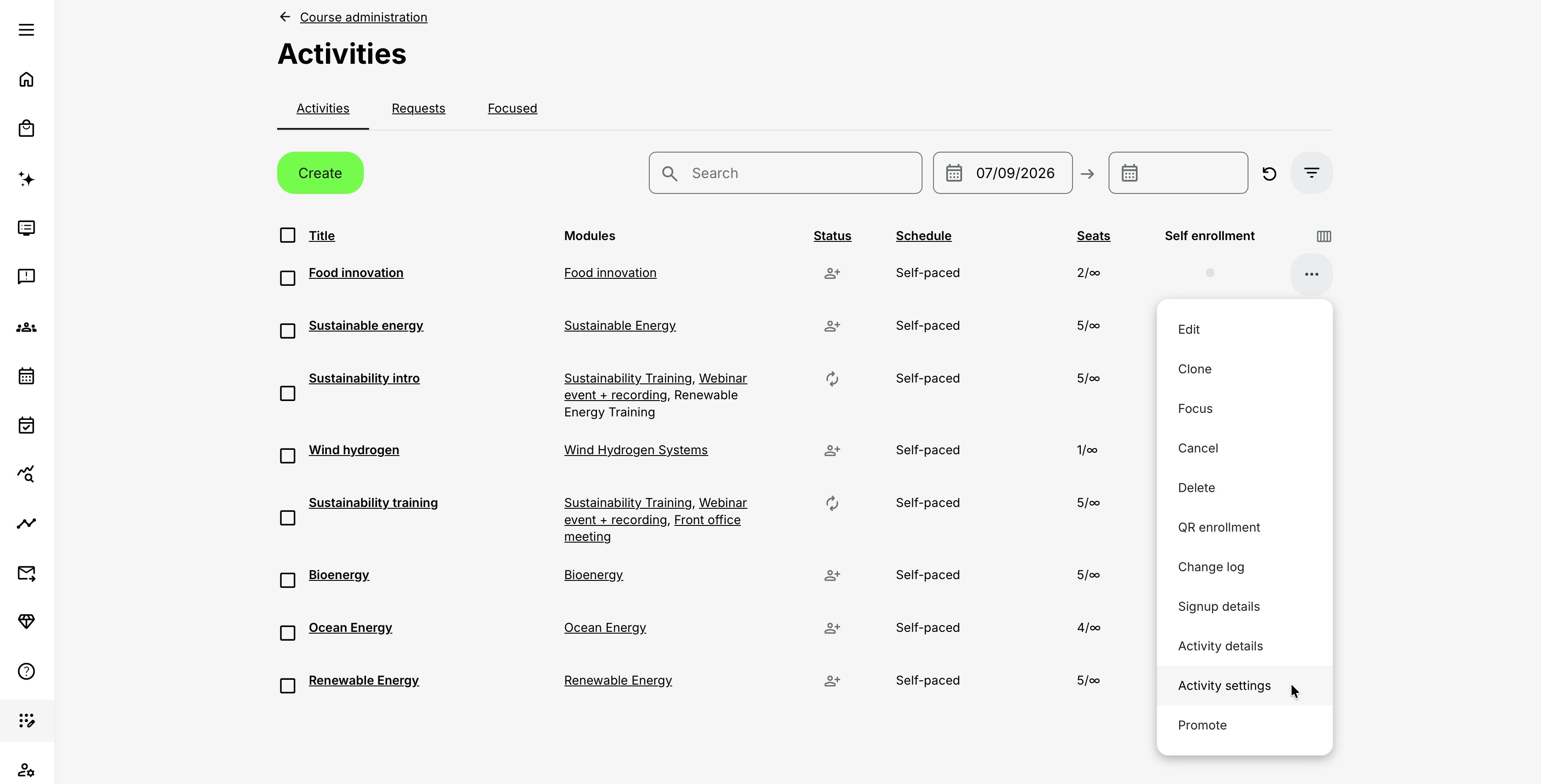
Activity Settings is unavailable after an activity has been cancelled. Review and correct its settings before cancellation if the historical record must retain particular classifications or reporting behavior.
Required and optional settings
Language is the only generally required field on the Activity Settings page. Select it for every activity, including training that is delivered in only one language.
Category and other tag fields can still be valuable for navigation, filtering, reporting, and Storefront presentation, but they are not universally required. Your platform may expose different classification fields or apply local administrative rules that make particular tags expected in practice.
If Language or a recommended classification is missing, Eurekos can display a Complete activity settings reminder. Complete the relevant fields, or close the reminder if the optional classification is intentionally blank. A dismissed reminder does not turn an optional field into a requirement.
Classify the activity with tags
The Tags section contains Language and the tag vocabularies that administrators have made available for Training Activities.
Depending on the platform, these fields can include:
- Category
- Importance
- Department
- Country
- Workplace
- Type
- Job function
- Unit
- Location code
- Other organization-specific vocabularies
This list is not fixed. A platform administrator creates and manages tag vocabularies centrally and chooses whether each vocabulary is used for Activities. If a tag field that your process requires is missing, it must be made available in the platform's tag configuration rather than created from the Activity Settings page.
All Activity tag fields support selecting more than one value. Use multiple values when the training genuinely belongs to several relevant classifications. Avoid adding broad or speculative tags merely to increase exposure; inconsistent tagging makes Storefront filtering, administration, and reporting less reliable.
Tags can support:
- Storefront categories, filters, and structured navigation
- Administrative filtering in the Activity list
- Audience- or organization-specific catalog designs
- Reporting and portfolio analysis
- Consistent classification across related training
Tags do not, by themselves, guarantee that a participant can see or enroll in an activity. Visibility can also depend on self-enrollment, organization rules, availability dates, Storefront section audiences, subscriptions, prerequisites, and commerce settings.
Use parent and child tags
A tag vocabulary can have a child level with its own field name. For example, selecting one or more values in Category can make a related Products field available. The participant-facing Activity Description can show both the parent and child values.
Use a parent and child structure when a single flat list would be difficult to navigate. Examples include:
- Product family → Product
- Business area → Department
- Profession → Specialization
- Region → Market
Only child values belonging to the selected parent values should be used. If the available child field or its label does not match the intended hierarchy, correct the vocabulary centrally before classifying more activities.
Organization-specific tags
Some tag values are associated with particular organizations. What you can select can therefore depend on your organization scope and permissions.
Before changing organization-specific tags, consider who maintains the activity and where it must appear. A value that is valid in one organization may not be available—or appropriate—in another.
For more detail, see Setting up the Storefront, Tags.
Set the activity language
Language identifies the language of the Training Activity and is required. The selector contains languages enabled for the platform.
Choose the language in which the participant-facing activity and its learning experience are delivered. This value is used for classification and can also affect Storefront presentation, search, platform language filtering, and multi-language activity behavior.
Language does not translate the activity, its modules, or the Activity Description. If participants need the same training in another language, create and maintain a separate Training Activity for that version, set its Language correctly, and connect the versions through This training is available in other languages.
Interface language and activity language are different
A participant can use the Eurekos interface in one language while taking training classified in another. The Language field describes the training, not the participant's current interface selection.
Add keywords for Eurekos search
Use Keywords for words and phrases that participants or administrators may search for even when those terms are not part of the activity title.
Although the field appears in the Tags section, keywords are free-form search metadata rather than values from a controlled tag vocabulary.
Good keywords can include:
- Common abbreviations and acronyms
- Alternative names for a subject
- Product or process terminology
- A former course name that participants still recognize
- Relevant competencies or outcomes
Do not repeat long lists of near-identical terms, unrelated popular words, or confidential internal data. Start with the language a participant would naturally use to find the training.
Keywords support Eurekos Global Search. Where AI-assisted search and recommendations are enabled, the Activity Description content and keywords can also help the system understand and recommend the activity.
Keywords are not a substitute for tags: tags provide controlled classification, while keywords provide flexible search terms. They are also not the same as SEO metadata, which is intended for external web search.
Configure SEO for a public catalog
The SEO section controls whether an eligible Activity Description page can appear in external search engines and how that result is presented.
SEO is relevant only when:
- Your catalog can be accessed by anonymous visitors
- The Training Activity is available in that public catalog
- Search-engine indexing is enabled for the production environment
It contains the following settings:
| Setting | What it does | When to use it |
|---|---|---|
| Allow this training to appear in search results | Allows an eligible public activity page to be indexed | Enable it for public training that should be discoverable from external search engines |
| SEO title | Supplies the preferred page title for the search result | Use a concise, recognizable title that explains the training topic |
| Meta description | Supplies the preferred summary beneath the search result | Describe the audience, subject, or value of the training in plain language |
If SEO title is blank, a search engine can use the title from the Activity Description. If Meta description is blank, it can select text from the page content.
When Allow this training to appear in search results is disabled, Eurekos instructs search engines not to index or follow the page. Search engines control when they revisit a page, so enabling or disabling the setting may take several days to affect existing search results.
SEO does not override access rules. A page that is not publicly available cannot become public simply because indexing is allowed. Conversely, preventing external indexing does not necessarily remove the activity from Eurekos search or the Storefront.
Choose the right discovery setting
| Goal | Primary configuration |
|---|---|
| Organize activities into controlled classifications | Tags |
| Help users find alternate terminology in Eurekos | Keywords |
| Improve an eligible public page in external search engines | SEO title and Meta description |
| Decide whether a participant can find an activity in the catalog | Self-enrollment, availability, Storefront audience, organization, and subscription configuration |
For more detail, see Setting up the Storefront, Activity Description, Self-enrollment Eligibility and Requirements.
Add financial reporting information
If Extra information fields are enabled for the platform, Activity Settings includes:
- Cost center
- Revenue account
Use these fields when finance, commerce, or reporting processes need an activity to be associated with an internal accounting reference. The values are included in relevant administrative data such as the Signup details report. Contact Eurekos support for configuration of these features.
Agree on a naming or coding standard before administrators begin entering values. These fields are most useful when the same identifiers are applied consistently across activities and match the organization's financial system.
The fields do not set an activity's price, tax, or payment method. Configure those commerce settings on the activity itself.
Connect language versions of a Training Activity
Enable This training is available in other languages to connect separate Training Activities that represent translations or localized versions of the same offering.
The option is available when more than one platform language is enabled. Only activities with a Language value can be selected.
Set up the language relation
For example, to offer the same program in English and German:
- Create and configure one Training Activity for the English version.
- Set its Language to English.
- Create and configure a separate Training Activity for the German version.
- Set its Language to German.
- Open Activity Settings for one version and select the other activity under This training is available in other languages.
- Review both Activity Descriptions, learning modules, enrollment rules, availability, and commercial settings.
Eurekos does not prevent an administrator from selecting another activity with the same Language. Verify the language of every selected activity to avoid presenting duplicate or misleading options.
What participants see
Connected language versions are grouped in the Storefront rather than presented as unrelated cards. The card lists the available languages and displays one version based on the visitor:
- A logged-in participant normally sees the version matching the language in their profile.
- An anonymous visitor sees the version matching a supported preferred browser language.
- If the browser language is not enabled for the platform, the platform default language is used.
On the Activity Description page, the enrollment area shows the available languages. Selecting another language redirects the participant to that version's separate Activity Description page.
An additional platform setting can filter training according to the user's language. If enabled, consider its effect when testing discovery for participants with different profile languages.
Separate activity records remain separate
The relation groups language versions for presentation and language choice; it does not merge their administration. Each version remains its own Training Activity with its own:
- Activity ID and Activity Description
- Modules and content
- Enrollment and participant records
- Schedule and capacity
- Price and access configuration
- Progress, completion, and reporting data
A participant who changes to another language version is directed to—and enrolls in—the other Training Activity. Keep equivalent settings aligned intentionally where the participant experience should be consistent.
Search and Storefront special cases
Storefront search evaluates the language version currently shown to the user. If a search term exists only in a connected version in another language, the grouped activity may not appear for that search. Add appropriate localized titles, descriptions, and keywords to every version.
Custom Storefront rows, audiences, subscriptions, and other visibility rules can also affect which version is eligible to appear. Test the activity as:
- A logged-in user in each supported profile language
- An anonymous visitor, if the catalog is public
- A member of each relevant organization or audience
- A subscriber and non-subscriber, where subscriptions are used
For more detail, see Target Audience Controls, Activity Description.
Configure a custom enrollment button
The Customization options section is available only when custom enrollment buttons are enabled for the platform. Contact Eurekos support if this configuration is not available.
Use it when selecting the main action on the Activity Description should take the visitor to another web page—for example, an external registration system, a partner checkout, or a customer-specific workflow.
The section can include:
| Setting | Behavior |
|---|---|
| Button label | Replaces the default Enroll label on the Activity Description page and supports translations |
| Button URL | Defines the destination opened when the button is selected |
| Open URL in new tab | Opens the destination in a separate browser tab when enabled |
The custom label applies to the Activity Description page. Buttons on subsequent pages retain their standard labels.
The platform can apply custom buttons to:
- All training, or
- Paid training only
With Paid training behavior, an activity with a price uses the custom destination instead of the normal enrollment button. Free training—including an activity made free by a 100% discount—continues to use the normal Enroll button.
Test the button while signed out and while signed in, and test every relevant language. Confirm that the URL is complete, secure, and available to the intended audience.
A custom link is not an enrollment record
Selecting the button redirects the visitor. It does not, by itself, register the participant in Eurekos. If the external destination is expected to create an enrollment, that result requires the appropriate integration or administrative process.
For more detail, see Activity Description.
Store an External ID
If the Training Activity external-ID feature is enabled, Activity Settings includes an External data section with External ID.
Use External ID to associate the activity with a record in another system, such as an ERP, CRM, HR, commerce, or migration source. The field accepts free-form text up to 255 characters and does not apply a universal format or uniqueness check.
Before entering or changing a value:
- Confirm which external system owns the identifier.
- Follow an agreed format and uniqueness rule.
- Check whether an integration populates or depends on the value.
- Avoid reusing an identifier for unrelated activities.
- Record any manual correction required in the connected system.
Some integrations can require, generate, or initially overwrite External ID values. If your platform exchanges activity data with another system, consult the integration documentation or your platform owner before editing the field.
External ID is different from the activity's Eurekos ID. The Eurekos ID is the platform's own identifier and appears in the activity URL and Activity list. External ID is optional metadata intended for a connected or external data model. Contact Eurekos support for configuration of an External ID.
Exclude the activity from transcripts
Enable Exclude activity from user's transcript when an activity should not appear in participant transcript files.
The option is disabled by default. When enabled, the activity is omitted wherever a transcript is downloaded, including:
- A participant's own transcript download
- A transcript downloaded by an administrator or another authorized role
- Bulk transcript downloads
Disabling the option again makes the activity appear in future transcript downloads.
Transcript exclusion does not delete or cancel the activity. It does not remove:
- Participant signups
- Progress or completion data
- Certificates
- The activity from administration
- Other reports or analytics
- Participant-facing records outside the transcript where the activity is otherwise shown
Use the setting for activities that should remain operationally recorded but are not part of the formal learning transcript—for example, orientation sessions, optional networking events, or administrative placeholders. Confirm local compliance and reporting requirements before excluding regulated or mandatory learning.
For more detail, see Progress.
Save settings for a linked activity
Repeated or linked activities can share a group. If the platform allows linked-activity updates, saving Activity Settings for one group member opens a choice:
- Apply to all updates the corresponding Activity Settings across the linked group.
- Apply to this only keeps the change on the current activity.
All fields on the Activity Settings page are synchronized when Apply to all is selected except This training is available in other languages. Multi-language relations remain specific to the activity being edited.
Use Apply to all for settings that should remain consistent across a delivery series, such as classification or transcript behavior. Use Apply to this only for a deliberate exception, such as a region-specific External ID.
Review the group before applying a change to all activities. The operation updates the other members' corresponding values; it is not a comparison or merge of each field.
If linked-activity updates are disabled for the platform, saving changes affects only the current activity and no choice is displayed.
Linked delivery and language relation are different concepts
Repeat/Link groups related deliveries, often across dates. This training is available in other languages connects localized versions for participant language choice. An activity can participate in either or both relationships, but the relationships do not replace each other.
For more detail, see Recurring events and activities, Existing Training (nesting).
Understand settings configured elsewhere
Several controls affect discovery or enrollment but are not configured on the Activity Settings page.
On-demand
On-demand is configured on the activity's creation/edit form when the feature is enabled for the platform. Use it when participants should request training that will be organized around their needs instead of enrolling directly in a predefined delivery.
Depending on the configuration, Request training opens a contact form or questionnaire and sends the request to the configured recipient. It does not enroll the requester. A scheduled date is not required, and an undated on-demand activity can show Flexible on the Activity Description.
Self-enrollment still affects Storefront availability. If Self enrollment is disabled, the page can show that the activity is not available in the Storefront even though on-demand is configured.
For more detail, see On-demand Training Requests, Self-enrollment Eligibility and Requirements, Introduction to Questionnaires and Common Use Cases.
Hide from external Storefront
Some platforms use an additional client-facing catalog outside Eurekos. When the optional Hide from external Storefront field is available, it is configured on the activity's creation/edit form—not in Activity Settings.
This control affects that connected external catalog. It is separate from Eurekos Storefront visibility, anonymous public access, and SEO indexing.
Storefront availability and audience
Use the activity's Self enrollment, availability, organization, subscription, restriction, and pricing configuration together with Storefront section settings to determine who can discover and enroll in the activity.
Activity Settings contributes classification, language, and search metadata, but it is only one part of the visibility decision.
Practical configuration examples
| Example | What to configure | What to verify |
|---|---|---|
| Public certification course | Set the Language and consistent Category/Product tags. Add participant-oriented keywords, enable external indexing, and write a focused SEO title and Meta description. | Confirm that the activity is available in the anonymous catalog and that its Activity Description contains complete public information. |
| Multilingual product training | Create one activity per language. Give every version the correct Language, localized title, description, keywords, modules, and enrollment settings. Connect the versions through This training is available in other languages. | Test Storefront search using each profile language because Eurekos searches the language version currently shown to the participant. |
| Externally purchased training | Add a price and configure the custom enrollment button with the external checkout or registration URL as desired. | Test external processes, potential API user creations, activity enrollments and email automations execute as expected. |
| Internal program with finance integration | Apply the governed classification tags, Cost center, Revenue account, and External ID. | Confirm ownership of each identifier with the connected system before cloning, repeating, or applying settings across a linked group. |
| Optional event excluded from formal learning records | Classify the activity normally so participants and administrators can find it, then enable transcript exclusion. | Confirm that stakeholders understand the event remains in operational data and reports even though it is excluded from transcript downloads. |
Verify the configuration
Use representative accounts and the routes enabled for your delivery. Check the relevant outcomes before launch and after a material change; an administrator preview alone does not verify the participant experience.
| Scenario or check | Expected result or evidence |
|---|---|
| Discovery and language | Language reflects the delivery; tags and their hierarchy use the agreed vocabulary; keywords match likely searches. External-search metadata is appropriate for an eligible public activity. |
| Localized participant route | Each language version has complete content and the intended visibility. Test custom button wording, translation, URL, tab behavior, price condition, and the resulting enrollment route. |
| Reporting and integration identity | Finance codes and External ID follow their owners’ conventions. Transcript exclusion is deliberate and does not hide evidence needed for reporting or compliance. |
| Save scope | For linked activities, confirm which records the save option will change. Reopen Activity Settings and the participant-facing Activity Description to verify the result. |
FAQ
-
Is Category required?
No, not universally. Language is the required Activity Settings field. Your organization can still expect Category or other tags as part of its administrative process.
-
Why can I not see a tag field?
The vocabulary must be created centrally and enabled for use with Activities. Organization scope and permissions can also affect the values available to you
-
Do tags make an activity visible in the Storefront?
Not by themselves. Tags help classify and filter training. Actual visibility can also depend on Self enrollment, availability, organization rules, Storefront audiences, subscriptions, restrictions, and pricing.
-
What is the difference between Keywords and SEO?
Keywords support search inside Eurekos and can support AI-assisted discovery when enabled. SEO controls how an eligible public Activity Description page is offered to external search engines.
-
Why does my activity still appear in an external search engine after I disabled indexing?
Search engines revisit pages on their own schedule. It can take several days for an existing result to be updated or removed.
-
Does connecting language versions translate the training?
No. Every language version is a separate Training Activity. Its Activity Description, modules, settings, and content must be translated and maintained separately.
-
Why does a multi-language activity not appear for a search term from another version?
Storefront search evaluates the language version currently presented to the participant. Add appropriate localized titles, descriptions, and keywords to every connected version.
-
oes a custom enrollment button enroll the participant?
No. The button redirects to its configured URL. An integration or administrative process is needed if completing the external journey should create an enrollment in Eurekos.
-
Why does a free activity ignore my custom paid-training button?
When custom buttons are configured for paid training only, free activities use the standard Enroll button. An activity with a 100% discount is treated as free for this behavior.
-
Is External ID the same as the ID in the Activity list?
No. The Activity-list ID is generated by Eurekos. External ID is optional integration metadata and can follow a separate identifier scheme.
-
Does transcript exclusion delete progress or certificates
No. It omits the activity from transcript downloads. The activity and its operational learning records remain intact.
-
Why was I asked whether to apply settings to all linked activities?
The activity belongs to a linked group, and platform-wide linked-settings updates are enabled. Choose Apply to all only when the corresponding settings should overwrite those of every linked member. The multi-language relation is not synchronized.
-
Does the Change log record every Activity Settings change?
No. It records several important settings, including tags, keywords, External ID, and transcript exclusion, but it is not a complete field-by-field audit of every Activity Settings value. Use appropriate governance for changes that require separate evidence.