Activity list - Article
Summary
The Activity list is where you find and manage the Training Activities available to you. It shows when each activity runs, whether registration is open, how many seats are used, and whether people can self-enroll. From the same list, you can open an activity, clone or repeat it, connect recurring deliveries, promote or focus it, cancel it, export information, or update several activities together.
In this article you will learn:
- How to use the Compact and Detailed views
- What every Activity list column and indicator means
- How activity status differs from registration and participant progress
- How search, schedule controls, and detailed filters work together
- What the Activities, Requests, and Focused tabs are for
- Which actions are available from an activity row and when they appear
- How linked activity indicators, exports, audit logs, and bulk actions work
- Which permissions, organization rules, and irreversible changes to consider
Use the Activity list as your operational workspace
Go to Course Administration → Activities to open the Activity list.
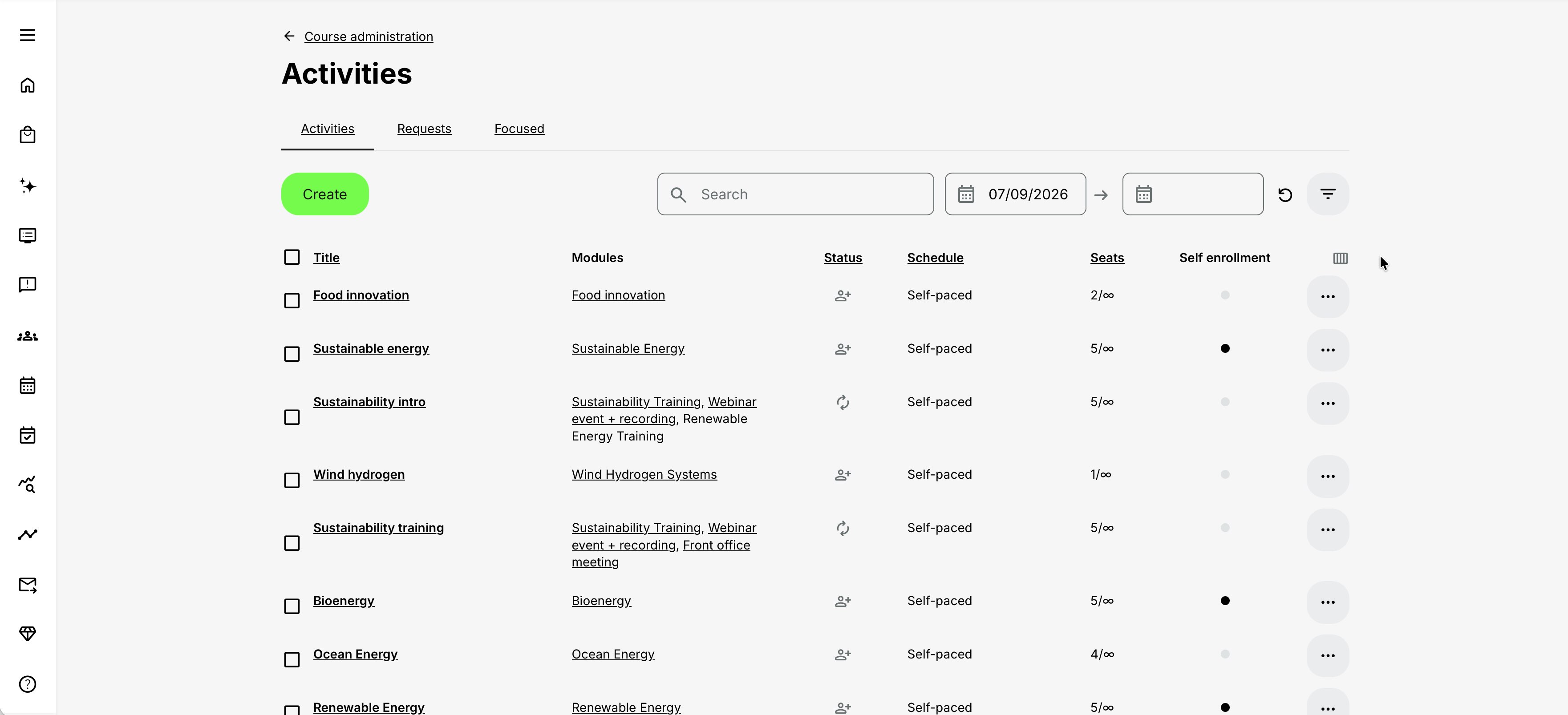
The list brings together the Training Activities that your role and organization scope allow you to access. These can include self-paced courses, webinars, classroom or on-site training, Existing Training activities, and multi-module learning paths.
From this page, you can:
- Create a Training Activity
- Search and filter the available activities
- Compare schedules, status, registration, capacity, and self-enrollment
- Open an activity and administer its modules and participants
- Work with repeated or linked deliveries
- Use activity-specific actions and reports
- Select several activities for supported bulk actions
The activities visible to two administrators may differ. Role permissions, responsibility for an activity, organization filtering, and platform features can all affect the rows, columns, tabs, and actions that appear.
The Activity list describes deliveries, not authored courses
A course contains learning content. A Training Activity defines how content, events, assignments, and other Training Activities are delivered. One course can therefore appear in several activities, and one activity can contain several different modules.
Choose Compact or Detailed view
The Activity list has Compact and Detailed views. Use Compact for routine monitoring and Detailed when you need identifiers, classification, registration timing, or location.
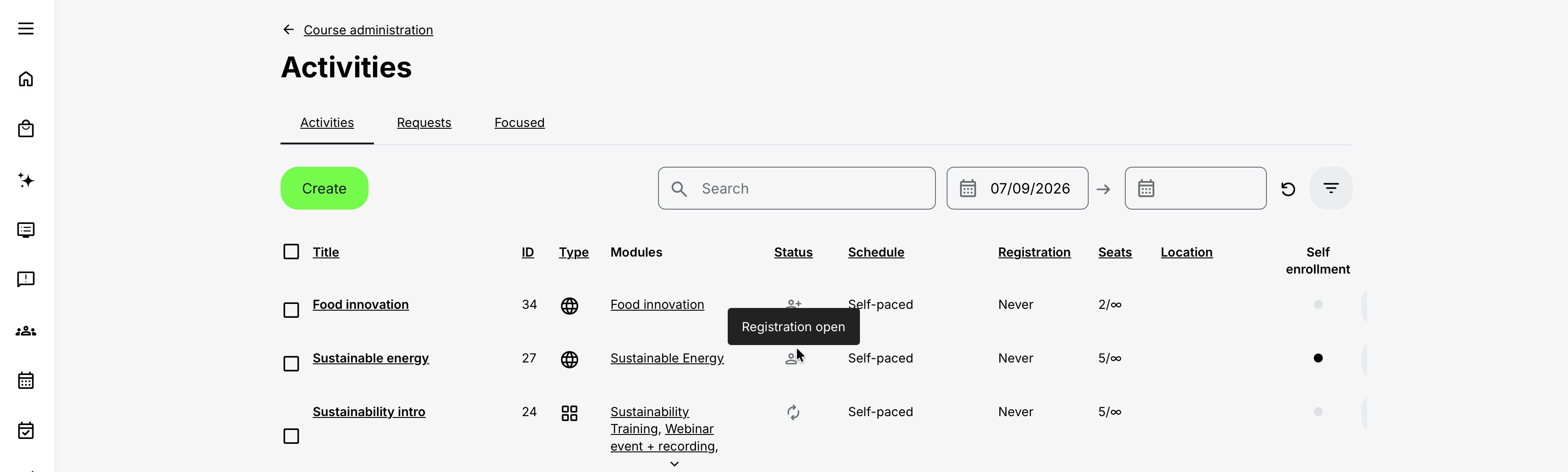
| Column | Compact | Detailed | What it tells you |
|---|---|---|---|
| Title | Yes | Yes | Administrative activity title; select it to open the activity |
| ID | No | Yes | The activity's unique numeric identifier, also used in its URL |
| Type | No | Yes | Delivery classification, such as Online, Webinar, Classroom, Existing training, On site, or Learning path |
| Modules | Yes | Yes | Courses, events, assignments, or Existing Training modules contained in the activity |
| Status | Yes | Yes | Current lifecycle state of the activity |
| Schedule | Yes | Yes | Activity date range or Self-paced |
| Registration | No | Yes | Whether registration is closed, never scheduled to close, or how long remains |
| Seats | Yes | Yes | Occupied seats compared with configured capacity |
| Location | No | Yes | Location configured on the relevant module or modules |
| Self-enrollment | Yes | Yes | Whether activity-level self-enrollment is allowed, focused, or currently unavailable |
Column visibility can vary by role and enabled features. For example, instructors with the required access can see activity location information even though other administrative controls may remain unavailable to them.
Title
Select the activity title to open its administration page. This page shows the activity overview, expandable module list, actions, and participant signups according to your permissions.
Use administrative titles that distinguish deliveries. If the same workshop runs repeatedly, include a date, region, language, cohort, or internal code rather than relying only on the Schedule column.
ID
The ID is the activity identifier found in its URL. It is especially useful when several activities have similar or identical titles and when communicating with support or referencing an activity in an integration.
Search accepts the activity ID, so copying it is often the fastest way to return to an exact activity.
Type
Eurekos normally derives the activity type from its structure and settings:
| Type | Typical reason it appears |
|---|---|
| Online | Online delivery without a physical location or qualifying webinar configuration |
| Webinar | Virtual conferencing is configured; the displayed webinar terminology can vary by platform |
| Classroom | A physical location is configured for participants to attend |
| On site | The location is identified as an on-site location, where delivery takes place at the participant or customer's site |
| Existing training | The activity contains one Existing Training module |
| Learning path | The activity contains two or more modules |
Some platforms allow the administrator to define the displayed activity type manually. Treat Type as a useful classification and filtering value, not a complete description of every feature in the activity.
Modules
The Modules column identifies the learning components inside the activity. It helps distinguish activities that have similar titles but use different courses, events, assignments, or nested training.
An activity with no modules can exist, but it does not yet provide an openable learning experience and cannot be offered for normal self-enrollment. If the Self-enrollment indicator says no modules are present, edit the activity and add the intended learning structure.
Schedule
The Schedule column shows the activity-level date range or Self-paced.
Self-paced does not necessarily mean that every internal module is free of dates. It means the activity is not presented with its own activity-level schedule. Open the activity when you need to inspect individual module dates.
Seats
Seats shows current occupancy against the activity's capacity. It is an operational signal, not the complete enrollment picture:
- Reserved places can affect capacity.
- A full activity may direct additional participants to a waiting list.
- Organization-specific seat limits can make a place unavailable to one audience even when the total activity still has capacity.
- An unlimited-capacity activity is presented differently from one with a fixed maximum.
Open the activity's Participants section and Registration details when you need to investigate the numbers.
Location
Detailed view shows location information taken from the activity's modules. This is useful when several deliveries run on the same dates in different offices or regions.
An Online or Webinar activity does not require a physical location. An activity can also contain several modules with different locations, so open the activity for the complete schedule and venue plan.
Understand activity status
The Status column describes the lifecycle and availability state of the Training Activity. It is not an individual participant's registration or learning status.
| Activity status | Meaning |
|---|---|
| Open | The activity is self-paced or has not started, and its timing has not placed it in another status |
| Closed | The scheduled activity has not started, but registration has already closed—for example, because Latest registration has passed |
| In progress | The activity has started and its end has not passed |
| Completed | The activity end has passed, or an undated activity has reached its applicable module-completion state |
| Cancelled | An administrator used the Cancel action |
For a scheduled activity, current time, start, end, and Latest registration work together:
- Before Latest registration and before the start, the activity is Open.
- After Latest registration but before the start, it is Closed.
- After the start but before the end, it is In progress, even when registration has closed.
- After the end, it is Completed.
Latest registration can also be later than the activity start. In that case, the activity is already In progress while registration may remain open until the configured deadline.
For an activity without activity-level dates, the default status is Open. If a contained module reaches In progress or Completed, the activity can become In progress; once all applicable modules are completed, the activity becomes Completed.
Activity Completed does not mean every participant completed the training
Activity status describes the delivery's lifecycle. Participant progress and completion are recorded separately and can differ from one person to another.
Distinguish Status, Registration, and Self-enrollment
Three neighboring columns answer different questions:
| Signal | Question it answers |
|---|---|
| Status | What lifecycle state is the activity in? |
| Registration | How long is registration available, or has it closed? |
| Self-enrollment | Is activity-level self-enrollment enabled and currently possible? |
Registration
Detailed view can show:
- Never when no registration deadline is derived from Latest registration or the schedule
- A remaining duration in seconds, minutes, hours, days, weeks, months, or years
- Closed when the registration period has ended
When the column is sorted in ascending order, Closed registrations appear first, followed by the shortest remaining time through to the longest, and then Never. Descending order reverses that sequence.
Registration can be closed while the activity itself is still upcoming or in progress. Conversely, an Open activity is not automatically available for self-enrollment if the Self enrollment feature is disabled or another prerequisite blocks it.
Self-enrollment indicator
The Self-enrollment indicator is an activity-level operational signal. It helps administrators identify whether an activity is generally configured and currently usable for self-enrollment without opening the activity.
The column is available only when Storefront is enabled for the platform. If Storefront is disabled, the Self-enrollment feature and its Activity-list display are hidden. Existing configuration is retained and becomes available again if Storefront is re-enabled.
The indicator can show:
- Allowed
- Allowed, Focused
- Not allowed
Allowed means that Self enrollment is enabled and the activity passes the general checks represented by the Activity list. Allowed, Focused means the activity also has Focus applied. Focus affects applicable Storefront presentation but does not override dates, capacity, status, or other restrictions.
Hover over the indicator for more information. Depending on the configuration, the tooltip can identify:
- The organization for which the activity is generally available
- That the activity is available but new participants will enter the waiting list
- That the start date or registration deadline has passed
- That all Seats are occupied and no applicable waiting-list route is available
- That the activity has no modules
The documented Activity-list checks include timing, registration, Seats, waiting-list availability, and whether the activity contains learning modules. The indicator is therefore useful for finding operational configuration problems.
Allowed does not mean available to every participant
The indicator does not simulate a particular participant or confirm that the activity appears in a Storefront section visible to that person. Participant discovery and enrollment can still depend on the registered or anonymous Storefront, section target audiences, organization membership, language and other Storefront filters, subscription access, enrollment requirements, and optional direct-link restrictions.
Conversely, Not allowed describes self-enrollment through this activity. It is not a combined status for every possible enrollment route. Administrator enrollment, invitations, subscriptions, QR links, automation, and enrollment through another Training Activity have their own rules and must be checked separately.
Test the Activity Description and Storefront with representative participant accounts whenever participant-specific availability matters. If Storefront sections, filters, or audience rules were recently changed, allow up to five minutes for cached Storefront visibility to refresh before evaluating the result.
For more detail, see Self-enrollment Eligibility and Requirements, Setting up the Storefront, Registration Details and Capacity, Waiting list.
Search for an activity
The Search field can match:
- Activity title
- Activity ID
- Course title
- Course code
- Event title
- Existing Training title
- Assignment title
- Program number, when that feature is enabled
This means you do not need to remember the parent activity title. Searching for a contained course code or event title can locate every activity that uses it.
Use an exact ID when possible. Use a distinctive title fragment or course code when comparing several deliveries built from the same content.
Search works together with the active date controls, filters, and linked-group view. If a known activity does not appear, clear or broaden those controls before assuming the activity is missing.
Filter the Activity list
Open Filters to narrow the list. Available filters can include:
- Schedule
- Status
- Type
- Instructor
- Course administrator
- Organization
- Language
- Category
- Units
- Focus
- Location
- Countries
- Self enrollment
- City
The exact fields depend on platform features, vocabularies, permissions, and organization configuration.
Combine Schedule and date controls
The Start date picker is set to the current day by default, while End date is empty. This default is easy to overlook and can hide older scheduled activities.
The date range applies only to activities that have a schedule. The Schedule filter determines how undated activities are treated:
| Schedule filter | Result |
|---|---|
| Scheduled | Only scheduled activities that overlap the selected date range |
| Without schedule | All activities without a schedule; selected dates are ignored |
| All | All activities without a schedule, plus scheduled activities that overlap the selected date range |
A scheduled activity is excluded when it starts after the selected End date or ended before the selected Start date.
If an older activity appears to be missing
Check the default Start date first. Move it back or reset the date controls, then review Status and Schedule filters.
Filter by location and city
Location filters can include Without location for activities that have no module-level venue. An Online location choice can cover Online and Webinar activity types.
The City filter is derived from the address of a configured Location. When Google Maps integration is enabled, Eurekos uses the address to identify the city. If an address is incomplete or cannot be resolved, the expected city may not be available as a filter value.
Filter by organization
Organization filtering respects the platform's organization hierarchy and the content scope available to your role. An administrator at a higher level can have access to activities from lower suborganization levels, while a user in a suborganization does not automatically gain access to activities owned at a higher level.
Use organization filtering to verify governance and ownership, not as proof of participant eligibility. A separate Organization feature on the Training Activity can also control which participants can enroll.
Use the Activity-list tabs
Tabs appear according to platform features and your role.
Activities
Activities is the main operational list described in this article. It contains the activities within your access scope and provides search, date controls, filters, view selection, row actions, and bulk selection.
Requests
Requests is a centralized work queue for Training Activities using participation approval. It is available to administrative users and designated approvers according to their role and organization scope.
Select an activity to open its enrollment-request administration. The Requests list includes its own Search field and date control and can show Title, ID, Type, Schedule, and Seats.
Its search matches the same kinds of activity and module information as the main list. Self-paced request activities remain visible regardless of the selected date; ongoing activities and relevant scheduled activities are included according to the date control.
Users who can approve requests but cannot access the complete Activity list can instead reach their work queue through Enrollment requests in the main navigation.
For more detail, see Participation Approval and Enrollment Requests.
Focused
Focused appears when at least one accessible activity has been marked as Focused and the role has access to the feature.
The tab uses most of the columns from the main list, but omits bulk-selection, linked-group, and Self-enrollment controls. Drag activities into the desired order: their order in this tab controls the relative order of focused activities in applicable Storefront listings.
Newly focused activities are placed at the top. Focus ordering does not control general Storefront search-result order.
Work with linked-activity indicators
Repeated and manually linked activities form a linked group. The Activity list shows a linked-group icon beside group members.
Select See linked group to narrow the Activity list to that group. Existing search terms and filters remain active, so clear them if expected group members are missing. Select the icon again to return to the wider list.
Each linked group has exactly one Primary activity, identified by a separate marker. The Primary activity is used by linked-group behavior elsewhere in the platform.
- Repeating an activity makes the original activity Primary.
- Manually linking activities makes the selected target activity Primary.
- A Cancelled activity cannot be Primary.
- If the Primary activity is unlinked, cancelled, or deleted, the earliest scheduled eligible group member becomes Primary.
Do not use the indicators as proof that the group members are identical. Each remains an independent Training Activity, and changes synchronize only when the applicable linked-update feature is enabled and the administrator chooses to apply supported changes to the group.
For more detail, see Recurring events and activities.
Open and administer an activity
Select the Title to open the activity page. This page provides:
- An overview of type, status, schedule, seats, and responsible users
- An expandable Modules section
- A Participants section with signup statuses, search, filters, enrollment actions, and participant actions
- Shortcuts to Edit, Activity Description, Activity Settings, and Progress analytics
- Participant view for supported learning paths
- Additional actions in the More menu
Module titles are clickable when your role can edit the activity. Assistants may see links only for activities they created or for which they are responsible.
Preview the participant experience
Participant view is available for activities containing two or more modules and for supported administrative roles. Use it to inspect the learning-path overview and move through Course, Event, Assignment, and Existing Training modules without creating a real enrollment.
The preview deliberately bypasses normal activity configuration and module restrictions. It does not prove that a real participant meets access or enrollment requirements. Existing Training selections are not remembered, and certification, My progress, and download controls are unavailable or disabled.
Always perform a separate test with a representative participant account before launch.
Use actions from the activity row
Open the More menu on an activity row to see the operations available for that activity and your role. The same or related actions are also available from inside the activity.
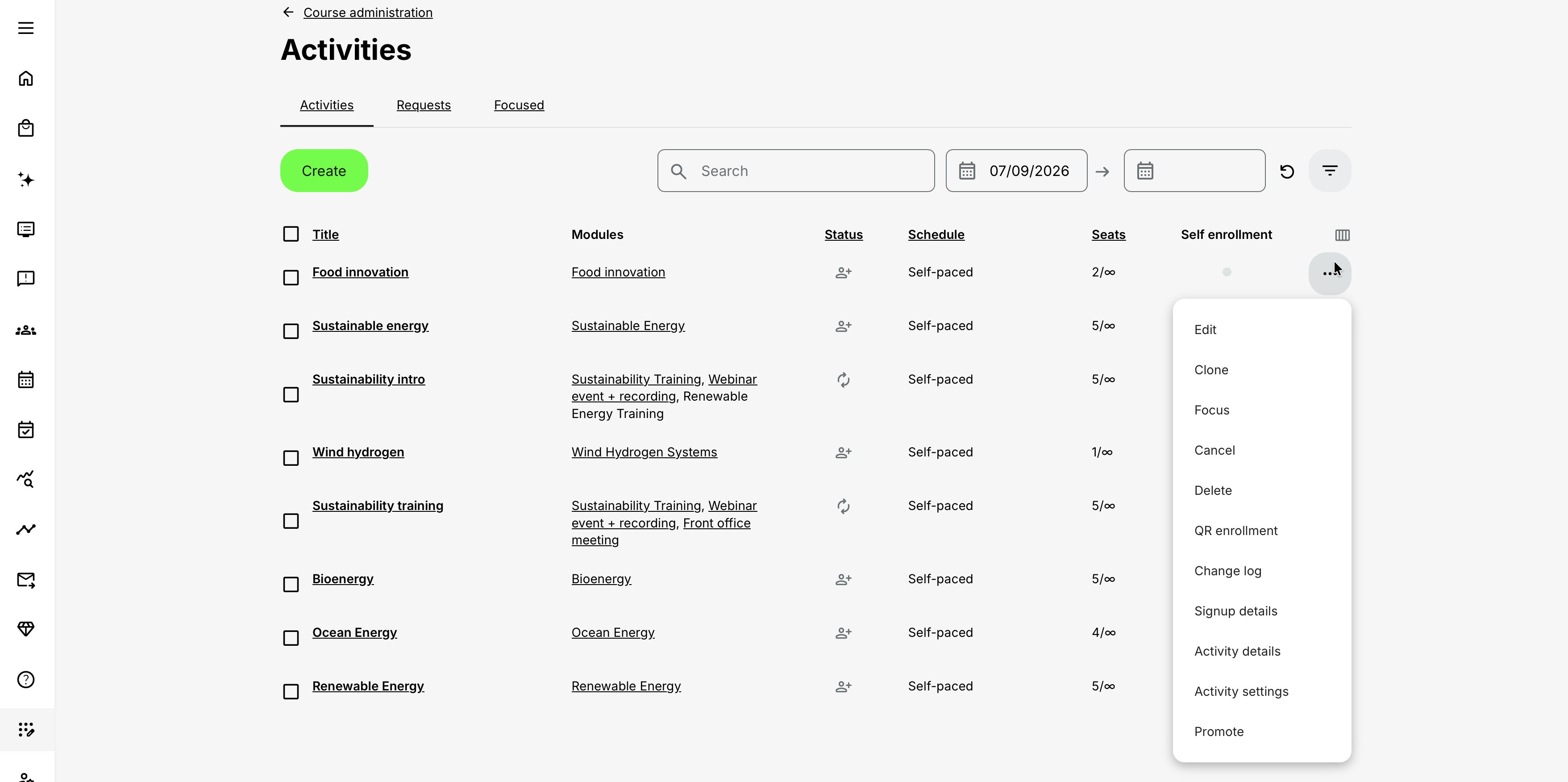
| Action | Purpose | Important dependency or consequence |
|---|---|---|
| Edit | Change modules and activity-level features | Unavailable after the activity is Cancelled |
| Clone | Create an independent copy | Copies configured features except Team connection; special handling applies to Calendar events and Assignments |
| Repeat | Create another scheduled delivery and link it to the source | Requires a schedule and creates or extends a linked group |
| Link / Unlink | Add an activity to or remove it from a linked group | Completed or Cancelled activities cannot be newly linked; an already linked activity can be unlinked |
| Focus / Unfocus | Prioritize a self-enrollable activity in applicable Storefront listings | Requires Storefront and Self enrollment; Focused tab and ordering are feature- and permission-dependent |
| Cancel | Stop the complete activity while retaining its record | Cannot be undone; unavailable for Completed activities; registered participants are notified |
| Delete | Permanently remove the activity | Destructive and cannot be undone; use Cancel when operational history must remain available |
| QR enrollment | Create and manage direct-enrollment QR codes or URLs | Appears only when enabled and is unavailable on Cancelled activities |
| Change log | Download an audit workbook of recorded changes | Available for active, Completed, and Cancelled activities; broad but not exhaustive |
| Activity details | Export participant progress and module-status information | Available only when the activity has participant data |
| Signup details | Export registration, transaction, and participant-profile information | Available only when the activity has participant data; profile field configuration affects columns |
| Activity settings | Open classification, discovery, reporting, and related activity settings | Unavailable after cancellation |
| Download nameplates, badges and certificates | Prepare printable material for registered participants | Requires at least one active Registered signup |
| Promote | Send the activity to Contact Managers for invitation workflows | Appears only when Promotions and Invitations is enabled |
| Remove organization restrictions | Remove an applicable organization ownership restriction from the activity | Appears only with organization filtering and a removable relation within the user's scope |
Not every action appears on every platform, activity, or role. Check the dependency before treating a missing action as an error.
Clone or Repeat: choose deliberately
Clone creates an independent activity. Use it as a starting point when the new delivery should not form a recurring date group with the source.
The clone receives a title such as Clone of [activity title] and copies configured activity information and features except Team connection. An Assignment module is recreated with its own identifier. If the source has events created through Calendar, Eurekos asks whether to clone them and requires their new dates and times to be configured.
Repeat is for another scheduled delivery in the same recurring series. It copies the activity, assigns the new schedule, and links the result to the source. Calendar-created events are not copied through Repeat. A repeated learning path should be reviewed immediately to ensure all module schedules fit within the new activity schedule.
For more detail, see Recurring events and activities.
Focus or Promote: understand the difference
The two actions serve different purposes:
| Feature | What it does |
|---|---|
| Focus | Raises a self-enrollable activity's priority in applicable Storefront presentation and lets administrators order focused activities |
| Promote | Sends a configured message about the activity to all or selected Contact Managers so they can invite people through a managed promotion workflow |
Focus is available only when Storefront and Self enrollment are enabled. A focused marker can remain on an activity whose dates or status currently prevent enrollment, but focusing does not override those restrictions.
Promote is an optional feature. Its form can define recipients, email subject and body, a promotion deadline, and a reminder while seats remain. The activity then enters a separate promotion-and-invitation process.
For more detail, see Promote, Focus, and Prioritize Training.
Cancel an activity
An activity can be cancelled in any status except Completed. Cancellation cannot be undone.
After cancellation:
- The activity status becomes Cancelled and shows its cancellation date and time.
- Registered participants receive the Your training has been cancelled system email.
- Edit, Activity Settings, Activity Description, and QR enrollment are no longer available.
- The activity and its recorded history remain available for permitted administration and reporting.
Cancelling the activity is different from cancelling one participant's signup. Use the activity action only when the complete delivery will not take place.
Delete an activity
Delete is permanent. Confirm the exact activity, participant history, certificates, linked-group membership, integrations, and reporting consequences before proceeding.
For a real delivery that was announced or has participant history, Cancel normally communicates the operational outcome more accurately and keeps the activity available for investigation. Reserve Delete for records that genuinely should be removed, such as an unused duplicate or test activity, according to your organization's retention rules.
Create QR enrollment links
When QR enrollment is enabled, an activity can have multiple QR codes and direct URLs. Each can be active or inactive and can have an optional usage limit. The code can be downloaded as an image, while the URL can be copied for use in another channel.
An unauthenticated user is routed through login, signup, or a configured SSO provider before automatic enrollment. A QR link is therefore both an enrollment route and a link-distribution decision; protect and limit it according to the intended audience.
For more detail, see Enroll and register participants.
Remove organization restrictions
When organization filtering is enabled, an activity can be associated with the organization of the person who created it. Remove organization restrictions allows an authorized user to remove the association that belongs to their own organization scope—for example, when an activity should be made available outside that organization.
The action appears only when the activity has a removable organization relation. It does not allow a user to remove an association belonging only to an organization they cannot manage.
If several organization associations exist:
- A user belonging to one matching organization removes only that association.
- A user belonging to several matching organizations removes all matching associations within their scope.
- Associations outside the user's organizations remain.
This action changes content governance and potential availability. Confirm the intended audience and Storefront configuration after removal.
Use reports and operational downloads
Several downloads can originate from the Activity list. Choose the report that answers the actual question.
Export the Activity list
When the list-level export is available, it produces an XLSX report based on selected activities and the filters currently applied. It can include activity title, module and training type, enabled tags, organizations, and other activity-level information.
Use this export for a portfolio or delivery overview. It is different from the row-level Activity details and Signup details reports, which contain participant data for one activity.
Activity details
The Activity details workbook combines:
- Activity title, seats, and report preparation time
- Participant identity, organization, training status, status date, and comment
- Module title and type, training type, module training status, and date
Use it to investigate progress across the structure of one activity.
Signup details
The Signup details workbook focuses on enrollment and participant context. It can include registration and signup status, who registered the person, price, order and transaction information, organizational hierarchy, job and workplace fields, and other enabled profile values.
Profile fields disabled on the platform are omitted from the export. Treat the file as personal and potentially financial data and store it according to your organization's data-handling policy.
Both Activity details and Signup details require participant data in the activity and appear according to role permissions.
Change log
The Change log is an XLSX audit workbook containing recorded changes to the activity, Activity Settings, and individual modules. It records the author and timestamp of each captured version. Headings are generated in the exporting user's language, and times normally follow that user's profile time zone unless the field has its own configured time zone.
The workbook remains available for active, Completed, and Cancelled activities. Deleted modules retain limited entries under renamed module tabs.
The log is comprehensive but not a record of absolutely every administrative action. For example, module reordering and some activity or settings fields are not logged. Use it to investigate configuration history, but do not treat it as the sole financial, compliance, or data-retention audit source.
Nameplates, badges, and certificates
This download is available for any activity type—including activities with one, several, or no modules—when at least one participant has an active Registered signup.
Nameplates and badges use participant name and company information and can follow configured print styles. Certificate downloads can support preparing printed certificates for offline training. Internal certificates can be generated before issuance where supported; an external Certopus certificate can be downloaded only after it has been issued.
Downloads can be prepared for all registered participants at activity level or for a selected subset from the participant list, subject to the available bulk action and permissions.
If several certificates apply, review the generated set before printing. Certificate tokens and issuance state can affect the values on each file.
For more detail, see Certificates.
Manage several activities in bulk
Select the checkbox beside each activity you intend to manage. The header checkbox selects the activities currently loaded on the page—not automatically every activity matching the filters. The default page load can therefore represent only part of a larger filtered result.
Supported bulk actions include cancelling and deleting selected activities, subject to status and permission rules.
Before either action:
- Review the selected count and titles.
- Confirm that search, date, and detailed filters have not produced an unintended set.
- Check whether any selected activity has participants or belongs to a linked group.
- Read the confirmation dialog; the action cannot be undone.
When more than 50 activities are included, Eurekos queues the work and displays a banner. The update may therefore not appear immediately. Avoid submitting the same operation again while the first job is still processing.
Bulk actions magnify mistakes. Use a list export or a second review when the selection represents a large portfolio or multiple organizations.
Common Activity-list workflows
| Workflow | What to do |
|---|---|
| Find every delivery using one Course | Search by Course title or Course code. Switch to Detailed view to compare activity IDs, types, registration, and locations. Adjust the Start date when historical deliveries are required. |
| Check next month’s instructor-led delivery | Set Start and End dates for the period, filter Schedule to Scheduled, and filter by Instructor, Type, Location, or City. Compare Status, Registration, and Seats before opening the activity. |
| Investigate why the indicator says Not allowed | Hover over the Self-enrollment indicator and read its explanation. Confirm that Self enrollment is enabled, the activity contains modules, its start and registration deadlines have not passed, and Seats or a waiting-list route remain available. |
| Investigate why Allowed does not match a participant’s experience | Treat Allowed as a general activity result, then test the affected participant separately. Check the appropriate Storefront, section target audience, organization membership, language and other Storefront filters, subscription access, enrollment requirements, price, and direct-link policy. Allow for the Storefront visibility cache after changing sections or audiences. |
| Review a recurring series | Select the linked-group icon beside any member. Clear other filters if an expected delivery is absent. Confirm the Primary marker and review dates, status, seats, and self-enrollment across the group. |
| Prepare an activity audit | Open Change log for configuration history, Activity details for participant progress, and Signup details for enrollment context. Use the list export when the question covers several activities rather than one. |
| Retire a cancelled delivery without losing context | Use Cancel, not Delete, when the delivery will not happen but participants and administrators still need its cancellation record, notification, or historical evidence. |
Verify the configuration
Use representative accounts and the routes enabled for your delivery. Check the relevant outcomes before launch and after a material change; an administrator preview alone does not verify the participant experience.
| Scenario or check | Expected result or evidence |
|---|---|
| Identify the delivery | Confirm the administrative title and ID. Check Start-date filters, Detailed view, and the linked group before deciding an activity is missing or selecting several records. |
| Check the scope of the action | Confirm the complete bulk selection and linked-group Primary activity. Use Clone for an independent copy and Repeat for another linked delivery; do not infer participant progress from activity Status or Registration. |
| Protect history and personal data | Before cancellation or deletion, review participants, dependencies, and retention requirements. Prefer Cancel when delivery history must remain available, and handle exports securely. |
| Verify the result | Reopen the affected activity and check the intended change. Test participant visibility separately: access to the administrative list does not prove Storefront availability. |
FAQ
-
Why can I not find an older scheduled activity?
The Start date defaults to today. Move it back or reset the date controls, then check the Schedule, Status, organization, and other active filters.
-
Does Open mean participants can self-enroll?
Not necessarily. Open is the activity lifecycle status. Self-enrollment must also be enabled and can still be affected by availability, seats, organization rules, prerequisites, price, and Storefront audience configuration.
-
Does Completed mean every participant finished?
No. Activity status describes the delivery lifecycle. Participant completion is individual and is reviewed in Progress or the activity's participant data.
-
What is the difference between Closed and Completed?
Closed normally means registration ended before the activity starts. Completed means the activity end has passed or an undated activity reached its applicable completed state.
-
Why does the list say Self-paced when some modules have dates?
The Schedule column reflects the activity-level schedule. Open the activity to inspect dates on individual modules.
-
Why does the Self-enrollment indicator say Allowed when a learner cannot find the activity?
Allowed means that the activity passes the Activity list’s general self-enrollment checks. It is not calculated for a particular participant.
The participant can still be excluded by the Storefront section’s target audience, organization membership, language or other Storefront filters, subscription access, enrollment requirements, or optional direct-link restrictions. Test the activity while signed in as a representative participant and, when relevant, while signed out. After changing Storefront sections or audience rules, allow up to five minutes for cached visibility to refresh.
-
Why is an action missing from the More menu?
Actions depend on your role, the activity status and structure, organization scope, and enabled platform features. For example, Repeat requires a schedule, Focus requires Self enrollment and Storefront, and QR enrollment must be enabled.
-
Should I Clone or Repeat an activity?
Clone when the new activity should be independent. Repeat when it is another scheduled delivery in the same recurring group and should participate in linked-date behavior.
-
Can a Cancelled activity be restored?
No. Cancelling an activity cannot be undone. The record remains available, but the activity cannot return to its previous status.
-
Can I cancel a Completed activity?
No. The Cancel action is available for activity statuses other than Completed.
-
Why can I not export Activity details or Signup details?
Those reports require participant data in the activity and the appropriate role permission. If nobody has been assigned or registered, the actions do not appear.
-
Does Change log capture every change?
No. It captures a broad set of activity, Activity Settings, and module changes, including who made them and when, but some fields and operations—such as module reordering—are not recorded.
-
Why did my bulk change not appear immediately?
Operations involving more than 50 activities are queued. Wait for the queued job to process and review the banner before attempting the same operation again.
-
Why is the Self-enrollment column or indicator not displayed?
Self enrollment depends on Storefront being enabled for the platform. When Storefront is disabled in Settings → General, the Self-enrollment feature and its Activity-list display are hidden. Existing self-enrollment configuration is retained and becomes available again if Storefront is re-enabled.
If Storefront is enabled but the complete column is still missing, check whether your role and platform configuration provide access to it. If the column is visible but an activity displays no documented state, open the activity, confirm that its changes were saved, and contact Eurekos Support with the Activity ID if the problem continues. The documented indicator states are Allowed, Allowed, Focused, and Not allowed.