Recommendations and Learning Guidance - Article
Summary
Recommendations use a participant's answers in an H5P Question Set to point them toward the modules or individual Course pages that would be most useful to review. They provide guidance and a visible Recommended signal without changing enrollment, unlocking content, or automatically making the suggested item required. Use Recommendations for targeted revision and support; use Adaptive Modules, Access Restrictions, or completion rules when the learning path itself must change.
In this article you will learn:
- When Manage Recommendations becomes available
- How to use correct or incorrect answers as criteria
- How passed and failed popup messages are selected
- How to recommend modules or individual Course pages
- How several questions, targets, tests, and source modules interact
- What participants see in the popup, learning-path overview, and Course navigation
- How Recommendations interact with Adaptive Modules, Adaptive Pages, and restrictions
- Which unavailable or hidden targets to avoid
- How to test and troubleshoot answer-based guidance
What Recommendations help you achieve
Recommendations turn assessment results into useful next steps. Instead of telling every participant to repeat the same content, you can connect a specific answer to the module or page that addresses that knowledge gap.
Examples include:
- Recommend the safety-procedure page after an incorrect safety answer.
- Point an experienced participant to advanced material after a correct diagnostic answer.
- Suggest a complete refresher module when several concepts are weak.
- Guide participants back to particular pages before a final assessment.
- Provide different review suggestions after a passed or failed Question Set.
The recommendation is advisory. It directs attention but does not itself modify required progress, completion, access, enrollment, certification, or adaptivity.
Confirm the source requirement
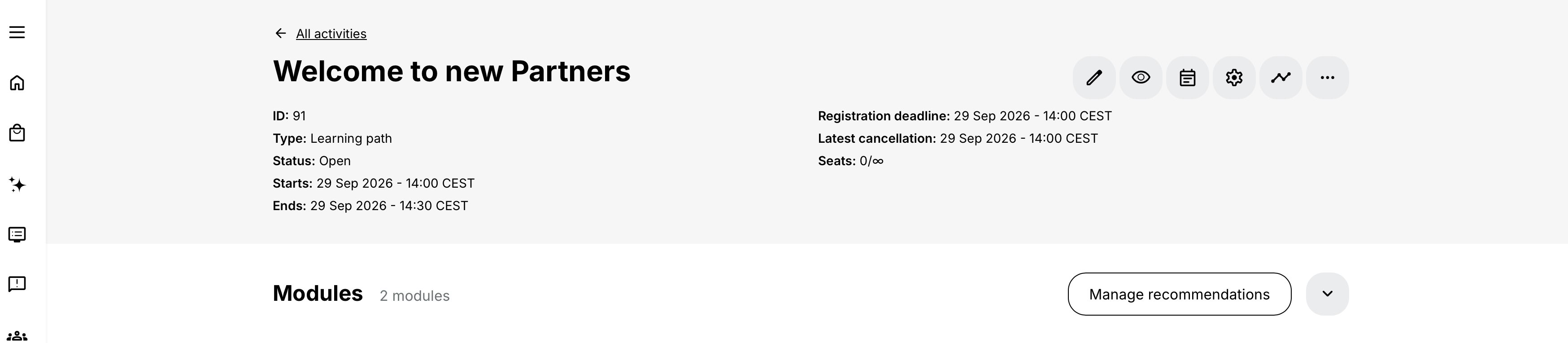
Recommendations are activated for a Training Activity when at least one Course in the activity contains an H5P Question Set. After the activity is saved, Manage Recommendations appears in the module area of the Activity page.
If the action is missing:
- Confirm the activity contains a Course module.
- Confirm that Course contains an H5P Question Set, not merely another question or test type.
- Save the activity before looking for the action.
- Check that the administrator can edit the activity and access the underlying Course content.
Recommendations are configured from the Training Activity because the targets are modules and pages in that delivery. The Question Set and questions themselves are authored inside the Course.
Choose Recommendations or another control
| Desired outcome | Use |
|---|---|
| Suggest useful content based on an answer | Recommendations |
| Add a supplemental module only when criteria are met | Adaptive Module – Supplemental |
| Let a participant skip a normally required module | Adaptive Module – Optional |
| Keep a visible module locked until criteria are met | Access Restrictions |
| Adapt an individual Course page | Adaptive Pages in Content Authoring |
| Stop self-enrollment until criteria are met | Self-enrollment eligibility |
| Require an outcome for completion or certification | Completion and certificate criteria |
A participant can ignore a recommendation unless another feature independently makes that content required. Do not use advisory wording when the target is actually mandatory.
Plan the guidance before configuring it
Write each recommendation as a simple rule:
When the participant answers [specific question] [correctly / incorrectly], recommend [module(s) and/or Course page(s)] because [learning reason].
Then confirm:
- The question measures the intended knowledge.
- Correct-answer data is configured accurately in H5P.
- The target directly addresses the answer.
- The target is visible and reachable for the intended participant.
- The message explains the recommendation without disclosing unnecessary scoring logic.
- Retakes and changed answers produce a sensible result.
Avoid turning every question into several recommendations. A long undifferentiated list feels like repeating the entire Course rather than personalized guidance.
Open Manage Recommendations
- Open the Training Activity and save its module structure.
- From the Activity page, select Manage Recommendations.
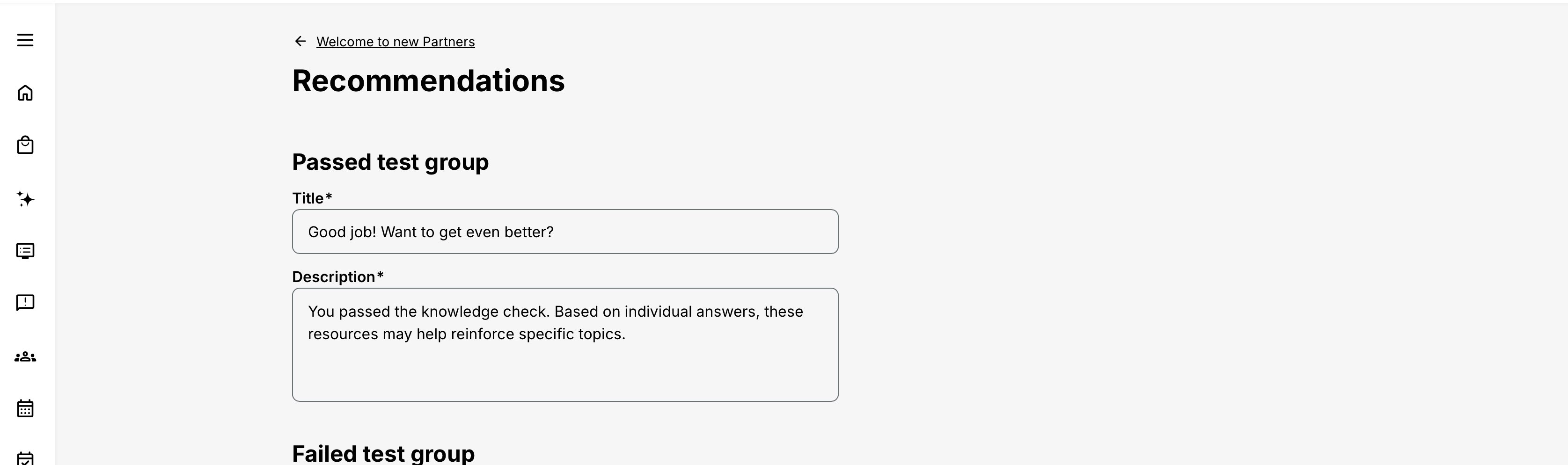
- Configure the Passed and Failed popup titles and descriptions.
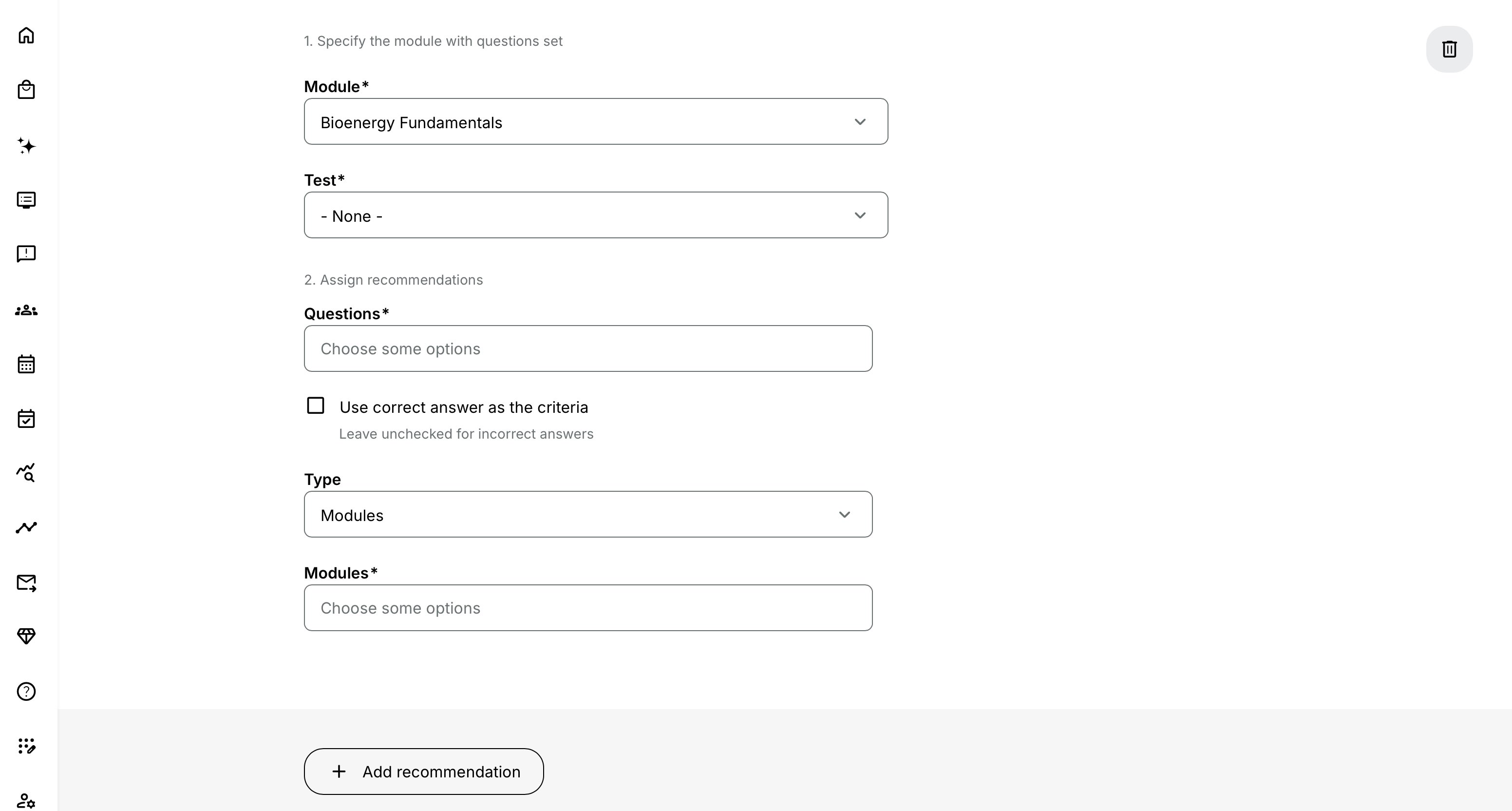
- Select the source module containing the H5P Question Set.
- Select the Question Set.
- Select the specific question.
- Choose whether the correct or incorrect answer should act as the recommendation criterion.
- Select the target type: recommended modules or recommended Course pages.
- Select one or several valid targets.
- Add further rules only where they create distinct, useful guidance.
- Save and test every answer path in learn mode.
Configure popup messages
Configure a title and description for both the Passed Group and Failed Group popup.
These groups are determined by the participant's total Question Set score compared with its pass percentage:
- A total result at or above the required percentage uses the Passed Group message.
- A result below the required percentage uses the Failed Group message.
This group decision is separate from the selected answer criterion. A participant can receive an answer-based recommendation while the popup heading is based on the overall result.
For example, a participant can pass the test overall but answer one selected question incorrectly. The incorrect answer can recommend a review page while the Passed Group message acknowledges overall success.
Write messages that work with that distinction:
Passed example:
You passed the knowledge check. Based on individual answers, these resources may help reinforce specific topics.
Failed example:
Review the suggested topics before trying the knowledge check again.
Do not write “You answered this question incorrectly” in a generic group message unless every rule shown guarantees that statement.
Select the answer criterion
The recommendation rule can use the selected question's correct or incorrect answer.
When Use correct answer as the criteria is enabled:
- A correct answer meets the rule and displays the configured target.
- An incorrect answer does not meet that rule.
When the checkbox is disabled:
- An incorrect answer meets the rule and displays the target.
- A correct answer does not meet that rule.
The availability and default state of this checkbox are controlled in the platform's Activities configuration. It is enabled by default in the source configuration, but a platform can disable or customize it. Configure according to the interface actually shown on your platform.
Use incorrect-answer criteria for remediation. Use correct-answer criteria for enrichment, accelerated guidance, or a next-step resource that assumes demonstrated knowledge.
Recommend complete modules
Choose recommended modules when the participant should revisit or take a complete component of the activity.
A recommended module can be a Course, Event, Assignment, or Existing Training module where available in the activity structure. The participant popup includes available module information such as:
- Title
- Dates
- Module description
- Location
- Relevant content information
For an Existing Training module, the displayed information can include its activity options with their title, dates, and location.
Before recommending an Event or Assignment, consider whether a live date, submission deadline, capacity, or access condition makes it practical. Recommendations do not reserve a seat, extend a deadline, or enroll the participant into a nested option.
Recommend individual Course pages
Choose recommended Course pages when the learning gap can be addressed precisely without suggesting an entire module.
The recommendation popup groups the page under its Course module and identifies it as Recommended page [page title]. Page recommendations also appear in Course navigation and the recommendation overview.
Choose pages that:
- Directly explain or practice the tested concept
- Have a clear title outside their original sequence
- Are available to the participant
- Do not depend on unseen context without explanation
- Remain valid when the Course is updated
A hidden Course page is not available in the Recommendations configurator because participants cannot see it.
Use several questions and targets
One selected question can lead to several recommended modules and pages. Several selected questions from the same Question Set can each have their own targets.
When several question criteria are met, the popup combines all relevant targets. Design the result as a useful consolidated list and check for duplicates or excessive recommendations.
If recommendations are sourced from two or more modules within the same activity, the documented evaluation uses AND logic across those source-module recommendation conditions. Test the complete sequence and do not assume a target will appear after only one of the required source-module conditions has been established.
Keep a short rule register outside the platform for complex configurations:
| Source module | Question Set | Question | Correct/incorrect | Recommended target | Purpose |
|---|---|---|---|---|---|
| Foundation | Baseline check | Data handling | Incorrect | Privacy principles page | Remediation |
| Foundation | Baseline check | Advanced routing | Correct | Advanced scenarios module | Enrichment |
This makes later Course edits and quality checks much safer.
What the participant sees after the test
After the participant submits the source Question Set and the configured answer criteria are met, Eurekos shows a Recommendations popup.
It contains:
- The configured Passed or Failed title
- The configured description
- The relevant recommended modules and/or Course pages
- Close
- Go to learning path when the activity has more than one module
The Go to learning path action is omitted for a single-module activity because there is no learning-path overview. The participant can instead return to recommendations from within the Course.
Recommendations reflect the participant's current answers. If answers change on a later submission, the recommendations can also change.
The recommendations popup can appear again whenever the source test is submitted and the applicable criteria are met. Test repeated attempts so the experience does not become confusing or contradictory.
Recommended labels in learn mode
Recommended signals are shown to the participant in learn mode. They are not intended as a universal label in every administrative or catalog view.
Learning-path overview
A recommended module displays Recommended with a tooltip explaining that the suggestion is based on answers in the test on the identified Course page.
If only pages inside the module are recommended, the module also receives a Recommended label, with a tooltip explaining that some pages are recommended for revision.
Course navigation
Recommended pages receive a Recommended icon and tooltip in the Course side navigation and bottom navigation.
In the side navigation:
- The Recommended icon is initially shown.
- When progress is made or the page is completed, the normal progress icon replaces it.
- The recommendation tooltip remains.
In bottom navigation, the Recommended icon has priority and can remain even after progress is recorded. The tooltip continues to explain the recommendation.
When a Course contains recommended pages, a Recommended pages indicator appears at the top of the sidebar.
Recommendations overview
Participants can reopen the complete Recommendations overview from the learning-path overview. In a single-module activity, it is available from within the Course.
Use this persistent overview as the reliable return point; the immediate post-test popup is only the first presentation.
Interaction with Adaptive Modules
Recommending an Adaptive Supplemental module or a page inside it produces a configuration warning because that target only appears when its adaptive criteria are met. It may not be available to every participant who meets the recommendation rule.
The participant sees the Recommended label only when both the adaptive and recommendation conditions make the target applicable.
An Adaptive Optional module does not generate the same configuration warning. When both conditions are met, the participant can see both its optional and recommended meaning.
Keep the concepts distinct:
- Recommended says, “This may be useful based on your answer.”
- Supplemental says, “This component is added when your adaptive criteria require it.”
- Optional says, “This component is not required for your calculated path.”
For more detail, see Adaptive Modules.
Interaction with Access Restrictions
If a recommended module—or a page within it—has Access Restrictions, the configuration warns that the content may be unavailable until other criteria are met.
A recommendation does not override or satisfy those restrictions. The participant can receive guidance toward an item they cannot yet open.
Only use that combination when:
- The restriction path is understandable.
- The participant can discover what is required.
- The restricted target will become available in time to be useful.
Otherwise recommend an accessible explanation or move the restriction.
Interaction with Course page restrictions
A restricted page selected as a recommendation receives a warning during configuration. In learn mode, restriction takes visual priority where appropriate, and the tooltip explains both states.
When the participant later meets the page restriction criteria, the page remains recommended. Progress can change the normal side-navigation icon while the recommendation tooltip remains.
Do not confuse a recommendation with permission to open the page.
Interaction with Adaptive Pages
Selecting an Adaptive Supplemental page as a target produces a warning because the page might not be included for the participant.
- If the supplemental page is not present for the participant, it is omitted from the Recommendations popup.
- If it is present and recommended, the icon and tooltip communicate both states.
- Adaptive Optional and Supplemental Optional pages can also be recommended and retain their combined meaning.
After progress, the side-navigation icon can return to its normal progress state while the tooltip remains. In bottom navigation, Recommended can retain visual priority.
Review inherited adaptivity from parent pages as well as the target page's own settings.
Pages with other Course Builder settings
Recommendations can target pages configured as External link, H5P SCORM Bubble, or Recommended for Job Function. Their own specific navigation icons remain, while the tooltip adds the answer-based recommendation information.
Progress does not necessarily change those special page icons. If a child page inherits adaptivity from a parent and also has its own Course Builder setting, the participant can receive a merged tooltip describing all applicable states.
Hidden pages are excluded from the configurator and should not be used as targets.
Govern changes to tests and Courses
Recommendation rules depend on the identity and meaning of:
- The source Course module
- The H5P Question Set
- The selected question
- Correct-answer configuration
- The target module or page
Changing, replacing, or deleting any of these can invalidate the guidance even if the activity still saves. Include Recommendations in the change review for Course updates.
Before publishing a revised Course:
- Confirm every selected question still exists and measures the same concept.
- Check that answer correctness has not changed unintentionally.
- Confirm target pages still exist and keep their intended titles.
- Re-test restricted, adaptive, optional, and special page types.
- Review wording after scoring or pass-percentage changes.
Realistic use cases
| Use case | Configuration | Administrator check |
|---|---|---|
| Knowledge-gap revision | Use incorrect answers as criteria and recommend one or two Course pages that explain each weak concept. | Keep the Failed message action-oriented and allow a reasonable opportunity to retake the assessment. |
| Advanced enrichment | Use correct answers as criteria to recommend an advanced optional module. | Make clear that the recommendation provides enrichment and does not introduce a new completion requirement. |
| Passed with targeted review | Allow the overall Question Set to produce a Passed message while an incorrect selected answer recommends a relevant review page. | Confirm that the result recognizes overall success without hiding the remaining knowledge gap. |
| Personalized blended preparation | Recommend preparation pages before a live Event. | If the Event has Access Restrictions or a fixed date, ensure participants can reach the materials early enough. Make clear that the recommendation does not enroll them in the Event. |
Troubleshooting
| Problem | What to check |
|---|---|
| Manage Recommendations is missing | Confirm at least one Course in the saved activity contains an H5P Question Set and that the administrator can edit both activity and source content. |
| The expected Question Set is not listed | Verify module selection, H5P content type, organization/content access, and that the Course version used by this activity contains the object. |
| The expected question is missing | Check the selected Question Set and whether the question was replaced or removed during editing. |
| Correct-answer criteria cannot be selected | The platform configuration can control this checkbox. Ask the platform owner to review the Activities setting. |
| The wrong Passed or Failed message appears | Compare the participant's total Question Set score with the Question Set pass percentage. This is independent of the selected answer rule. |
| No recommendation appears after an incorrect answer | Confirm the rule is configured for incorrect answers, the exact question and current answer match, targets are saved, and any multi-source AND conditions are satisfied. |
| A correct answer unexpectedly produces the target | Check whether Use correct answer as the criteria is enabled for that rule. |
| Too many items appear in the popup | Review every matched question and its targets. Several met rules are combined; remove duplicates and low-value recommendations. |
| Go to learning path is missing | This is expected in a single-module activity. Use the Course and Recommendations overview. |
| The recommended module is not available | Check Adaptive Supplemental criteria, Access Restrictions, availability, Schedule, enrollment in Existing Training options, and other module conditions. Recommendation does not override them. |
| A recommended page is absent from the popup | Check whether it is an unseen Adaptive Supplemental page, hidden, restricted, removed, or no longer part of the selected Course. |
| The page shows a Restricted icon instead of Recommended | Restriction has visual priority. Read the combined tooltip and meet the access criteria; the recommendation remains. |
| The Recommended icon disappears after progress | This can be expected in side navigation; the normal progress icon returns while the recommendation tooltip remains. Bottom navigation can still show Recommended. |
| Recommendations changed after a retake | They follow the participant's current submitted answers and can change when answers change. |
| An edited Course broke the guidance | Revalidate source Question Sets, question identities, correct answers, target pages, titles, restrictions, and adaptivity. |
| Support needs evidence | Record activity, module, Course, H5P, question and target IDs; answer and total result; pass percentage; adaptive/restriction state; attempt; timestamp; and expected versus actual display. Avoid collecting more answer data than necessary. |
Verify the configuration
Use representative accounts and the routes enabled for your delivery. Check the relevant outcomes before launch and after a material change; an administrator preview alone does not verify the participant experience.
| Scenario or check | Expected result or evidence |
|---|---|
| Question and result logic | Test correct and incorrect responses to each configured question and overall Passed/Failed outcomes independently. Several matching answers or source modules produce concise, non-duplicated guidance. |
| Reachable recommendations | Every module or page target exists and can be reached when useful. Test Supplemental, Optional, restricted, and special Course pages so a recommendation does not promise unavailable content. |
| Participant navigation | Check single-module and learning-path experiences, side and bottom navigation, page progress, desktop, and mobile presentation. Recommendations guide rather than change required completion. |
| Retakes and content changes | Changed answers and retakes produce the intended result. After editing a Course or test, recheck source questions, correct-answer meaning, pass percentage, target objects, and reporting references. |
FAQ
-
Do Recommendations change completion requirements?
No. A target is not made required, optional, or supplemental merely because it is recommended.
-
Do Recommendations unlock restricted content?
No. Activity, module, and Course-page restrictions continue to apply.
-
Why does the popup say Passed when it recommends revision?
Passed or Failed is based on the total Question Set percentage. A recommendation is based on a selected individual answer. A participant can pass overall and still benefit from targeted review.
-
Can a correct answer trigger a recommendation?
Yes, when Use correct answer as the criteria is available and selected. This is useful for enrichment or advanced next steps.
-
Can I recommend one page instead of a whole Course?
Yes. Select recommended Course pages and choose the specific page. Using the Eurekos authoring tool.
-
Can I recommend a hidden page?
No. Hidden pages are not listed because the participant cannot see them.
-
Why is Manage Recommendations missing before I save?
The action appears after the activity with a qualifying H5P Question Set has been submitted and saved.
-
Will the participant see the recommendation again?
They can reopen the Recommendations overview. The post-test popup can also appear on later submissions when the criteria are met.
-
Does making progress remove the recommendation?
The primary icon can change in side navigation, but the recommendation tooltip remains. Bottom navigation can retain the Recommended icon.